
You click an app and wait. And wait. That spinning cursor on Windows 11 can turn a simple task into a test of patience. If your apps are taking forever to open, the culprit might not be your hardware. It could be the background tasks quietly eating up your system resources.
Windows 11 runs dozens of processes behind the scenes. Some keep your system secure and updated. Others sync files, index content, or preload apps for faster access later. The problem starts when too many of them compete for your CPU, memory, or disk at the same time. Your foreground apps get starved, and suddenly opening Chrome or File Explorer feels like launching a rocket.
The good news? You don't need a new laptop. You just need to know which background tasks to tame.
What Are Background Tasks, Anyway?
Think of background tasks as the backstage crew of your PC. They keep the show running while you focus on the main act. Windows Update checks for patches. OneDrive syncs your documents. Search indexing catalogs every file so you can find things instantly. Even your antivirus runs periodic scans when you're not looking.
Most of the time, this teamwork is invisible and helpful. But when too many crew members crowd the stage, the star performers can't do their job. The result is laggy launches, frozen windows, and that frustrating feeling that your computer is working against you.
The Usual Suspects Slowing You Down
Windows Search Indexing
Windows Search wants to know where everything is. It crawls your files, emails, and photos to build an index. That's great until it decides to rebuild that index right when you're trying to open Photoshop. If you notice disk usage spiking to 100%, SearchIndexer.exe is often the reason.
OneDrive Sync
OneDrive is handy until it tries to sync 10GB of photos during your workday. The sync engine can hammer your disk and network, leaving little bandwidth for the app you're actually trying to use. If OneDrive shows a blue syncing icon constantly, it's probably time to pause or limit sync hours.
Startup Apps
Every program that launches at boot adds to the pile. Spotify, Slack, Adobe Creative Cloud, Discord—they don't just slow your startup. Many keep running in the background, checking for updates or waiting for notifications. Over time, this silent crowd adds serious weight to your system.
Windows Update
Windows Update is essential, but it's not polite about timing. It downloads, verifies, and installs patches whenever it pleases. The "Windows Modules Installer Worker" process is famous for eating CPU and disk during peak hours when you least want it to.
SysMain
Previously called Superfetch, SysMain preloads frequently used apps into memory so they open faster. On older machines with mechanical hard drives, this helps. On modern SSDs with limited RAM, it can backfire and cause the exact slowdown it's meant to prevent.
Third-Party Background Services
Utility apps, game launchers, and printer software love to install background services. Many phone home for updates or telemetry. Individually they're small. Together, they create a death by a thousand cuts for your system performance.
How to Spot the Problem
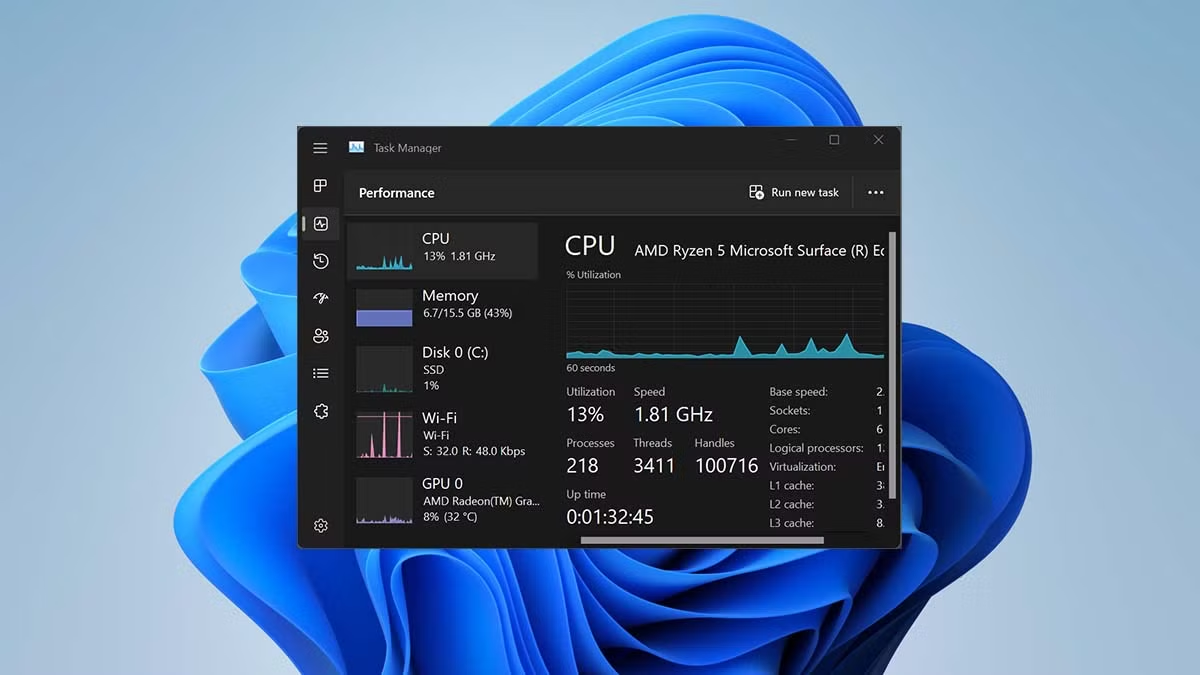
Your first stop is Task Manager. Press Ctrl + Shift + Esc and click the Processes tab. Look for anything consuming high CPU, memory, or disk. The background processes section is where the hidden work happens.
Pay attention to the Disk column. If it's pinned at 100%, your storage is the bottleneck. High memory usage means RAM is full, forcing Windows to swap data to disk. CPU spikes suggest a single greedy process is hogging the processor.
Don't just look at percentages. Check which apps feel slow and whether their sluggishness matches a spike in Task Manager. That connection tells you exactly who to blame.
How to Fix Slow App Launches
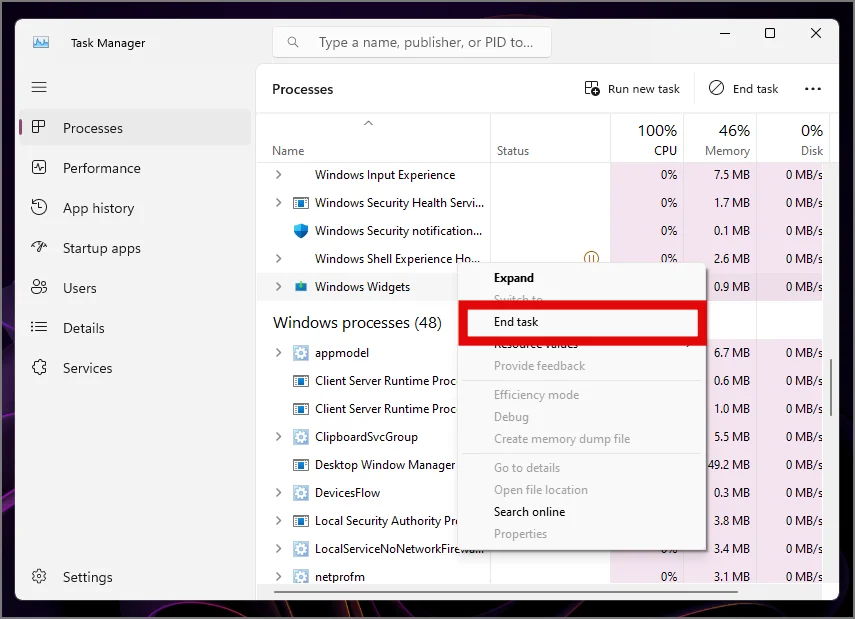
Start by trimming your startup list. In Task Manager, click the Startup apps tab and disable anything you don't need immediately at boot. Spotify, Steam, and office suites can wait until you actually open them.
Next, manage OneDrive. Right-click the cloud icon in your system tray, choose Settings, and set bandwidth limits or pause sync during work hours. If Search indexing is the issue, head to Settings > Privacy & security > Searching Windows, and exclude folders that don't need indexing.
For Windows Update, you can't disable it entirely, but you can set active hours so it doesn't interrupt your workflow. Go to Settings > Windows Update > Advanced options and tell Windows when you typically use your PC.
If SysMain is causing trouble, open Services, find SysMain, and set it to Disabled. Only do this if you have an SSD and at least 8GB of RAM. Finally, uninstall bloatware. Control Panel > Programs and Features is still the fastest way to purge software you never asked for.
Quick Comparison: Background Tasks Impact
| Background Task | Resource Hit | Frequency | Easy to Fix? |
|---|---|---|---|
| Windows Search Indexing | High Disk | Ongoing | Yes |
| OneDrive Sync | Disk + Network | Constant | Yes |
| Startup Apps | RAM + CPU | Every Boot | Very Easy |
| Windows Update | High CPU + Disk | Periodic | Moderate |
| SysMain | RAM + Disk | Constant | Yes |
Pros and Cons of Disabling Background Tasks
Pros: Faster app launches, lower disk usage, more available RAM, smoother multitasking, and a snappier overall experience. Your PC finally feels like it responds when you click.
Cons: Disabling Windows Update leaves you vulnerable. Turning off Search indexing makes file searches slower. Killing OneDrive sync means your files aren't backed up in real time. And some apps simply won't work correctly without their background services.
The trick is balance. Don't nuke everything. Just disable the tasks that don't serve your daily workflow.
Expert Tip
Here's something most guides miss: Windows 11 has a built-in efficiency mode. In Task Manager, right-click a background process and select Efficiency mode. This tells Windows to deprioritize that task, letting your foreground apps breathe without killing the process entirely. It's perfect for apps you want to keep running but don't want dominating your resources.
Frequently Asked Questions
Is it safe to end background processes in Task Manager?
Usually, yes. Apps and non-essential services are fair game. Just avoid ending anything labeled "Windows" unless you know what it does. When in doubt, search the process name online before hitting End task.
Why does my disk stay at 100% even after closing apps?
Windows Search, SysMain, or Windows Update are the most common causes. They run independently of your open apps. Check Task Manager to see which process is driving disk usage.
Will disabling startup apps break anything?
No. Disabling startup only prevents apps from opening automatically. You can still launch them manually whenever you want. It just stops them from squatting in your RAM from the moment you boot.
Should I turn off Windows Search indexing completely?
If you rarely use the Start menu search, yes. But if you search for files daily, consider excluding large folders like Downloads or Videos instead of turning it off entirely.
Does upgrading to an SSD fix slow app launches?
It helps enormously. But if your background tasks are out of control, even an NVMe SSD will struggle. Fix the software bloat first, then consider hardware upgrades.
Final Thoughts
Slow app launches on Windows 11 rarely mean your computer is dying. More often, it's a traffic jam of background tasks that built up over months of use. The fix is methodical: identify the heavy processes, trim the startup list, and set boundaries for sync and update services.
You don't need to be a power user. Task Manager gives you everything you need to diagnose the problem. Spend ten minutes auditing your background tasks, and you'll likely reclaim the responsive, snappy experience Windows 11 was designed to deliver.
Recommended Video
🎥 Watch tutorials on fixing slow Windows 11 apps and background tasks

No comments:
Post a Comment