
I was helping a friend troubleshoot something on her phone last week when I noticed her WhatsApp settings were basically untouched since installation. Default everything. No privacy tweaks, no security layers, no customization at all. She’d been using the app for four years.
It got me thinking. WhatsApp has over two billion users, but I’d bet most of them never dig past the surface settings. The app works fine out of the box, so people assume it’s already optimized. It’s not. There are settings buried in menus that can seriously improve your privacy, security, and daily experience, and most people have no idea they exist.
So I went through every menu, every toggle, and every option in the latest version of WhatsApp. Here are the seven settings you should check right now. Some are privacy protectors. Some are sanity savers. All of them are worth five minutes of your time.
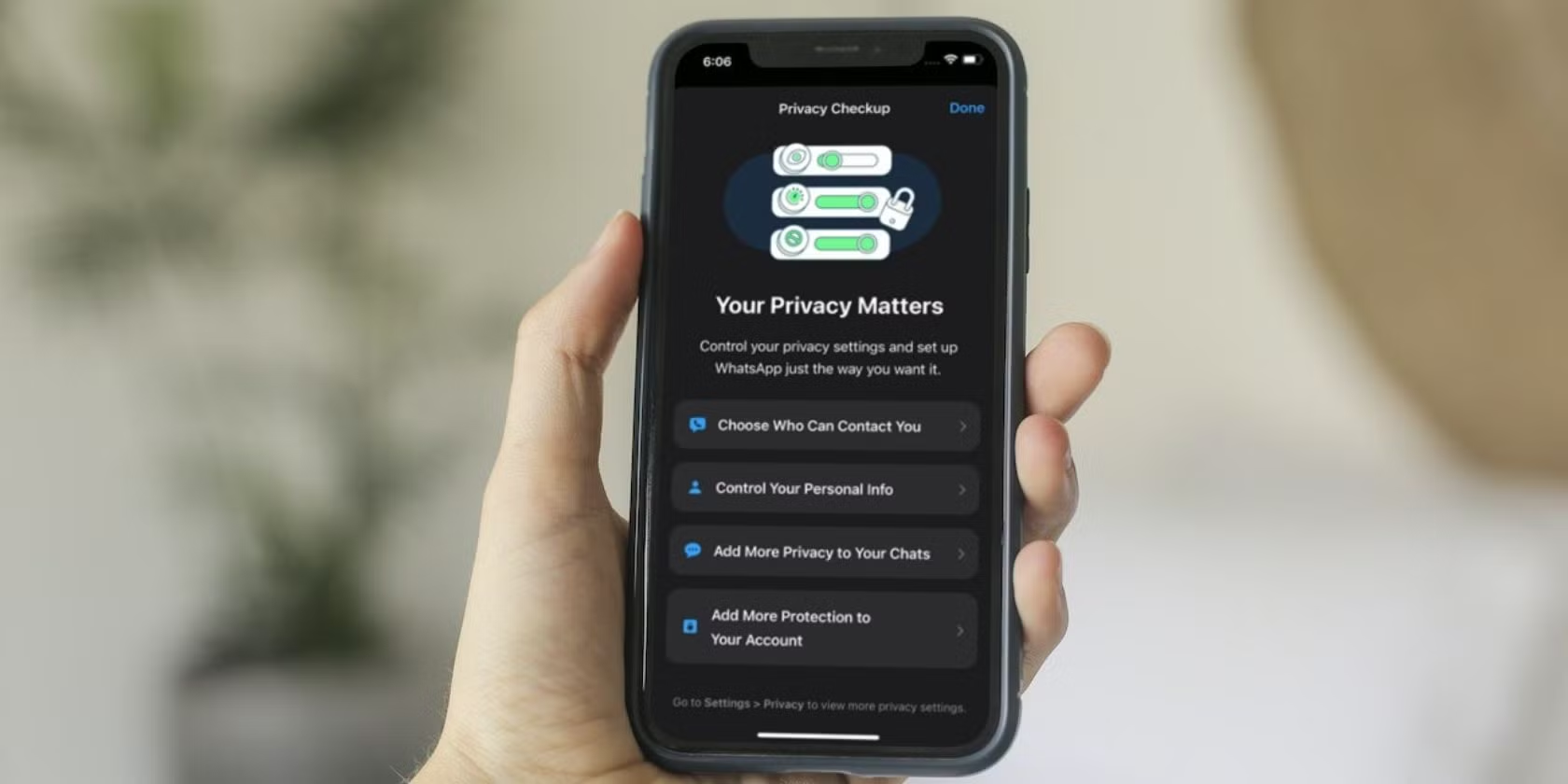
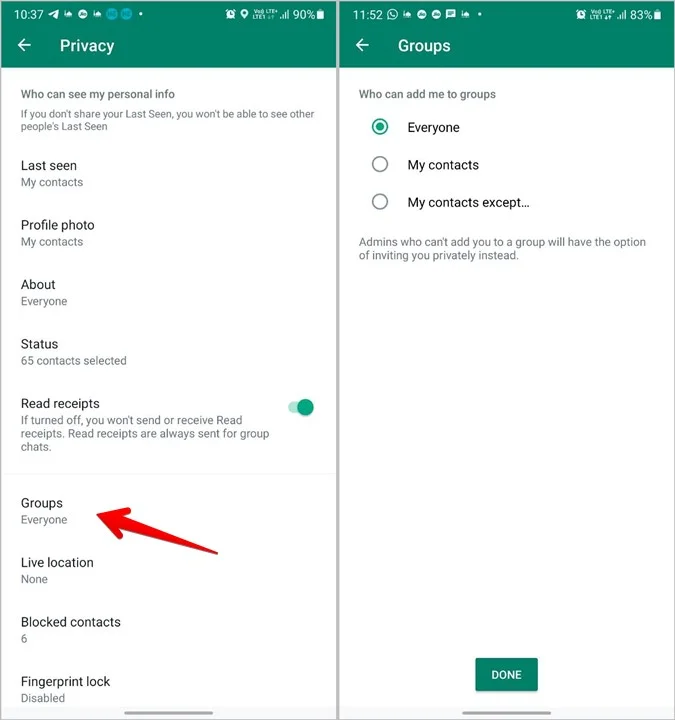
Setting 1: Who Can Add You to Groups
This is the setting that will save you from random group chats you never asked to join. By default, anyone who has your phone number can add you to a WhatsApp group without your permission. That means spam groups, work groups, family drama groups, all landing in your chat list uninvited.
Go to Settings > Privacy > Groups and change it from “Everyone” to “My contacts” or “My contacts except...” The second option lets you exclude specific people, which is useful if you have that one relative who loves creating family groups for every minor occasion.
I switched this two years ago and my unsolicited group count dropped from about three a week to zero. It’s a small change with a massive quality-of-life impact.
Setting 2: Last Seen and Online Status
Your “last seen” timestamp tells everyone exactly when you were last active on WhatsApp. For some people, that’s fine. For others, it’s an invitation to be questioned. “I saw you were online at 2 a.m., why didn’t you reply to my message?” Sound familiar?
Head to Settings > Privacy > Last Seen and Online. You can hide your last seen from everyone, or limit it to your contacts. There’s also a separate toggle for hiding your online status while you’re actively using the app. This one is newer and genuinely useful if you want to browse or respond selectively without broadcasting your availability.
Fair warning: if you hide your last seen, you also won’t see other people’s. WhatsApp treats it as a mutual setting. For me, that tradeoff is absolutely worth it.
Setting 3: Disappearing Messages by Default
WhatsApp now lets you set a default timer for all new chats, so messages automatically delete after a set period. You can choose 24 hours, 7 days, or 90 days. It’s not about having something to hide. It’s about not leaving a permanent record of every casual conversation on your phone and in your backups.
Find it under Settings > Privacy > Default Message Timer. I set mine to 7 days. It keeps my chat history manageable, reduces storage bloat, and adds a layer of privacy without making conversations feel ephemeral. You can still override it for individual chats if you need something to stick around longer.
Setting 4: Two-Step Verification
This is the single most important security setting in WhatsApp, and a shocking number of people skip it. Two-step verification adds a PIN that’s required whenever you register your phone number with WhatsApp, which happens during setup or if someone tries to hijack your account.
Go to Settings > Account > Two-Step Verification and set a six-digit PIN. Write it down somewhere safe. You’ll also set a recovery email, which helps if you forget the PIN. Without this, anyone who gets access to your SMS messages can port your number and take over your WhatsApp account in minutes.
SIM swapping attacks are real and growing. This one setting is your best defense against them. If you do nothing else on this list, do this.
Setting 5: Screen Lock
If you hand your phone to someone, even briefly, WhatsApp is usually the first thing they open. It’s where your most personal conversations live. The screen lock feature adds biometric protection, so the app requires your fingerprint or face scan to open.
It’s under Settings > Privacy > App Lock on iPhone, or Settings > Privacy > Fingerprint Lock on Android. You can also set how quickly the lock engages after you leave the app. I have mine set to immediately, which means every time I switch back to WhatsApp, it asks for my fingerprint.
It’s a minor inconvenience that becomes invisible after a day. The peace of mind is worth every tap.
Setting 6: Who Can See Your Profile Photo and About
Your profile photo and About section are visible to anyone who has your number by default. That means strangers, business contacts, and random people in group chats can see your face and whatever witty quote you put in your bio three years ago.
Under Settings > Privacy > Profile Photo and Settings > Privacy > About, change both from “Everyone” to “My contacts” or “Nobody.” I keep my profile photo visible to contacts but hide my About entirely. It’s just not information that needs to be public.
If you use WhatsApp for business or networking, you might want to keep these visible. But for personal use, limiting them is a no-brainer.
Setting 7: Silence Unknown Callers
This is one of WhatsApp’s newer features, and it’s a direct response to the wave of spam and scam calls hitting the platform. When enabled, calls from numbers not in your contacts automatically go silent. You’ll see a missed call notification, but your phone won’t ring.
Find it at Settings > Privacy > Calls > Silence Unknown Callers. I turned this on after getting three spam WhatsApp calls in a single week. It’s been blissfully quiet ever since. Legitimate callers can still leave a message or text you, so you’re not cutting yourself off from the world.
Quick Settings Checklist
| Setting | Where to Find It | Recommended Change |
|---|---|---|
| Group invites | Privacy > Groups | My contacts |
| Last seen | Privacy > Last Seen | My contacts or Nobody |
| Message timer | Privacy > Default Message Timer | 7 days |
| Two-step verification | Account > Two-Step Verification | Enable with PIN |
| Screen lock | Privacy > App Lock | Enable immediately |
| Profile visibility | Privacy > Profile Photo / About | My contacts or Nobody |
| Unknown callers | Privacy > Calls | Silence unknown callers |
Pros & Cons of Locking Down WhatsApp
✅ Pros
- Dramatically reduces spam, scams, and unwanted group invites
- Protects your account from SIM swapping and hijacking
- Gives you control over who sees your personal information
- Keeps your chat history clean and manageable
❌ Cons
- Some privacy settings are mutual, hiding others’ info from you too
- Extra security layers add small friction to daily use
- Disappearing messages can be inconvenient for reference-heavy chats
- Friends may notice your last seen is hidden and ask why
Expert Tip
Don’t change everything at once. Pick the two or three settings that address your biggest annoyances, live with them for a week, then add more. I started with group invites and last seen, then gradually layered in disappearing messages and two-step verification.
Also, revisit these settings every few months. WhatsApp updates quietly, and new privacy features often land without much fanfare. The “Silence Unknown Callers” option wasn’t there a year ago, and I only found it because I was poking around during a boring meeting.
FAQ
Will hiding my last seen make people suspicious?
Some people might notice, but it’s increasingly common. Most users understand that privacy settings are personal choices. If someone asks, just say you prefer not to broadcast your activity. It’s a reasonable stance.
What if I forget my two-step verification PIN?
WhatsApp will prompt you for your recovery email if you enter the wrong PIN repeatedly. Make sure that email is active and accessible. If you lose both, you’ll have to wait seven days before WhatsApp lets you re-verify without the PIN.
Do disappearing messages work in group chats?
Yes, but any group member can change the timer. It’s a collaborative setting, not a personal one. For sensitive group conversations, make sure everyone agrees on the timer duration.
Can someone still screenshot my disappearing messages?
Yes. Disappearing messages delete from the chat after the timer expires, but they can still be screenshotted, forwarded, or saved by the recipient before they vanish. They’re a convenience feature, not a security guarantee.
Is WhatsApp really private with these settings?
WhatsApp uses end-to-end encryption, so your messages are private from outsiders. However, Meta still collects metadata like who you message, when, and how often. These settings improve your privacy within the app, but they don’t change Meta’s broader data practices.
🎥 Recommended Video
Watch: WhatsApp Privacy Settings Security Tutorial 2026Final Thoughts
WhatsApp is the app most of us use every single day, yet we treat its settings like a terms-of-service agreement, something to accept and forget. That’s a mistake. The app is capable of so much more privacy and control than its default state suggests, but you have to go looking for it.
These seven settings took me about ten minutes to configure, and they’ve saved me from countless spam groups, awkward “why didn’t you reply” conversations, and at least one potential account hijacking attempt. The return on investment is absurd.
So open WhatsApp. Go to Settings. Spend five minutes. You don’t need to become a privacy expert. You just need to stop accepting the defaults that were designed for convenience, not for you. Your future self, and your sanity, will thank you.

No comments:
Post a Comment