
You're about to capture the perfect sunset when the notification hits your screen like a bucket of cold water. "Storage Almost Full." You haven't downloaded anything new. You barely have any apps. And yet your phone is gasping for space. What gives?
The truth is, your storage isn't disappearing because of the photos you took. It's vanishing because of the photos you didn't take. Screenshots you forgot about. Videos sent to you in group chats. Cached data from apps you opened once six months ago. And the single biggest trap of all, deleted files sitting in your trash, still taking up space, because you forgot to empty it. citeweb_search:13#0

The Hidden Storage Hogs Nobody Talks About
Most people assume their storage is full because of photos and apps. Those are the obvious culprits, but they're rarely the real problem. Here's where your space is actually going.
Screenshots: The average phone accumulates 1 to 3 GB of screenshots per year. Most of them are one-time references, confirmation codes, funny tweets, or memes you meant to share and forgot about. They sit in your gallery, invisible, taking up space you'll never reclaim unless you go hunting for them. citeweb_search:13#0
Duplicate and burst photos: You took three versions of the same shot to get the lighting right. Your phone kept all three. Multiply that by every photo session, and you've got gigabytes of near-identical images you'll never look at again.
WhatsApp and messaging media: Every image, video, and voice note sent to you in a group chat gets saved to your phone by default. You didn't ask for it. You probably never opened half of it. But it's there, silently consuming space. WhatsApp alone can hold several gigabytes of forwarded media, memes, and viral videos you never wanted. citeweb_search:13#2
Offline downloads: Netflix episodes, Spotify playlists, YouTube videos for the plane ride. You downloaded them, watched them, and forgot to delete them. These are among the fastest ways to burn through storage, a single hour of downloaded Netflix content can eat 1-3 GB. citeweb_search:13#1
App cache: Every app on your phone stores temporary files to load faster. Browsers cache web pages. Social apps cache thumbnails. Maps cache offline tiles. Over time, this data snowballs into gigabytes of invisible junk. Clearing it is safe, your accounts, messages, and settings stay intact. citeweb_search:13#6
The Trash Trap: Why Deleting Doesn't Free Space
Here's the step that catches almost everyone. When you delete a photo on your phone, it doesn't actually disappear. It goes to a trash folder, where it sits for 30 days, still taking up space the entire time.
On Samsung devices, it's called the Recycle Bin. On Google Photos, it's the Trash. On iPhones, it's Recently Deleted. If you just spent twenty minutes clearing out your gallery and your storage bar didn't budge, this is why. citeweb_search:13#0
To actually free the space, you have to empty the trash manually:
- Samsung Gallery: Open the menu, tap Trash, then Empty.
- Google Photos: Go to Library > Trash > Empty Trash.
- iPhone Photos: Open the Photos app, go to Albums > Recently Deleted, then Delete All.
Until you do this, those "deleted" files are still sitting on your device, laughing at you.
The 20-Minute Cleanup That Actually Works
You don't need a new phone. You don't need a bigger cloud plan. You need twenty minutes and a plan. Here's the fastest way to reclaim serious space.
Minutes 0-2: Check what's actually eating your storage.
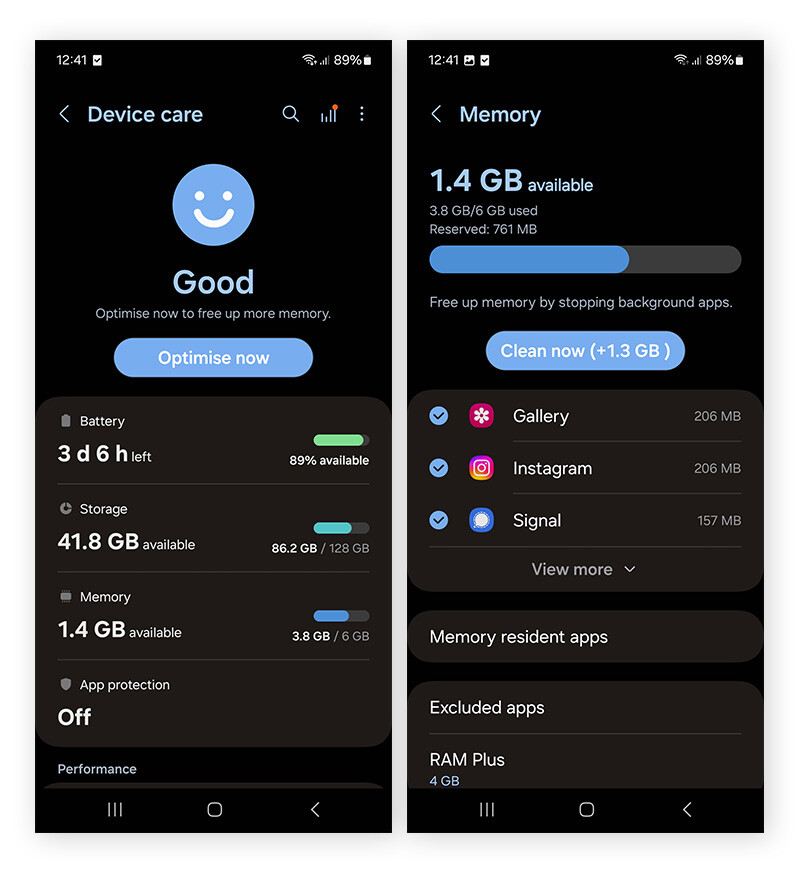
On iPhone, go to Settings > General > iPhone Storage. On Android, go to Settings > Storage (or Battery and Device Care > Storage on Samsung). Look at the breakdown. If you see 8 GB under WhatsApp and you thought your photos were the problem, you've just saved yourself from deleting memories you actually care about. citeweb_search:13#1
Minutes 2-8: Delete the easy wins.
Start with screenshots. Open your gallery, find the Screenshots album, select all, and delete. Then move to duplicate photos and burst shots. Next, tackle large videos. A single 4K minute weighs about 350 MB. Deleting five old videos can free more space than deleting five hundred photos. citeweb_search:13#0
Minutes 8-14: Clear app cache and downloads.
On Android, go to Settings > Apps, pick the heavy hitters like Chrome, Instagram, and Maps, then tap Storage > Clear Cache. Open your file manager, go to Downloads, and delete old PDFs, APKs, and images you already used. On iPhone, offload unused apps through Settings > General > iPhone Storage, or enable automatic offloading in Settings > App Store. citeweb_search:13#2
Minutes 14-18: Attack messaging apps.
Open WhatsApp, go to Settings > Storage and Data > Manage Storage. The bar at the top shows exactly how much space WhatsApp is hogging. Look for the "Larger than 5 MB" section. That's where the heavy videos live. Select them, delete them, and watch your storage bar drop. citeweb_search:13#2
Minutes 18-20: Empty the trash and set prevention rules.
Empty every trash bin on your phone. Then, in WhatsApp, go to Settings > Storage and Data > Media Auto-Download and set Photos, Audio, and Video to Never or Wi-Fi only. This stops the problem from coming back. citeweb_search:13#0
Why a Full Phone Is a Slow Phone
Storage isn't just about having room for photos. When your phone drops below 10-15% free space, the operating system enters survival mode. It needs breathing room to move temporary files, cache data, and handle background processes. Without it, app performance can drop by 100% to 300%. In extreme cases, system lag can increase by over 2000%. citeweb_search:13#1
Your phone isn't just out of space. It's suffocating. That's why the "Storage Full" warning often comes paired with sluggish performance, apps crashing, and cameras that refuse to open. The fix isn't buying more storage. It's giving your phone the headroom it needs to function.
Cloud Storage: The Smart Way to Offload Without Losing Anything
If your photo library is genuinely large and you want to keep everything, the answer isn't to delete more. It's to move the heavy files off your device.
On iPhone, enable Optimize iPhone Storage in Settings > [Your Name] > iCloud > Photos. This keeps low-resolution thumbnails on your phone while storing the full-resolution originals in iCloud. The photos look the same in your gallery, but they take up a fraction of the space. citeweb_search:13#2
On Android, open Google Photos, tap your profile icon, and select Free Up Space. This safely deletes photos from your device that have already been backed up to the cloud, instantly reclaiming gigabytes while keeping your memories safe online. citeweb_search:13#2
The key rule: only remove local copies after the backup finishes. And be careful not to delete from both places at once. Cloud storage is a tool, not a replacement for paying attention.
Android vs. iPhone: Who Handles Storage Cleanup Better?
| Feature | Android | iPhone |
|---|---|---|
| Built-in Cleanup Tool | Files by Google, Device Care (Samsung), Free Up Space | iPhone Storage recommendations, Offload Unused Apps |
| Cache Clearing | Per-app cache clearing available in Settings | No per-app cache button; must offload or reinstall app |
| Trash/Recently Deleted | Recycle Bin in Gallery, Trash in Files by Google | Recently Deleted album in Photos |
| Cloud Integration | Google Photos Free Up Space tool | iCloud Optimize iPhone Storage |
| External Storage | SD card support on many models | No SD card slot; relies on cloud or computer transfer |
| Auto-Download Control | WhatsApp media auto-download settings | iMessage large attachments can be reviewed and deleted |
Pros and Cons of Aggressive Storage Management
| Pros | Cons |
|---|---|
| Reclaim 5-20 GB in under 20 minutes | May accidentally delete something you wanted to keep |
| Phone runs noticeably faster with free space buffer | Cloud storage requires ongoing subscription for large libraries |
| Camera works reliably again without "Storage Full" interruptions | Offloaded apps need re-downloading when you want to use them |
| Extends phone lifespan by delaying need for upgrade | Requires regular maintenance every few months |
| Reduces app crashes and system lag | Some cached data rebuilds, so cleanup isn't permanent |
Expert Tip: The Weekly 60-Second Reset
The people who never see "Storage Full" aren't magical organizers. They just have a habit. Once a week, spend sixty seconds doing two things: delete your downloads folder, and clear the cache of one bloated app. That's it. Sixty seconds, every Sunday night, and you'll never face a storage emergency again.
Also, lower your camera's default video quality unless you're filming something worth preserving in 4K. Dropping from 4K at 60fps to 1080p at 30fps saves about 75% in file size per video. Your cat videos don't need cinema-grade resolution. citeweb_search:13#1
And here's the one that nobody does but everyone should: set a calendar reminder every three months to audit your storage. Check what's grown, what's new, and whether any apps have started hoarding data you didn't notice. Your phone's storage breakdown in Settings is the most honest report you'll get.
FAQ
Why is my phone storage full even after I deleted photos?
Because deleted photos sit in a trash or recently deleted folder for 30 days, still taking up space. You need to empty the trash in your gallery app, Google Photos, or iPhone Photos app to actually free the storage. This is the most common reason people can't reclaim space after deleting. citeweb_search:13#0
Is clearing app cache safe?
Yes. Cache is temporary data that apps can rebuild, like thumbnails and saved web pages. Clearing it won't delete your accounts, messages, or personal data. The app may load slightly slower the first time after clearing, but it'll be back to normal after a few uses. citeweb_search:13#2
What should I delete first to free up space the fastest?
Start with large videos, they're the biggest space hogs per file. Then delete old screenshots, which you almost never need. Next, clear offline downloads from Netflix, Spotify, and YouTube. Finally, tackle WhatsApp media and app cache. This order gives you the most space back in the least time. citeweb_search:13#1
Will moving photos to Google Photos or iCloud free up phone storage?
Only if you also remove the local copies after the backup completes. On Android, use Google Photos' "Free Up Space" tool. On iPhone, enable "Optimize iPhone Storage." Both replace full-resolution local files with smaller thumbnails while keeping originals in the cloud. Be careful not to delete from both places at once. citeweb_search:13#2
How much space can I realistically recover in one cleanup session?
Most people can reclaim 5 to 20 GB in a single 20-minute session, especially if they haven't cleaned their phone in a year. Old screenshots (1-3 GB), duplicate photos (2-5 GB), large videos (3-10 GB), and app cache (1-4 GB) add up quickly. The key is emptying the trash after you delete, or none of it counts. citeweb_search:13#0
Final Thoughts
Your phone storage isn't filling up because you're taking too many photos. It's filling up because invisible processes are hoarding data you never asked for. Screenshots you forgot. Videos sent to you in group chats. Cached files from apps you opened once. And the biggest trap of all, deleted files sitting in trash bins, still consuming space while you wonder why nothing changed.
The fix is simple, but it requires looking in the right places. Audit your storage. Delete the easy wins. Clear cache. Empty every trash bin. And most importantly, stop auto-downloading media you never wanted in the first place. Your phone should work for you, not against you, and a little intentional maintenance goes a long way toward keeping it that way.
🎥 Recommended Video
https://www.youtube.com/results?search_query=phone+storage+full+how+to+free+up+space+2026

No comments:
Post a Comment