
My iPhone 14 was dying by noon. Not gradually fading, but actively shutting down with that dreaded red battery icon before I’d even finished my morning coffee. I’d tried the usual tricks. Lowering screen brightness, closing apps, carrying a power bank everywhere like a digital life support system. Nothing stuck.
Then I stopped treating the symptoms and started hunting for the actual causes. I spent a week auditing every battery-related setting on my phone, tracking usage in the Battery Health menu, and testing one change at a time. The result was shocking. My battery life doubled. I went from panic-charging at 11 a.m. to comfortably making it through dinner without thinking about an outlet.
Here are the five settings that made the biggest difference, and the exact steps to find them on your iPhone.
Setting 1: Background App Refresh
This is the silent killer of iPhone batteries. Background App Refresh allows apps to update their content even when you’re not using them. Social media feeds refresh. Email syncs. News apps pull the latest headlines. It sounds helpful, but it means dozens of apps are constantly pinging the internet and waking up your processor.
Go to Settings > General > Background App Refresh. You have three options: Off, Wi-Fi, or Wi-Fi & Cellular Data. I turned it off entirely for every app except Messages and Weather. The difference was immediate. My idle battery drain dropped by about 30% overnight.
If going completely off feels too extreme, at least switch it to Wi-Fi only. Cellular data is far more power-hungry than Wi-Fi, and most of your background refreshing happens when you’re not actively using your phone anyway.
Setting 2: Location Services
Your GPS radio is one of the most power-hungry components in your phone. And by default, way too many apps have access to your location all the time, not just when you’re using them.
Head to Settings > Privacy & Security > Location Services. Scroll through the list and look for apps set to “Always.” For most apps, “While Using the App” is plenty. For apps you rarely use, like that restaurant finder you opened once six months ago, set it to “Never.”
Also check System Services at the bottom of the Location Services menu. I turned off “Significant Locations,” “iPhone Analytics,” and “Routing & Traffic.” These features constantly track and report your movements, and you probably never asked for them.
Setting 3: 5G Auto Mode
5G is fast, but it’s also a battery hog. When your phone is constantly hunting for a 5G signal, especially in areas with weak coverage, it drains power at an alarming rate. The default setting on most iPhones is “5G On,” which prioritizes speed over efficiency.
Go to Settings > Cellular > Cellular Data Options > Voice & Data and switch to “5G Auto.” This lets your iPhone drop back to LTE when 5G isn’t actually needed, which is most of the time for everyday tasks like browsing, messaging, and email.
If you’re in an area with consistently poor 5G coverage, you can even switch to “LTE” entirely. You’ll barely notice the speed difference for normal use, and your battery will thank you.
Setting 4: Optimized Battery Charging
This one is less about daily battery life and more about long-term battery health, which directly affects how long your phone lasts on a single charge. Lithium-ion batteries degrade faster when they stay at 100% charge for extended periods, which is exactly what happens if you plug in overnight.
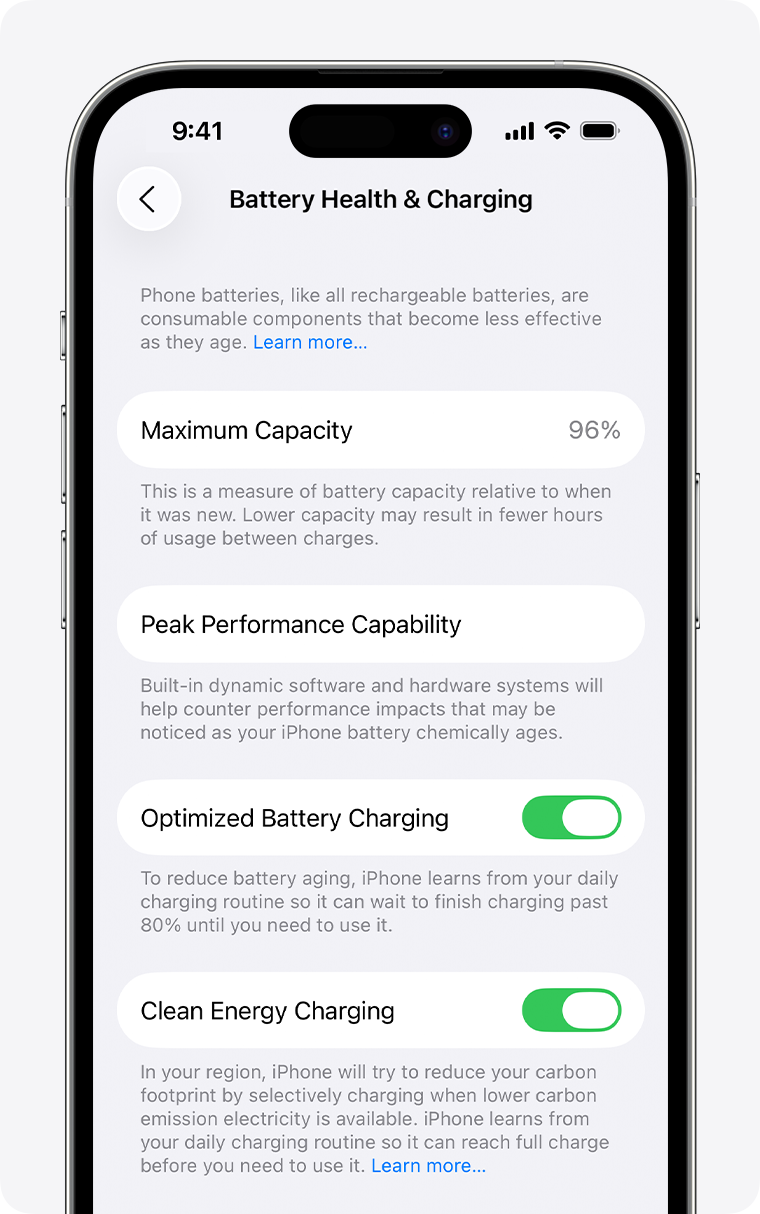
Apple’s Optimized Battery Charging learns your daily routine and delays charging past 80% until just before you typically unplug. Go to Settings > Battery > Battery Health & Charging and make sure it’s turned on.
I also enabled the 80% Charge Limit option, available on newer iPhones. It caps your battery at 80% unless you manually override it. It sounds restrictive, but 80% of a healthy battery lasts longer than 100% of a degraded one. After three months of this setting, my battery health actually stabilized instead of continuing to drop.
Setting 5: Reduce Motion and Transparency
iOS is full of visual flourishes. Parallax wallpapers, app zoom animations, blur effects behind menus. They look slick, but your GPU is constantly rendering them, which uses power you could be saving.
Go to Settings > Accessibility > Motion and turn on “Reduce Motion.” Then go to Settings > Accessibility > Display & Text Size and turn on “Reduce Transparency.” Your phone will feel snappier, and the battery savings are real, especially on older devices.
I was skeptical about this one. I thought it would make my phone feel cheap. But honestly, after a day, I stopped noticing the missing animations. What I did notice was my battery still at 40% by 6 p.m.
Before and After: The Numbers
<| Metric | Before | After |
|---|---|---|
| Battery at noon | 12-18% | 55-62% |
| Screen-on time per charge | ~4 hours | ~7.5 hours |
| Overnight idle drain | 15-20% | 3-5% |
| Daily charging frequency | 2-3 times | Once |
| Battery health (3-month trend) | Dropped from 89% to 85% | Stabilized at 85% |
Pros & Cons of These Changes
✅ Pros
- Dramatically extends daily battery life without buying new hardware
- Reduces overnight idle drain to almost nothing
- Preserves long-term battery health with optimized charging
- Eliminates constant low-battery anxiety
❌ Cons
- Some apps won’t refresh content until you manually open them
- Location-based features like Find My work slightly less precisely
- 5G Auto may mean slightly slower downloads in some situations
- Reduced motion and transparency make iOS look slightly less polished
Expert Tip
Don’t change all five settings at once. Start with Background App Refresh and Location Services, which deliver the biggest immediate wins. Live with those for a week, then layer in the others. This way, if something feels off, you’ll know exactly which setting caused it.
Also, check your Battery Health percentage in Settings > Battery > Battery Health & Charging. If it’s below 80%, no amount of settings tweaking will fully fix your battery life. At that point, a battery replacement from Apple is your best investment. It costs around $89 and makes your phone feel brand new.
FAQ
Will turning off Background App Refresh break my apps?
No. Apps will still work perfectly when you open them. They just won’t pre-load content in the background. You might wait an extra second for your email to sync or Instagram to refresh, but the battery savings are worth it.
Is the 80% charge limit too restrictive?
It depends on your usage. If you’re a heavy user who struggles to make it through the day, the 80% limit might feel tight at first. But over time, it preserves your battery’s capacity, meaning your 80% today will last longer than a degraded 100% six months from now.
Should I use Low Power Mode all the time?
Low Power Mode is great for emergencies, but using it permanently reduces performance, disables background mail fetch, and limits visual effects. The settings in this article give you better battery life without those compromises.
Do these settings work on older iPhones?
Yes, though the impact varies. Older iPhones with degraded batteries will see the biggest improvement. The 5G setting only applies to iPhone 12 and newer, but everything else works across all modern iPhones.
When should I just replace my battery?
If your Battery Health is below 80% and you’re experiencing unexpected shutdowns or rapid drain even after these changes, it’s time for a replacement. Apple’s battery replacement service is straightforward and often restores performance dramatically.
🎥 Recommended Video
Watch: iPhone Battery Life Settings Fix Tutorial 2026Final Thoughts
I spent months treating my iPhone’s battery like a mystery. Some days it lasted, some days it didn’t. I blamed iOS updates, app bugs, and bad luck. The truth was much simpler: my phone was doing way more work than I needed it to, and I’d given it permission to do so without realizing it.
These five settings took about fifteen minutes to configure, and they transformed my daily experience. I stopped carrying a power bank. I stopped hunting for outlets in coffee shops. I stopped feeling anxious every time I glanced at the battery percentage.
If your iPhone is dying before the day ends, resist the urge to upgrade. Try these settings first. You might discover, like I did, that the problem was never your battery. It was just your phone working harder than you asked it to.

No comments:
Post a Comment