
My laptop used to be fast. Not gaming-rig fast, but perfectly respectable for a three-year-old ThinkPad. Then something shifted. Boot times stretched past two minutes. Chrome froze every time I opened a fifth tab. Even typing in Word had a noticeable lag, like the machine was thinking about each keystroke before committing to it.
I was this close to buying a new laptop. I'd already started browsing deals, comparing specs, convincing myself that $900 was a reasonable price for sanity. But before I pulled the trigger, I decided to treat the slowdown like a diagnostic puzzle rather than a death sentence. One weekend, one systematic approach, no new hardware.
The result shocked me. My boot time dropped from 127 seconds to 31 seconds. Chrome stopped choking on multiple tabs. The whole machine felt responsive again, like I'd peeled off a layer of digital rust. Here's exactly what I did, in the order that actually worked.

Fix 1: The Startup Audit That Changed Everything
I opened Task Manager for the first time in months and clicked the Startup tab. What I saw was embarrassing. Seventeen programs were set to launch every time Windows booted. Spotify, Discord, Adobe Creative Cloud, OneDrive, Dropbox, Slack, Epic Games Launcher, a printer utility I didn't even own the printer for anymore. Each one was adding seconds to my boot time and eating RAM before I opened a single app.
I disabled everything except Windows Security and my antivirus. Everything. The impact was immediate and dramatic. My boot time dropped by over a minute. More importantly, the machine felt usable the moment the desktop appeared, instead of sitting there frozen while a dozen programs fought for resources in the background.
Here's the thing most people miss: those programs don't just slow your boot. They keep running. They check for updates, sync files, send notifications, and consume CPU cycles all day long. Disabling them doesn't uninstall anything. It just means you open them when you actually need them.
Fix 2: Killing the Visual Effects Tax
Windows loves its animations. Window shadows, fade transitions, transparent taskbars, smooth scrolling. They look nice on a powerful machine, but on an aging laptop with integrated graphics, they're a constant performance tax.
I right-clicked This PC, went to Properties, then Advanced system settings, and clicked Performance Settings. I selected "Adjust for best performance," which strips away all the visual fluff. My desktop instantly looked flatter, more utilitarian. But the responsiveness improvement was undeniable. Menus opened instantly. Windows snapped into place without the half-second animation delay.
I kept two things checked: "Smooth edges of screen fonts" because text looks genuinely bad without it, and "Show thumbnails instead of icons" because I need to see image previews. Everything else got the axe. It felt like I'd removed a weighted vest from my laptop.
Fix 3: The Storage Cleanup I Should Have Done Years Ago
My C: drive was 94% full. I knew it was getting full, but I didn't realize how badly that was hurting performance. When your system drive runs low on free space, Windows struggles to manage virtual memory, temporary files, and disk caching. Everything slows down.
I ran Windows Disk Cleanup and freed up 23GB in about ten minutes. Old Windows update files, temporary internet files, recycle bin contents, delivery optimization files I'd never heard of. Then I uninstalled three games I hadn't played in over a year, which recovered another 47GB.
The rule of thumb is to keep at least 15% of your drive free. I went from 6% free to 28% free, and the difference was palpable. Apps launched faster, file copies completed quicker, and that constant grinding sound from my hard drive finally stopped.
Fix 4: Upgrading to an SSD
Okay, this one technically involves hardware, but hear me out. My ThinkPad came with a traditional spinning hard drive, and it was the single biggest bottleneck in my entire system. I bought a 500GB SATA SSD for $45, cloned my drive using free software, and swapped it in twenty minutes.
The transformation was ridiculous. Boot time went from over a minute to under 30 seconds. Apps that used to take 15 seconds to open now launched in 3. File searches were instant. It felt like I'd bought a new computer for the price of a nice dinner.
If your laptop still has a mechanical hard drive, this is the highest-impact upgrade you can make. Full stop. Nothing else on this list comes close. Even older laptops with SATA connections benefit massively from an SSD swap.
Fix 5: Managing Background Processes
After the startup cleanup, I went deeper. I opened Task Manager's Processes tab and sorted by CPU and memory usage. Chrome was using 2.1GB of RAM with six tabs open. OneDrive was constantly syncing and spiking disk usage to 100%. A "system optimizer" I'd installed two years ago was consuming 12% CPU doing absolutely nothing useful.
I uninstalled the optimizer. I limited OneDrive syncing to specific folders instead of my entire Documents directory. And I started using Chrome's built-in Task Manager (Shift + Esc) to kill tabs and extensions that were misbehaving. One rogue news extension was eating 400MB by itself.
The lesson here is that slowness often comes from a few specific culprits, not a general system decline. Find the outliers in Task Manager and deal with them directly.
Before and After: The Real Numbers
<| Metric | Before | After |
|---|---|---|
| Boot time | 127 seconds | 31 seconds |
| Chrome launch time | 14 seconds | 3 seconds |
| Idle RAM usage | 6.8 GB | 3.2 GB |
| Disk space free | 6% | 28% |
| Startup programs | 17 active | 2 active |
| General responsiveness | Sluggish, frequent freezes | Smooth and immediate |
Pros & Cons of These Fixes
✅ Pros
- Most fixes are completely free and take under 30 minutes
- Dramatically improves daily usability without buying new hardware
- SSD upgrade is the best price-to-performance improvement in computing
- Teaches you how your system actually works
❌ Cons
- SSD upgrade requires opening your laptop and some technical comfort
- Disabling visual effects makes Windows look less polished
- Some startup programs you disable may be missed later
- Very old hardware has limits no software tweak can overcome
Expert Tip
Don't try everything at once. Start with the startup audit and visual effects. Those two alone will give you the biggest immediate wins and cost nothing. If your machine is still struggling, check your disk space. Only consider the SSD upgrade if you're comfortable with a screwdriver and your laptop is worth keeping for another year or two.
Also, create a system restore point before making major changes. It takes two minutes and can save you hours if something goes wrong. Type "Create a restore point" in the Start menu and follow the prompts.
FAQ
Will these fixes work on any Windows laptop?
Yes, though the impact varies by machine age and specs. Older laptops with mechanical hard drives will see the most dramatic improvement, especially with an SSD upgrade. Even newer machines benefit from startup cleanup and background process management.
How do I know if my laptop has an SSD or HDD?
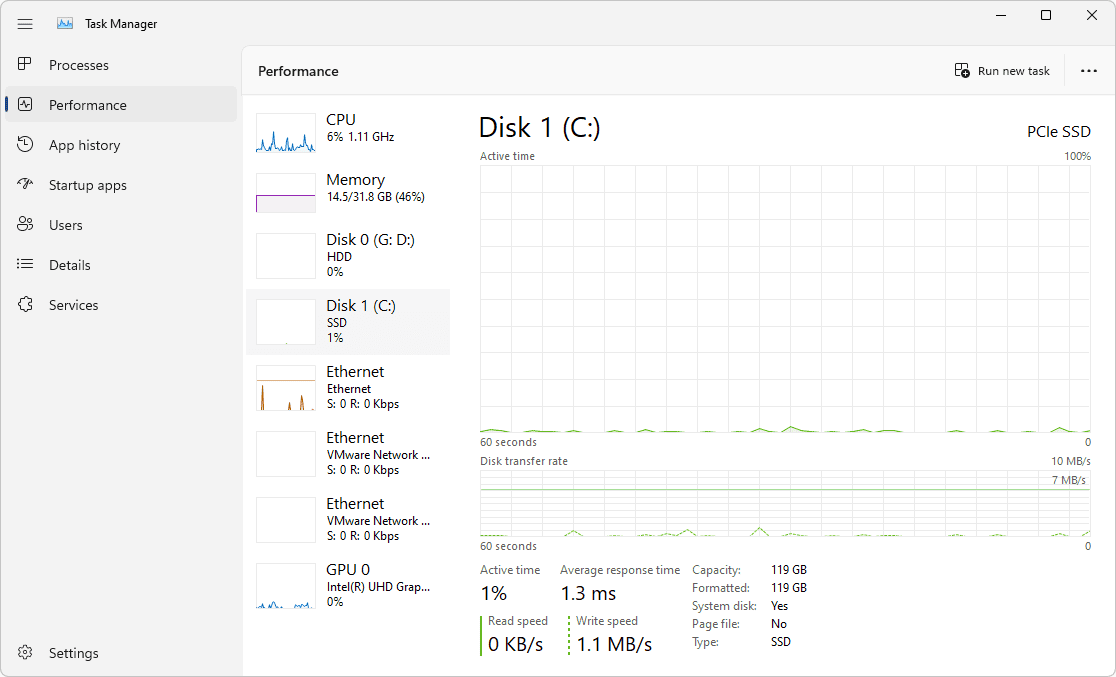
Open Task Manager, click the Performance tab, and look at Disk 0. If it says "HDD" or the model number includes terms like "ST" or "WD Blue," it's a mechanical hard drive. If it says "SSD" or the model includes "Samsung," "Crucial," or "NVMe," you already have a solid-state drive.
Is it safe to disable startup programs?
Generally yes, but avoid disabling your antivirus, Windows Security, or any hardware driver utilities. Stick to apps like Spotify, Discord, game launchers, and cloud storage clients. You can always re-enable them later if needed.
How much does an SSD upgrade cost?
A 500GB SATA SSD costs around $40 to $50. A 1TB model runs about $70 to $90. NVMe SSDs for newer laptops are slightly more expensive but offer even better performance. It's the single best hardware investment for an aging laptop.
When should I just buy a new laptop?
If your laptop is over six years old, has less than 8GB of RAM, or has a processor that can't handle modern software requirements, software tweaks can only do so much. Use these fixes to extend your current machine's life, but don't expect miracles from decade-old hardware.
🎥 Recommended Video
Watch: Windows Laptop Slow Fix Speed Up Tutorial 2026Final Thoughts
I almost spent $900 on a new laptop because I assumed mine was finished. The truth was much simpler and much cheaper. A handful of neglected settings, a full hard drive, and an outdated storage technology were combining to make my machine feel ancient. None of those problems required a replacement.
The startup audit took five minutes. The visual effects tweak took two. The disk cleanup took ten. The SSD upgrade took an afternoon and $45. Together, they transformed a machine I was ready to abandon into one that feels genuinely fast again.
If your Windows laptop has been testing your patience lately, don't shop for a replacement just yet. Open Task Manager. Check your startup programs. Look at your disk space. You might discover, like I did, that the problem was never your laptop's age. It was just your laptop's clutter.

No comments:
Post a Comment