
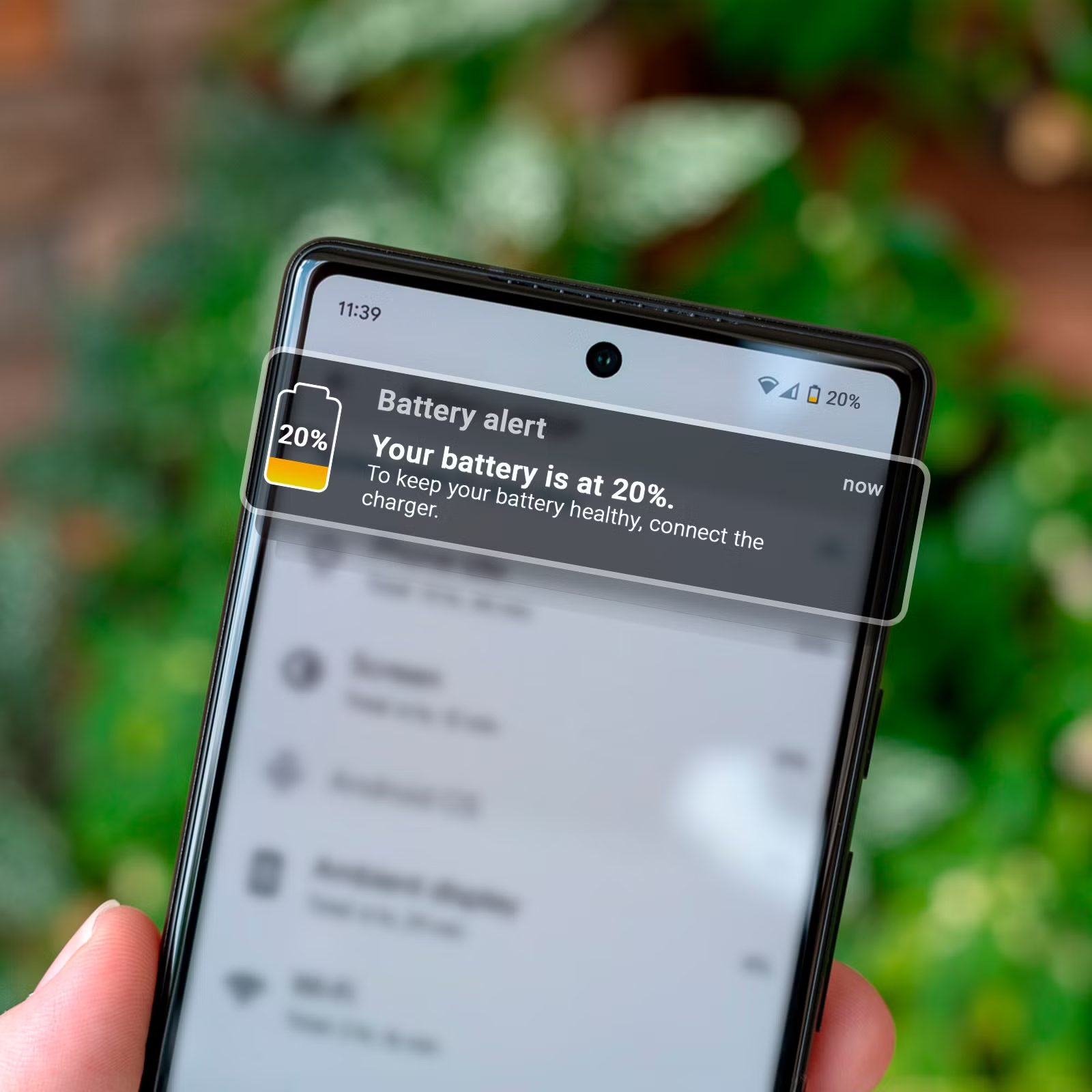
I went to bed with 47% battery left on my Android phone. Not great, but enough to get me through the morning without hunting for a charger. When I woke up, the screen was black. Dead. Not even enough juice to show the low-battery warning. I’d lost nearly half my charge while I was asleep, doing absolutely nothing. No alarms went off. No notifications buzzed. The phone just sat on my nightstand, silently bleeding power into the void.
At first, I blamed the battery itself. My phone was two years old — maybe the cell was degrading. But a replacement battery didn’t fix it. Then I blamed Android, some phantom background process that Google had snuck into an update. But factory resetting the phone only helped for a week before the drain returned. The real culprit, it turned out, was a handful of apps I never suspected. Apps I used daily, trusted completely, and never thought to question. Once I identified them and changed how they behaved, my overnight drain dropped from 40% to under 5%. Here’s what I learned, and which apps are most likely doing the same thing to your phone.
How I Caught the Culprits
Android has a built-in tool that most people ignore: the battery usage breakdown. Go to Settings > Battery > Battery usage and you’ll see a ranked list of every app that’s consumed power since your last full charge. The trick is checking this breakdown after a period of heavy drain — like overnight — when you know you weren’t actively using the phone.
What I found shocked me. The biggest offender wasn’t a game, a social media app, or some sketchy utility I’d downloaded on a whim. It was Google Maps. I hadn’t opened Maps in days, but it had consumed 18% of my battery overnight. The reason? Location services were set to “Allow all the time,” and Maps was pinging my location every few minutes, even while I slept. It was tracking me for the timeline feature — that creepy-but-useful map that shows everywhere you’ve been. Useful during the day, completely unnecessary at 2 AM.
The second-biggest drain was Facebook, which I’d assumed was relatively tame since I don’t use it much. But Facebook runs constant background sync, refreshes content preemptively, and uses location services for friend recommendations and local events. Even with notifications turned off, it was burning through 12% of my battery overnight. The third surprise was Spotify. I hadn’t played music in hours, but the app was awake, checking for podcast updates and syncing offline playlists I’d forgotten I’d downloaded.
The Apps That Drain Battery When You’re Not Looking
These three aren’t unique to my phone. They’re among the most common hidden battery drains on Android, and they share a common behavior: they ask for permissions during setup that most people grant without thinking, then abuse those permissions in the background.
Google Maps is the worst offender because location tracking is its entire purpose. When you grant “Always” location access, the app treats that as a license to track you continuously. It’s not just about navigation — it’s about building your timeline, serving location-based ads, and feeding data into Google’s broader services. Switching to “Allow only while using the app” cut my Maps battery usage by over 90%.
Facebook and Instagram are notorious for background activity. They sync content, preload videos, check for updates, and use location services for features you probably don’t care about. The Facebook app in particular is a bloated resource hog that’s been criticized for years, yet most people keep it installed because it’s the default way to stay connected. Using the mobile website instead of the app, or switching to a lightweight wrapper like Frost, can eliminate most of the drain without losing functionality.
Music and podcast apps like Spotify, YouTube Music, and Pocket Casts often stay active to sync downloads, check for new episodes, and update recommendation algorithms. Even if you’re not listening, they’re working. The fix is simple: disable background activity for these apps in Settings > Apps > [App name] > Battery > Restrict background activity. They’ll still work perfectly when you open them, but they won’t burn power while you sleep.
Other Surprising Drains Worth Checking
Beyond the obvious suspects, there are a few categories of apps that quietly destroy battery life overnight.
Weather apps are a big one. They frequently request location updates to provide hyper-local forecasts, and many refresh data every hour or more. If your weather app has widget active on your home screen, it’s almost certainly waking the phone regularly to update. Switching to a manual refresh or using a weather app with conservative background settings can help.
Antivirus and security apps often run constant scans, monitor network traffic, and check for threats in real time. While some of this is necessary, many third-party antivirus apps are overly aggressive and duplicate protections that Android already provides natively. Google Play Protect scans apps automatically, and for most users, that’s enough. A heavy third-party antivirus is often overkill and a significant battery drain.
Smart home and wearable companion apps like Google Home, Samsung SmartThings, and Fitbit are designed to stay connected to devices around the clock. That constant Bluetooth and Wi-Fi polling adds up, especially if you have multiple devices. These apps are harder to restrict without losing functionality, but you can often reduce their polling frequency in the app settings.
The Fix That Actually Works
Once I identified the problem apps, I didn’t uninstall them all. That’s not realistic — I actually use Maps, Spotify, and Facebook. Instead, I changed their permissions and background behavior. Here’s the exact process that worked for me.
First, audit location permissions. Go to Settings > Location > App location permissions and switch every app that isn’t navigation or ride-sharing to “Allow only while using the app.” For apps that don’t need location at all, deny it entirely. This single change eliminated the biggest chunk of my overnight drain.
Second, restrict background activity for non-essential apps. In Settings > Apps > [App name] > Battery, set apps like Facebook, Instagram, and news readers to Restricted. They’ll still notify you and work when opened, but they won’t silently sync and refresh while you sleep.
Third, disable unnecessary notifications. Every notification wakes the screen, vibrates the motor, and activates the CPU. Go to Settings > Notifications and turn off alerts for apps that don’t need your immediate attention. I cut my notification load by about 70%, and the battery improvement was noticeable within a day.
Fourth, use Android’s built-in battery saver for overnight. You can schedule battery saver to turn on automatically at a certain percentage or time. I set mine to activate at 11 PM, which limits background activity across the board and ensures I wake up with a meaningful charge left.
Pros & Cons of Restricting Background Apps
| Approach | Pros | Cons |
|---|---|---|
| Restrict Location to “While Using” | Dramatically reduces overnight drain from mapping and social apps | Some apps lose features like geofencing or timeline tracking |
| Limit Background Activity | Stops silent syncing and preloading without uninstalling apps | Apps may take slightly longer to refresh when opened |
| Disable Non-Essential Notifications | Reduces screen wake-ups and CPU activation | You might miss less urgent updates until you check manually |
| Schedule Battery Saver Overnight | System-wide background reduction with zero daily effort | Some background tasks like backups may be delayed |
| Use Web Versions Instead of Apps | Eliminates most background drain from social media | Less convenient; no push notifications from web wrappers |
Expert Tip
Here’s the habit that made the biggest long-term difference: once a week, I check my battery usage breakdown and look for anything new in the top five that shouldn’t be there. Apps update, permissions reset, and new apps get installed. What was fine last month might suddenly turn into a drain this month because of an update that changed its background behavior. I caught a weather app that had silently switched to hourly location updates after an update, burning 8% overnight. Without that weekly check, I would have blamed the phone or the battery instead of the actual culprit. It takes 30 seconds, and it keeps your phone’s battery predictable.
FAQ
Why does my phone drain battery even when I’m not using it?
Background apps, location services, sync processes, and notifications all consume power even when the screen is off. Some apps are poorly optimized and wake the CPU frequently, which compounds the drain.
Is it safe to restrict background activity for apps?
Yes. Restricting background activity prevents apps from syncing and refreshing when not in use, but they’ll still function normally when you open them. Essential system apps and messaging apps should be left unrestricted.
Will uninstalling Facebook really save that much battery?
For many users, yes. The Facebook app is notoriously resource-heavy. Using the mobile website or a lightweight wrapper like Frost provides the same core experience with a fraction of the battery impact.
Should I use a third-party battery saver app?
Generally no. Android’s built-in battery management is sophisticated and well-integrated. Third-party battery savers often add their own background processes, which can paradoxically increase drain while claiming to reduce it.
How do I know if my battery itself is the problem?
Check Settings > Battery > Battery health if your phone supports it. If maximum capacity is below 80%, the battery may need replacement. But if the drain is sudden and tied to specific apps, software is more likely the cause than hardware.
Final Thoughts
Battery drain is one of those problems that feels inevitable. You assume it’s just aging hardware, or Android being Android, or some mystery you’ll never solve. But most of the time, the answer is sitting right there in your battery usage menu, hiding in plain sight. The apps draining your phone overnight are usually the ones you use most — the ones you granted permissions to months ago and never thought to revisit.
The fix isn’t radical. You don’t need to uninstall everything, switch to a dumb phone, or carry a battery pack everywhere. You just need to audit permissions, restrict background activity, and pay attention to what your phone is actually doing while you sleep. My overnight drain went from 40% to under 5% with nothing more than settings changes. The phone felt new again. And the best part? I didn’t spend a dime.
🎥 Recommended Video
https://www.youtube.com/results?search_query=Android+battery+drain+overnight+fix+background+apps

No comments:
Post a Comment