
One afternoon, my iPhone felt like it had been sitting on a dashboard in July. I wasn’t gaming. I wasn’t charging it. I wasn’t even outside. It was just warm, sluggish, and the battery was draining faster than usual. If you’ve ever picked up your phone and thought, “Why is this thing cooking itself?” — you’re not alone. iPhone overheating is one of the most common complaints Apple users deal with, and the frustrating part is that it often seems to happen for no reason at all.
Why Your iPhone Overheats in the First Place
Before you start troubleshooting, it helps to understand what’s actually going on under the hood. iPhones don’t have cooling fans like laptops do. They rely on passive thermal management — basically, the metal frame and glass back act as heat sinks. When the processor works hard, or when the battery pushes out a lot of power, that heat has nowhere to go except into your hand.
Some of the usual suspects are obvious. Direct sunlight, wireless charging, and heavy gaming will heat up any phone. But random overheating during light use is trickier. It usually comes down to one of three things: a background process running wild, a battery that’s starting to degrade, or a buggy app chewing through CPU cycles without you realizing it.
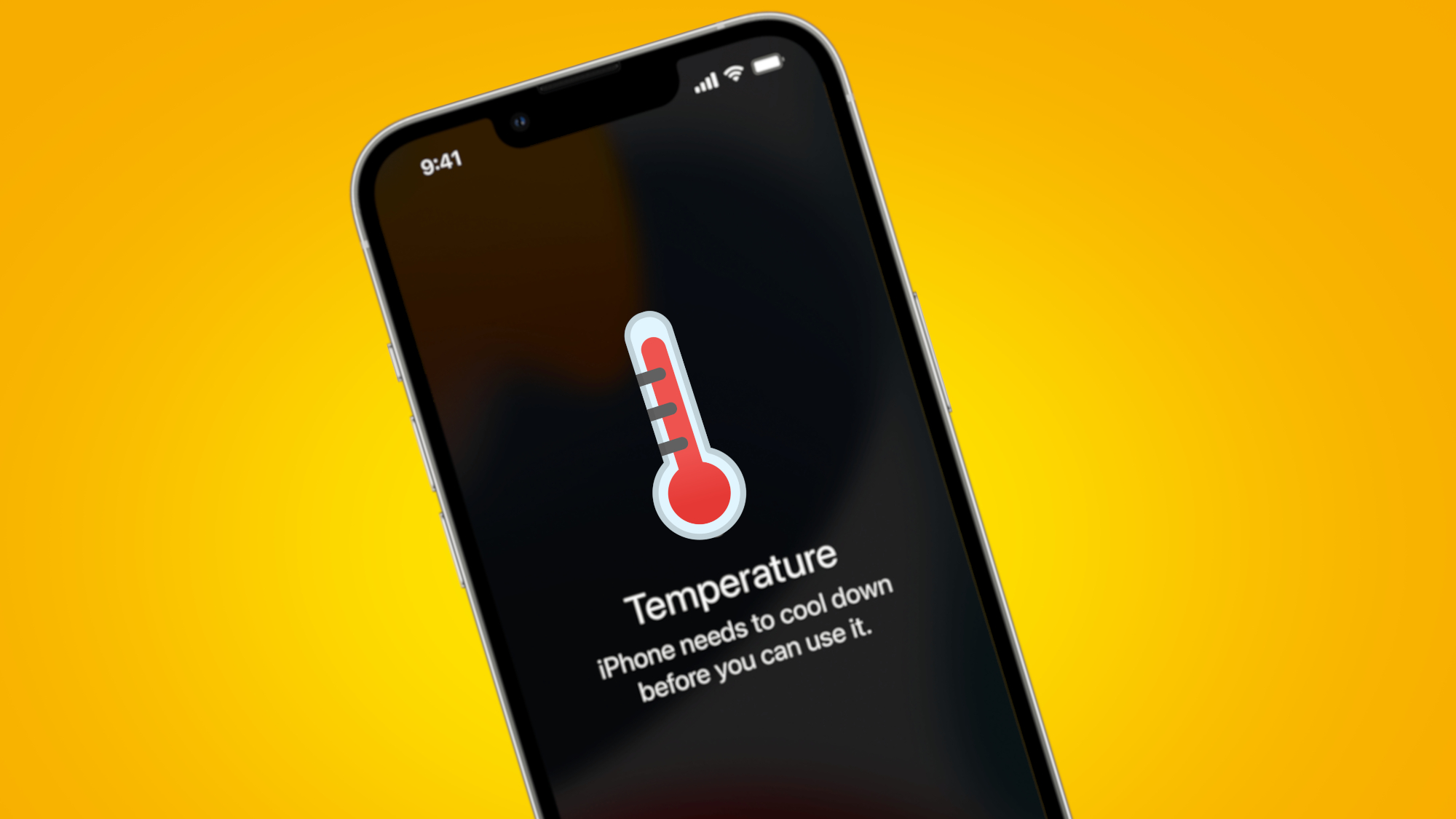
iOS is pretty good at managing resources, but it’s not perfect. A stuck process, a corrupted app cache, or even a poorly optimized iOS update can send your phone into thermal overload. And once your iPhone hits a certain temperature threshold, iOS will throttle performance or even display a temperature warning screen to protect the internal components.
Immediate Fixes That Actually Cool It Down
If your iPhone is hot right now, here’s what to do first. These aren’t myths — they’re the steps that work.
Remove the Case
That sleek silicone or leather case you love? It’s trapping heat. Take it off for ten minutes and let the phone breathe. You’ll feel the difference almost immediately.
Close Background Apps
Swipe up from the bottom (or double-click the home button) and kill anything you’re not using. Apps like navigation, camera, and video streaming are especially power-hungry. Even if they’re just sitting in the background, they can keep the processor active.
Turn Off Location Services Temporarily
Go to Settings > Privacy & Security > Location Services and toggle it off for a bit. GPS is a massive battery and heat drain, and some apps ping your location constantly even when they shouldn’t.
Disable Background App Refresh
Head to Settings > General > Background App Refresh and turn it off entirely, or at least for the apps you don’t need updating silently. This feature is useful, but it’s also a common cause of unexplained heat.
Stop Charging It
If your iPhone is already warm, charging it will only make things worse. Unplug it, let it cool, then resume charging once it’s back to a normal temperature. Wireless charging generates more heat than wired, so switch to a Lightning cable if you need to charge quickly without adding extra warmth.
Enable Low Power Mode
Low Power Mode isn’t just for saving battery — it also reduces background activity and CPU performance, which helps bring the temperature down. You can toggle it in Settings > Battery or add it to Control Center for quick access.
Deeper Fixes for Recurring Overheating
If your iPhone keeps getting hot even after the quick fixes, it’s time to dig a little deeper.
Check Your Battery Health
An aging battery is one of the most overlooked causes of overheating. Go to Settings > Battery > Battery Health & Charging and look at your Maximum Capacity. If it’s below 80%, your battery is working harder to deliver the same power, which generates excess heat. Apple recommends replacing the battery once it hits that threshold.
Update iOS
Apple regularly pushes updates that fix thermal management bugs. If you’re running an older version of iOS, you might be dealing with a known issue that’s already been patched. Go to Settings > General > Software Update and install anything pending.
Delete and Reinstall Problem Apps
Sometimes a single app is the culprit. Check Settings > Battery and look at the battery usage by app. If one app is consuming a disproportionate amount of power relative to how much you use it, delete it and reinstall. Corrupted data or a bad update can cause an app to spike CPU usage endlessly.
Reset All Settings
If nothing else works, go to Settings > General > Transfer or Reset iPhone > Reset > Reset All Settings. This won’t delete your data, but it will clear out any misconfigured system settings that might be causing thermal issues. It’s a pain to re-enter Wi-Fi passwords, but it often fixes weird, persistent problems.
Factory Reset as a Last Resort
If the overheating continues after all of the above, a full factory reset might be necessary. Back everything up to iCloud or your computer, then erase and set up the phone as new. If it still overheats on a clean install, you’re likely looking at a hardware issue — and it’s time to contact Apple Support or visit a Genius Bar.
What Not to Do
There’s a lot of bad advice floating around about cooling down a hot phone. Let’s clear that up.
- Don’t put it in the fridge or freezer. Rapid temperature changes cause condensation inside the device, which can damage internal components.
- Don’t blow a fan directly into the charging port. It doesn’t help much and can push dust deeper into the phone.
- Don’t use cooling gels or ice packs wrapped around the phone. Same condensation risk, and moisture is the enemy of electronics.
- Don’t ignore the temperature warning. If iOS displays the thermometer screen, the phone is actively protecting itself. Let it cool down before you use it again.
Pros & Cons of Common Overheating Fixes
| Fix | Pros | Cons |
|---|---|---|
| Removing Case | Instant cooling, zero cost | Phone is unprotected while case is off |
| Low Power Mode | Reduces heat and extends battery | Limits performance and background tasks |
| Background App Refresh Off | Stops silent battery drain | Apps won’t auto-update until opened |
| Battery Replacement | Fixes root cause of heat and drain | Costs money if out of warranty |
| iOS Update | Patches thermal bugs for free | Occasionally introduces new issues |
Expert Tip
Here’s something most people miss: your iPhone will overheat faster if it’s trying to maintain a cellular connection in a weak signal area. When your phone is searching for a better tower, the radio works overtime. If you’re in a building with poor reception and your phone is getting warm, switch to Airplane Mode for a few minutes. It’s one of the fastest ways to drop the temperature without touching anything else.
FAQ
Is it normal for my iPhone to get warm during charging?
Yes, a little warmth is normal — especially with wireless charging or fast charging. But if it gets uncomfortably hot to the touch, unplug it and check your cable and adapter. Third-party chargers without proper certification can cause excessive heat.
Can overheating damage my iPhone permanently?
iOS has built-in protections that throttle performance or shut the phone down before permanent damage occurs. However, repeated extreme heat can degrade your battery faster over time. It’s worth fixing the underlying cause sooner rather than later.
Why does my iPhone overheat when I’m not using it?
This usually points to a background process, a stuck app, or a battery issue. Check your battery usage stats in Settings to identify the culprit. If nothing stands out, try resetting all settings or updating iOS.
Does iOS 18 cause more overheating than previous versions?
Some users report increased heat after major iOS updates, especially on older devices. New features and background indexing can push the processor harder initially. This usually settles after a few days, but if it persists, a settings reset or battery replacement may help.
Should I replace my battery if my iPhone overheats?
If your Battery Health shows below 80% capacity, yes. A degraded battery is one of the most common hardware-related causes of overheating. Apple offers battery replacement at a reasonable cost, and it often solves both the heat and the drain issues.
Final Thoughts
iPhone overheating can feel random and frustrating, but it’s rarely unfixable. Most of the time, it’s a background app, a worn battery, or a setting that’s working harder than it needs to. Start with the quick fixes — remove the case, close apps, enable Low Power Mode — and work your way toward deeper solutions if the problem keeps coming back.
If you’ve tried everything and your phone still runs hot on a clean install, don’t ignore it. That’s usually a sign of hardware failure, and Apple’s support team can run diagnostics that you can’t do at home. The good news? Most overheating issues are software-related, and the fixes above genuinely work. I’ve used them myself, and my iPhone hasn’t felt like a stovetop since.
🎥 Recommended Video
https://www.youtube.com/results?search_query=iPhone+overheating+fix

No comments:
Post a Comment