
We spend hours every day staring at screens, tapping glass, and navigating interfaces that were designed for everyone and no one in particular. The default settings on your phone, laptop, and tablet aren't chosen for comfort. They're chosen for showroom demos and battery tests. But buried in those settings menus are small switches that can make your tech feel less like a machine and more like something that actually respects your eyes, your attention, and your sanity.
You don't need to be a power user to benefit from them. Most of these changes take less than thirty seconds and require zero technical skill. Here are ten simple settings that will make your everyday tech feel noticeably better.
1. Schedule Dark Mode Instead of Leaving It On
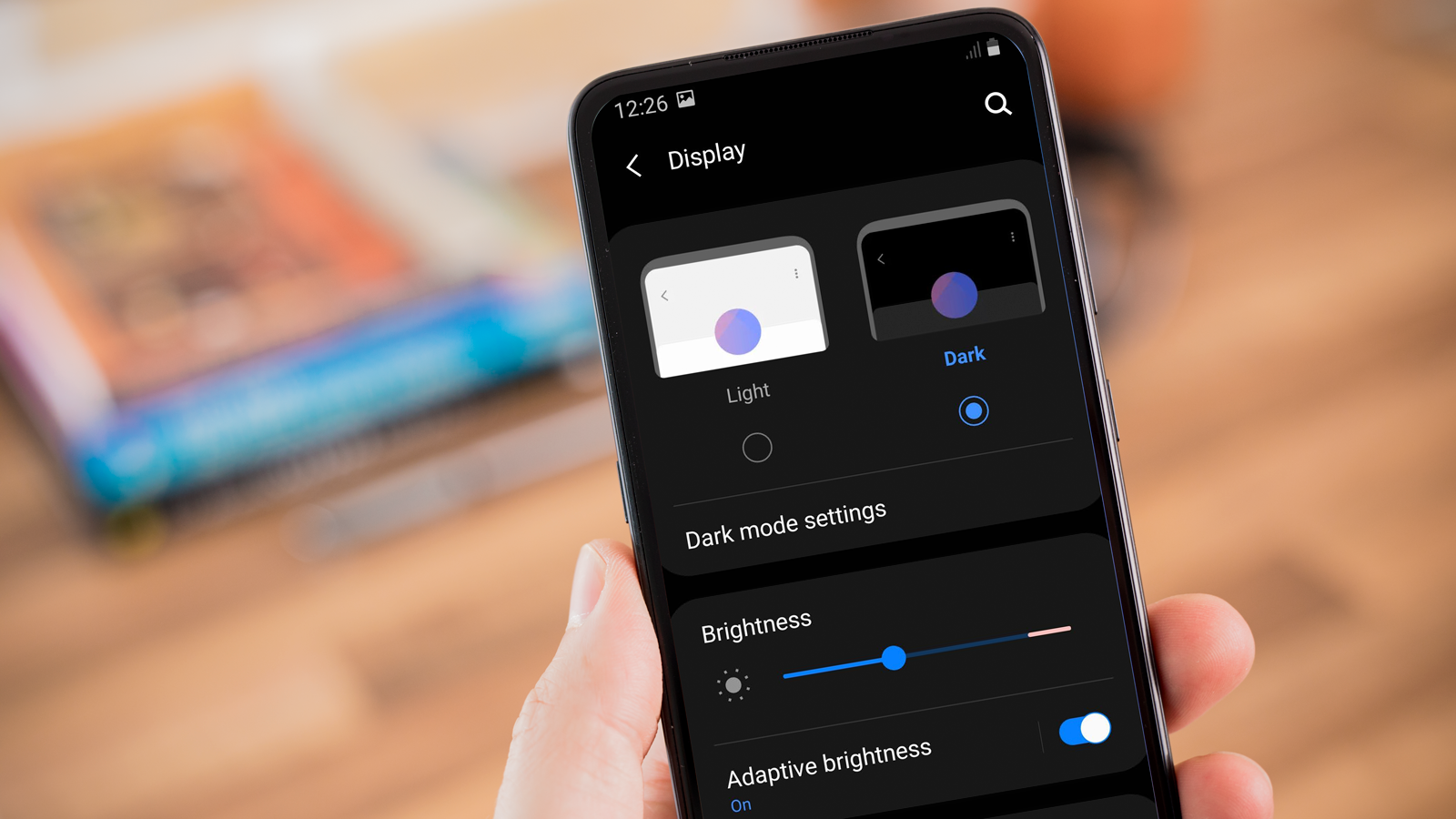
Dark mode is great at night. During the day, it can make text harder to read and actually increase eye strain in bright environments. The smarter move is scheduling it. On iPhone, go to Settings > Display & Brightness and select Automatic. On Android, it's under Settings > Display > Dark Mode, where you can set it to follow sunset and sunrise. Your eyes get relief when they need it, and your screen stays readable when the sun is out.
2. Turn On Night Light or Night Shift
Blue light from screens suppresses melatonin, which makes falling asleep harder. Night Light on Android and Night Shift on iPhone warm up your display color temperature in the evening. On Windows, it's called Night Light under Settings > System > Display. On Mac, it's Night Shift in System Settings > Displays. Set it to turn on a couple of hours before bed. Your sleep quality will improve in ways you didn't know were possible until you try it for a week.
3. Set Up Do Not Disturb With Exceptions
Notifications are the enemy of focus. But completely silencing your phone means you might miss an important call from family. On both iPhone and Android, you can configure Do Not Disturb to allow calls from specific contacts or repeated callers. On iPhone, it's under Focus > Do Not Disturb. On Android, it's Sound & Vibration > Do Not Disturb. Set it to activate automatically during work hours or bedtime. The peace is immediate.
4. Reduce Motion and Animations
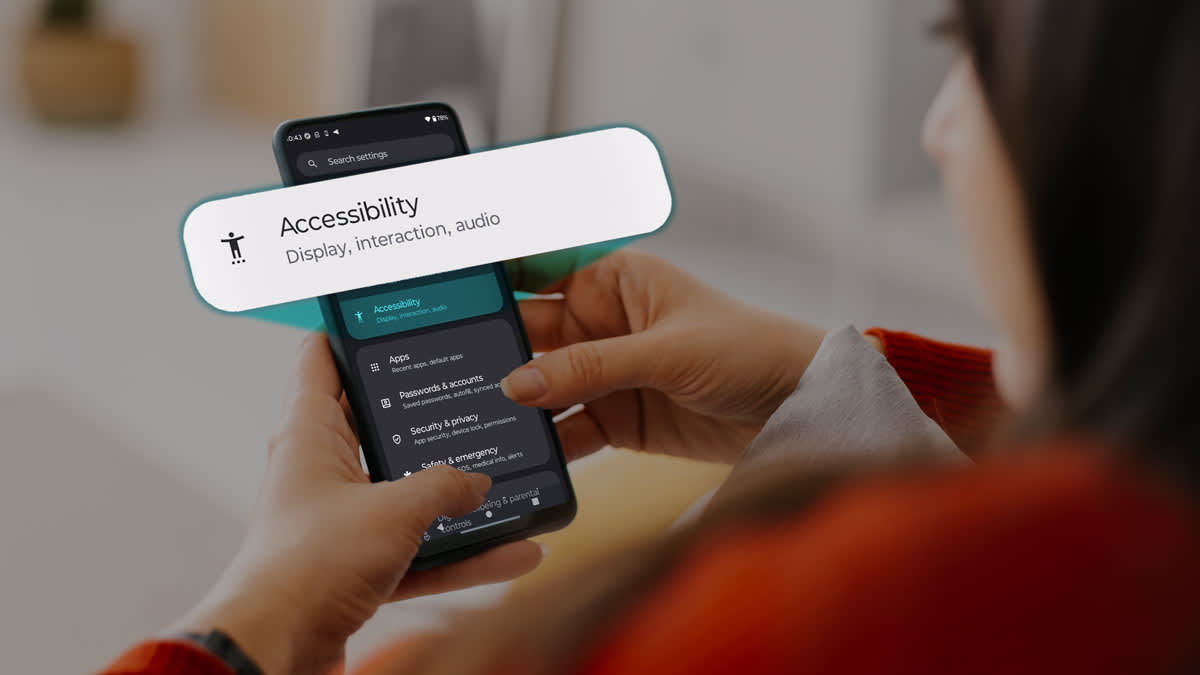
All those sliding menus, bouncing icons, and parallax wallpapers look slick, but they make some people dizzy and they drain battery. On iPhone, go to Settings > Accessibility > Motion and turn on Reduce Motion. On Android, it's under Settings > Accessibility > Remove Animations. On Windows, search for Adjust the appearance and performance of Windows and select Adjust for best performance. Your interface becomes snappier, and your brain stops doing unnecessary gymnastics.
5. Adjust Haptic Feedback Strength
That little buzz when you type or press a button can be satisfying or annoying, depending on intensity. On iPhone, go to Settings > Sounds & Haptics and adjust System Haptics. On Android, it's under Settings > Sound & Vibration > Vibration & Haptics. Some Samsung phones let you dial it down to a gentle tap instead of a jarring buzz. If you type a lot, this small change saves your fingertips from fatigue.
6. Increase Text Size Just Slightly
You don't need reading glasses to benefit from larger text. Even a modest increase reduces eye strain and makes scanning content faster. On iPhone, it's Settings > Display & Brightness > Text Size. On Android, it's Settings > Display > Font Size. On Windows and Mac, you can scale the entire interface. Bump it up one notch. It won't look comically large, but your eyes will thank you by the end of the day.
7. Disable Keyboard Click Sounds
That fake typing click is grating after about ten minutes. It also broadcasts your activity to everyone in the room. On iPhone, turn it off in Settings > Sounds & Haptics > Keyboard Clicks. On Android, it's under Settings > Sound & Vibration > System Sounds. The silence is blissful, and you can still keep haptic feedback if you want physical confirmation without the noise pollution.
8. Change Notification Previews
Having every message banner flash across your lock screen is a privacy risk and a concentration killer. On iPhone, go to Settings > Notifications > Show Previews and set it to When Unlocked. On Android, it's Settings > Notifications > Notification Pop-ups or Lock Screen Notifications. You'll still get alerts, but strangers sitting next to you won't read your texts, and you won't get pulled out of deep work by a preview you didn't need to see.
9. Set a Reasonable Auto-Lock Timer
Thirty seconds is too aggressive. Five minutes is too relaxed. Two minutes is the sweet spot for most people. On iPhone, it's Settings > Display & Brightness > Auto-Lock. On Android, it's Settings > Display > Screen Timeout. This prevents your screen from dying while you're reading a recipe, but it also protects your data if you walk away from your desk. It's a small security win that doesn't feel like a hassle.
10. Enable One-Handed Mode or Reachability
Phone screens keep getting taller, and human thumbs aren't growing to match. On iPhone, swipe down on the home indicator to pull the top of the screen within reach. On Android, most brands offer a one-handed mode in Settings > Advanced Features or Display. Some activate with a gesture or a button in the navigation bar. Once you start using it, you'll wonder why you were ever stretching your thumb to the top corner like a gymnast.
Where These Settings Live Across Devices
| Setting | iPhone | Android | Windows | Mac |
|---|---|---|---|---|
| Scheduled Dark Mode | Display & Brightness | Display > Dark Mode | Personalization > Colors | Displays > Night Shift |
| Night Light | Night Shift | Night Light | System > Display | Displays > Night Shift |
| Do Not Disturb | Focus | Sound & Vibration | System > Focus | Control Center |
| Reduce Motion | Accessibility > Motion | Accessibility | Performance Options | Accessibility > Display |
| Text Size | Display & Brightness | Display | Accessibility > Text | Displays |
| Auto-Lock | Display & Brightness | Display | Accounts > Sign-in | Lock Screen |
Pros and Cons of Tweaking Default Settings
Pros: Your devices become more comfortable to use for long periods. You sleep better with warm displays at night. You focus better with fewer interruptions. Your eyes strain less. And you gain a sense of control over technology instead of letting it dictate your experience.
Cons: Some settings trade convenience for comfort. Scheduled dark mode means your screen changes appearance twice a day, which takes a few days to get used to. Reducing animations makes your device feel slightly less flashy. And if you share devices, your custom settings might confuse other users who preferred the defaults.
Expert Tip
Create a settings checklist in your notes app. Every time you get a new phone, tablet, or laptop, run through these ten tweaks before you install anything else. It takes about five minutes total, and it saves you from weeks of minor annoyances while you wonder why the screen feels too bright or the keyboard sounds won't stop. Your future self will appreciate the head start.
Frequently Asked Questions
Will reducing animations make my phone slower?
No. It actually makes navigation feel faster because menus and windows appear instantly instead of sliding in. The perceived speed improvement is one of the best-kept secrets of accessibility settings.
Does Night Light actually help you sleep?
Research shows that reducing blue light exposure in the evening can improve melatonin production. It won't cure insomnia, but it removes one barrier to falling asleep naturally. Give it a week and see how you feel.
Can I set different Do Not Disturb rules for weekdays and weekends?
Yes. Both iPhone Focus modes and Android's Do Not Disturb support schedules. You can have strict silence during work hours and looser rules on weekends, all without touching your phone.
Will increasing text size break app layouts?
Occasionally, yes. Some poorly designed apps might truncate text or overlap buttons at larger sizes. But most modern apps handle it gracefully, and the trade-off is worth it for readability.
Is one-handed mode available on all Android phones?
Most major brands include it, but the location and activation method vary. Samsung, Google, and OnePlus definitely have it. If you can't find it, search one-handed in your settings app.
Final Thoughts
Technology should adapt to humans, not the other way around. The manufacturers ship devices with settings optimized for marketing videos and battery benchmarks. They don't know your sleep schedule, your eyesight, or how easily you get distracted. These ten tweaks take back a small but meaningful amount of control.
You don't need to adopt all of them. Pick three or four that address your biggest daily friction points. Try them for a week. Once you experience a phone that doesn't blind you at midnight or a laptop that doesn't buzz with every keystroke, going back to the defaults feels almost aggressive. Small settings, big difference.
Recommended Video
🎥 Watch tutorials on optimizing phone and computer settings for daily comfort

No comments:
Post a Comment