
Every iPhone owner knows the basics. Tap the screen to focus. Pinch to zoom. Swipe between Photo and Portrait mode. But there's a hidden layer of control sitting right in the Camera app that Apple never really explains — and once you learn it, you'll wonder how you ever took pictures without it.
It's not a buried setting or a third-party app. It's a gesture combination that lets you lock your focus, freeze your exposure, and manually brighten or darken your shot before you ever press the shutter. Most people tap to focus and immediately hit the button, never realizing they just handed complete creative control back to the phone.
The Gesture Nobody Teaches You
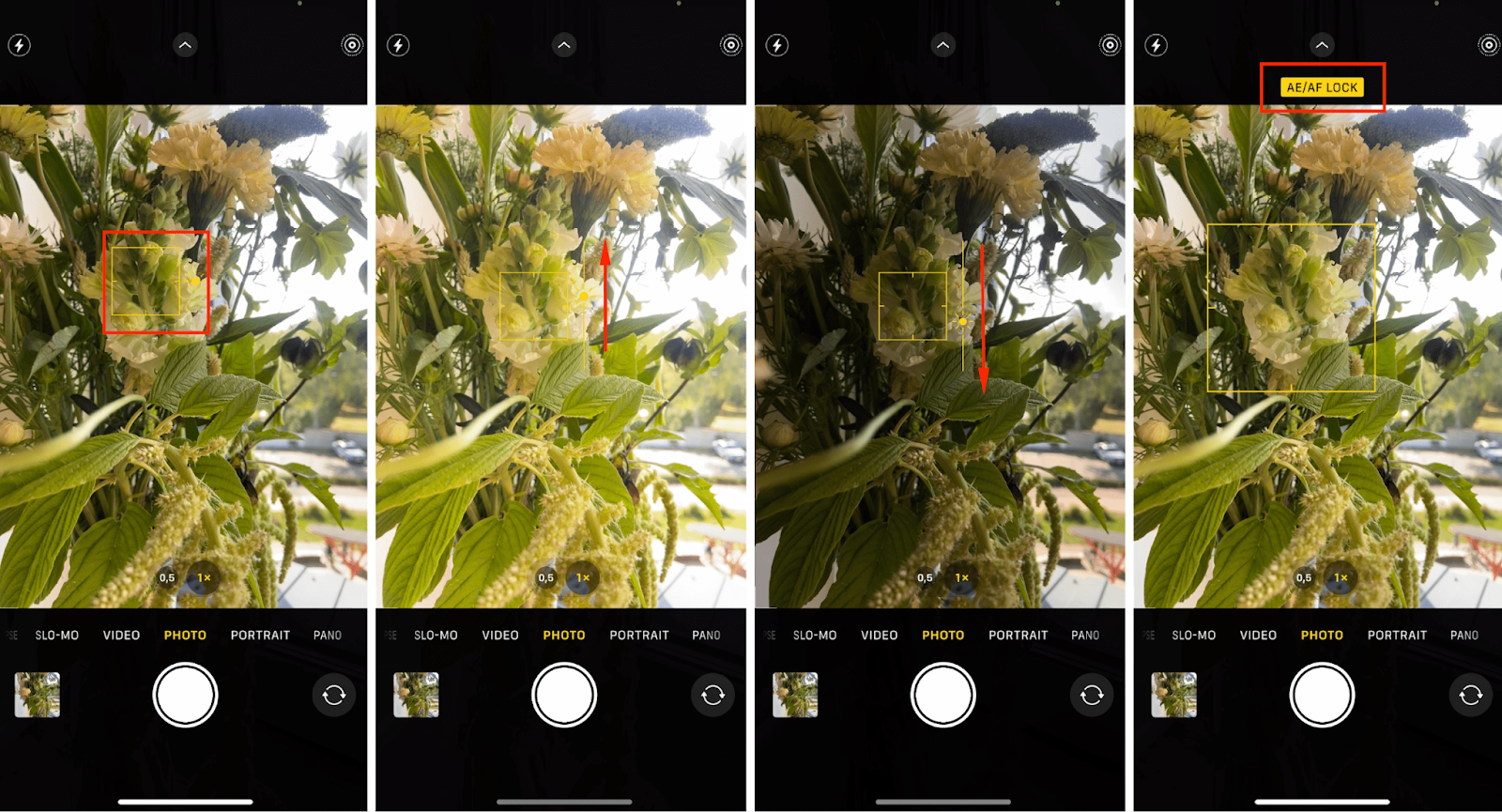
Open your Camera app and point it at something with mixed lighting — a person standing in front of a bright window, a sunset, or a plate of food under harsh restaurant lights. Now tap on the subject. You see the yellow focus box appear, and next to it, a tiny sun icon.
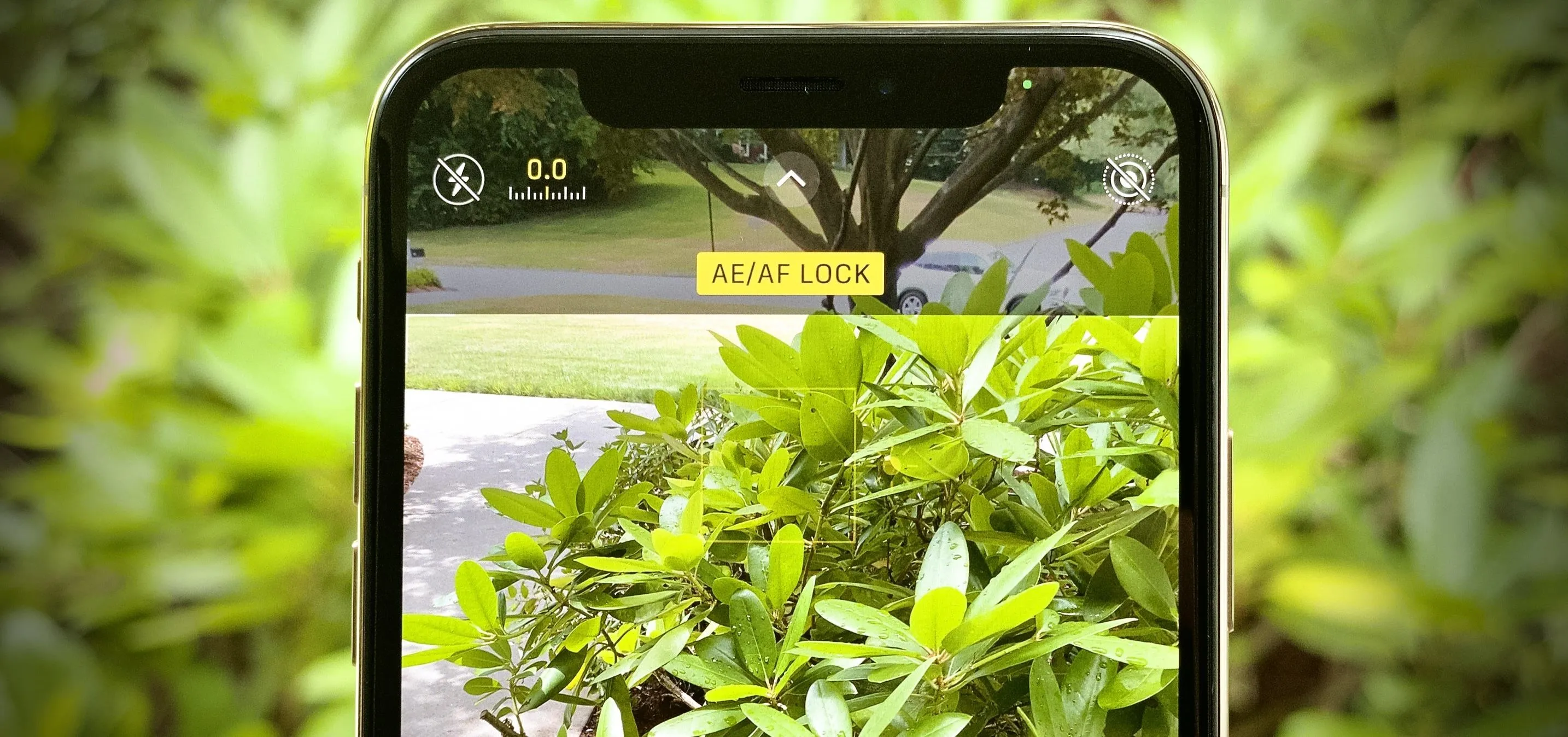
Here's where most people stop. But if you tap and hold on that focus box for about two seconds, something changes. The box pulses twice, and a yellow banner appears at the top of the screen that reads "AE/AF LOCK." You've just locked both your auto-exposure and auto-focus. The camera will no longer hunt for focus or shift brightness as you recompose the shot.
But that's only half the trick. While the focus and exposure are locked, slide your finger up or down anywhere on the screen. That tiny sun icon transforms into a brightness slider. Slide up, and your image gets brighter. Slide down, and it gets darker. You're now manually overriding the exposure in real time, with the focus frozen exactly where you want it.
This single sequence — tap, hold to lock, slide to adjust — turns your iPhone from a point-and-shoot into something far more capable.
Why This Actually Matters
iPhone cameras are smart. Too smart, sometimes. They constantly analyze the scene, adjust exposure, and hunt for focus. That's great for casual snapshots, but it's maddening when the camera keeps changing its mind right before you shoot.
Ever tried to photograph someone backlit by a window? The iPhone sees all that light behind them and exposes for the background, turning your subject into a silhouette. With AE/AF Lock, you tap on your subject's face to focus, lock it, then slide the exposure up until their features are visible. The background might blow out slightly, but your subject looks like a person instead of a shadow.
Ever shot a sunset and watched the sky turn into a washed-out gray streak? Lock the exposure on the brightest part of the sky, then slide down to deepen the colors. The iPhone wants to brighten everything evenly. You don't have to let it.
Real Scenes Where This Saves Your Shot
This isn't a niche pro feature. It's useful in everyday situations that frustrate every iPhone user at some point.
Backlit Portraits
Windows, doorways, and bright backgrounds behind your subject are exposure nightmares. Lock focus on the face, boost exposure slightly, and your subject stops looking like they're in witness protection.
Food Photography
Restaurant lighting is notoriously uneven. The iPhone often overexposes white plates or underexposes darker dishes. Lock focus on the center of the plate, then fine-tune brightness until the food looks appetizing instead of ghostly.
Sunsets and Skylines
The camera wants to brighten the foreground, which kills the drama in the sky. Lock exposure on the sky itself, then slide down to deepen oranges and purples. Your sunset photos will finally match what your eyes saw.
Macro and Close-Up Shots
When shooting flowers, insects, or product details, the iPhone constantly shifts focus as you move slightly. Lock it, and the focus stays pinned exactly where you placed it. No more blurry petals because you breathed wrong.
Video Recording
AE/AF Lock works in video mode too. If you're filming a stationary subject and don't want the exposure flickering every time someone walks past a light source, lock it before you hit record. Your footage stays consistent.
Auto vs. Manual Exposure Control
| Situation | Auto Exposure Result | Locked + Adjusted Result |
|---|---|---|
| Subject in front of window | Subject is dark silhouette | Subject properly lit, background may blow out |
| Sunset over city skyline | Sky washed out, foreground too bright | Rich sky colors, moody silhouette foreground |
| White plate in dim restaurant | Plate overexposed, food looks flat | Balanced exposure, texture and color preserved |
| Macro flower detail | Focus hunts, exposure shifts with movement | Sharp focus locked, consistent exposure |
| Subject moving across frame | Exposure flickers, focus jumps | Stable exposure and focus on intended subject |
Pros & Cons of Using AE/AF Lock
| Pros | Cons |
|---|---|
| Gives you full creative control over exposure | Locked exposure won't adapt if lighting changes dramatically |
| Prevents focus hunting in tricky scenes | Requires remembering to unlock when moving to a new scene |
| Works in both photo and video modes | Can result in overexposed or underexposed backgrounds |
| No app downloads or settings changes needed | Takes a few extra seconds per shot |
Expert Tip
Don't just lock exposure on your subject — lock it on the brightest part of your scene, then slide the exposure down. This is a classic photography technique called "exposing for the highlights." It prevents blown-out skies and overexposed windows, and you can always brighten shadows later in editing. The iPhone's default behavior is to expose for the overall average, which protects shadows but destroys highlights. By locking on the brightest area and darkening slightly, you preserve detail in the parts of the image that are hardest to recover. It's the difference between a snapshot and a photo you actually want to keep.
FAQ
How do I turn off AE/AF Lock when I'm done?
Just tap anywhere else on the screen. The yellow "AE/AF LOCK" banner disappears, and the camera returns to automatic focus and exposure. You can also tap the focus box itself to unlock.
Does this work on older iPhones?
Yes. AE/AF Lock has been part of the iPhone Camera app since iOS 5, so virtually every iPhone still in use supports it. The exposure slider interface has been refined over the years, but the core functionality is universal.
Can I use this with Portrait mode?
Yes, though Portrait mode has its own depth and lighting controls. Locking focus and exposure still helps in mixed lighting, but Portrait mode may override some exposure adjustments depending on your iPhone model and iOS version.
Why does my exposure slider sometimes disappear?
The slider only appears after you've locked focus with a tap-and-hold. If you just tap once, the sun icon is visible but the slider isn't active. You need that two-second hold to engage AE/AF Lock before the slider becomes available.
Is this better than using the built-in exposure compensation in Settings?
They're different tools. The Settings-based exposure compensation applies a global adjustment to every photo. The AE/AF Lock slider lets you adjust per shot based on the actual scene in front of you. For maximum control, use the lock method.
Final Thoughts
Apple packs an incredible amount of photographic power into the iPhone, but they bury the manual controls behind gestures that aren't obvious. The AE/AF Lock with exposure adjustment isn't a hidden menu or a pro-only feature — it's right there on the screen, waiting for anyone who knows to tap and hold.
You don't need to understand ISO, shutter speed, or aperture to take better photos. You just need to stop letting the camera make every decision for you. Lock your focus. Slide your exposure. Take control of the shot.
The best camera is the one you have with you. And now, it's also the one you actually know how to use.
━━━━━━━━━━━━━━━━━━
🎥 Recommended Video
https://www.youtube.com/results?search_query=iPhone+camera+AE+AF+lock+exposure+trick

No comments:
Post a Comment