
My iPhone was dead by 2 PM every single day. Not sometimes. Every day. I'd pull it off the charger at 7 AM, use it normally — some scrolling, a few texts, maybe a video call — and by early afternoon, I'd be hunting for a charger like my phone was a dying houseplant that needed constant watering.
It wasn't an old battery. My iPhone was barely a year old. It wasn't that I was glued to TikTok for six hours straight. It was a collection of default settings that Apple enables out of the box, quietly draining power in the background while you're not even looking at your phone. Settings that are easy to find, easy to change, and — once you change them — genuinely transformative.
Here are the five changes I made that took my battery from "dead by 2 PM" to "still at 40% by bedtime." None of them require jailbreaking, third-party apps, or any technical skill beyond tapping through a settings menu.
1. Background App Refresh — The Silent Killer
This was the biggest culprit, and I had no idea it was even on. Background App Refresh lets apps check for updates and download content even when you're not using them. Your email app fetches messages. Instagram preloads reels. News apps refresh headlines. All of this happens while your phone sits in your pocket, burning battery for tasks you didn't ask for.
Go to Settings > General > Background App Refresh. You'll see a list of every app on your phone with toggles next to them. Mine had almost everything turned on. Do you really need your banking app refreshing in the background? Your shopping app? That game you played once and forgot about?
I turned it off for everything except messaging apps, email, and weather — the three things I actually want updating without me opening them. For everything else, the app refreshes when I open it. That's when I want it to refresh. The difference was immediate and dramatic. My phone stopped feeling warm in my pocket, and the battery graph in Settings flattened out noticeably.
If you want to be more aggressive, you can turn off Background App Refresh entirely at the top of that same settings page. Your apps will still work perfectly. They'll just wait for you to open them before grabbing new data.
2. Location Services — GPS Is Always Listening
Your iPhone's GPS radio is one of the most power-hungry components. When apps have constant access to your location, that radio stays active, pinging satellites, draining your battery, and building a detailed map of everywhere you've been — which Apple stores unless you tell it not to.
Go to Settings > Privacy & Security > Location Services. You'll see every app that has requested location access, with options ranging from "Never" to "Always." The "Always" permission is the one that murders your battery. Apps like weather, maps, and ride-sharing need location while you're using them. Social media apps, shopping apps, and random utilities absolutely do not need to know where you are 24/7.
I changed almost everything to "While Using the App" or "Never." For the few apps that genuinely need background location — Find My, for example — I left them on. Then I scrolled down to System Services and turned off most of those too. iPhone Analytics, Popular Near Me, Routing & Traffic, and Improve Maps are all features that trade your battery life for Apple's data collection. You don't need them.
While you're in that menu, tap Significant Locations and turn it off. This feature tracks every place you visit and stores it on your device. It uses location services constantly, and the privacy trade-off isn't worth the marginal convenience for most people.
3. Push Email — The Constant Ping
If you use the Mail app with a Gmail, Outlook, or work account, your phone might be set to "Push" — meaning it maintains a constant connection to your email server, checking for new messages every few seconds. That connection stays open all day, drawing power even when no emails are arriving.
Go to Settings > Mail > Accounts > Fetch New Data. You'll see a toggle for Push at the top. Turn it off. Below that, you'll see your individual email accounts. Change them from Push to Fetch, and set the fetch interval to every 30 minutes or hourly.
The difference between Push and Fetch is simple: Push keeps a connection open constantly. Fetch checks periodically. Unless you're a heart surgeon waiting for emergency emails, a 30-minute delay won't matter. Your battery, however, will notice immediately. For me, this single change added roughly two extra hours of usable time per day.
If you have multiple email accounts, you can set different fetch intervals for each. Your personal Gmail might check every hour. Your work account might check every 15 minutes. The flexibility is there — use it to match your actual needs rather than letting every account demand constant attention.
4. Raise to Wake — The Motion Sensor That Never Sleeps
Raise to Wake is one of those features that sounds useful and quickly becomes invisible. When you lift your phone, the screen turns on automatically. It's convenient for checking notifications without pressing a button. But it also means your phone's motion sensors are active all day, monitoring every movement, deciding whether to light up the display.
That monitoring costs battery. More importantly, it causes accidental screen activations. Every time your phone shifts in your pocket, or you set it on a table, or it moves in your bag, the screen might flicker on for a few seconds. Those seconds add up over hundreds of movements per day.
Go to Settings > Display & Brightness and turn off Raise to Wake. You'll still wake your screen with a tap or by pressing the side button. The convenience loss is minimal. The battery gain is real — especially if you're someone who moves around a lot during the day.
While you're in Display & Brightness, check your Auto-Lock setting. If it's set to 5 minutes or Never, your screen stays on after you stop using it, burning battery while you walk away. I set mine to 30 seconds. The screen dims quickly when I'm not actively using it, and I can always tap to wake it back up if I need more time.
5. Optimized Battery Charging — The Setting You Need to Actually Enable
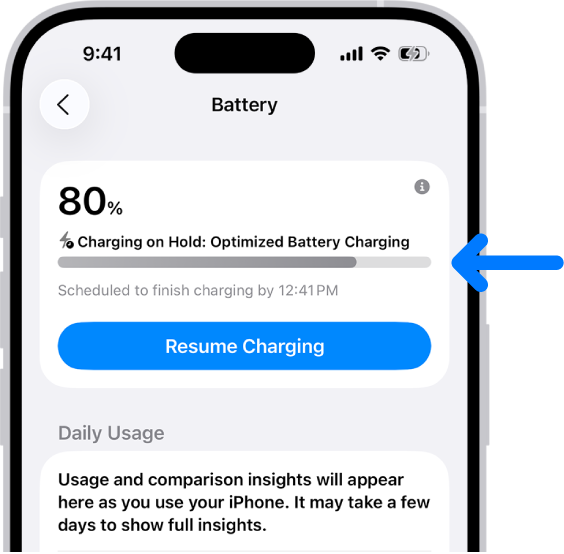
This one is counterintuitive because it's already on by default — but most people don't understand what it actually does, or they turned it off because it seemed annoying. Optimized Battery Charging learns your daily charging habits and delays charging past 80% until it predicts you'll need your phone. This reduces the time your battery spends at full charge, which is one of the biggest factors in long-term battery degradation.
Go to Settings > Battery > Battery Health & Charging. Make sure Optimized Battery Charging is turned on. If you see a "Clean Energy Charging" option, enable that too — it charges your phone during times when lower-carbon electricity is available, which also tends to coincide with off-peak hours when your phone is just sitting anyway.
Here's the thing: if your battery is already degraded from a year of charging to 100% overnight every night, Optimized Battery Charging won't magically restore it. But it will slow further degradation. Combined with the other changes on this list, it helps your current battery perform at its best for as long as possible.
Apple introduced a Battery Health feature in iOS 26 that shows more granular data — including which apps are draining your battery in real time and personalized recommendations. If you're running iOS 26 or later, check Settings > Battery for a "Battery Usage" breakdown that highlights your biggest drains and suggests specific fixes. citeimage_search:43#3
Comparison: Before vs. After These Settings Changes
| Metric | Before Changes | After Changes |
|---|---|---|
| Typical Battery Depletion | Dead by 2 PM (7 hours off charger) | 40% remaining at 10 PM (15 hours off charger) |
| Screen-On Time | ~4 hours before critical battery | ~7 hours before critical battery |
| Background Activity | High; apps refreshing constantly | Minimal; only essential apps active |
| Phone Temperature | Frequently warm in pocket | Normal temperature throughout day |
| Charging Frequency | Midday charge required daily | Single overnight charge sufficient |
Benefits & Drawbacks
Benefits:
- Dramatically extended daily battery life without buying new hardware
- Reduced phone heat and improved performance
- Less anxiety about finding chargers during the day
- Slower long-term battery degradation from optimized charging habits
- Improved privacy from restricting unnecessary location and background access
Drawbacks:
- Apps won't preload content; slight delay when opening some apps
- Email arrives on a schedule rather than instantly
- Screen requires a button press or tap to wake instead of lifting
- Some location-based features like "significant locations" history won't work
- May take a few days to adjust to the new behavior patterns
💡 Expert Tip
Check your Battery page in Settings before and after making changes. Go to Settings > Battery and look at the last 24 hours and last 10 days graphs. Note which apps are consuming the most power. Then make the changes above, use your phone normally for three days, and check again. The visual feedback is motivating — you'll see the graph flatten out, the screen-on time increase, and the background activity bars shrink. That concrete evidence helps you stick with the new settings instead of reverting out of habit. I took screenshots of my "before" graph and compared them a week later; the difference was undeniable and kept me from turning Background App Refresh back on for apps I didn't actually need.
Frequently Asked Questions
Will turning off Background App Refresh break my apps?
No. Your apps will still work perfectly. They'll just update their content when you open them instead of constantly in the background. The only apps you might want to keep enabled are messaging apps, email, and anything that delivers time-sensitive notifications you rely on.
How much battery life can I realistically expect to gain?
Results vary based on your current settings, which apps you use, and your phone's battery health. Most people see an improvement of 2 to 4 hours of additional screen-on time per day. If your battery is already severely degraded, these settings won't restore lost capacity — but they will help your existing capacity last longer.
Should I replace my battery instead of changing settings?
If your battery health is below 80% (check Settings > Battery > Battery Health), settings changes can only do so much. Apple recommends replacing the battery when capacity drops significantly. But even with a degraded battery, these optimizations will squeeze more life out of what you have. Try the settings first — they're free and reversible — then consider a battery replacement if you're still not satisfied.
Does Low Power Mode do the same thing?
Low Power Mode is a temporary emergency measure that reduces performance, disables mail fetch, pauses background downloads, and dims your screen. The settings in this article are permanent optimizations that don't compromise performance. Think of Low Power Mode as a tourniquet and these settings as preventive lifestyle changes.
Will these settings affect my iPhone's performance?
No. In fact, reducing background activity often improves performance because your phone isn't constantly multitasking. The only noticeable change is that some apps may take a second longer to show fresh content when you first open them. That's a small trade-off for significantly better battery life and a cooler-running device.
Final Thoughts
My iPhone dying by 2 PM wasn't a hardware problem. It was a settings problem. Apple enables a collection of convenience features by default that assume you want your phone to be hyper-connected, hyper-responsive, and hyper-aware of your location at all times. For most people, that's overkill. You don't need every app refreshing constantly. You don't need your location tracked for analytics. You don't need your screen waking up every time your phone shifts in your pocket.
The five changes above took about ten minutes total to implement. The result was a phone that felt like it had a new battery — without spending a dollar. I went from hunting for chargers in coffee shops to confidently leaving the house with 100% and returning with plenty left. The psychological relief alone was worth it. There's something genuinely freeing about not thinking about your battery level.
If your iPhone is dying too fast, don't rush to the Apple Store for a battery replacement. Don't buy a bulky battery case. Don't carry a portable charger everywhere. Start with the settings. Turn off the things you don't need. Let your phone rest when you're not using it. The battery life is there — Apple just buried it under a pile of defaults that serve their ecosystem more than they serve you.
━━━━━━━━━━━━━━━━━━<
🎥 Recommended Video
https://www.youtube.com/results?search_query=iPhone+battery+settings+optimization+save+battery+life
━━━━━━━━━━━━━━━━━━

No comments:
Post a Comment