
You tap the update button, set your phone down, and come back ten minutes later expecting a fresh start screen. Instead, you're staring at the same progress bar. Or worse, a frozen logo with the word "Installing" burned into the display. It's happened to almost everyone, and it always strikes at the worst possible moment.
The truth is, your phone isn't being dramatic. There are real, fixable reasons why installations stall, and most have nothing to do with a broken device. Whether you're on Android or iOS, here's why it happens and how to get unstuck without losing your data.
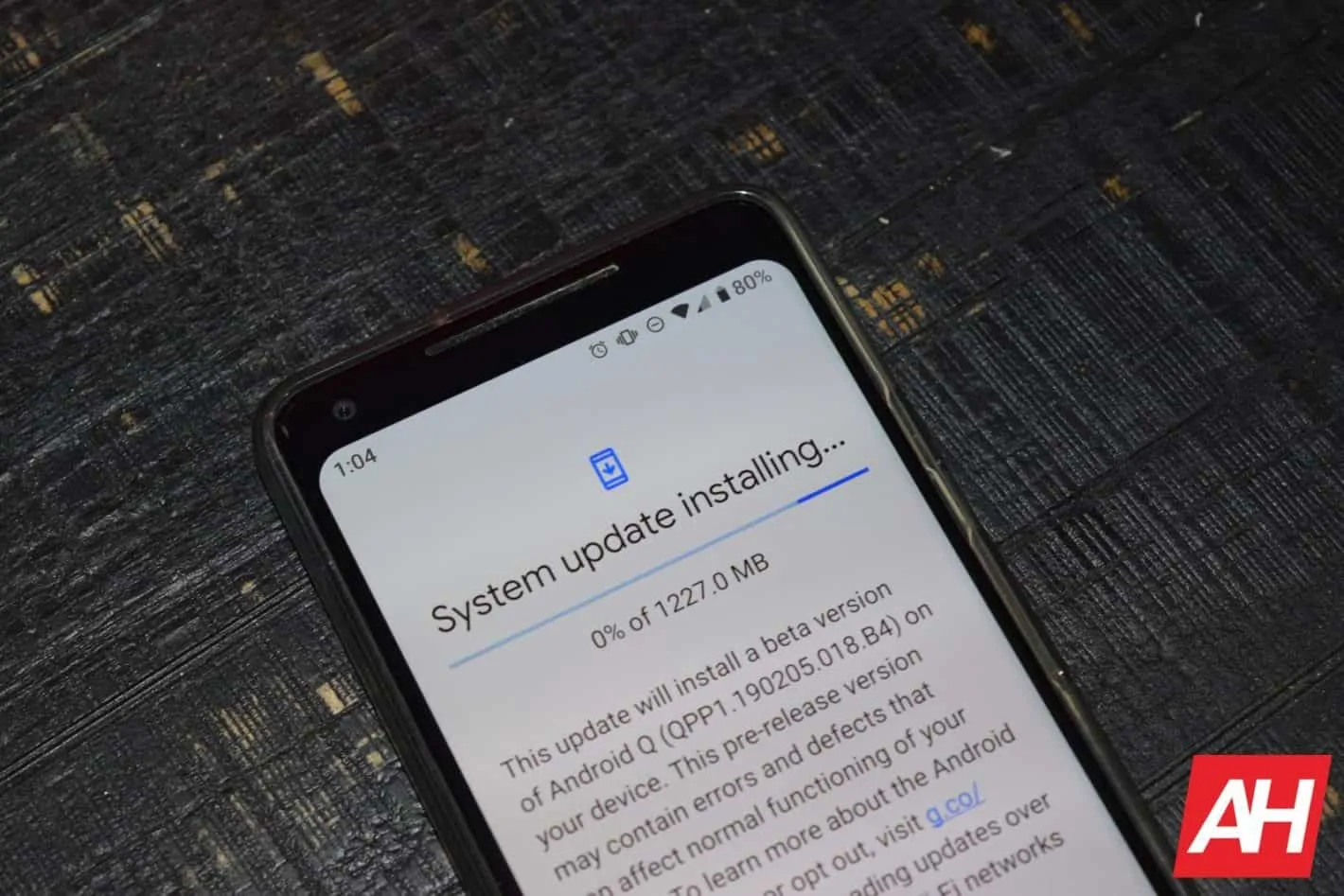
Why Installations Get Stuck
When your phone says it's "installing," it's unpacking files, rewriting system partitions, and verifying checksums. It's a delicate process, and several things can derail it.
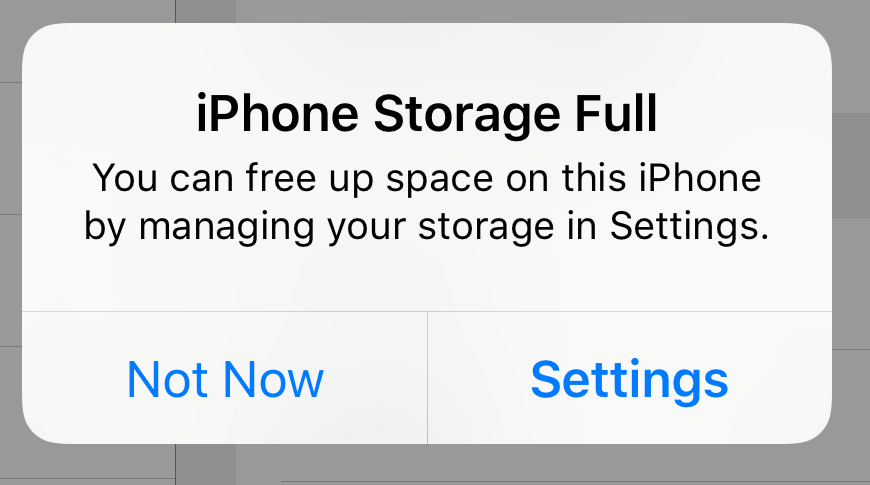
Storage space is the usual suspect. Updates need temporary working room to unpack files. If your phone is down to its last gigabyte, the installer starts strong and then hits a wall. The progress bar freezes, but the process is still alive—just suffocating.
Unstable connections matter more than people think. If your Wi-Fi drops for even a few seconds during a download, the file can corrupt. The installer detects the bad file, refuses to continue, and doesn't know how to recover. So it just sits there.
Background apps and low battery also interfere. Heavy apps compete for CPU and memory. If your battery dips below a safe threshold, some phones pause the installation as a safety measure and never resume properly.
Force Restart Before You Panic
This is the first thing to try, and it works more often than you'd expect. A force restart clears temporary glitches without touching your data.
On most modern iPhones, press and quickly release Volume Up, then Volume Down, then hold the Side button until you see the Apple logo. On Android, hold the Power button and Volume Down together for about ten seconds. The exact combo varies by manufacturer.
After the restart, check whether the installation completed or needs to start over. If it resumes normally, you hit a temporary memory hiccup. If it's still stuck, move on.
Free Up Storage Space
If your phone is gasping for storage, no amount of restarting will help. The installer needs room to work.
On iPhone, go to Settings > General > iPhone Storage. Delete old videos, offload unused apps, or clear Messages attachments. On Android, head to Settings > Storage and use the built-in cleanup tool. Most Android phones suggest files to delete—old downloads, duplicate photos, and app caches.
Aim to free up at least three to five gigabytes before retrying a major system update. Installers need scratch space to unpack and verify before cleaning up.
Check Your Connection and Retry
A corrupted download file is a silent killer. The installer tries to verify the package, fails the checksum, and then does nothing. It doesn't tell you the file is bad. It just stalls.
Cancel the update and re-download it from scratch. On iPhone, go to Settings > General > Software Update. On Android, visit Settings > System > System update. Use stable Wi-Fi, not public coffee shop internet that drops every few minutes.
For stuck app installations, long-press the app icon, tap App info, then hit Force stop and Clear cache. Try installing again from the App Store or Play Store.
Use Recovery Mode
If your phone is completely frozen and won't respond to restarts, recovery mode is your next move. It's more powerful than a normal reboot and can finish or roll back a stuck installation.
On iPhone, connect to a computer, open Finder or iTunes, and enter recovery mode using the force restart combo—but keep holding until you see the recovery screen. Choose Update to retry without erasing data.
On Android, hold Power + Volume Up while booting to reach the stock recovery menu. From there, wipe the cache partition—a safe operation that clears corrupted temporary files without deleting personal data. Only use a factory reset as a last resort.
Android vs. iOS: Handling Stuck Installations
| Factor | Android | iOS |
|---|---|---|
| Force Restart | Power + Volume Down (varies by brand) | Volume Up, Volume Down, then hold Side |
| Recovery Access | Power + Volume Up for stock recovery | Recovery mode via Finder or iTunes |
| Cache Clearing | Wipe cache partition in recovery menu | No user-accessible cache partition |
| Storage Cleanup | Smart Storage or Files app suggestions | iPhone Storage with offload options |
| Update Source | OTA or manufacturer-specific tools | Exclusively OTA via Settings |
| Factory Reset | Available in recovery and Settings | Available in Settings or via iTunes |
The Pros and Cons of Fixing It Yourself
It's tempting to rush to a repair shop the moment your phone freezes. But most stuck installations are solvable at home.
Pros
- No data loss: Restarting, clearing cache, and freeing storage don't touch your photos or apps.
- Fast resolution: A force restart or cache wipe takes under five minutes.
- Free: Every solution here costs nothing but a few minutes.
- Prevents future issues: Managing storage and connections makes repeats less likely.
Cons
- Potential for mistakes: Recovery mode menus are powerful. Accidentally selecting "wipe data" erases your phone.
- Time sink: If the first fix fails, you might spend an hour troubleshooting.
- Not always fixable at home: Hardware faults need professional repair.
- Re-downloads: Canceling a stuck update means starting the download over.
Expert Tip: Update Before You're Desperate
Here's the habit that separates people who never deal with stuck installations from those who see the frozen screen monthly. Update proactively, not reactively.
Don't wait until your phone is at 5% battery on airport Wi-Fi to install a 2-gigabyte update. Do it at home, plugged in, on a stable network, with at least 20% free storage. Most stuck installations happen because someone tried to squeeze an update into a bad moment.
Enable automatic app updates over Wi-Fi only. And once a month, spend two minutes checking storage. Delete screenshots you'll never view again. Your future self will thank you when the next update installs in five minutes instead of five hours.
Frequently Asked Questions
Will a force restart damage my phone or delete data?
No. A force restart is just a hard reboot. It clears temporary memory without touching your files, photos, or apps. It's completely safe.
How much free space do I need for a system update?
At minimum, keep 3 to 5 gigabytes free. Major updates can require even more temporary space during unpacking. When in doubt, free up more than you think you need.
What if my phone is stuck on the manufacturer logo and won't boot?
This usually means the boot partition corrupted. Enter recovery mode and try wiping the cache partition first. If that fails, you may need a factory reset or manufacturer repair software.
Can a low battery really cause an installation to freeze?
Yes. Many phones pause installations if battery drops below a safe threshold. If the pause mechanism glitches, the phone gets stuck. Always update with at least 50% battery or while plugged in.
Is it better to use mobile data or Wi-Fi for updates?
Wi-Fi is almost always better. It's more stable for large downloads and won't eat your data cap. If you must use mobile data, ensure full signal strength and plenty of available data.
Final Thoughts
A phone stuck on "Installing" feels catastrophic, but it rarely is. In most cases, you're dealing with a storage bottleneck, a bad download, or a temporary hiccup. All are fixable without professional help.
Stay calm and work through the steps. Restart first. Free up space. Re-download on a solid connection. And if all else fails, recovery mode is your safety net. Just read menu options carefully before tapping.
Your phone will update eventually. The question is whether you'll spend ten minutes fixing it now, or two hours panicking first. Choose the ten minutes.
🎥 Recommended Video
Watch how to fix a phone stuck on installing →

No comments:
Post a Comment