
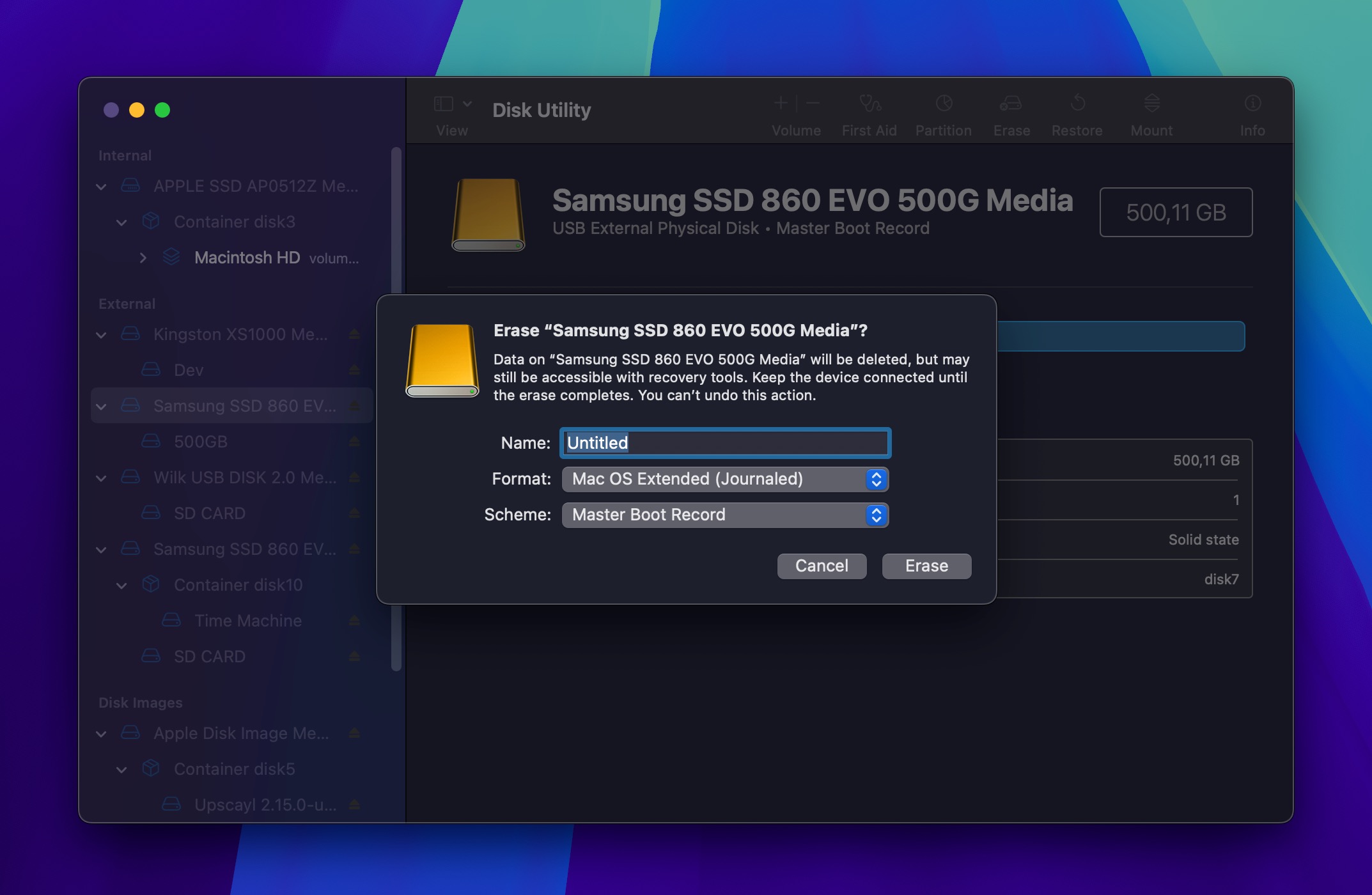
I still remember the exact moment. I was cleaning up my desktop, juggling three external drives, and in a split-second of distraction, I clicked the wrong disk in Disk Management. The confirmation dialog flashed. I hit “OK” without reading it. Then I watched my 1TB SSD, packed with three years of work, vanish into a single “Unallocated” block.
My stomach dropped. Client projects. Raw video files. Tax documents. Family photos. Everything. Gone in under ten seconds.
I spent the next 72 hours in panic mode, testing every recovery method I could find. Some worked. Most didn’t. Here’s exactly what happened, what actually brought my files back, and what I wish I’d known before I started.
The First Mistake: Panic-Installing Software
My first instinct was to Google “recover formatted SSD” and download the first tool that promised a miracle. I installed three different recovery programs within an hour, scanning the drive repeatedly, hoping one would magically rebuild my file system.
Here’s the problem: every scan writes metadata to the drive. Even “read-only” recovery tools can trigger background processes that overwrite recoverable data. I was essentially gambling with the fragments of my files, and I didn’t even know it.
I learned later that the golden rule of data recovery is simple: stop using the drive immediately. Unmount it. Disconnect it. Pretend it doesn’t exist until you have a real plan. I wish someone had told me that before I ran four deep scans back to back.
What Actually Worked: A Step-by-Step Breakdown
After calming down and doing some actual research, I approached recovery methodically. Here’s what worked, in the order I tried it.
Step 1: TestDisk and PhotoRec (Free, Command-Line)
TestDisk is an open-source tool that rebuilds partition tables and recovers lost partitions. PhotoRec, its companion tool, scans for file signatures and pulls out individual files regardless of the file system.
It’s not pretty. It runs in a terminal window and feels like something from 2003. But it found about 60% of my files, mostly photos and documents with intact headers. The catch? File names and folder structures were completely gone. I ended up with folders full of files named f0000001.jpg and f0000002.docx.
It was a start, but sorting through thousands of anonymous files was a nightmare. I needed something better.
Step 2: R-Studio (Paid, Windows/Mac)
R-Studio is a professional-grade recovery suite that costs around $80 for the standard license. It’s intimidating at first glance, packed with hex viewers and RAID reconstruction options I didn’t need.
But underneath the complexity, it’s incredibly powerful. R-Studio scans the drive at a block level, reconstructs the original file system, and attempts to recover file names and directory trees. It found about 85% of my data with original names intact.
The scan took six hours on my 1TB SSD, but it was worth it. I recovered entire project folders, video timelines, and client deliverables exactly as I’d organized them. This was the tool that saved my sanity.
Step 3: Professional Data Recovery Service (The Nuclear Option)
For the remaining 10-15% of files that R-Studio couldn’t touch, mostly large video files with fragmented storage, I considered sending the drive to a professional lab. I got quotes ranging from $500 to $2,500 depending on the damage.
I ultimately decided against it. The files I was missing were replaceable, and the cost didn’t justify the recovery. But if you’re dealing with irreplaceable data, a cleanroom recovery service is your last and best hope. Just know it’s not cheap, and there are no guarantees.

SSD vs. HDD: Why Recovery Is Harder Than You Think
Here’s something most people don’t realize until it’s too late: SSDs are much harder to recover than traditional hard drives.
HDDs store data magnetically. When you format one, the data usually stays physically on the platter until new data overwrites it. Recovery software can scan those platters and reconstruct files fairly reliably.
SSDs work differently. They use NAND flash memory with a controller that manages wear leveling, TRIM commands, and garbage collection. When you format an SSD, the TRIM command often tells the controller to wipe blocks in the background, making recovery nearly impossible if too much time passes.
That’s why speed matters so much with SSD recovery. If you act within hours, your chances are decent. Wait a week, and the drive may have already purged the data permanently.
Tool Comparison: What I Tried
| Tool | Cost | Recovery Rate | Best For |
|---|---|---|---|
| TestDisk / PhotoRec | Free | ~60% | Basic file recovery, photos, documents |
| R-Studio | ~$80 | ~85% | Full partition recovery, folder structure intact |
| Professional Lab | $500–$2,500 | Variable | Severe damage, irreplaceable data |
Pros & Cons of DIY Recovery
✅ Pros
- Free or low-cost compared to professional services
- You control the process and timeline
- Many tools work well for quick, accidental formats
- No need to ship drives or wait weeks for results
❌ Cons
- Risk of overwriting data with every scan attempt
- SSDs are harder to recover than HDDs
- No guarantee of file names or folder structures
- Large fragmented files often come back corrupted
Expert Tip
The best recovery strategy is the one you never have to use. After this experience, I completely overhauled my backup system. Here’s what I do now:
3-2-1 rule, strictly enforced. Three copies of every important file. Two different storage types. One offsite backup. I use a local NAS for daily sync, an external drive for weekly snapshots, and Backblaze for cloud backup. It sounds excessive until you’ve stared at an empty drive.
Also, I labeled every drive with a physical sticker now. Sounds silly, but it would have prevented the whole mess.
FAQ
Can I recover data from an SSD after formatting?
Yes, but time is critical. SSDs use TRIM commands that can permanently erase data in the background. The sooner you stop using the drive and run recovery software, the better your chances.
Is free recovery software safe to use?
Most reputable free tools like TestDisk and PhotoRec are safe, but always download from official sources. Never install recovery software onto the drive you’re trying to recover from.
Why are SSDs harder to recover than HDDs?
SSDs use flash memory with background processes like TRIM and garbage collection that actively clear deleted data. HDDs keep data on magnetic platters until it’s overwritten, making recovery more forgiving.
Should I use a professional recovery service?
If the data is irreplaceable and DIY tools failed, yes. Expect to pay $500–$2,500. For replaceable files, professional recovery usually isn’t worth the cost.
How can I prevent this from happening again?
Follow the 3-2-1 backup rule. Label your drives clearly. Double-check every format confirmation dialog. And never rush when managing storage devices.
🎥 Recommended Video
Watch: Recover Formatted SSD Data Recovery TutorialFinal Thoughts
Losing an entire drive is one of those experiences that teaches you more about yourself than your tech setup. I learned that panic is the real enemy, that free tools can surprise you, and that a $80 piece of software can be the difference between a ruined month and a minor inconvenience.
R-Studio was the hero of my story, recovering 85% of my data with folder structures intact. TestDisk gave me a solid foundation to build on. And the professional labs? They stayed on standby, which was exactly where they needed to be.
If you take one thing from this article, let it be this: back up your data before you need to recover it. Recovery is possible, but it’s stressful, uncertain, and never guaranteed. A simple backup routine takes ten minutes a week and saves you from 72 hours of panic. Trust me, I’ve done the math.

No comments:
Post a Comment