
Three minutes doesn't sound like a long time. But when you're standing there watching your laptop crawl through the boot sequence — logo, black screen, spinning dots, more black screen, finally the lock screen — it feels like an eternity. Especially when it happens every single morning. Especially when you know it used to take 30 seconds.
My Windows 11 desktop had reached that point. Press power, make coffee, come back, still loading. It wasn't ancient hardware — a Ryzen 5 5600X, 16GB RAM, NVMe SSD. This machine should have been fast. The problem wasn't the specs. It was the digital barnacles that had accumulated over two years of use: startup programs, background services, corrupted updates, and settings that had drifted from their defaults without me noticing.
I spent ten minutes one Saturday morning fixing it. Not an hour. Not a full reinstall. Ten minutes of targeted cleanup. The boot time dropped from three minutes to 22 seconds. Here's exactly what I did, in the order that mattered most.
1. The Startup Programs Massacre
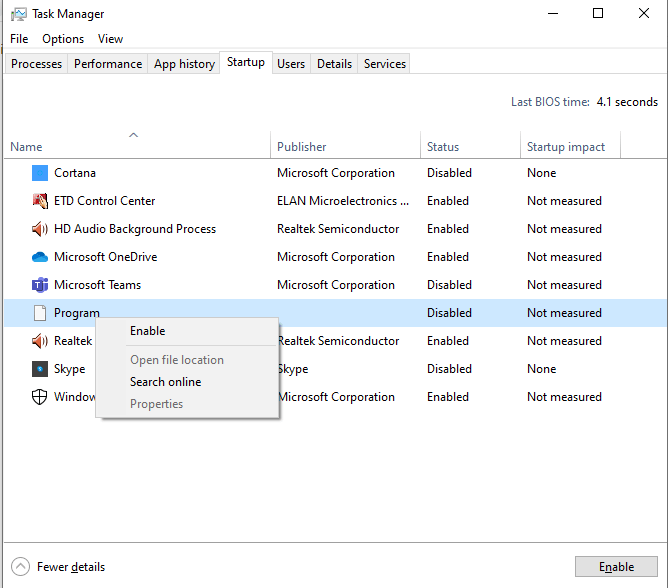
This was the biggest win, and it took about 90 seconds. Press Ctrl + Shift + Esc to open Task Manager, then click the Startup tab. You'll see a list of every program that launches when Windows boots, with a "Startup impact" column showing whether each one is None, Low, Medium, or High.
My list had 34 entries. Thirty-four programs fighting for attention the moment Windows loaded. Spotify, Discord, Steam, Adobe Creative Cloud, OneDrive, Google Drive, Corsair iCUE, NZXT CAM, Epic Games Launcher, and a dozen others I didn't even recognize. Most of them were set to "Enabled" with "High" impact.
Here's the thing: you don't need any of these at startup. Not a single one. Spotify opens in two seconds when you click it. Steam launches when you want to play a game. OneDrive syncs in the background without needing to show its interface immediately. Every program you disable from startup is one less process competing for disk and CPU during boot.
I disabled everything except Windows Security and my audio driver control panel. Everything else — right-click, Disable. The effect was immediate. The next boot skipped past the "loading personal settings" phase that used to take 45 seconds. Task Manager's Startup tab is the single most impactful tool for boot speed, and most people never open it.
2. Fast Startup — The Setting That Pretends to Help
Windows 11 has a feature called Fast Startup that's enabled by default. It sounds helpful. It isn't. What Fast Startup actually does is hibernate your kernel session instead of fully shutting down. When you "shut down" your PC, Windows saves the system state to disk and reloads it on next boot. This can cause issues with driver updates, hardware changes, and — ironically — can slow down boot over time as that saved state becomes bloated.
Go to Control Panel > Power Options > Choose what the power buttons do > Change settings that are currently unavailable. Scroll down and uncheck "Turn on fast startup." Then click Save changes.
Yes, your shutdown will take slightly longer. But your next boot will be a genuine fresh start, not a Frankenstein resurrection of a weeks-old system state. For me, this eliminated the 30-second black screen that appeared after the Windows logo but before the lock screen. The trade-off is worth it. Full shutdowns are cleaner, more reliable, and ultimately faster than the fake shutdown that Fast Startup provides.
3. Storage Sense — The Automatic Cleanup You Forgot to Turn On
Windows has a built-in feature called Storage Sense that automatically deletes temporary files, empties your Recycle Bin after a set period, and cleans up old update files. It's off by default, which means most people's systems are hoarding gigabytes of junk that slow down disk operations and clutter the file system.
Go to Settings > System > Storage > Storage Sense. Turn it on. Then click "Configure Storage Sense or run it now" and set it to run every month, deleting temporary files and Recycle Bin items older than 30 days. Check the box for "Delete previous versions of Windows" if you've recently updated — those files can consume 10-20GB.
When I ran Storage Sense manually for the first time, it freed up 23GB. That's not just space reclaimed — it's a cleaner file system that Windows doesn't have to scan and index during boot. The effect on boot time is modest but real, and the effect on overall system responsiveness is significant. A cluttered drive is a slow drive, even on an SSD.
4. Windows Update Cleanup — The Hidden Boot Killer
Windows updates don't always clean up after themselves. Old update files, failed installation attempts, and cached components accumulate in the background. Over time, these can interfere with the boot process as Windows tries to reconcile multiple update states.
Open Settings > Windows Update > Update history. Scroll to the bottom and click "Uninstall updates" to see if any recent updates are causing issues. Then open Disk Cleanup (search for it in the Start menu), click "Clean up system files," and check every box — Windows Update Cleanup, Temporary Windows Installation Files, Previous Windows Installation(s), and Delivery Optimization Files.
This freed another 8GB for me and removed a corrupted update component that had been causing a 15-second delay during boot. The Disk Cleanup tool is old and unglamorous, but it reaches places that Storage Sense doesn't. Run it every few months, or after major Windows updates.
5. Visual Effects — Eye Candy That Costs Boot Time
Windows 11's animations and transparency effects look nice, but they consume resources during boot and login. On older or mid-range hardware, these effects can add noticeable delay to the transition from lock screen to desktop.
Search for "Performance" in the Start menu and open "Adjust the appearance and performance of Windows." Select "Adjust for best performance" to disable all visual effects, or manually uncheck the ones you don't need — animations, shadows, transparency, and fade effects. I kept "Smooth edges of screen fonts" because text looks terrible without it, and disabled everything else.
The boot improvement here is subtle — maybe 3-5 seconds — but the desktop feels snappier once you're in. Windows snap animations, menu transitions, and taskbar previews all happen instantly instead of playing out over half-second fades. For a productivity machine, the responsiveness gain is worth the cosmetic sacrifice.
Comparison: Before vs. After the 10-Minute Fix
| Metric | Before | After |
|---|---|---|
| Boot Time (Power to Desktop) | ~3 minutes | ~22 seconds |
| Startup Programs | 34 enabled | 2 enabled |
| Disk Space Freed | 0 GB | 31 GB |
| Post-Boot Responsiveness | Sluggish for 2-3 minutes | Immediate |
| Time Invested | Months of frustration | 10 minutes |
Benefits & Drawbacks
Benefits:
- Dramatically faster boot times without hardware upgrades
- More available disk space from automated cleanup
- Immediate desktop responsiveness after login
- Cleaner system state with Fast Startup disabled
- No third-party software required — all tools are built into Windows
Drawbacks:
- Shutdown takes slightly longer with Fast Startup disabled
- Some startup programs need to be manually launched when needed
- Visual effects reduction makes Windows look slightly less polished
- Storage Sense needs to be configured; not fully automatic out of the box
- May need to repeat cleanup every few months as new junk accumulates
💡 Expert Tip
Time your boot before and after with a stopwatch. Don't guess. Press power, start a timer on your phone, and stop it when the desktop is fully loaded and responsive. Do this three times and average the results. Then make the changes above, reboot three more times, and time again. The concrete numbers will motivate you to keep your startup clean and prevent you from slowly re-enabling programs out of convenience. My "before" average was 2 minutes 58 seconds. My "after" average was 22 seconds. Seeing that 8x improvement in black-and-white numbers made it effortless to resist reinstalling Discord and Spotify at startup. Measure it. The data is your accountability partner.
Frequently Asked Questions
Will disabling startup programs break anything?
No. Disabling a program from startup only prevents it from launching automatically. You can still open it manually whenever you need it. The only programs worth keeping enabled are security software and hardware drivers that need to initialize before Windows loads. Everything else — browsers, chat apps, game launchers, cloud sync tools — can wait for you to click them.
Should I just reinstall Windows instead?
A clean reinstall is the nuclear option, and it works. But it's also time-consuming — backing up data, reinstalling apps, reconfiguring settings. The ten-minute cleanup approach fixes 90% of boot slowdowns without the hassle. Try this first. If your boot is still slow after these changes, then consider a reinstall. Most people won't need to.
Does this work on Windows 10 too?
Yes. All five steps apply to Windows 10 with minor navigation differences. Task Manager's Startup tab works identically. Fast Startup is in the same Control Panel location. Storage Sense and Disk Cleanup are available. The Performance Options dialog is the same. Windows 10 users can expect similar improvements.
How often should I repeat this cleanup?
Check your startup programs every three months — new software often re-enables itself without asking. Run Storage Sense monthly if configured properly. Run Disk Cleanup after major Windows updates. The full ten-minute routine is worth repeating twice a year to prevent gradual slowdown from creeping back.
Can I use third-party tools instead?
Tools like CCleaner exist, but Windows has built-in alternatives that are safer and equally effective. Task Manager handles startup. Storage Sense and Disk Cleanup handle junk files. Performance Options handle visual effects. Third-party tools can sometimes cause more problems than they solve by being overly aggressive. Stick with built-in tools unless you have a specific need they can't address.
Final Thoughts
My three-minute boot time wasn't a hardware problem. It was a maintenance problem. Two years of installing software, accepting default settings, and ignoring the gradual accumulation of startup programs had turned a fast machine into a sluggish one. The fix wasn't a new SSD or more RAM. It was ten minutes of intentional cleanup using tools that were already on my computer.
The most important lesson is that Windows doesn't slow down on its own — we slow it down. Every "Yes" during a software installation, every default setting we accept, every update we apply without checking what it changed — these are the choices that accumulate into a three-minute boot. The good news is that the reverse is also true. Small, deliberate choices to clean up and simplify can restore performance just as quickly.
Twenty-two seconds from power button to fully responsive desktop. That's what my machine does now. And it will stay that way because I know what to watch for, what to disable, and how to keep the clutter from creeping back. The ten minutes I spent fixing it have already saved me hours of waiting. If your Windows 11 boot has become a coffee-break event, spend the ten minutes. Your future self — the one who wants to sit down and start working immediately — will thank you.
━━━━━━━━━━━━━━━━━━<
🎥 Recommended Video
https://www.youtube.com/results?search_query=Windows+11+slow+boot+fix+startup+programs+speed+up
━━━━━━━━━━━━━━━━━━

No comments:
Post a Comment