
My Android phone had been feeling sluggish for months. Apps took forever to open, the keyboard lagged, and switching between tasks felt like wading through molasses. I was already considering an upgrade — until a friend asked if I’d ever dug into the hidden settings menu. Not the obvious stuff like clearing cache or uninstalling apps. The real buried toggles that manufacturers and carriers enable by default, quietly chewing through RAM and CPU cycles in the background. I spent an afternoon turning off five specific settings, and the difference was immediate. My phone felt snappier, cooler to the touch, and the battery lasted noticeably longer. Here’s exactly what I changed.
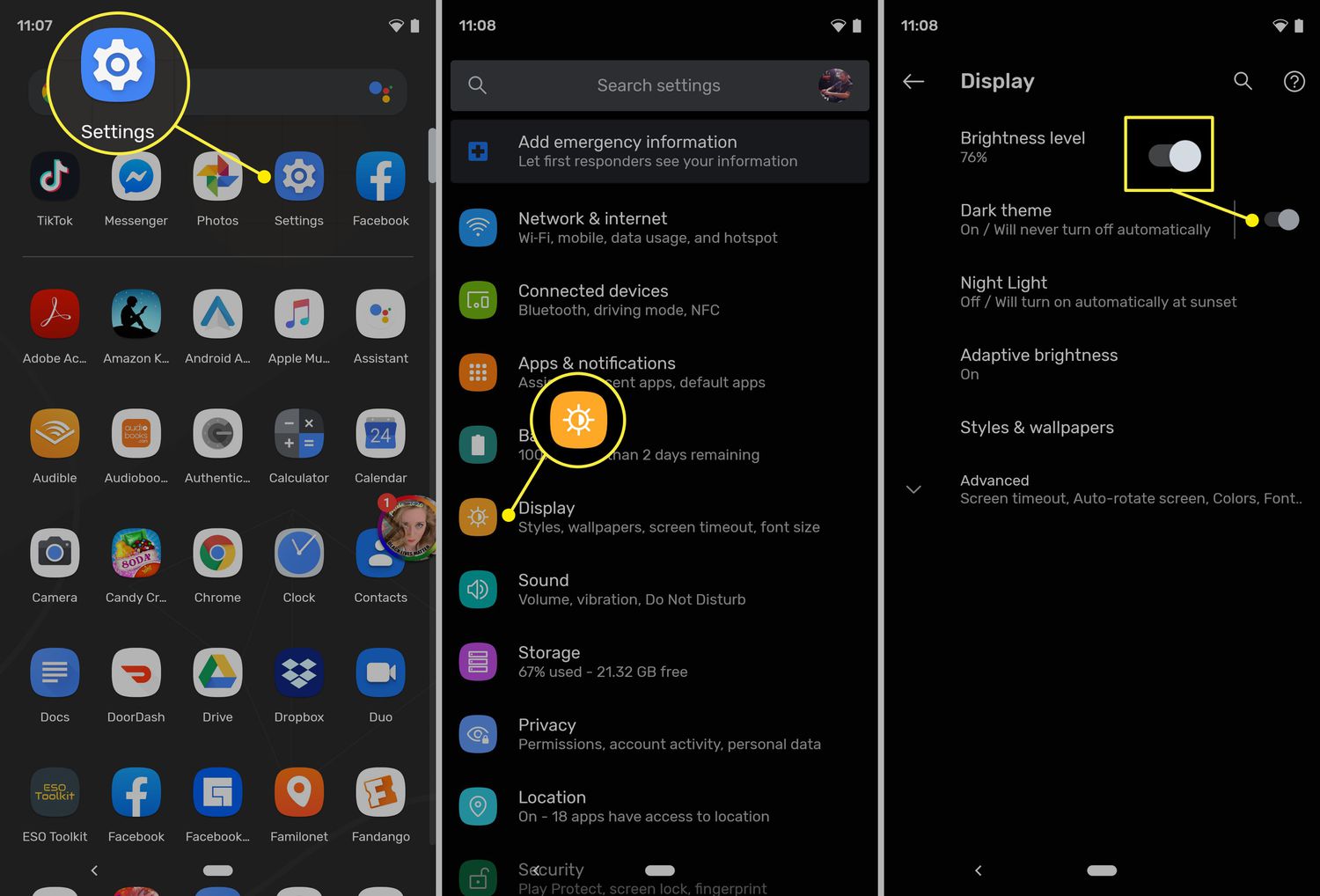
1. Disable or Limit Background Processes
Android is aggressive about keeping apps alive in the background so they launch faster when you reopen them. The problem? On phones with limited RAM — which is most mid-range and budget devices — this behavior turns your phone into a multitasking nightmare. Background apps consume memory, trigger background refreshes, and wake the CPU more often than necessary.
To fix this, you need to access Developer Options. Go to Settings > About phone and tap Build number seven times until you see the “You are now a developer” message. Then head to Settings > System > Developer options and scroll down to Background process limit. Change it from the default to At most 3 processes or even No background processes if you want maximum performance.
This doesn’t break anything. Your apps still work. They just won’t silently hoard RAM while you’re not using them. The result is faster app switching, less stutter, and a cooler phone because the CPU isn’t constantly juggling background tasks.
2. Turn Off Automatic System Animations
Animations look nice, but they’re pure overhead. Every time you open an app, swipe home, or pull down the notification shade, your GPU renders a transition effect. On newer flagship phones, you won’t notice. On anything older than two years, those milliseconds add up and make the whole OS feel slower than it is.
Inside the same Developer Options menu, look for three animation-related settings: Window animation scale, Transition animation scale, and Animator duration scale. Set all three to 0.5x for a speed boost while keeping some visual polish, or turn them off entirely with Animation off. I went with 0.5x, and the phone instantly felt more responsive. Apps open faster, menus snap into place, and there’s no more artificial delay baked into the interface.
3. Disable Unused Digital Wellbeing and Usage Tracking
Google’s Digital Wellbeing dashboard is genuinely useful if you’re trying to cut screen time. But if you’re not actively using it, the service runs constantly in the background, logging app usage, tracking unlocks, and generating daily reports. That’s a non-trivial amount of background processing for a feature most people check once and forget.
To turn it off, go to Settings > Digital Wellbeing & parental controls. Tap the three-dot menu in the upper right and select Turn off usage access. This stops the logging without breaking parental controls if you actually need those. On Samsung devices, the path is slightly different — look under Settings > Battery and device care > Digital Wellbeing and disable the usage tracker there.
The performance gain here is subtle but real. You’re removing a persistent background service that was quietly eating CPU cycles and writing data to storage all day. Over weeks, that adds up to less battery drain and fewer storage-writes slowing things down.
4. Switch Off Adaptive Battery and Let Apps Sleep Properly
Adaptive Battery sounds like a good idea. It uses AI to predict which apps you’ll use and restricts battery for the ones it thinks you won’t. In practice, it’s often wrong. It throttles apps you actually need, while failing to properly restrict the real battery hogs. Worse, the constant AI prediction itself uses processing power.
Go to Settings > Battery > Adaptive Battery and toggle it off. Then, manually manage app sleep behavior by going to Settings > Battery > Background usage limits and enabling Put unused apps to sleep. You can also add specific apps to the deep sleep list if you know you rarely open them.
This hands you direct control over what runs and what doesn’t, rather than leaving it to an opaque algorithm. The battery improvement was the most noticeable change I saw after this tweak. Standby drain dropped significantly, and apps I actually cared about stopped getting randomly killed by the system.
5. Disable Auto-Sync for Apps You Don’t Need Real-Time Updates From
Auto-sync is one of those features that made sense in 2010 but is overkill today. By default, Android syncs email, contacts, calendars, photos, and app data constantly — sometimes every few minutes. Every sync wakes the radio, pings the server, and processes incoming data. If you have a dozen Google accounts or third-party apps syncing in the background, your phone never truly sleeps.
Go to Settings > Accounts and backup > Accounts, tap each account, and toggle off sync for anything non-essential. You probably don’t need Google Play Movies, Google News, or random third-party apps syncing in real time. For email, consider switching to manual fetch or extending the sync interval to every hour instead of push.
This single change had the biggest impact on my daily battery life. The phone stopped warming up in my pocket, and I wasn’t hitting 20% by mid-afternoon anymore. The trade-off? You pull down to refresh email manually, which most people do anyway.

Pros & Cons of Disabling These Settings
| Setting | Pros | Cons |
|---|---|---|
| Background Process Limit | Faster multitasking, less RAM pressure | Apps may take slightly longer to resume |
| Animation Scale Reduction | Snappier UI, faster perceived performance | Less visual polish; some find it jarring |
| Digital Wellbeing Off | Removes constant background logging | Loses screen-time tracking and app timers |
| Adaptive Battery Off | Direct control over app sleep behavior | Requires manual management of app restrictions |
| Auto-Sync Limited | Dramatically better battery life | Emails and updates arrive less frequently |
Expert Tip
Here’s a bonus tweak most people miss: after making these changes, restart your phone and then clear the system cache partition. This wipes out temporary files that Android accumulates over months of use — corrupted thumbnails, old update fragments, and stale app data that regular cache clearing doesn’t touch. The process varies by manufacturer, but on most phones you power off, then hold the volume up and power buttons together until the recovery menu appears. Select “Wipe cache partition” — not factory reset — and confirm. It takes about 30 seconds and won’t delete any personal data. I do this every three months now, and it keeps the phone feeling fresh long after the settings tweaks have settled in.
FAQ
Will disabling these settings break my apps?
No. All of these settings are optional optimizations, not core system functions. Your apps, notifications, and core Android features will continue working normally. The only real trade-off is losing some convenience features like automatic screen-time tracking or instant email push.
Do I need Developer Options enabled permanently?
You can leave Developer Options on without any downside. The menu simply exposes advanced settings that are hidden by default. If you prefer, you can disable it after making your changes by toggling the switch at the top of the Developer Options menu, though your adjustments will remain active.
Will this work on any Android phone?
These settings exist on virtually all Android devices running Android 10 or later, though the exact menu paths vary slightly between manufacturers like Samsung, Google, OnePlus, and Motorola. If you can’t find a specific toggle, use the search bar at the top of your Settings app.
How much faster will my phone actually feel?
It depends on your device and how bloated your current setup is. On a two-year-old mid-range phone, the difference is usually dramatic — snappier app launches, smoother scrolling, and noticeably better battery. On a brand-new flagship, the gains are more subtle but still measurable.
Should I factory reset instead?
A factory reset will definitely speed things up, but it’s a nuclear option. You lose all your app data, settings, and logged-in accounts. Try these hidden settings first. They take 15 minutes to adjust and can deliver 80% of the benefit without any data loss.
Final Thoughts
Android phones don’t slow down because the hardware suddenly ages overnight. They slow down because software bloat, background services, and well-intentioned but overzealous features accumulate over time. The five settings above are the low-hanging fruit — the toggles that manufacturers bury because they’re not consumer-friendly, but that power users have been using for years to keep their devices running smoothly.
You don’t need a new phone. You need a cleaner phone. Spend 20 minutes in your settings, make these changes, and give it a week. The difference in daily usability is genuinely surprising. My phone went from frustrating to perfectly usable, and I’ve pushed my upgrade timeline back by at least a year. That’s the real value of knowing where to look.
🎥 Recommended Video
https://www.youtube.com/results?search_query=Android+hidden+settings+speed+up+phone

No comments:
Post a Comment