
I was sitting in a coffee shop last Tuesday, halfway through a client presentation, when my laptop battery dropped from 34% to 7% in about six minutes. The charger was at home. The coffee shop's outlet was occupied. I watched the percentage tick down like a countdown to professional embarrassment.
That was the moment I decided to stop accepting terrible battery life as normal. My laptop was only two years old. It shouldn't have been dying before lunch. So I spent the next week treating it like a science experiment, testing every setting, monitoring every process, and measuring actual battery drain before and after each change.
The results were eye-opening. I went from barely scraping four hours on a full charge to consistently getting eight and a half hours. No new battery. No hardware upgrades. Just a handful of settings that Windows and my apps had quietly sabotaging my power consumption.

The Real Culprit: Background Apps I Forgot Existed
Here's what shocked me most. I opened Task Manager, clicked the Processes tab, and sorted by power usage. Chrome was eating 28% of my battery. Not because I had a million tabs open, but because of background extensions, idle tabs refreshing in the background, and a setting called "Continue running background apps when Google Chrome is closed" that was literally keeping Chrome alive even after I hit the X.
I turned that off first. In Chrome, go to Settings > System and uncheck "Continue running background apps when Google Chrome is closed." Then I disabled extensions I wasn't actively using, especially ones that run constantly like price trackers, coupon finders, and news feed injectors. Each one was a tiny vampire sipping power in the background.
The immediate result? Chrome's power draw dropped by almost half. I hadn't realized how much those invisible background processes were costing me until I saw the numbers side by side.
Windows Power Plans: The Setting Nobody Talks About
Windows has a hidden power plan menu that most people never see. By default, many laptops ship with "Balanced" mode, which sounds reasonable but often prioritizes performance over efficiency in ways you don't need for everyday tasks.
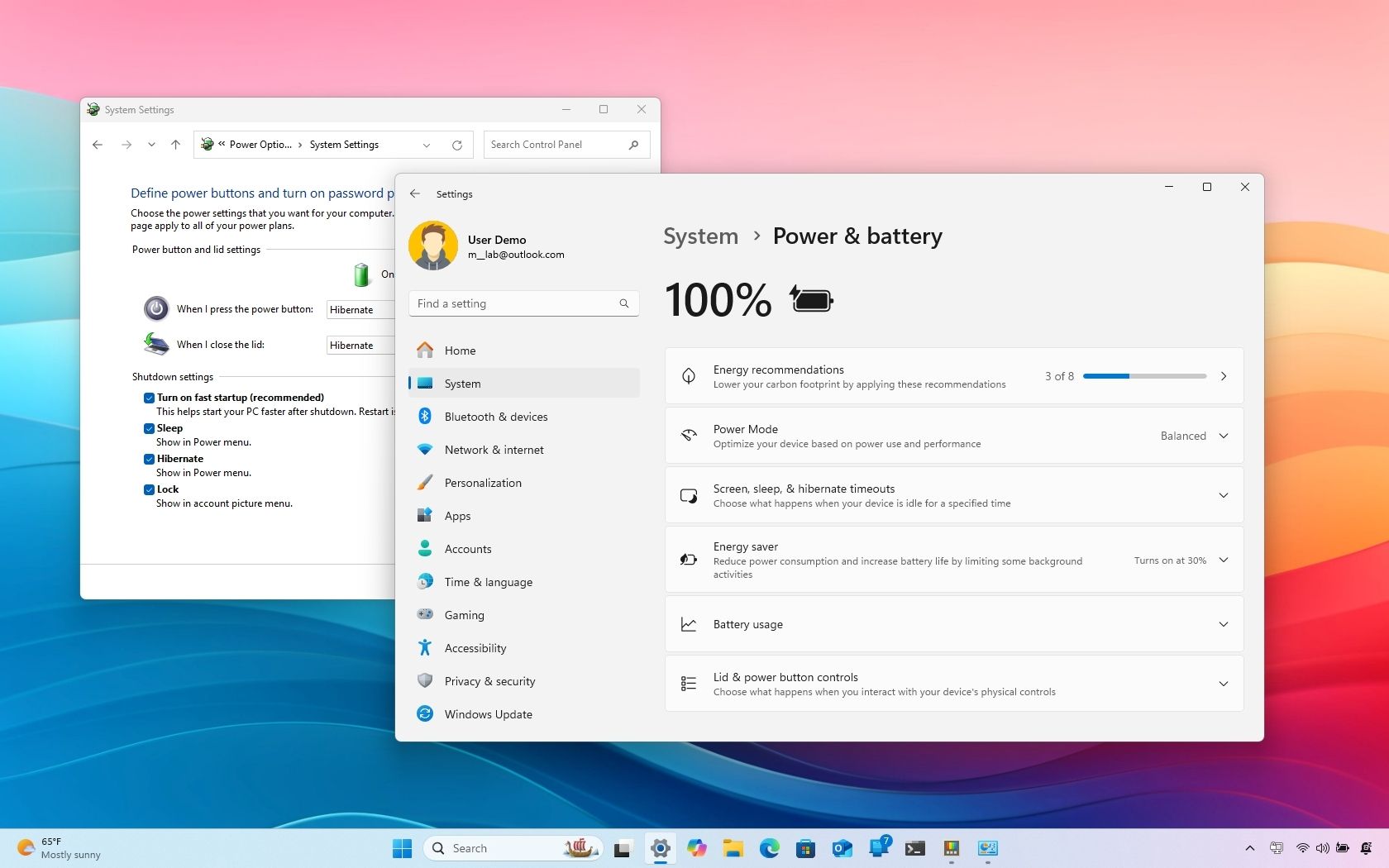
I switched to the "Power Saver" plan for daily work and saw an immediate improvement. Here's how to find it: right-click the battery icon in your system tray, choose Power Options, and select Power Saver if it's available. On Windows 11, go to Settings > System > Power & battery and drag the power mode slider toward "Best power efficiency."
For even more control, click "Additional power settings" and then "Change plan settings" next to your selected plan. I reduced screen brightness to 40% on battery, set the display to turn off after 3 minutes of inactivity, and put the computer to sleep after 10 minutes. These small tweaks added up to about an extra hour of real-world use.
The tradeoff? Slightly slower wake-from-sleep times and less aggressive CPU boosting. For writing, browsing, and video calls, I never noticed the difference. For gaming or video editing, I switch back to Balanced or plug in.
The Display Brightness Trap
Your screen is the single biggest battery drain on any laptop. On most machines, the display alone accounts for 40 to 60% of total power consumption. I used to keep mine at 80% brightness because it looked better, but I was literally burning hours of battery life for visual comfort I didn't actually need.
I started using adaptive brightness and manually adjusting based on my environment. Indoors with normal lighting, 40 to 50% is perfectly readable. Near a window or outdoors, I bump it up. The key is being intentional instead of leaving it cranked to maximum all day.
Windows also has a hidden setting called "Battery Saver" that automatically dims your screen and limits background activity when your battery drops below a threshold you set. I configured mine to kick in at 30% instead of the default 20%, which gives me a longer runway before I absolutely need a charger.
Bluetooth, Wi-Fi, and the Peripherals You Forgot
This one seems obvious, but I was guilty of it for months. My Bluetooth was always on, even though I only used it for my mouse, which I didn't always need. My Wi-Fi was constantly searching for networks even when I was connected to one. And I had a USB-C hub plugged in that was drawing power for ports I wasn't using.
Turning off Bluetooth when I'm not using wireless peripherals saved me about 30 to 45 minutes of battery life per charge. It's a small thing, but small things add up. I also started unplugging my USB hub when I was working on battery, since it was essentially a tiny space heater pulling power for no reason.
If you're on the go a lot, get in the habit of checking your system tray for active connections you don't need. Each radio, Bluetooth, Wi-Fi, even cellular on some laptops, is a constant draw.
The Battery Report That Told Me Everything
Windows has a built-in tool that generates a detailed battery health report, and almost nobody knows about it. Open Command Prompt as an administrator and type: powercfg /batteryreport. It creates an HTML file in your user folder that shows your battery's design capacity versus its current capacity, usage history, and estimated battery life based on recent patterns.
My report revealed that my battery had degraded to 72% of its original capacity. That explained a lot. But it also showed me exactly which apps were the biggest drains over the past three days. Spotify, even when minimized, was using more power than my entire Office suite. OneDrive was syncing constantly because I had it set to backup my entire Documents folder in real time.
I adjusted OneDrive to sync only when plugged in and paused Spotify's hardware acceleration, which was causing unnecessary GPU activity. Those two changes alone extended my average session by over an hour.
Before and After: The Real Numbers
| Metric | Before Fixes | After Fixes |
|---|---|---|
| Average battery life | ~4 hours | ~8.5 hours |
| Screen brightness | 80% fixed | 40-50% adaptive |
| Chrome background apps | Enabled | Disabled |
| Active power plan | Balanced | Power Saver |
| OneDrive sync | Always active | Plugged-in only |
| Bluetooth | Always on | Off when not needed |
Pros & Cons of Optimizing for Battery Life
✅ Pros
- Dramatically extends usable time away from an outlet
- Reduces battery degradation by avoiding unnecessary charge cycles
- Forces you to clean up background clutter you forgot about
- Costs nothing and takes under 30 minutes to implement
❌ Cons
- Power Saver mode can make some tasks feel slightly slower
- Lower screen brightness may strain eyes in bright environments
- Some cloud sync features won't work until you plug in
- Requires remembering to toggle settings when switching contexts
Expert Tip
The most impactful change wasn't any single setting. It was the habit of checking my battery report every month. That HTML file tells you exactly how your battery health is trending, which apps are misbehaving, and whether your recent changes are actually working. It's like a fitness tracker for your laptop's power consumption.
Also, don't obsess over keeping your battery at 100%. Modern lithium-ion batteries actually prefer partial charge cycles. I keep mine between 20% and 80% when possible, and my battery health has stabilized instead of continuing its downward slide. Some laptops have a built-in battery charge limiter in the BIOS or manufacturer software, check yours.
FAQ
Should I replace my laptop battery if it's degraded?
If your battery health is below 70% and you've already optimized settings, a replacement is worth considering. Most laptop batteries cost between $50 and $150, and the improvement can feel like getting a new machine. Check your manufacturer's warranty first, some batteries are covered for the first year.
Does dark mode actually save battery?
On OLED and AMOLED screens, yes, because black pixels are literally turned off. On traditional LCD screens, the backlight stays on regardless, so the savings are minimal. If you have an OLED laptop, dark mode can extend battery life noticeably. On LCD, it's more about eye comfort than power savings.
Why does my battery drain even when the laptop is off?
Some laptops support "Modern Standby" or "Connected Standby," which keeps Wi-Fi and certain apps running while the lid is closed. You can disable this in Power Options under "Sleep" settings. Also, USB devices left plugged in can draw power even when the laptop is shut down.
Is it bad to leave my laptop plugged in all the time?
It's not ideal. Keeping a lithium-ion battery at 100% charge for extended periods accelerates degradation. If your laptop is docked at a desk all day, consider setting a charge limit to 80% if your manufacturer supports it. Otherwise, unplug occasionally and let the battery discharge to around 40% before recharging.
How do I know which apps are draining my battery?
On Windows, go to Settings > System > Power & battery > Battery usage. This shows a breakdown of which apps consumed the most power over the last 24 hours or 7 days. On macOS, go to System Settings > Battery and look at the "Battery Usage by App" section.
🎥 Recommended Video
Watch: Laptop Battery Life Fix Windows Settings OptimizationFinal Thoughts
I almost bought a new laptop because I thought mine was dying. The battery was pathetic, the performance felt sluggish, and I was tired of hunting for outlets everywhere I went. But the problem wasn't my hardware. It was a collection of default settings, forgotten background apps, and lazy habits that were collectively bleeding my battery dry.
The fixes took about 25 minutes total. The battery report took two minutes to generate. Chrome's background app toggle took ten seconds. Adjusting my power plan took thirty seconds. None of it was complicated. I just hadn't bothered to look.
If your laptop battery has been disappointing you lately, resist the upgrade impulse. Audit your settings first. Check what's actually consuming power. Turn off the things you don't need. You might discover, like I did, that your machine still has plenty of life left, it was just being asked to work harder than necessary.

No comments:
Post a Comment