
It started innocently enough. I was halfway through editing a document when the screen went black. No warning, no error message, just silence and then the whir of fans spinning back up. I figured it was a one-off glitch. Maybe a Windows update I’d missed. Then it happened again that evening. And again the next morning. By day three, I was losing work, losing patience, and seriously considering whether my PC was possessed.
Random restarts are one of the most frustrating issues a computer user can face. They interrupt everything, risk data loss, and give you that sinking feeling that something expensive is about to break. The good news? Most causes are diagnosable and fixable without professional help. In fact, the real cause of my particular nightmare turned out to be something embarrassingly simple—something I could have fixed in ten minutes if I’d known where to look.
Here’s what I learned, what the most common culprits are, and how to methodically track down the source of your own random reboot problem.
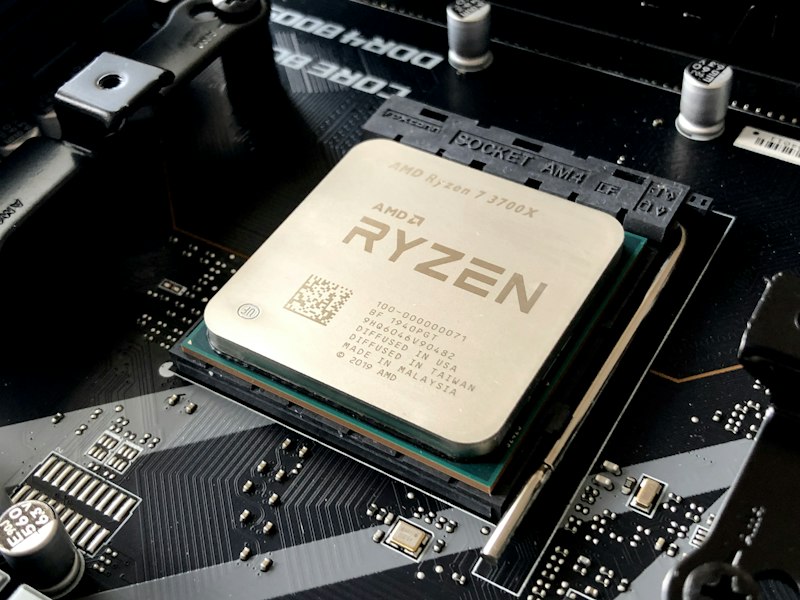
Why PCs Randomly Restart: The Usual Suspects
Before jumping to conclusions, it helps to understand the landscape of possible causes. Random restarts generally fall into three categories: hardware issues, software conflicts, and environmental factors like overheating or power problems.
Overheating is the most common culprit. When your CPU or GPU hits temperatures above 90°C, the system triggers an automatic shutdown to prevent permanent damage. Dust buildup, failing fans, degraded thermal paste, or poor case airflow can all push components past their thermal limits. A quick check with free tools like HWMonitor or Core Temp can reveal if your hardware is running hotter than it should.citeweb_search:11#0web_search:11#1
Power supply problems are another frequent offender. An aging or underpowered PSU may fail to deliver stable voltage during high-demand moments—like launching a game or rendering video—causing an abrupt restart. If your PSU is more than four years old, or if you’ve recently upgraded to a more power-hungry GPU without checking wattage requirements, this deserves attention.citeweb_search:11#0web_search:11#2
Software-side, outdated or corrupted drivers—especially graphics and chipset drivers—can trigger kernel panics that force Windows to reboot. Malware, particularly cryptomining trojans or rootkits, can consume extreme CPU and memory resources, pushing hardware to instability. Windows Update itself can sometimes schedule automatic restarts or install updates that conflict with existing drivers.citeweb_search:11#0web_search:11#2
Faulty RAM is a classic cause that’s easy to overlook. Bad memory modules cause crashes, Blue Screens of Death, and random restarts because the system loses access to critical data mid-operation. Running Windows Memory Diagnostic or MemTest86 can isolate this quickly.citeweb_search:11#0web_search:11#5
The Diagnostic Path I Took
I started with the obvious: temperature monitoring. I downloaded HWMonitor and watched my CPU idle around 45°C, which seemed fine. Under load, it climbed to 78°C—warm but not dangerous. My GPU stayed well below 80°C. Overheating wasn’t my problem.
Next, I checked Event Viewer. In Windows, press Win + X and select Event Viewer, then navigate to Windows Logs > System. I filtered for “Error” and “Critical” entries around the times of my restarts. Event ID 41—Kernel-Power—kept appearing. This indicates an unexpected shutdown, but it’s a symptom, not a cause. I needed more clues.citeweb_search:11#2
I ran a full Windows Memory Diagnostic. It came back clean. I scanned for malware using Windows Defender and Malwarebytes—nothing suspicious. I updated my GPU drivers, my chipset drivers, even my BIOS. The restarts kept coming.
Then I noticed a pattern. The restarts only happened when I was running on battery power. Wait—battery? I was on a desktop. Except I wasn’t. I had recently moved my UPS (Uninterruptible Power Supply) from my office setup to my living room entertainment center, and in its place, I’d plugged my PC directly into an old power strip I’d found in a drawer. A power strip that, as it turned out, had a loose internal connection and was delivering unstable voltage.
I swapped the power strip for a direct wall outlet. The restarts stopped immediately. Three days of frustration, solved by a $12 piece of plastic from 2008.
Common Fixes, Ranked by Simplicity
Not everyone’s fix will be as mundane as mine, but the troubleshooting process should always start with the easiest, most likely solutions and work toward the more complex. Here’s the hierarchy I wish I’d followed from the start.
1. Check Your Power Delivery
Before tearing into software or hardware diagnostics, verify your power source. Try a different wall outlet. Swap your power cable. If you’re using a power strip or surge protector, test with a direct wall connection. Unstable voltage from a failing strip or overloaded circuit can cause restarts that look like complex hardware failures.citeweb_search:11#0web_search:11#4
2. Monitor Temperatures and Clean Dust
Download HWMonitor, Core Temp, or SpeedFan. Check CPU and GPU temps under idle and load. If you’re seeing sustained readings above 85°C under load, open your case and clean the dust from fans, heatsinks, and vents with compressed air. If your PC is more than three years old, reapplying thermal paste to the CPU can drop temperatures significantly. Ensure case fans are spinning correctly and oriented for proper airflow—intake from front and bottom, exhaust from rear and top.citeweb_search:11#0web_search:11#1
3. Disable Automatic Restart on System Failure
By default, Windows reboots immediately after a critical error, hiding the actual Blue Screen message. To see what’s really happening, go to Control Panel > System > Advanced System Settings > Startup and Recovery > Settings. Uncheck “Automatically restart.” Next time a crash happens, you’ll see the stop code instead of a black screen—crucial information for diagnosis.citeweb_search:11#2
4. Update or Roll Back Drivers
Outdated drivers are a well-known source of instability. Visit your GPU manufacturer’s website (NVIDIA, AMD, or Intel) and download the latest driver for your exact model. For a clean install, use DDU (Display Driver Uninstaller) in Safe Mode to remove old drivers completely before installing new ones. Also check your motherboard manufacturer’s site for chipset, network, and audio driver updates. If restarts started after a recent driver update, rolling back to the previous version may solve it.citeweb_search:11#0web_search:11#2
5. Test Your RAM and Storage
Press Win + R, type mdsched.exe, and hit Enter to run Windows Memory Diagnostic. For deeper analysis, boot from a USB drive running MemTest86 and let it complete several passes. To check storage health, open Command Prompt as Administrator and run chkdsk C: /f /r. For a clearer picture of drive health, download CrystalDiskInfo and look for “Caution” or “Bad” status indicators—replace the drive immediately if you see them.citeweb_search:11#0web_search:11#2
6. Scan for Malware
Run a full scan with Windows Defender, then follow up with a second-opinion tool like Malwarebytes. Check Task Manager (Ctrl + Shift + Esc) for processes consuming unusual CPU or RAM. Some malware hides as legitimate Windows processes, so look for misspelled names or unfamiliar executables. If you find a threat, remove it and restart.citeweb_search:11#0web_search:11#2
7. Manage Windows Updates and System Files
Go to Settings > Windows Update and ensure no updates are stuck mid-install. If restarts began after a specific update, navigate to Update History > Uninstall Updates and roll back the problematic one. Run System File Checker by opening Command Prompt as Administrator and typing sfc /scannow to repair corrupted OS files.citeweb_search:11#0web_search:11#2
8. Check for Overclocking Instability
If you’ve overclocked your CPU, GPU, or RAM, instability may be the price of that extra performance. Enter your BIOS/UEFI (usually by pressing Del or F2 during startup) and select “Load Optimized Defaults” or “Reset to Default” to return everything to stock speeds. If you use software overclocking tools like MSI Afterburner or Intel XTU, reset all profiles to default. Test for stability. If the restarts stop, your overclock was the culprit.citeweb_search:11#0web_search:11#1
When to Call in a Pro
Most random restart issues can be resolved at home with patience and methodical testing. But there are clear signals that it’s time to seek professional help. If you’ve worked through the steps above and restarts persist, if you hear clicking or grinding from inside the case, if the PC won’t boot reliably enough to run diagnostics, or if you’re simply not comfortable opening the case, a reputable repair shop is the safer choice. Persistent restarts after thorough troubleshooting often indicate motherboard failure, a dying PSU, or complex software corruption that requires expert diagnosis.citeweb_search:11#0
Quick Comparison: Software vs. Hardware Causes
| Symptom Pattern | Likely Category | First Check |
|---|---|---|
| Restarts during gaming or heavy tasks | Hardware (overheating or PSU) | Temperatures and power supply wattage |
| Restarts after Windows updates | Software (driver conflict) | Update history and driver rollbacks |
| Restarts with Blue Screen visible | Hardware or driver failure | Stop code and RAM test |
| Restarts at idle or low load | Hardware (PSU or RAM) | Power delivery and memory diagnostic |
| Restarts only on battery (laptops) | Hardware (battery or charging circuit) | Battery health and AC adapter |
| Restarts after installing new software | Software (conflict) | Uninstall recent programs, clean boot |
Benefits & Considerations
Benefits: Methodical troubleshooting saves money, prevents unnecessary hardware replacements, and builds your confidence in maintaining your own system. Most random restart causes—overheating, driver issues, power problems, and malware—are fixable with free tools and a few hours of attention. Learning these diagnostic skills also helps you maintain system health long-term, reducing the risk of future issues.
Considerations: Opening your PC case carries some risk if you’re unfamiliar with hardware. Always power down and unplug before working inside. Static electricity can damage components, so ground yourself by touching the metal case before handling parts. If your PC is under warranty, opening the case may void it—check with your manufacturer first. And always back up important data before running diagnostics or making system changes, as some tests and fixes carry a small risk of data loss.
Expert Tip
Log everything. When a restart happens, write down the time, what you were doing, and any symptoms you noticed. After a week, patterns emerge. Maybe it only happens when you launch a specific game. Maybe it’s always within ten minutes of booting. Maybe it never happens before noon. These clues are invaluable for narrowing down whether you’re dealing with a thermal issue, a power problem, or a software conflict. Data turns guessing into diagnosis.
Frequently Asked Questions
What’s the first thing I should check when my PC randomly restarts?
Start with the simplest possible cause: your power source. Try a different outlet, swap your power cable, and bypass any power strips or surge protectors. If the restarts stop, you’ve found your fix. If not, move on to temperature monitoring with free tools like HWMonitor.citeweb_search:11#0web_search:11#4
Can a virus really cause random restarts?
Yes. Certain malware, especially cryptomining trojans and rootkits, can consume extreme CPU and memory resources, pushing your system to overheat or crash. Some malicious software even deliberately triggers restarts to disable security tools. Run a full scan with Windows Defender and a second-opinion tool like Malwarebytes to rule this out.citeweb_search:11#0web_search:11#2
How do I know if my power supply is failing?
Signs of a failing PSU include restarts during high-demand tasks (gaming, video rendering), random shutdowns at idle, burning smells, or unusual sounds from the PSU fan. You can use an online PSU calculator to verify your wattage needs, check that all cables are securely connected, and if possible, test with a known-good PSU. If your PSU is over four years old, replacement is often the safest bet.citeweb_search:11#0web_search:11#1
Should I be worried if I see Event ID 41 in Event Viewer?
Event ID 41 indicates an unexpected shutdown, but it’s a symptom, not a diagnosis. It tells you the system lost power unexpectedly, but not why. Use it as a starting point to check for associated errors around the same timestamp—those will point you toward the actual cause, whether it’s thermal, power, or driver-related.citeweb_search:11#2
Is it safe to keep using my PC if it keeps restarting?
Continued use under unstable conditions risks permanent hardware damage, especially from sustained overheating. It can also corrupt files and operating system components. Address the issue promptly rather than working around it. If you need the PC for critical work, back up your data immediately and start troubleshooting.citeweb_search:11#2
Final Thoughts
Random restarts feel catastrophic, but they’re rarely as dire as they seem. In my case, the culprit was a failing power strip I’d trusted for years. For you, it might be a dust-clogged fan, a driver that needs updating, or a RAM stick that’s gone bad. The key is to work methodically, start with the simplest fixes, and let the symptoms guide you.
Your PC is trying to tell you something. The black screen, the sudden silence, the Event Viewer logs—they’re all clues. Learn to read them, and you’ll save yourself time, money, and a whole lot of frustration. Sometimes the fix is as simple as swapping a cable. Sometimes it requires deeper digging. But almost always, the answer is there if you know where to look.
If you’ve exhausted these troubleshooting steps and your PC still restarts unpredictably, consult a qualified technician. Some issues—like motherboard failure or complex power delivery problems—require professional diagnosis and repair.
━━━━━━━━━━━━━━━━━━ 🎥 Recommended Video https://www.youtube.com/results?search_query=PC+randomly+restarting+troubleshooting+fix ━━━━━━━━━━━━━━━━━━
No comments:
Post a Comment