
My PC had become a chore. Booting took nearly four minutes. Opening File Explorer felt like a request, not a command. The fan spun up every time I opened a browser tab, and I had long since stopped asking why. I assumed it was just old age — a 2019 machine showing its years. I was wrong.
The problem wasn't the hardware. It was the digital barnacles. Years of Windows updates had left behind massive cached files. Temporary data had piled up like unpaid bills. And my C: drive was so full that Windows had no breathing room to manage memory efficiently. I freed up 34 gigabytes in under ten minutes using a single built-in tool that most people scroll past without a second glance.
The Tool Hiding in Plain Sight
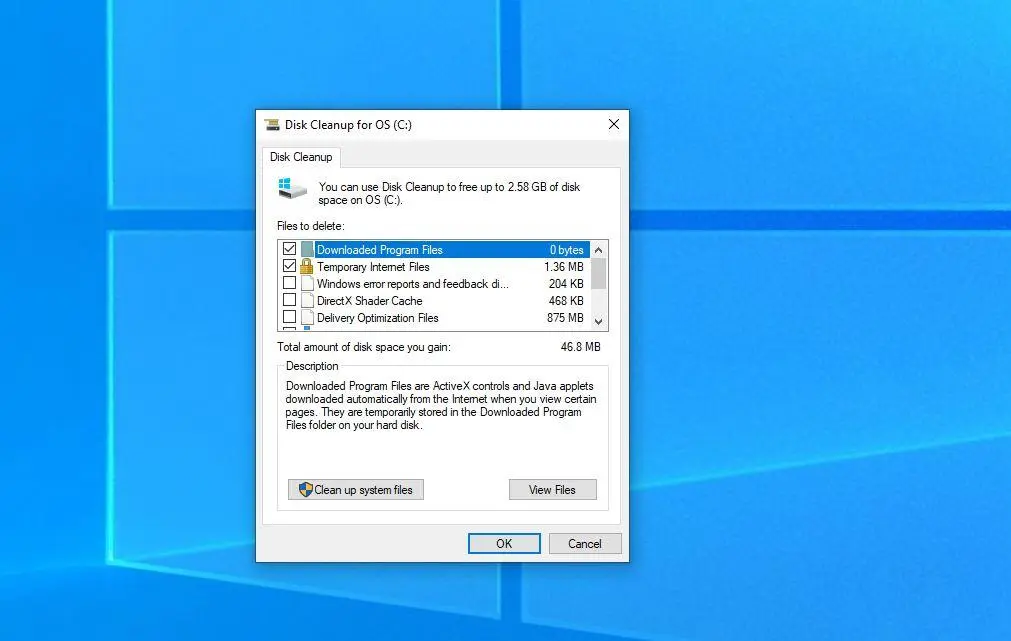
Windows has shipped with Disk Cleanup since the nineties, but almost nobody uses it correctly. They open it, check a few boxes, reclaim a gigabyte, and call it a day. That's like dusting the shelves while the attic is overflowing.
The real power is in the button most people ignore: "Clean up system files." Clicking that elevates the tool to administrator mode and unlocks categories that regular cleanup can't touch — most importantly, Windows Update Cleanup. This single category was hoarding 28GB on my machine. Twenty-eight gigabytes of old update installers, superseded system files, and rollback data that Windows kept "just in case."
Here's the thing — you don't need rollback data from a security patch released in 2021. Windows keeps it by default because it's safer. But on a system that's running fine, it's just dead weight suffocating your storage.
How to Actually Do It
This isn't complicated, but the order matters. Start by typing "Disk Cleanup" into your Start menu and running it as administrator. Right-click the result and select "Run as administrator." If you skip this step, you'll miss the biggest files.
Select your C: drive and let it scan. The first window shows basic temp files, Recycle Bin contents, and thumbnails. Check what you want, but don't hit OK yet. Look for the "Clean up system files" button at the bottom and click it. The tool will rescan with elevated permissions.
Now the magic happens. The second window includes categories like:
- Windows Update Cleanup: Old update files and superseded system components. Often the largest category by far.
- Windows Upgrade Log Files: Logs from previous feature updates. Safe to delete.
- Temporary Windows Installation Files: Leftovers from major version upgrades.
- Delivery Optimization Files: Cached update files from Microsoft's peer-to-peer distribution system.
- Device Driver Packages: Old driver installers that are no longer needed.
Check the boxes that make sense for your system. I selected everything except the Recycle Bin, because I wanted to review that separately. Hit OK, confirm the deletion, and wait. On a system with years of buildup, this can take five to fifteen minutes. Your PC may appear frozen. It isn't. Let it work.
Why It Feels Like a New Machine
Freeing space isn't just about storage — it's about performance. When your C: drive is nearly full, Windows can't efficiently manage virtual memory, temporary files, or background indexing. The system starts thrashing, constantly moving data around to make room. Everything slows down.
After the cleanup, my free space jumped from 12GB to 46GB. The difference was immediate. Boot times dropped by over a minute. Programs that used to stutter now opened smoothly. Even Chrome — notorious for being a resource hog — felt lighter. The fan stopped screaming every time I checked email.
It wasn't a placebo. Windows simply had room to breathe again.
The Automation Most People Miss
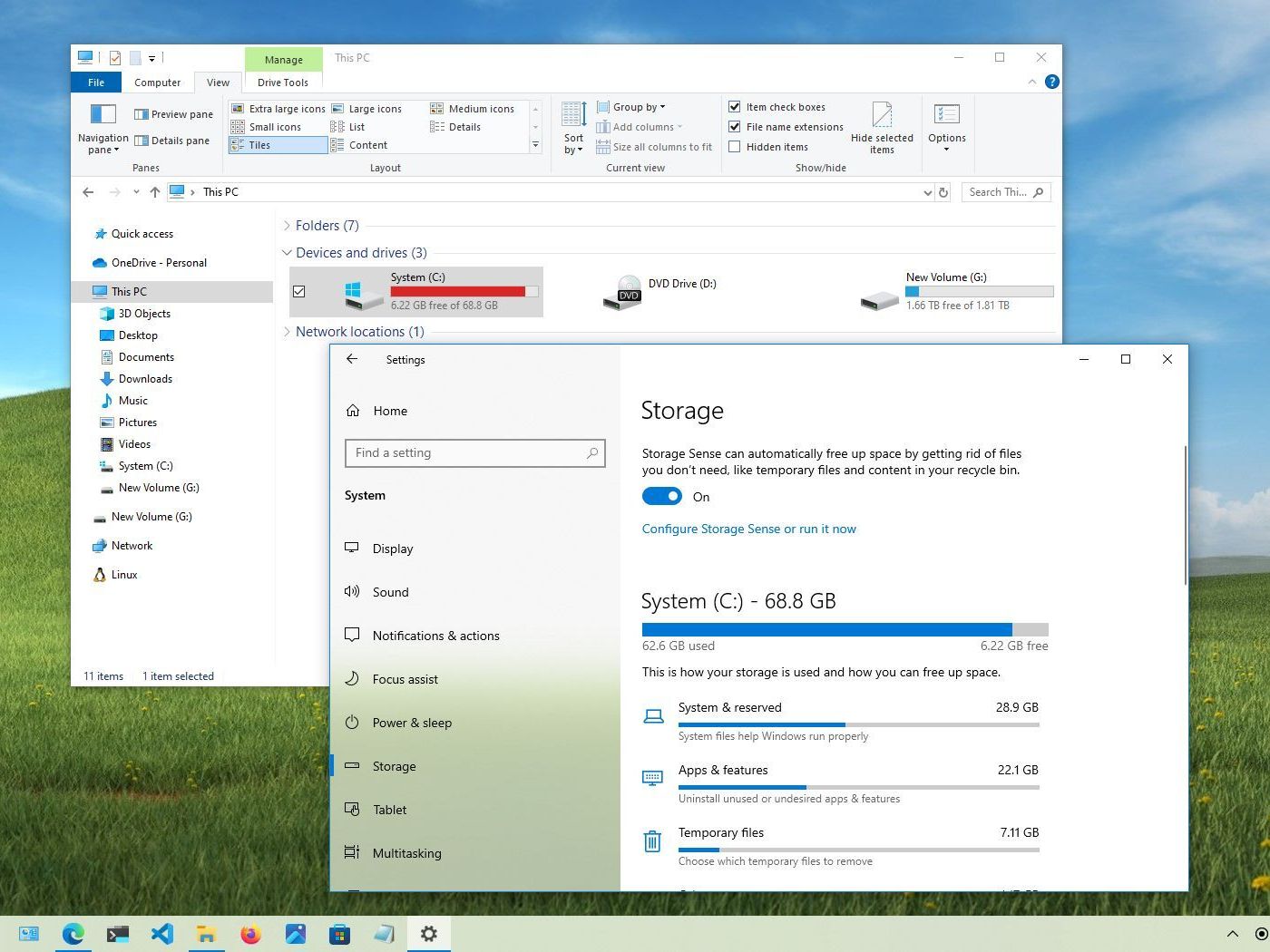
Disk Cleanup is a manual tool, but Windows has a built-in automation feature that does similar work continuously. It's called Storage Sense, and it's buried in Settings under System > Storage.
Turn it on, and Windows will automatically delete temporary files, Recycle Bin items, and Downloads folder clutter on a schedule you set. It won't touch Windows Update Cleanup as aggressively as the manual tool, but it prevents the gradual buildup from returning. I configured mine to run every month and delete files that have been in the Recycle Bin for over 30 days. Set it and forget it.
What the Different Cleanup Categories Actually Remove
| Category | What It Removes | Typical Size | Safety Level |
|---|---|---|---|
| Windows Update Cleanup | Old update installers and superseded system files | 5–30 GB | Very safe if system is stable |
| Temporary Files | App caches, error logs, setup leftovers | 500 MB–5 GB | Safe |
| Delivery Optimization Files | Cached update files from other PCs | 1–10 GB | Safe |
| Thumbnails | Preview images for files and folders | 100 MB–2 GB | Safe — rebuilds automatically |
| Recycle Bin | Files you've deleted | Varies | Review before emptying |
Pros & Cons of Aggressive System Cleanup
| Pros | Cons |
|---|---|
| Frees massive amounts of space instantly | Removes ability to uninstall recent Windows updates |
| Improves overall system responsiveness | Can take 10–20 minutes on heavily clogged systems |
| Uses only built-in Windows tools — no downloads needed | Requires administrator access |
| Reduces background disk activity and fan noise | Some categories are confusing for beginners |
Expert Tip
After you run Disk Cleanup with system files, don't stop there. Open your %temp% folder by typing that into the Run dialog (Windows key + R) and delete anything older than a week. Then check your Downloads folder — it's a graveyard of installer files you'll never run again. Between Disk Cleanup, the temp folder purge, and Downloads, I cleared over 40GB total. The Disk Cleanup tool is the heavy lifter, but these two manual steps mop up what it misses. Do all three, and you'll feel like you just unboxed your PC.
FAQ
Will deleting Windows Update Cleanup break my PC?
No, as long as your system is currently stable. These are old update files that have already been replaced by newer versions. The only trade-off is that you can't roll back to those specific updates after deletion.
How often should I run Disk Cleanup?
For most users, every three to six months is plenty. If you install major Windows feature updates frequently, check afterward — those tend to leave the biggest mess behind.
Can I use a third-party cleaner instead?
You can, but you don't need to. Windows built-in tools are safer and just as effective for the heavy lifting. Third-party cleaners sometimes overreach and delete things you'll miss later.
Why didn't I know about the "Clean up system files" button?
Because Microsoft buries it. The first Disk Cleanup window looks complete, so most people never realize there's a second, more powerful layer hiding behind that button. It's one of Windows' worst UI decisions.
Will this speed up a PC with a full hard drive?
Yes, dramatically. Mechanical hard drives especially suffer when they're over 85% full. SSDs are more resilient but still slow down as they approach capacity. Freeing space gives the operating room it needs to function properly.
Final Thoughts
We spend hundreds on RAM upgrades and SSD swaps when sometimes the fix is already sitting on our hard drive, invisible and ignored. My PC didn't need new hardware. It needed a digital decluttering — a purge of years of update debris and temporary files that had turned a capable machine into a sluggish frustration.
The best part? It cost nothing. No software to download. No credit card required. Just a built-in Windows tool that most people overlook because it looks too simple to be powerful.
Before you start shopping for a new computer, open Disk Cleanup as an administrator. Click that "Clean up system files" button. See what Windows has been hoarding. You might just save yourself a thousand dollars — and remember why you liked your PC in the first place.
━━━━━━━━━━━━━━━━━━
🎥 Recommended Video
https://www.youtube.com/results?search_query=Windows+disk+cleanup+system+files+speed+up+PC

No comments:
Post a Comment