
There's one mistake that costs Windows users more battery life, more performance, and more frustration than anything else. It isn't clicking phishing links. It isn't ignoring updates. It isn't even running too many browser tabs. It's something far more ordinary, and far more insidious, because most people don't even realize they're doing it wrong.
They're letting Windows manage their power settings on autopilot. And in 2026, with Microsoft's own updates repeatedly breaking sleep modes, hibernation, and battery optimization, that default trust is a recipe for a laptop that dies before lunch and a desktop that runs hot for no reason.
The Default Power Plan Is Sabotaging You
When you install Windows, it picks a power plan for you. On desktops, that's usually "Balanced." On laptops, it's often "Best Performance" or whatever the manufacturer preloaded. Most users never change it. They assume Microsoft and their PC maker know what's best.
They don't. Not even close.
In 2026, Microsoft officially acknowledged that faulty third-party drivers have been killing Windows 11 battery life for years. The problem? Drivers that prevent laptops from entering low-power hibernation mode, causing them to drain battery continuously even when the lid is closed. One bad driver could keep your PC awake all night, burning through charge while you sleep. Microsoft is only now implementing stricter driver evaluation processes to catch these issues before they ship. citeweb_search:11#1
But here's the kicker: even without buggy drivers, the default power settings are aggressively tilted toward responsiveness, not efficiency. Windows wants your PC to feel fast when you click something. That means keeping the CPU ready, the screen bright, and background processes running. Your battery pays the price.
How to Actually Configure Your Power Settings
The fix isn't complicated, but it does require you to stop trusting the defaults. Here's what to do:
On Windows 11:
- Press Windows key + I to open Settings.
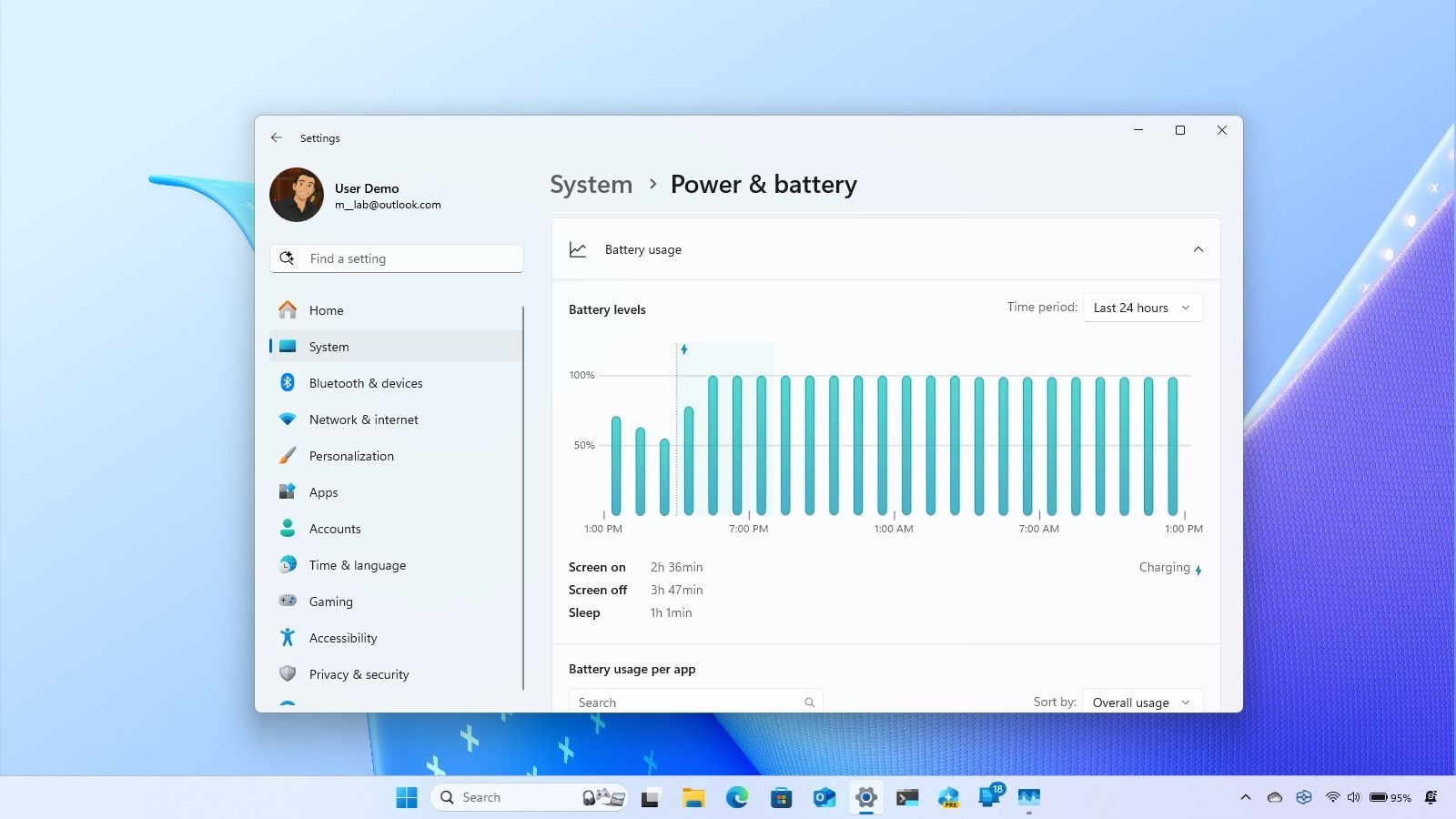
- Go to System > Power & battery.
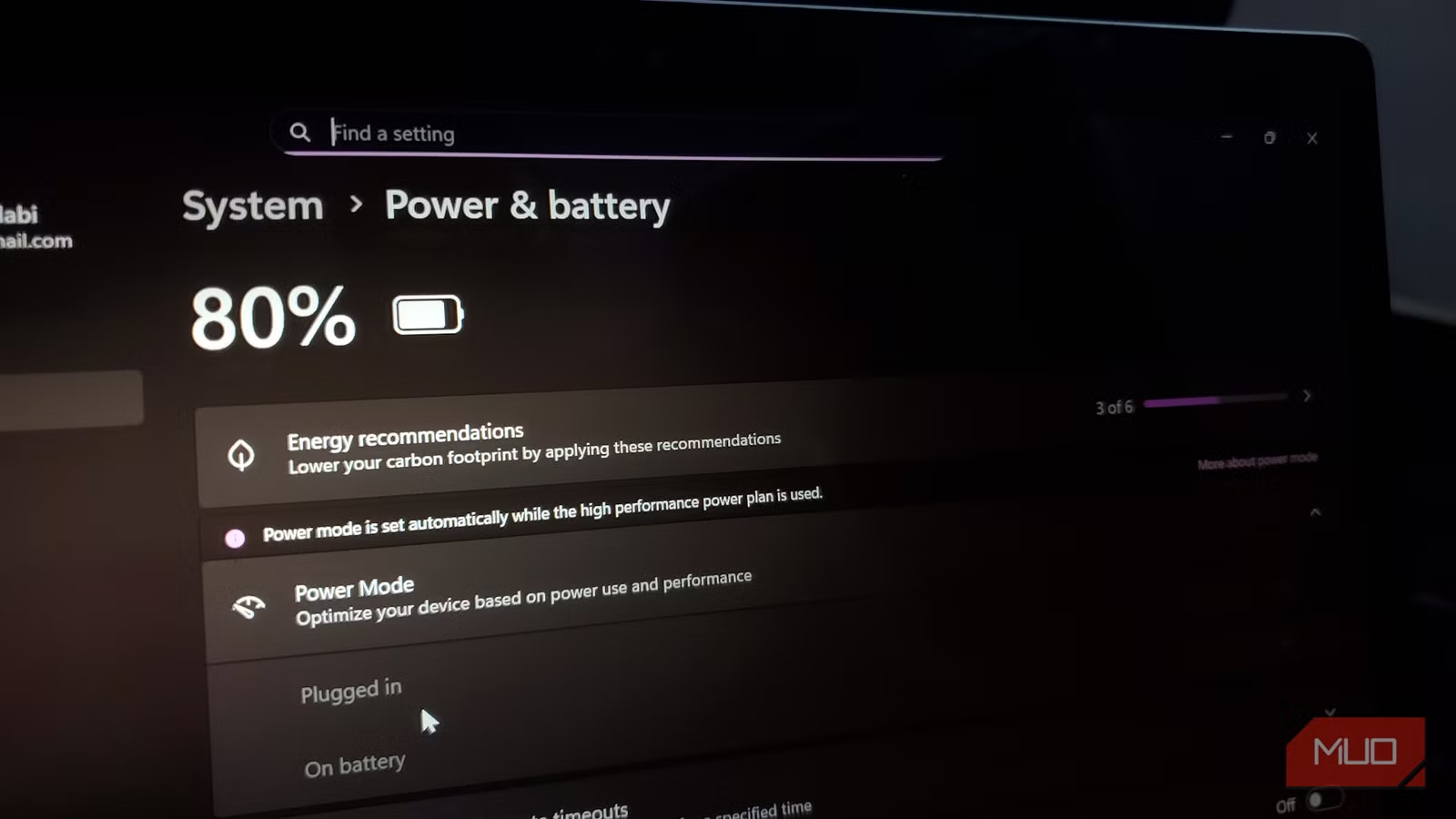
- Under Power mode, use the dropdown to select Best power efficiency when you're on battery.
- Scroll down and set your screen to turn off after 3-5 minutes of inactivity.
- Set your PC to sleep after 10-15 minutes.
On Windows 10 (still supported until October 2026):
- Press Windows key + I to open Settings.
- Go to System > Power & sleep.
- Set screen timeout to 3-5 minutes and sleep timer to 10-15 minutes.
- Click Additional power settings to open the classic Control Panel.
- Choose Power Saver or create a custom plan that aggressively limits CPU usage on battery.
These changes alone can add hours to your laptop's battery life. The screen is the single biggest power draw on any mobile device. Every extra minute it stays lit when you're not looking at it is wasted battery. And sleep mode, when it actually works, uses almost no power at all. citeweb_search:11#3
Fast Startup: The Hidden Battery Killer
Here's a setting that sounds helpful but often does more harm than good. Fast Startup is enabled by default on most Windows PCs. It hibernates the kernel instead of fully shutting down, which makes your PC boot faster the next time. The tradeoff? Your system never truly shuts down. Background processes keep running. Updates don't always install properly. And on some laptops, the battery drains even when the PC appears to be off.
To disable it:
- Press Windows key + R, type
control, and press Enter. - Go to Power Options > Choose what the power buttons do.
- Click Change settings that are currently unavailable.
- Uncheck Turn on fast startup (recommended).
- Save changes.
Yes, your boot time might increase by a few seconds. But your PC will actually shut down when you tell it to, and your battery will thank you. citeweb_search:11#3
Background Apps: The Silent Drain
Windows lets apps run in the background even when you haven't opened them. Some of these are necessary, like your antivirus or cloud sync. Most aren't. Every background app is another process consuming CPU cycles, RAM, and battery.
To audit and restrict them:
- Go to Settings > System > Power & battery > Battery usage.
- Look at the list of apps and their battery consumption over the last 24 hours.
- For any app that's using more power than it should, click the three-dot menu and select Manage background activity.
- Set Background apps permissions to Never for anything you don't need running constantly.
Games, shopping apps, and social media clients have no business running in the background on a work laptop. Be ruthless. Your battery report is the most honest feedback Windows gives you. citeweb_search:11#3
Windows Update: The Double-Edged Sword
Here's where things get complicated. Ignoring Windows updates is a security risk. Microsoft patches over 100 vulnerabilities every month, and some of those are actively exploited in the wild. But installing updates immediately is also risky, because Microsoft's own patches have been breaking systems left and right in 2026.
The January 2026 Patch Tuesday update alone triggered sign-in problems, Outlook freezes, app crashes, boot failures, and a bug that caused systems with Secure Launch enabled to restart instead of shutting down. Some of these were fixed with emergency patches days later. Others remain unresolved. citeweb_search:11#4
The smart approach? Enable updates, but pause them for 48 to 72 hours after a major Patch Tuesday release. Check tech forums and Microsoft's own support pages for early reports of issues. If you see a pattern of complaints, wait for the Known Issue Rollback or follow-up patch. This short delay rarely costs you anything in security, but it can save you from hours of troubleshooting a broken PC.
The Windows 10 Deadline Nobody's Talking About
Windows 10 support ends in October 2026. After that, no more security patches. No more bug fixes. Running an unsupported OS connected to the internet is like leaving your front door unlocked in a bad neighborhood. Yet millions of users are still on Windows 10, either because their hardware is "incompatible" with Windows 11 or because they simply haven't bothered to upgrade. citeweb_search:11#6
If your PC is too old for Windows 11, you have options. Microsoft's official upgrade path works on many "incompatible" machines with a simple registry tweak. Or you can look at Linux distributions like Ubuntu or Linux Mint, which run well on older hardware and receive regular security updates. Staying on Windows 10 past October 2026 without a plan is the cybersecurity equivalent of driving without a seatbelt.
Other Mistakes That Compound the Problem
Bad power settings don't exist in a vacuum. They stack with other common mistakes to make your Windows experience worse than it needs to be:
Using the same password everywhere: 84% of global users reuse passwords across multiple accounts. When one service gets breached, attackers try those credentials everywhere else. A password manager fixes this in minutes. citeweb_search:11#0
Disabling User Account Control: Those "Do you want to allow this app to make changes?" pop-ups are annoying. But turning off UAC removes a critical security layer that prevents malware from silently installing itself. Leave it on.
Ignoring the battery health report: Windows can generate a detailed battery report showing your battery's capacity, charge cycles, and estimated life. Open Command Prompt as administrator and type powercfg /batteryreport. The HTML file it generates will tell you if your battery is dying and needs replacement. citeweb_search:11#3
What You Gain vs. What You Lose
| Change | What You Gain | What You Lose |
|---|---|---|
| Switch to Best Power Efficiency | 2-4 hours extra battery life | Slightly slower CPU response under heavy load |
| Disable Fast Startup | True shutdown, better update reliability, less phantom drain | 3-5 seconds longer boot time |
| Restrict background apps | Less RAM usage, cooler operation, longer battery | Apps may take a moment longer to show notifications |
| Shorter screen timeout | Significant battery savings, especially on OLED laptops | Screen dims faster; you may need to wake it more often |
| Pause updates 48-72 hours | Avoid buggy patches, stay stable | Slight delay in receiving security fixes |
Pros and Cons of Aggressive Power Management
| Pros | Cons |
|---|---|
| Dramatically improved battery life on laptops | Some high-performance tasks feel slightly slower |
| Reduced heat generation and fan noise | Gaming and video editing may need manual plan switching |
| Better long-term battery health from fewer charge cycles | Requires occasional adjustment based on what you're doing |
| More reliable sleep and hibernation behavior | Fast Startup fans will notice slightly slower boots |
| Lower electricity bills for desktop users | Takes 10 minutes to set up properly the first time |
Expert Tip: Create a Power Plan for Every Scenario
The pros don't use one power plan for everything. They create multiple profiles and switch between them depending on what they're doing.
On Windows 11, you can use the Power mode dropdown to quickly switch between Best power efficiency, Balanced, and Best performance. Get in the habit of switching to power efficiency when you're on battery and only flipping to performance when you're plugged in and doing something demanding.
On Windows 10, the classic Control Panel power options let you create custom plans. Make one called "Battery Saver" that limits CPU to 50%, dims the screen aggressively, and sleeps after 5 minutes. Make another called "Gaming" that lets the CPU run at full tilt. Switch between them with two clicks.
Also, check your battery report monthly. Open Command Prompt as administrator and run powercfg /batteryreport. Look at the "Battery capacity history" section. If your full charge capacity is dropping by more than 5% per month, something is wrong, either a failing battery, a rogue app, or a power setting that's keeping your PC awake when it shouldn't be. citeweb_search:11#3
FAQ
Will switching to power efficiency make my PC feel slow?
For everyday tasks like browsing, email, and document editing, you won't notice a difference. The CPU still boosts when you click something. The difference only shows up under sustained heavy loads like video rendering or gaming. For those tasks, you can temporarily switch back to balanced or performance mode.
Is Fast Startup really that bad?
It depends. On desktops with reliable power, it's mostly harmless. On laptops, especially those with buggy drivers or manufacturer bloatware, Fast Startup frequently causes sleep issues, update failures, and phantom battery drain. If you've ever closed your laptop at 80% battery and opened it at 30%, Fast Startup is a likely culprit.
Should I install Windows updates immediately or wait?
Wait 48-72 hours after Patch Tuesday, then check for reports of issues. If your PC is stable and no widespread bugs are reported, go ahead and update. Security patches matter, but so does stability. The tiny window of exposure from waiting two days is negligible compared to the headache of a broken system.
What if my laptop battery drains even in sleep mode?
Run powercfg /energy in an elevated Command Prompt. It generates a report showing which devices and drivers are preventing your PC from entering low-power states. Common culprits include USB devices, network adapters, and third-party audio drivers. Disconnect peripherals before sleeping, or update your drivers.
Can I stay on Windows 10 after October 2026?
Technically yes, but it's a bad idea. No security patches means every new vulnerability is a permanent open door. If your hardware can't run Windows 11, consider the registry workaround to force the upgrade, or switch to Linux. Running an unsupported OS connected to the internet is not a sustainable long-term plan. citeweb_search:11#6
Final Thoughts
The biggest mistake Windows users make isn't some dramatic security failure. It's the quiet, daily choice to let Windows manage power settings on autopilot. Default plans prioritize performance over efficiency. Fast Startup trades reliability for speed. Background apps run unchecked. And updates install immediately, bugs and all.
Fixing this doesn't require technical expertise. It requires paying attention. Switch your power mode. Disable Fast Startup. Audit your background apps. Pause updates for a couple of days. These small changes compound into a PC that lasts longer, runs cooler, and breaks less often.
Your computer is a tool. It should work for you, not against you. Stop letting the defaults decide how your battery dies.
🎥 Recommended Video
https://www.youtube.com/results?search_query=Windows+power+settings+battery+fix+2026

No comments:
Post a Comment