
You close your laptop at 11 PM with 80% battery. You open it at 8 AM and it's somehow at 42%. You didn't touch it. You didn't leave any apps running. And yet, your Windows laptop treated the night like a marathon.
Overnight battery drain is one of those problems that feels almost personal. It's not just annoying — it's a quiet betrayal. You trusted your machine to sleep, and instead it stayed up all night partying on your power supply.
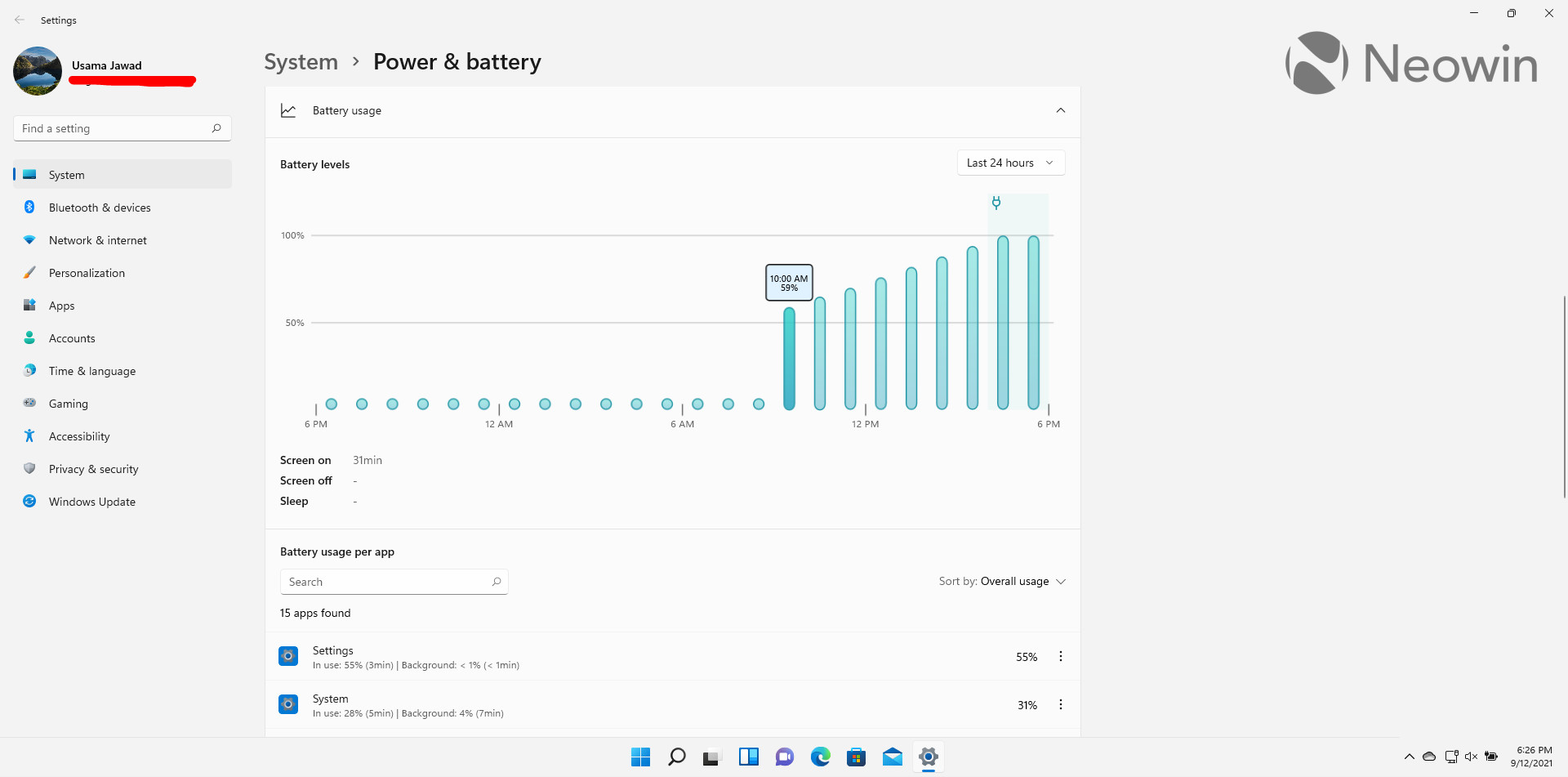
Why Sleep Isn't Really Sleep Anymore
Here's the thing most people don't realize: modern Windows laptops don't actually "sleep" the way you think they do. Microsoft uses something called Modern Standby (or Connected Standby on some devices), which keeps your laptop in a low-power state rather than fully shutting down.
That sounds smart on paper. Your email syncs. Your notifications arrive. Your updates download. But the trade-off is that your laptop is never fully off. It's just... resting with one eye open. And that eye costs battery.
Some laptops lose 5–10% overnight. Others hemorrhage 30% or more. The difference usually comes down to what your machine is doing while you think it's doing nothing.
The Usual Suspects
If your battery is draining overnight, one of these culprits is almost certainly responsible. The good news? Most of them are easy to catch.
Background Apps That Refuse to Quit
Windows 10 and 11 let apps run in the background even when you're not using them. Spotify, Discord, Slack, Microsoft Teams, and even your browser can keep chugging along, syncing data and burning power while your laptop sits closed on a desk.
Head to Settings > Apps > Installed apps, click the three dots next to any app, select Advanced options, and look for the "Background apps permissions" setting. Set anything you don't need to "Never." You'd be shocked how many apps are set to "Always" by default.
Windows Updates Running on Their Own Schedule
Windows loves to update. And it doesn't care if you're sleeping. Your laptop might spend hours downloading patches, indexing files, or running system maintenance tasks while you dream about spreadsheets. These processes can push your CPU just enough to drain significant battery without ever waking the screen.
Peripherals and USB Devices
That USB hub you left plugged in? The external mouse dongle? Your phone charging cable? They all draw power, even when your laptop is "asleep." Some USB devices are particularly greedy and can prevent your system from entering its deepest power-saving state.
Faulty or Aging Battery
If your laptop is more than three years old, the battery itself might be the problem. Lithium-ion batteries degrade over time, and a battery that once held 8 hours of charge might now struggle to last 3. You can check your battery health by running a simple command. Open Command Prompt as administrator and type:
powercfg /batteryreport
This generates an HTML file showing your battery's design capacity versus its current capacity. If the current capacity is under 70% of the original, it's time to consider a replacement.
Connected Standby: The Hidden Villain
Modern Standby is the single biggest reason for overnight drain on newer Windows laptops. Unlike the old S3 sleep mode, which essentially froze your system, Modern Standby keeps the network active and allows apps to wake the CPU periodically.
The problem is that not all apps play nice. A poorly coded background process can wake your CPU dozens of times per hour. Multiply that over eight hours, and you've got a dead battery by morning.
To see what's waking your laptop, open Command Prompt as administrator and run:
powercfg /sleepstudy
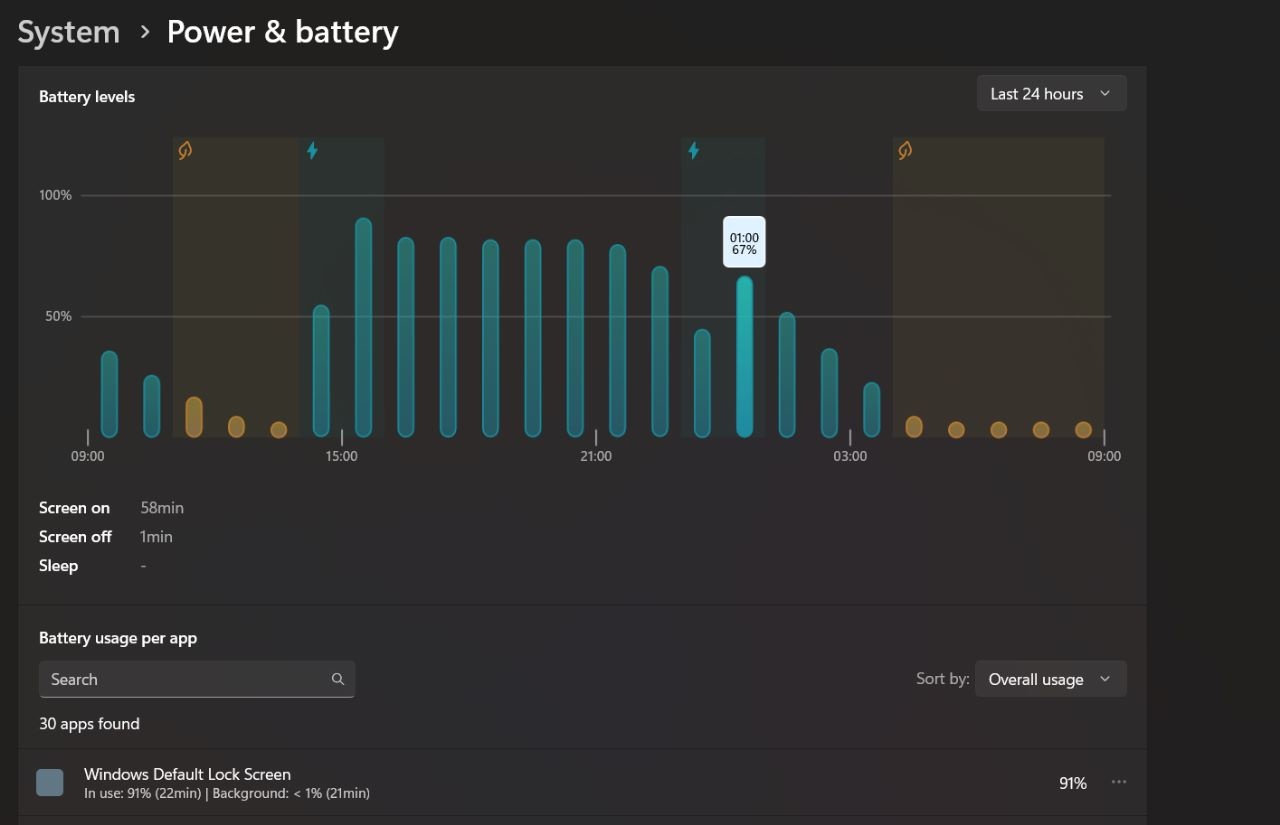
This generates a detailed report showing every time your system woke up, what woke it, and how much battery each wake event consumed. It's like a detective novel for your power settings, and the villain is usually a single app you forgot was installed.
Quick Fixes That Actually Work
Before you start uninstalling everything, try these proven fixes. They solve the problem for most users without requiring a computer science degree.
- Enable Hibernate instead of Sleep. Hibernate saves your session to disk and fully powers off. It takes a few extra seconds to resume, but it uses zero battery overnight. Go to Control Panel > Power Options > Choose what closing the lid does and set it to Hibernate.
- Turn off Fast Startup. This feature keeps your system partially awake for faster boot times. Disable it in Power Options for a cleaner shutdown.
- Disconnect peripherals before bed. Unplug USB devices, external monitors, and anything else drawing power.
- Disable wake timers. In Power Options, go to Change plan settings > Change advanced power settings > Sleep > Allow wake timers and set it to Disable.
- Update your drivers. Outdated chipset or power management drivers can cause excessive drain. Check your laptop manufacturer's support page for updates.
Sleep vs. Hibernate: What's the Real Difference?
| Feature | Sleep (Modern Standby) | Hibernate | Shut Down |
|---|---|---|---|
| Power usage | Low but active | Zero | Zero |
| Resume speed | Instant | 10–20 seconds | 30–60 seconds |
| Network active | Yes | No | No |
| Apps stay open | Yes | Yes | No |
| Best for | Short breaks | Overnight | Long-term storage |
Pros & Cons of Disabling Modern Standby
| Pros | Cons |
|---|---|
| Dramatically reduces overnight battery drain | You won't receive notifications while the laptop is off |
| Eliminates mystery wake events | Hibernate resume takes slightly longer |
| Gives you full control over power usage | Some apps (like email) won't sync until you wake the device |
| Extends overall battery lifespan | Requires changing habits from just closing the lid |
Expert Tip
Don't just guess which app is draining your battery. Use the built-in tools Windows already gives you. The Sleep Study report is genuinely powerful — it breaks down every wake event by app, driver, and time. Most people find that a single app is responsible for 70% of their overnight drain. Uninstall it, restrict its background activity, or find an alternative. One rogue process can turn a 10-hour battery into a 3-hour battery, and you'll never know unless you look.
FAQ
Is it bad to leave my laptop plugged in overnight?
No, modern laptops have built-in charge controllers that stop charging at 100%. However, keeping it at 100% for months can slightly degrade battery health over time. Some manufacturers now offer battery limit features that cap charging at 80% for longevity.
Why does my battery drain faster some nights than others?
Windows runs scheduled maintenance, indexing, and updates at unpredictable times. If your laptop happens to be asleep during a major update, it can drain significantly more power that night.
Should I just shut down my laptop every night?
It's not necessary, but it won't hurt. Hibernate is the sweet spot — it saves your work, uses zero power, and resumes faster than a full shutdown. Use shutdown only if you won't use the laptop for several days.
Does screen brightness affect overnight drain?
No, the screen is off during sleep. But high brightness during the day can mask a degrading battery, making the overnight drain feel more dramatic when you notice it in the morning.
Can a BIOS update fix battery drain?
Yes, sometimes. Manufacturers occasionally release BIOS updates that improve power management and sleep behavior. Check your laptop maker's support site every few months for updates.
Final Thoughts
Overnight battery drain isn't a mystery — it's a symptom of how modern Windows laptops are designed to stay connected even when you aren't. The good news is that you have control. A few settings changes, some background app restrictions, and a switch from Sleep to Hibernate can turn a frustrating morning surprise into a non-issue.
Your laptop doesn't need to be awake while you sleep. Give it permission to actually rest, and it'll thank you with a full battery come sunrise.
━━━━━━━━━━━━━━━━━━
🎥 Recommended Video
https://www.youtube.com/results?search_query=Windows+laptop+battery+drain+overnight+fix

No comments:
Post a Comment