
It started out of nowhere. One morning my Windows 11 laptop connected to WiFi just fine. By afternoon, it was dropping every ten minutes. Zoom calls froze. YouTube buffered endlessly. The WiFi icon showed full bars, but websites simply refused to load.
I did what most people do. I restarted the router. I rebooted the laptop. I even moved closer to the router like that would magically fix a software issue. Nothing worked. My phone and tablet were fine on the same network, so I knew the problem was sitting right in front of me.
If you're dealing with random WiFi disconnects, painfully slow speeds, or that dreaded "connected, no internet" message on Windows 11, you're not alone. Microsoft's forums are flooded with these complaints. After spending an afternoon testing every fix I could find, one combination finally solved it for good.
The Usual Suspects: What Most People Try First
Before diving into deeper fixes, let's get the basics out of the way:
- Restart your router and modem. Unplug both for thirty seconds, then plug them back in. It genuinely resolves about half of all connectivity issues.
- Restart your PC. A full shutdown clears temporary network glitches.
- Run the built-in troubleshooter. Go to Settings > System > Troubleshoot > Other troubleshooters > Network Adapter. It rarely fixes anything permanently, but it's worth the two minutes.
- Forget and reconnect to the network. Sometimes the saved network profile gets corrupted. Forcing a fresh connection can help.
If none of that worked — and for me, none of it did — it's time to dig deeper.
Fix 1: Reset Your Network Stack
Windows 11 stores a surprising amount of network configuration data. Over time, DNS caches and adapter settings can get tangled. A network reset wipes everything clean and rebuilds from scratch.
Here's how:
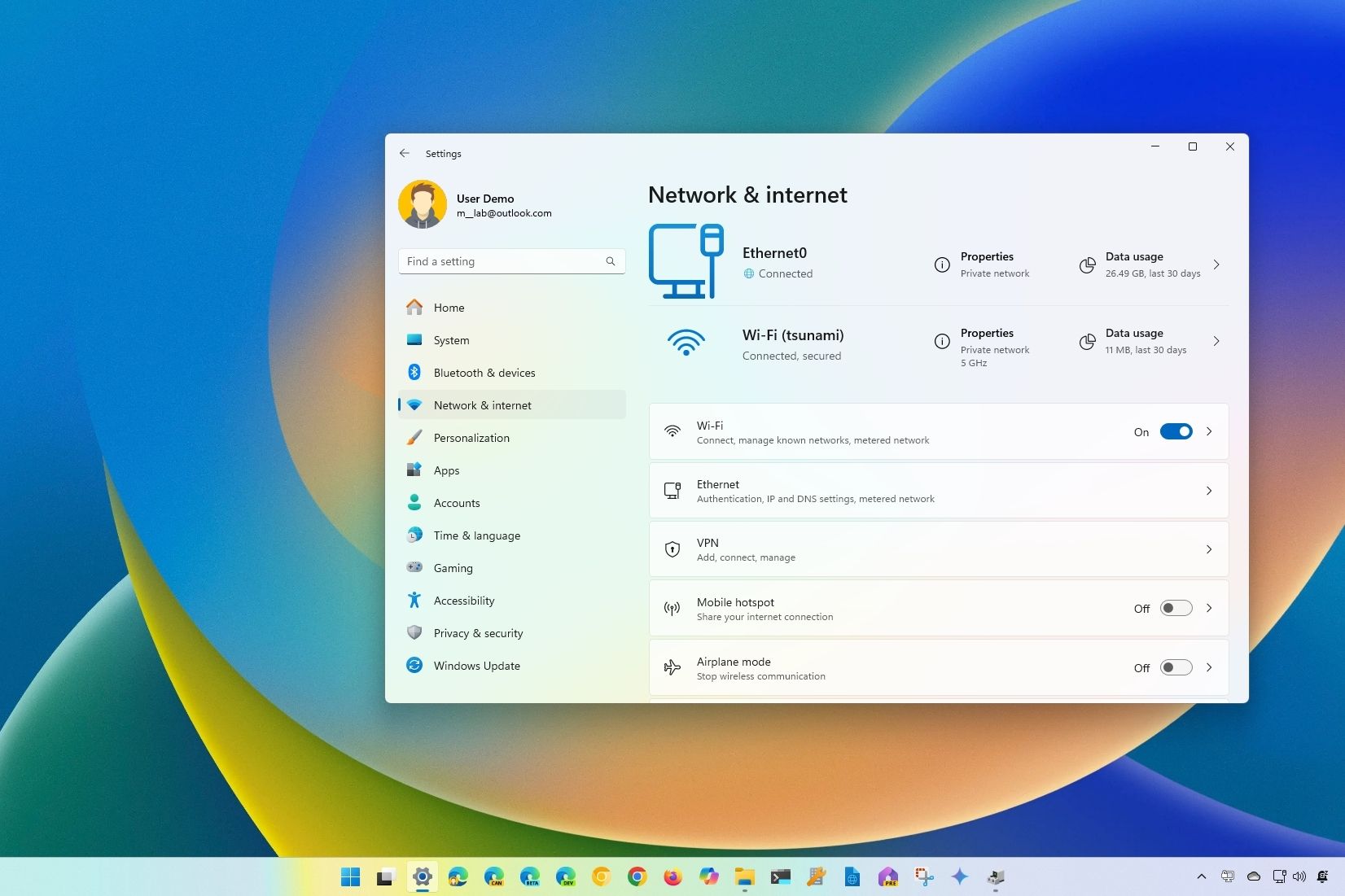
- Open Settings and go to Network & internet.
- Scroll down and click Advanced network settings.
- Under More settings, click Network reset.
- Click Reset now and confirm.
Your PC will restart. You'll need to reconnect to WiFi and re-enter the password. This fixed the issue temporarily for me, but the disconnects returned after a few hours.
Fix 2: Update or Roll Back Your Network Adapter Driver
This is where things get interesting. Windows 11 automatically updates drivers through Windows Update, and sometimes those updates break more than they fix. In my case, a recent Intel WiFi driver was the culprit.
Here's how to check:
- Right-click the Start button and select Device Manager.
- Expand Network adapters and find your WiFi adapter.
- Right-click it and choose Update driver, then Search automatically.
If Windows says you already have the best driver, try rolling back:
- Right-click the adapter and choose Properties.
- Go to the Driver tab.
- If Roll Back Driver is available, click it.
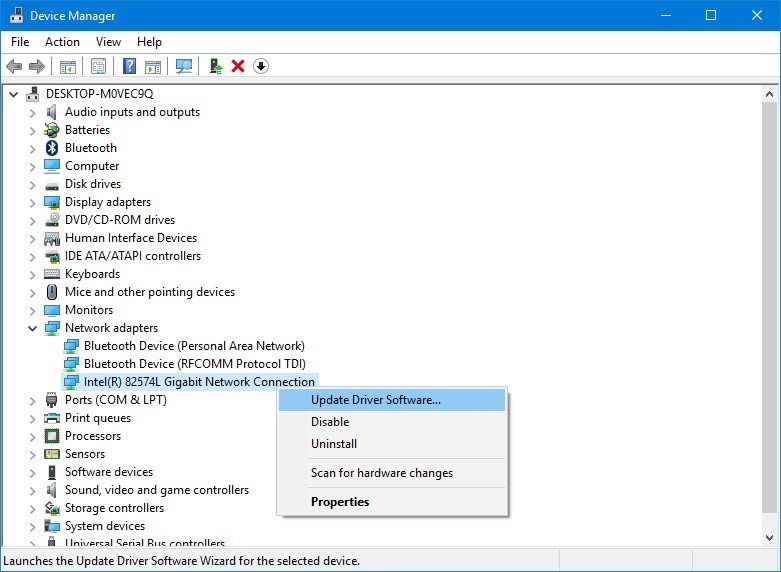
Rolling back to the previous driver version immediately stabilized my connection. No more random drops. But there was still one more issue.
Fix 3: Disable Power Management for the WiFi Adapter
Windows 11 is aggressive about saving battery. By default, your WiFi adapter is set to allow the OS to turn it off to save power. On laptops especially, this can cause the adapter to enter a low-power state at exactly the wrong moment.
Here's how to disable it:
- Open Device Manager and expand Network adapters.
- Right-click your WiFi adapter and select Properties.
- Go to the Power Management tab.
- Uncheck "Allow the computer to turn off this device to save power."
- Click OK.
This was the final piece of the puzzle. Between rolling back the driver and disabling power management, my WiFi has been rock solid for weeks.
Fix 4: Flush DNS and Reset IP Configuration
Even after the driver fix, some websites loaded slower than others. That pointed to a DNS issue. Flushing the DNS cache and renewing the IP address cleared it right up.
Open Command Prompt as Administrator and run these commands:
ipconfig /releaseipconfig /flushdnsipconfig /renewnetsh winsock reset
Restart your PC after running them. This refreshes your entire network configuration and clears stale DNS entries.
Fix 5: Switch to a Static DNS
If your ISP's DNS servers are unreliable, switching to a public DNS can improve both speed and stability.
To change it:
- Go to Settings > Network & internet > WiFi.
- Click your connected network and select DNS server assignment.
- Choose Manual and toggle IPv4 on.
- Enter 8.8.8.8 and 8.8.4.4 for Google DNS, or 1.1.1.1 and 1.0.0.1 for Cloudflare.
This won't fix disconnects, but browsing feels snappier once the connection is stable.
Comparison: Which Fix Works Best?
| Fix | Time Required | Difficulty | Best For | My Result |
|---|---|---|---|---|
| Network Reset | 5 minutes | Easy | Corrupted profiles | Temporary fix |
| Driver Rollback | 3 minutes | Moderate | Bad driver updates | Major improvement |
| Disable Power Management | 2 minutes | Easy | Laptop disconnects | Final solution |
| DNS/IP Reset | 5 minutes | Moderate | Slow loading sites | Speed boost |
| Static DNS | 3 minutes | Easy | ISP DNS issues | Noticeable improvement |
Pros and Cons of Manual WiFi Troubleshooting
Pros
- Free — no need to buy new hardware or pay for tech support
- Fast — most fixes take under ten minutes
- Targeted — you fix the root cause instead of masking symptoms
- Reversible — every change can be undone
- Educational — you learn how Windows handles networking
Cons
- Requires patience — you may need to try multiple fixes
- Technical — Device Manager and command prompt intimidate some users
- No guarantee — hardware failure can't be fixed with software
- Temporary — Windows Update may reinstall the bad driver later
- Time consuming — troubleshooting can eat up an afternoon
Expert Tip: Block Windows from Auto-Updating Your WiFi Driver
Here's something Microsoft doesn't advertise. You can prevent Windows Update from touching specific drivers while still receiving other updates.
Download Microsoft's Show or Hide Updates troubleshooter. Run it, select your WiFi adapter driver, and hide it from future automatic updates. This lets you stay on a stable driver version without worrying about the next Patch Tuesday undoing your fix.
Just remember to manually check the manufacturer's website every few months for security updates.
Frequently Asked Questions
Why does my WiFi keep disconnecting only on Windows 11?
Windows 11 is more aggressive about putting adapters to sleep, and some driver versions shipped through Windows Update have known compatibility issues. Your router and other devices are probably fine.
Is a network reset safe? Will I lose anything?
Yes, it's safe. You'll only lose saved WiFi passwords and custom network settings. Your personal files and apps remain untouched. Just know your WiFi password before resetting.
Can a bad WiFi driver really cause disconnects?
Absolutely. Drivers are the bridge between your hardware and the OS. A buggy driver can mismanage power states or conflict with Windows 11's networking stack. Rolling back to a known-good version is often the most effective fix.
Should I just buy a USB WiFi adapter instead?
If your built-in adapter is old or failing, a USB WiFi 6 adapter is a solid upgrade for around twenty to thirty dollars. But try the software fixes first. Most WiFi issues on Windows 11 are software-related.
How do I know if it's my router and not my PC?
Test other devices on the same network. If your phone and tablet work fine, the router isn't the issue. You can also connect via Ethernet. If Ethernet works perfectly, you've isolated the problem to the WiFi adapter or its driver.
Final Thoughts
WiFi issues on Windows 11 can feel maddening because everything looks fine on the surface. Full signal bars. Connected status. But behind the scenes, a bad driver or an overzealous power-saving feature is silently sabotaging your connection.
For me, the winning combination was rolling back the network adapter driver and disabling power management. Those two changes took about five minutes total and transformed a frustrating, unreliable connection into something I haven't had to think about since.
If you're pulling your hair out over random disconnects, don't rush to buy new hardware. Start with the driver. Check the power settings. Run a network reset if you need to. One of these fixes is almost certainly going to be the one that finally works for you too.
🎥 Recommended Video
Watch: Windows 11 WiFi Disconnect Fix Network Adapter Driver

No comments:
Post a Comment