
Ever feel like your phone is just a little too sluggish, even when it's barely a year old? You swipe, you tap, and there's this tiny, almost imperceptible delay — like your device is thinking too hard about every move. It's frustrating, especially when you paid good money for a smartphone that should feel fast.
Here's the thing: most people assume the only fix is buying a new phone or clearing out apps. But there's one buried setting — something most users never touch — that can make your phone feel noticeably snappier in under 30 seconds. No apps to download. No factory reset. Just a quick toggle deep in your settings menu.
Let's talk about animation speed scaling inside Android's Developer Options.
What Is the Animation Scale Setting?
Every time you open an app, switch between screens, or pull down your notification shade, your phone plays a tiny animation. These transitions are designed to make the interface feel smooth and polished. On a brand-new flagship, they look great. But on older devices or budget phones, those same animations can start to feel like dead weight.
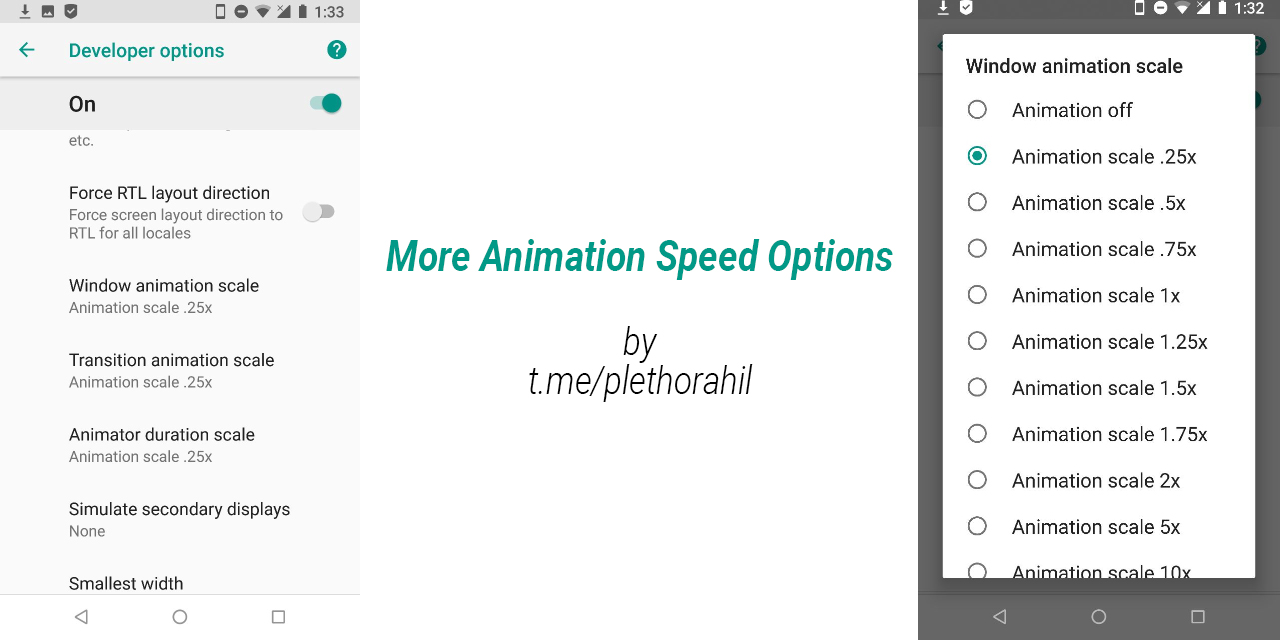
Android hides a set of controls called Window Animation Scale, Transition Animation Scale, and Animator Duration Scale inside Developer Options. By default, each one is set to 1x. That means every animation plays at normal speed. But you can dial these down to 0.5x or even turn them off entirely.
When you do, something surprising happens. Your phone doesn't just look faster — it feels faster. Apps open quicker. Menus respond instantly. The whole interface becomes more responsive because you're cutting out the visual fluff between actions.
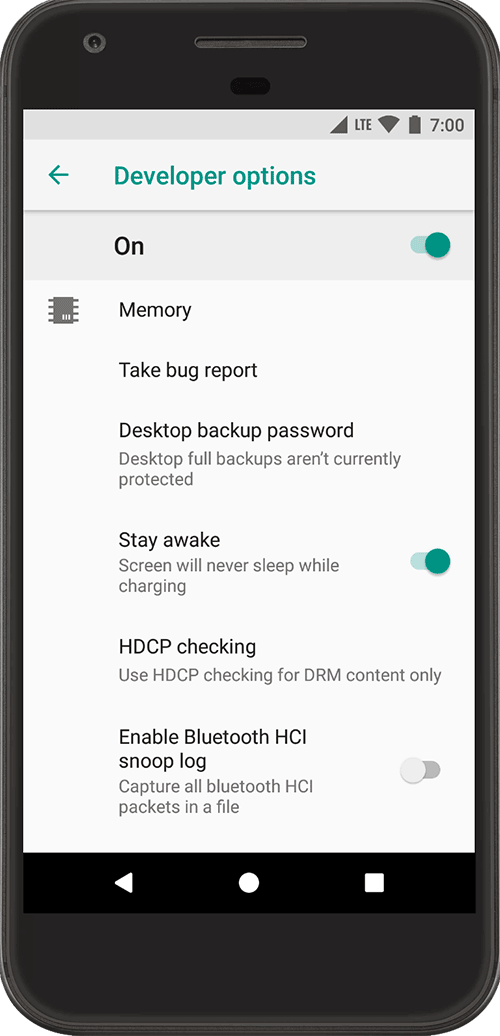
How to Access Developer Options
Before you can tweak anything, you need to unlock Developer Options. It's not as intimidating as it sounds.
Here's how to do it:
- Open your Settings app.
- Scroll down and tap About Phone (or About Device).
- Find Build Number and tap it rapidly seven times.
- You'll see a toast message saying "You are now a developer."
That's it. Now head back to your main Settings menu, scroll down, and you'll see Developer Options sitting right there.
Where to Find the Animation Settings
Once you're inside Developer Options, scroll about halfway down until you see a section labeled Drawing. Inside that section, you'll find three key settings:
- Window Animation Scale — controls animations inside individual app windows
- Transition Animation Scale — controls screen-to-screen transitions
- Animator Duration Scale — controls general UI animations like pop-ups and loading spinners
Tap each one and change the value from 1x to 0.5x. If you want the absolute fastest feel, you can select Animation Off. But 0.5x is the sweet spot for most people — it keeps things looking polished while removing the lag.
Why This Works So Well
Your phone's processor is constantly juggling tasks in the background. Animations might look pretty, but they eat up rendering resources. On devices with older chipsets or limited RAM, those split-second animations add up. They create the illusion of slowness even when your processor is technically keeping up.
By cutting animation duration in half, you're essentially telling your phone: stop showing off and just get to the point. The result is a UI that responds the moment your finger leaves the screen. It's especially noticeable when you're multitasking — switching between messaging, maps, and your camera feels dramatically smoother.
And here's the best part: this change is purely cosmetic. You're not overclocking anything. You're not risking overheating or battery drain. You're simply removing visual delays.
Real-World Impact: What Users Actually Notice
I've recommended this tweak to dozens of friends and readers over the years. The feedback is almost always the same: "I can't believe I didn't do this sooner."
On a three-year-old Samsung Galaxy, the difference is night and day. On a budget Motorola, it turns a frustratingly laggy device into something genuinely usable. Even on newer Pixel and OnePlus models, the interface feels more immediate — like the phone is reading your mind instead of waiting for permission.
The improvement is most obvious in everyday moments: unlocking your phone, pulling up the app drawer, dismissing notifications, and switching between open apps. Those are the interactions you repeat a hundred times a day. Shaving a fraction of a second off each one adds up to a phone that simply feels better to use.
Comparison: Animation Scale Settings Explained
| Setting | 1x (Default) | 0.5x | Off |
|---|---|---|---|
| Window Animation Scale | Normal app open/close speed | 2x faster window transitions | Instant, no visual transition |
| Transition Animation Scale | Standard screen switching | Quicker menu and screen shifts | Abrupt, jarring for some users |
| Animator Duration Scale | Full pop-up and loading animations | Faster toast and spinner effects | Completely stripped UI feedback |
| Overall Feel | Polished but potentially sluggish | Snappy and professional | Fast but can feel unfinished |
| Best For | New flagships, visual preference | Most users, older devices | Power users, minimalists |
Pros and Cons of Disabling or Reducing Animations
Pros
- Instantly snappier interface — no waiting for transitions to finish
- Zero risk — doesn't affect hardware or void warranty
- Reversible — change it back anytime in seconds
- Better on older phones — breathes new life into aging devices
- Improves multitasking flow — faster app switching throughout the day
Cons
- Less visually polished — some users miss the smooth fade effects
- Can feel abrupt — turning animations off entirely looks jarring
- Not a real performance boost — it's perceptual speed, not raw power
- Hidden setting — requires enabling Developer Options first
- iOS limitation — this specific tweak only works on Android
Expert Tip: Pair It With One More Tweak
If you really want to push your phone's responsiveness, combine the animation scale change with background process limits. Also inside Developer Options, look for Background Process Limit and set it to At Most 4 Processes. This prevents your phone from keeping too many apps awake in the background, freeing up RAM for whatever you're actively using.
Together, these two changes create a one-two punch: faster visual feedback and more available memory. It's the closest you can get to a "free upgrade" without spending a dime.
Frequently Asked Questions
Will this void my warranty?
Not at all. Developer Options are an official Android feature. You're not rooting your phone or installing anything unofficial. It's completely safe and reversible.
Can I do this on an iPhone?
Unfortunately, no. Apple doesn't give users access to animation speed controls. The closest iOS equivalent is Reduce Motion in Accessibility settings, which removes some animations but doesn't speed them up.
Will turning off animations save battery?
The impact is minimal. You might see a tiny improvement because your GPU does slightly less work, but the real benefit is perceived speed, not battery life. If battery is your main concern, focus on screen brightness and background app management instead.
What if I don't like how it looks?
Just go back into Developer Options and set everything back to 1x. There's no commitment here. I usually tell people to try 0.5x for a day — most never go back.
Does this work on all Android phones?
Yes. Every Android device running version 4.0 or newer includes these animation scale controls inside Developer Options. Samsung, Google, OnePlus, Motorola, Xiaomi — they all have it.
Final Thoughts
Sometimes the best tech tips are the simplest ones. You don't need a new phone. You don't need a cleaner app. You just need to know where to look.
Reducing your animation scales takes under a minute, costs nothing, and delivers one of the most noticeable speed improvements you can get without touching your hardware. It's the kind of tweak that makes you wonder why it isn't the default setting on every Android device.
If your phone has been feeling a step behind lately, give it a shot. Your thumbs will thank you.
🎥 Recommended Video
Watch: Android Developer Options Animation Scale Speed Up Phone

No comments:
Post a Comment