
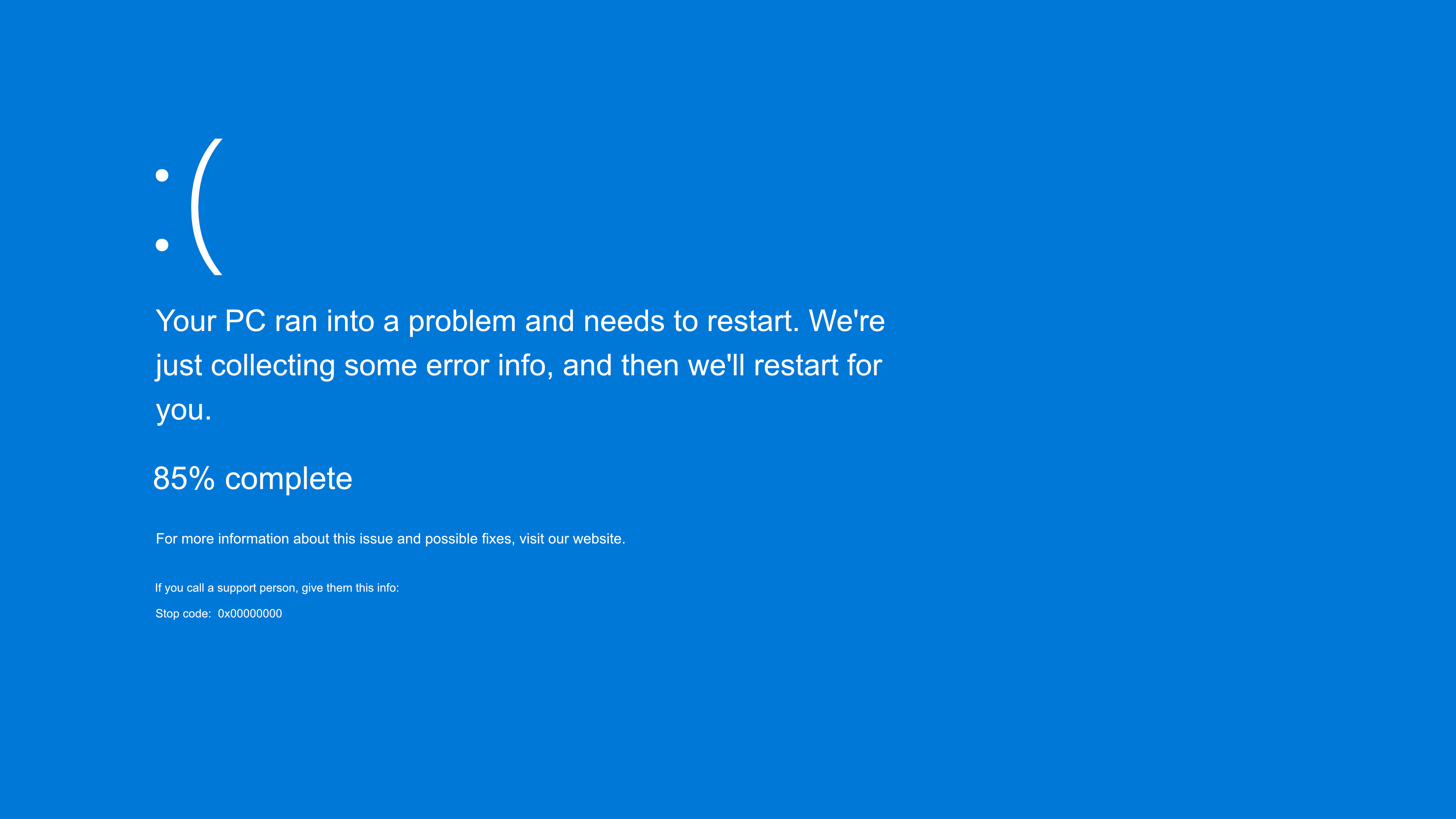
Nothing kills a productive day faster than a Windows update that turns your PC into a paperweight. One moment you're working, the next you're staring at a blue screen, a BitLocker recovery prompt, or an endless restart loop. It happens more often than Microsoft would like to admit, and 2026 has already delivered its fair share of update headaches.
Before you panic and start Googling "how to reinstall Windows," take a breath. Most update-related problems are fixable without wiping your data. This guide walks you through the smartest first steps to get your PC back on track, whether you're dealing with a failed install, a boot loop, or a system that simply won't start after patching.
Why Windows Updates Break PCs in 2026
Windows updates are supposed to make your system more secure and stable. But the reality? Sometimes they do the exact opposite. In 2026 alone, we've seen multiple high-profile update failures causing real problems for users.
Take the June 2026 Patch Tuesday update, KB5094126. Microsoft pushed it to patch around 200 security vulnerabilities, but it also triggered boot failures, BitLocker recovery loops, and blue screens on certain HP and Dell business systems. The culprit? Insufficient free space on the EFI System Partition (ESP), sometimes as little as 100 MB, which couldn't accommodate new Secure Boot certificates and boot components. citeweb_search:1#1
Earlier in the year, the January 2026 cumulative update caused widespread login failures, restart issues, and PIN authentication problems. The February 2026 update (KB5077181) sent some users into continuous restart loops that locked them out of their desktops entirely. citeweb_search:1#6web_search:1#10
Microsoft's own support documentation acknowledges a range of common error codes tied to update failures: 0x800f0922 for insufficient disk space, 0x800705b4 for interrupted installations, 0xC1900101 for incompatible drivers, and 0x80070002 for general install failures. citeweb_search:1#0
The good news? You don't need to be an IT admin to fix most of these. Let's start with the simplest solutions and work our way up.
Step 1: Try the Windows Update Troubleshooter First
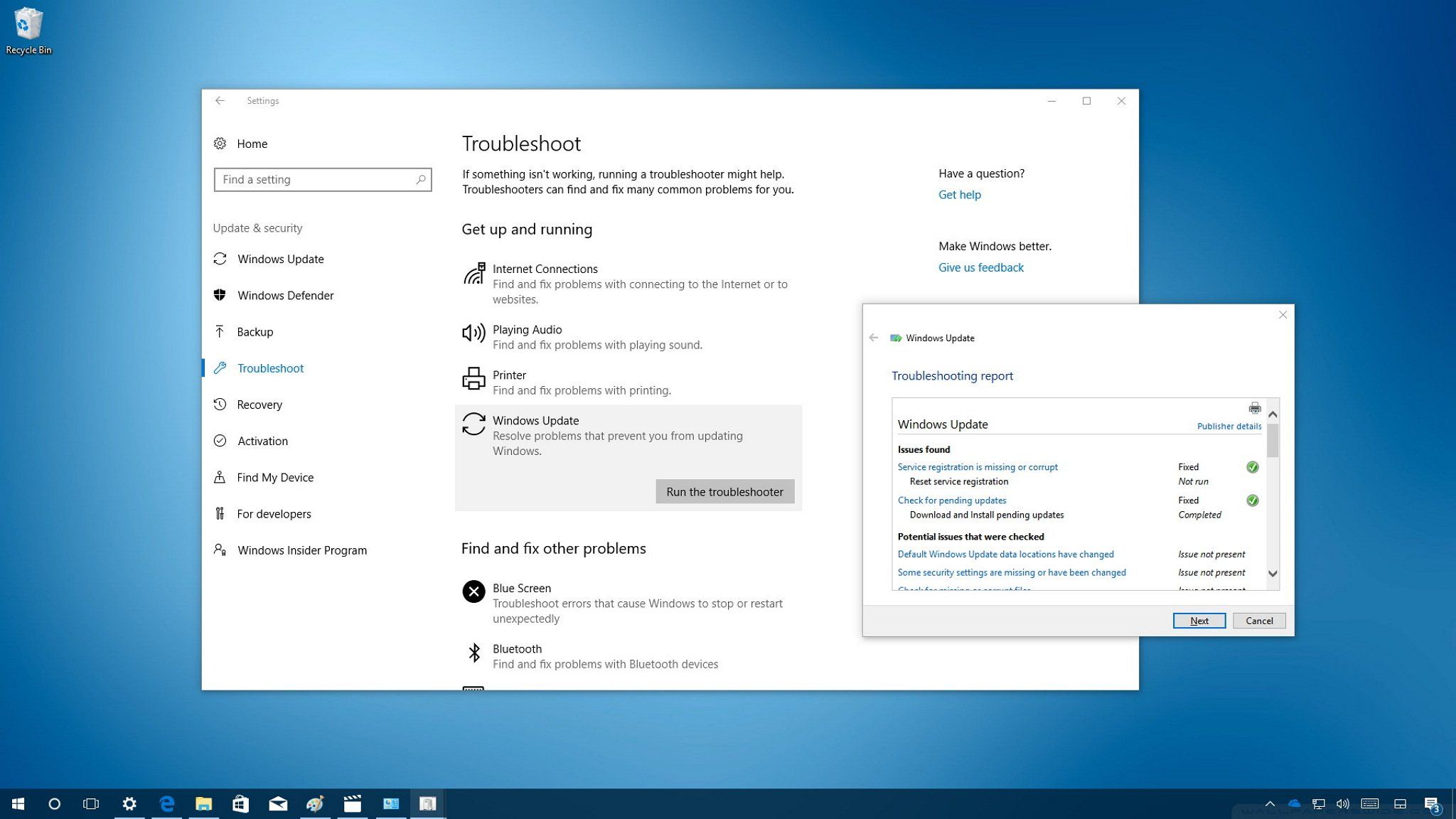
It sounds obvious, but the built-in troubleshooter actually works more often than you'd expect. It's designed to detect and resolve issues with missing files, corrupt update caches, service registration problems, and connectivity hiccups.
Here's how to run it:
- Press Windows key + I to open Settings.
- Navigate to System > Troubleshoot > Other troubleshooters.
- Find Windows Update and click Run.
- Follow the on-screen instructions and let it do its thing.
If the troubleshooter finds and fixes something, restart your PC and check for updates again. If it comes back empty or the problem persists, move on to the next step.
Step 2: Clear the Windows Update Cache
Corrupt update files sitting in the cache are a classic cause of installation failures. Clearing this cache forces Windows to download fresh files the next time you check for updates.
Here's the clean way to do it:
- Press Win + R, type
services.msc, and hit Enter. - Find the Windows Update service, right-click it, and select Stop.
- Open File Explorer and navigate to
C:\Windows\SoftwareDistribution. - Select all files and folders inside and delete them. (Don't worry, these are just temporary download files.)
- Go back to the Services window, right-click Windows Update, and select Start.
- Head to Settings > Windows Update and click Check for updates.
This simple cache flush resolves a surprising number of 0x8007000d and 0x80240034 errors. citeweb_search:1#0
Step 3: Repair Corrupt System Files
If the update installed partially and left your system files in a messy state, you'll need to repair the damage before anything works properly again. Windows includes two powerful command-line tools for this exact situation: DISM and SFC.
Run them in this order:
- Press Windows key, type Command Prompt, right-click it, and choose Run as administrator.
- Type
DISM.exe /Online /Cleanup-image /Restorehealthand press Enter. Wait for it to complete. This repairs the Windows system image. - Next, type
sfc /scannowand press Enter. This scans and repairs corrupt system files. - Restart your PC when both finish.
These commands are especially helpful for error codes like 0x80070057 and 0x80080005, which typically point to file corruption or permission issues. citeweb_search:1#0
Step 4: Uninstall the Problematic Update
Sometimes the only fix is to remove the update that caused the mess. Windows gives you a 10-day window to roll back feature updates, and quality updates can be uninstalled manually.
If you can still boot into Windows:
- Go to Settings > Windows Update > Update history.
- Scroll down and click Uninstall updates.
- Find the problematic update (for example, KB5077181 or KB5094126), select it, and click Uninstall.
- Restart your PC.
If you're stuck in a restart loop or can't boot:
You'll need to access the Windows Recovery Environment (WinRE). Here's how:
- Power on your PC.
- As soon as you see the Windows logo during startup, press and hold the power button to force a shutdown.
- Repeat this process three times. On the fourth boot, WinRE should load automatically.
- Select Troubleshoot > Advanced options > Uninstall updates.
- Choose Uninstall latest quality update and follow the prompts. citeweb_search:1#7
If WinRE won't trigger, create a bootable Windows 11 USB drive on another computer, boot from it, and select Repair my computer instead of installing Windows.
Step 5: Fix EFI Partition Space Issues
If your update fails with error 0x800f0922 and you see messages like "SpaceCheck: Insufficient free space" in your logs, your EFI System Partition is too cramped. This has been a recurring issue in 2026, particularly with updates that refresh Secure Boot certificates.
Microsoft's recommended workaround involves a quick registry tweak:
- Open Command Prompt as administrator.
- Type the following command and press Enter:
reg add "HKLM\SYSTEM\CurrentControlSet\Control\Bfsvc" /v EspPaddingPercent /t REG_DWORD /d 0 /f - Restart your computer.
- Check for updates again. citeweb_search:1#5
Important: Editing the registry carries risk. Back up your system first. This change reduces the reserved padding Windows uses during EFI servicing, which frees up enough space for the update to complete.
Step 6: Handle BitLocker Recovery Scenarios
Few things are more terrifying than a BitLocker recovery screen you weren't expecting. If the June 2026 update (KB5094126) or similar patches pushed your PC into BitLocker recovery, here's what to do.
First, try to locate your recovery key. Check:
- Your Microsoft account online at account.microsoft.com/devices/recoverykey
- Your organization's IT admin (for work devices)
- Any printed or saved backup you made when enabling BitLocker
If you can't find the key, there's a workaround that has helped some users bypass the recovery screen:
- Restart your PC and enter BIOS/UEFI settings (usually by pressing F2, F10, Del, or Esc during startup).
- Navigate to the Security or Boot tab.
- Temporarily disable Secure Boot.
- Save changes and reboot. Windows may bypass the BitLocker prompt and boot normally.
- Once inside Windows, suspend BitLocker and update your BIOS/UEFI firmware.
- Re-enable Secure Boot afterward. citeweb_search:1#2
Disabling Secure Boot weakens a security boundary, so treat this as a recovery step only, not a permanent configuration.
Common Error Codes and Quick Fixes
| Error Code | What It Means | Quick Fix |
|---|---|---|
| 0x800f0922 | Not enough disk space or EFI partition full | Free up space; run the registry fix for ESP padding |
| 0x800705b4 | Update timed out or was interrupted | Check internet; disable antivirus temporarily; restart |
| 0x80240034 | Update stuck or incomplete | Clear SoftwareDistribution cache; restart update services |
| 0xC1900101 | Incompatible driver blocking update | Update or uninstall network/graphics drivers |
| 0x80070002 | Update failed to install | Restart PC; run troubleshooter; check disk space |
| 0x80070057 | Corrupt files or bad configuration | Run DISM and SFC scans |
Pros and Cons of Major Windows Updates
| Pros | Cons |
|---|---|
| Patches critical security vulnerabilities | Can introduce new bugs and compatibility issues |
| Adds new features and performance improvements | May cause boot failures on specific hardware |
| Keeps system compatible with modern software | BitLocker and Secure Boot conflicts can lock you out |
| Improves long-term stability when successful | Requires troubleshooting time when things go wrong |
Expert Tip: Pause Updates Before They Break You
Here's something most people don't do but absolutely should. After a major update drops, wait 48 to 72 hours before installing it. Check tech forums, Reddit, and Microsoft's own support pages for early reports of issues. If you see a pattern of complaints, pause your updates temporarily.
To pause updates in Windows 11:
- Go to Settings > Windows Update.
- Click the dropdown next to Pause updates and select Pause for 1 week (or longer).
This simple habit can save you hours of frustration. Microsoft usually issues Known Issue Rollbacks or follow-up patches within days of a bad update, so a short delay rarely costs you anything in security.
FAQ
Can I prevent Windows from automatically installing updates?
You can't permanently disable updates on Windows 11 Home, but you can pause them for up to 5 weeks. Pro and Enterprise users have more control through Group Policy. The best approach is delaying updates rather than blocking them entirely, since security patches do matter.
Will uninstalling an update remove my personal files?
No. Uninstalling a quality or feature update only reverts system files and settings. Your documents, photos, and installed apps remain untouched. That said, always back up important data before major system changes, just in case.
What if my PC is stuck in a boot loop and won't load WinRE?
Create a bootable Windows 11 USB drive using Microsoft's Media Creation Tool on another computer. Boot from the USB, select your language, then click Repair my computer instead of installing. From there, you can access WinRE tools to uninstall updates or run Startup Repair.
How do I know if my EFI partition is too small?
Open Disk Management (right-click Start > Disk Management), locate the EFI System Partition, and check its size. If it's 100 MB or less and you're getting 0x800f0922 errors, that's likely your problem. The registry fix mentioned earlier usually resolves this without repartitioning.
Should I disable BitLocker to avoid future update issues?
Not necessarily. BitLocker is valuable for protecting your data. Instead, make sure your recovery key is backed up to your Microsoft account or a safe location. Before major firmware or BIOS updates, suspend BitLocker temporarily through Manage BitLocker settings.
Final Thoughts
Windows updates breaking PCs isn't a new story, but 2026 has reminded us that even routine Patch Tuesday patches can spiral into serious problems. The key is knowing where to start. Most issues resolve with basic troubleshooting, cache clearing, or a simple uninstall. The scarier scenarios, like BitLocker lockouts, usually have workarounds if you stay calm and follow the right steps.
Don't let one bad update sour you on keeping your system current. Security patches matter. Just approach them with a little patience, a backup habit, and the knowledge that you can fix most problems without starting from scratch.
🎥 Recommended Video
https://www.youtube.com/results?search_query=Windows+Update+broke+PC+fix+2026

No comments:
Post a Comment