
Your phone's battery is dying by 3 PM again, and you're already hunting for a charger. You've tried the obvious stuff, dimming the screen, closing apps, maybe even enabling Low Power Mode. But what if the real culprits are buried deep in settings you never knew existed?
Most people don't realize their phone is quietly burning through power on features they never use. Hidden toggles, background processes, and default behaviors designed for convenience are often the biggest battery drains. The good news? A few quick changes can stretch your charge from "barely making it" to "still going strong at bedtime."
The "Mobile Data Always Active" Trap on Android
Here's a setting most Android users have never laid eyes on, and it's quietly one of the biggest battery thieves on your phone.
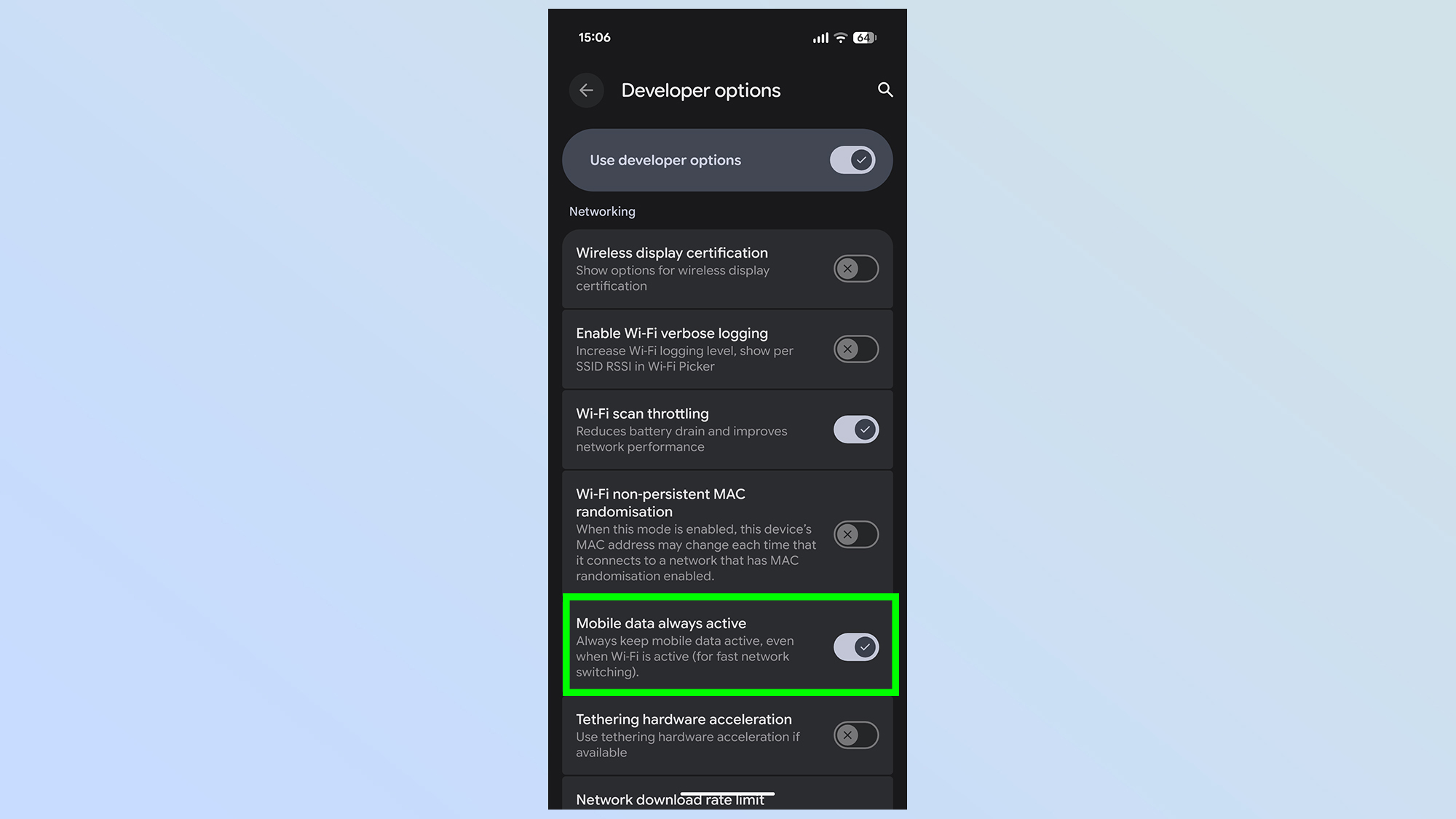
By default, your Android device keeps its cellular data connection alive even when you're connected to Wi-Fi. The idea is to give you a seamless handoff if your Wi-Fi drops, but the tradeoff is constant power drain from two radios running at once. If you spend most of your day at home or the office on stable Wi-Fi, this feature is doing nothing for you except eating your battery.
To turn it off, you'll need to access Developer Options. If you haven't enabled it yet, go to Settings > About Phone and tap Build Number seven times until you see the "You are now a developer" message. Then head to Settings > System > Developer Options, scroll down to the Networking section, and toggle off Mobile Data Always Active. citeweb_search:3#0
The only downside? If you walk out of Wi-Fi range, there's about a 10-second delay before your phone reconnects to cellular data. For most people, that's a tiny price to pay for noticeably better battery life.
Background App Refresh: The iPhone Setting That Matters Most
On iPhone, the single most impactful hidden setting isn't buried in some obscure menu. It's right there in Settings > General > Background App Refresh, but most people leave it on the default "Wi-Fi & Cellular Data" setting without thinking twice.
Here's the thing: switching this to Wi-Fi only can make a dramatic difference. One iPhone user tracked their battery for a week after making the change. Before, they were hitting 38-42% by mid-afternoon. After switching to Wi-Fi only, they consistently ended the day between 55-60%. Notifications still arrived on time, Maps refreshed when needed, and the only app that felt slightly slower was Instagram, and only on cellular. citeweb_search:3#6
The reason it works is simple. When Background App Refresh is set to cellular, every app with that permission is silently pulling data through your mobile radio all day long. Wi-Fi is far more power-efficient, so restricting refreshes to Wi-Fi only cuts one of the biggest background drains without breaking anything you actually care about.
Adaptive Battery: The AI That Actually Helps
Android's Adaptive Battery feature is one of those settings that's easy to overlook because it's not front and center. But once you turn it on, your phone starts learning how you use apps and aggressively limits power to the ones you don't touch often.
Over time, it figures out which apps you open every morning and which ones you check once a week. The frequent ones stay unrestricted. The forgotten ones get pushed into a low-power state where they can't wake up your phone or drain the battery in the background. citeweb_search:3#0
To enable it, search for Adaptive Battery in your Settings search bar. The exact location varies by manufacturer, Samsung, Pixel, and OnePlus all tuck it in slightly different spots. Once it's on, give it about a week to learn your habits. The savings get better over time.
Bluetooth Scanning: The Silent Battery Killer
Your phone's Bluetooth radio isn't just active when you're wearing earbuds. It's constantly scanning the environment for nearby devices, even when Bluetooth appears to be "off" in your quick settings. This scanning is used for location accuracy, nearby device pairing popups, and various system services.
The fix is straightforward. On Android, search for Bluetooth Scanning or Nearby Device Scanning in Settings and toggle it off. On iPhone, go to Settings > Privacy & Security > Location Services > System Services and disable Bluetooth Scanning. citeweb_search:3#0web_search:3#10
You'll still be able to pair Bluetooth devices manually. The only difference is your phone won't waste energy constantly pinging for gadgets that aren't there.
Significant Locations: iPhone's Hidden GPS Diary
iPhones keep a detailed log of everywhere you go. It's called Significant Locations, and it lives under Settings > Privacy & Security > Location Services > System Services. Apple uses this data for things like CarPlay ETA predictions and "leave now" reminders.
But here's what most people don't know: this feature is a constant GPS drain. Your phone is actively tracking and logging your movements all day, every day. Clearing the history and turning this off can noticeably improve battery life, especially if you're someone who moves around a lot during the day. citeweb_search:3#6
Your Maps app will still work perfectly fine. GPS accuracy doesn't depend on this feature. You're just stopping your phone from maintaining a detailed travel journal you probably didn't know existed.
Display Settings That Actually Move the Needle
Your screen is the single biggest battery drain on any smartphone. It's not even close. So the settings that control your display deserve more attention than most people give them.
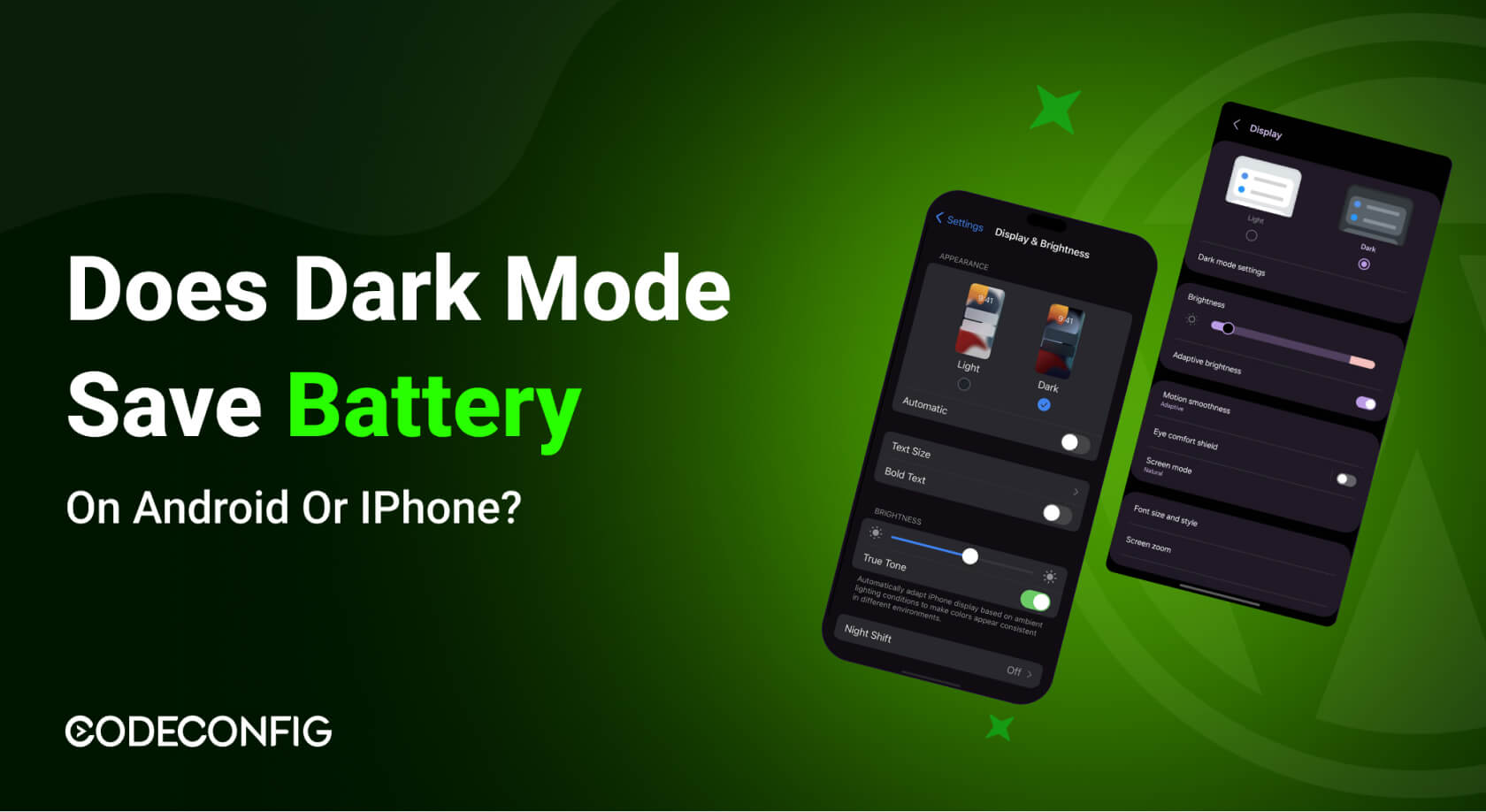
Dark Mode is the obvious one, especially on OLED screens where black pixels literally turn off. Every white background you see is actively burning power. Switching to dark mode across your system and apps can add meaningful hours to your day. citeweb_search:3#0
But don't stop there. Adaptive Brightness adjusts your screen to ambient light conditions, preventing your display from blasting at full brightness indoors where you don't need it. And Screen Timeout should be set aggressively, 30 seconds is ideal. Every second your screen stays lit when you're not looking at it is wasted battery.
If your phone supports high refresh rates like 120Hz, consider switching to standard 60Hz mode. Yes, 120Hz feels buttery smooth when scrolling, but it's a massive power draw. On Samsung devices, you'll find this under Settings > Display > Motion Smoothness. On Pixel phones, it's in Settings > Display > Smooth Display. citeweb_search:3#4
iPhone Analytics: Working for Apple on Your Dime
By default, your iPhone sends daily diagnostic and usage data to Apple. The company anonymizes it, but the process still uses your battery and your data plan to compile and upload these reports in the background. If you're trying to squeeze every last percent out of your charge, this is an easy one to cut.
Go to Settings > Privacy & Security > Analytics & Improvements and toggle off Share iPhone Analytics. citeweb_search:3#6
It's a small change, but it stops one more background process from quietly running while your phone sits in your pocket. After a few days, you'll forget you ever turned it off, which tells you exactly how little it mattered to your daily experience.
5G: Fast, But Not Free
5G is impressive when you need it, but if you're in an area with weak 5G coverage, your phone burns extra power constantly searching for a signal that isn't strong enough to be useful. In those situations, you're better off forcing your phone to stick with 4G/LTE.
On Android, go to Settings > Network (or Connections) > SIM > Preferred Network Type and select 4G/LTE. On iPhone, it's Settings > Cellular > Cellular Data Options > Voice & Data and selecting LTE. citeweb_search:3#0web_search:3#10
If you're in a city with solid mmWave 5G, keep it on. But for most people in suburban or rural areas, the constant signal hunting does more harm than good.
Android vs. iPhone: Which Platform Handles Battery Better?
| Feature | Android | iPhone |
|---|---|---|
| Background Refresh Control | Per-app battery optimization in Settings | Global Wi-Fi/Cellular toggle in Background App Refresh |
| Adaptive Battery | Built-in AI learning with per-app restrictions | Optimized Battery Charging + Low Power Mode |
| Hidden Power Drains | Mobile Data Always Active, Bluetooth Scanning | Significant Locations, Analytics, Hey Siri |
| Display Efficiency | Dark mode + refresh rate control on most flagships | Auto-Brightness + Dark Mode; limited refresh rate control |
| Ease of Access | Requires Developer Options for some settings | Most settings accessible without special menus |
Pros and Cons of Aggressive Battery Optimization
| Pros | Cons |
|---|---|
| Significantly longer battery life per charge | Some apps may refresh slower or delay notifications |
| Reduced heat generation and better long-term battery health | High refresh rate and 5G features become unavailable |
| Less frequent charging means slower battery degradation | Location-based features like ETA predictions become less accurate |
| Improved privacy by limiting background tracking | Initial setup takes time to configure per-app permissions |
Expert Tip: Audit Your Battery Usage Before You Change Anything
Before you start flipping toggles, spend five minutes looking at what's actually draining your battery. On Android, go to Settings > Battery > Battery Usage. On iPhone, it's Settings > Battery. You'll see a ranked list of apps and how much power each one consumed, both on screen and in the background.
This data is gold. If one app is responsible for 40% of your drain and you barely use it, that's your target. Restrict its background activity before you touch anything else. A single rogue app can waste more battery than all the system settings combined. citeweb_search:3#7
Also, if your phone gets hot while charging, take the case off. Heat is the enemy of battery longevity, and better airflow during charging can protect your battery's health over the long run. citeweb_search:3#10
FAQ
Will turning off Background App Refresh break my notifications?
No. Background App Refresh controls how apps update their content silently, not how push notifications reach you. Your texts, emails, and alerts will still come through normally. The only difference is that apps like Instagram or news readers might take a moment longer to show fresh content when you first open them.
Is Dark Mode actually better for battery on all phones?
Only on OLED screens, which includes most modern flagships from Samsung, Google, and Apple since the iPhone X. On LCD screens, dark mode doesn't save power because the backlight stays on regardless of what's displayed. If you're unsure whether your phone has OLED, a quick search of your model will tell you.
How long does Adaptive Battery take to learn my habits?
Typically about a week of normal use. The AI needs time to observe which apps you open frequently, which ones you ignore, and when you typically use your phone. After that initial learning period, the savings become more noticeable. Don't expect miracles on day one.
Will disabling 5G make my internet noticeably slower?
In most real-world scenarios, no. 4G/LTE is already fast enough for streaming, browsing, and social media. The only time you'll feel a difference is downloading large files or in areas with true mmWave 5G coverage, which is still limited to dense urban centers. For everyday use, the speed tradeoff is invisible.
Should I use a battery pack instead of tweaking all these settings?
A portable charger is a great backup, but it doesn't solve the root problem. If your phone is draining twice as fast as it should, you're carrying around a problem that a few settings changes could fix. Use both: optimize your settings for daily efficiency, and keep a power bank for emergencies when you're away from an outlet. citeweb_search:3#10
Final Thoughts
Most smartphone battery problems aren't caused by bad hardware. They're caused by default settings that prioritize convenience over efficiency. Your phone was designed to do everything, all the time, for everyone. That approach works great for marketing, but it doesn't work great for making it through a full day on a single charge.
The fixes are simple, free, and take minutes to apply. Turn off the hidden radios that stay active for no reason. Restrict background refresh to Wi-Fi only. Let your phone's AI learn your habits instead of treating every app equally. And most importantly, check your battery usage stats before you change anything so you're targeting the real culprits.
You don't need a new phone. You just need to stop letting the old one work against you.
🎥 Recommended Video
https://www.youtube.com/results?search_query=hidden+mobile+battery+settings+save+hours+battery+life+2026

No comments:
Post a Comment