
Your laptop fan sounds like a jet engine taking off. It ramps up during video calls, screams while you browse, and somehow gets even louder when you're doing absolutely nothing. You've probably ignored it, maybe even joked about it. But that noise isn't random, and it isn't harmless. Your fan is screaming because something is wrong, and in most cases, you can fix it yourself without touching a screwdriver.
Laptop fans don't get loud for fun. They're temperature-driven, which means they spin faster when your internal components get hot. The real question is why your laptop is running so hot. Sometimes it's dust. Sometimes it's a runaway app chewing through your CPU. Sometimes it's as simple as where you placed the machine.
Why Your Fan Is Working Overtime
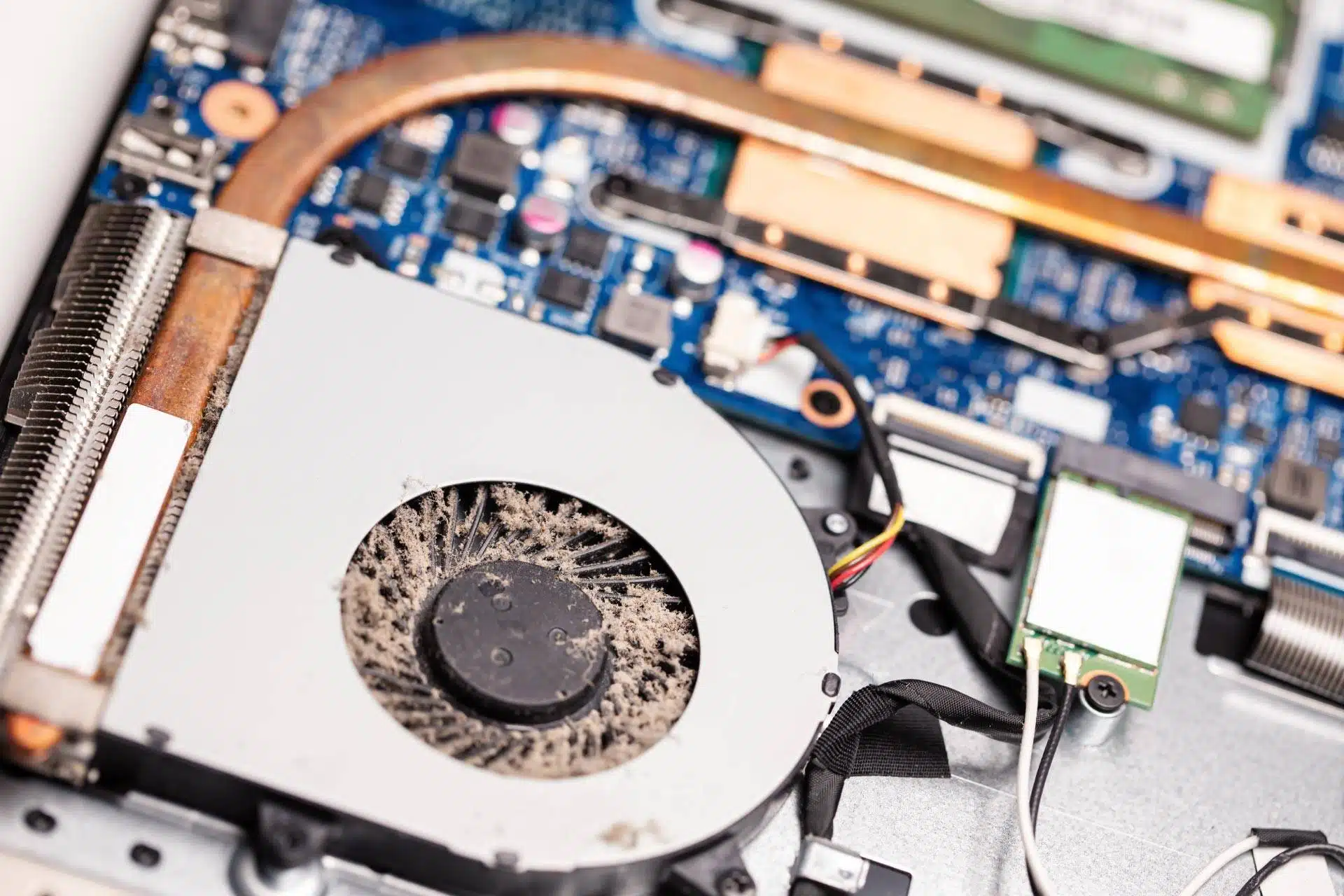
The most common culprit is dust. Over months of use, your laptop's intake vents suck in air, and with that air comes dust, lint, pet hair, and whatever else is floating around. This debris works its way deep into the heatsink fins, the thin metal slats that dissipate heat from your processor. When those fins get clogged, air can't flow through them. The fan spins faster to compensate, but it's essentially pushing air against a wall. The result is more noise, less cooling, and a laptop that runs hotter than it should.
Another major cause is background software load. Cloud sync tools, update services, browser extensions, and poorly optimized apps can all keep your CPU busy even when you're not actively doing anything. When the processor is under constant load, it generates heat. The fan responds by ramping up. Open your Task Manager on Windows or Activity Monitor on Mac and sort by CPU usage. If something is consistently eating 20 percent or more of your processor at idle, you've found your noise source.
Malware can also push your system into overdrive. Cryptojackers use your hardware without your knowledge, often maxing out CPU usage around the clock. If your fan is loud and your laptop is sluggish, run a full antivirus scan before you blame the hardware.
Then there's placement. Laptops need airflow. If you use your laptop on a bed, couch, or your lap, you're likely blocking the bottom intakes with soft fabric that insulates heat and starves the fan of fresh air.
The Quick Fixes That Actually Work
Start with the easiest fix: move your laptop to a hard, flat surface. A desk, table, or even a thick book will do. You want the bottom vents completely unobstructed so air can flow freely. If you regularly work from the couch or bed, invest in a laptop stand or cooling pad. A cooling pad adds extra fans underneath and lifts the machine off insulating surfaces.
Next, clean the vents. You don't need to disassemble anything. Power down and unplug your laptop, then grab a can of compressed air. Hold the can upright and use short bursts at an angle to blow dust out of the intake and exhaust vents. Never spray directly into the machine, and never use a vacuum, which can create static electricity. A quick external blowout every six months prevents the deep dust mats that really kill airflow.
If you're comfortable opening your laptop, an internal clean is far more effective. Remove the bottom panel and inspect the fan and heatsink fins. You'll often find a dense layer of dust caked onto the fins like a felt blanket. Use a soft brush or cotton swab to gently loosen it, then blow it out with compressed air. A clean cooling path means the fan doesn't have to spin as fast to move the same amount of heat.
On the software side, hunt down resource hogs. On Windows, press Ctrl plus Shift plus Esc to open Task Manager, then click the CPU column to sort by usage. On Mac, open Activity Monitor via Spotlight. Close unnecessary apps, kill browser tabs you aren't using, and look for processes you don't recognize. Keep your system updated too. Outdated drivers, especially graphics drivers, can cause inefficient hardware usage that generates extra heat.

When the Fan Itself Is the Problem
Sometimes the noise isn't about heat at all. It's the fan itself failing. A healthy fan produces a smooth whoosh that rises and falls with workload. A dying fan grinds, rattles, buzzes, or emits a high-pitched whine. These are mechanical sounds, and they mean the bearings are worn or the motor is struggling.
If you hear grinding or clicking, don't wait. A failing fan can seize completely, leaving your laptop with zero active cooling. That leads to rapid overheating and potentially permanent damage. Replacement fans are relatively cheap, usually between 15 and 40 dollars, and most repair shops can swap one in under an hour.
Coil whine is another sound often mistaken for fan noise. It's a high-pitched electrical squeal from power components, not the fan itself. Cleaning won't help coil whine, and it's usually harmless, though annoying.
Fixes Ranked by Effort and Impact
| Fix | Effort Required | Typical Impact |
|---|---|---|
| Hard, flat surface | None | Immediate |
| Close background apps | Low | Immediate |
| External vent cleaning | Low | Moderate |
| Software and driver updates | Low | Moderate |
| Cooling pad | Low | Moderate to high |
| Internal fan and heatsink clean | Medium | High |
| Thermal paste replacement | High | Very high |
| Fan replacement | Medium to high | Very high |
The table tells a clear story. The biggest returns come from the simplest changes. Before you tear your laptop apart or buy expensive accessories, try the free fixes.
Pros and Cons of Aggressive Fan Management
Pros:
- Quieter workspace and less distraction during calls
- Lower internal temperatures improve performance and longevity
- Reduced risk of thermal throttling during demanding tasks
- Better battery life since the cooling system draws less power
Cons:
- Some fixes require opening the laptop, which may void warranty
- Cleaning with compressed air can push dust deeper if done incorrectly
- Cooling pads add bulk and require an extra USB port or outlet
- Aggressive fan curves or undervolting can cause instability if misconfigured
Expert Tip: Listen to the Sound, Not Just the Volume
Not all fan noise is created equal. A smooth ramp-up under load is normal. A constant high-pitched whine at idle suggests background software load or blocked airflow. A grinding or rattling sound means mechanical failure and needs immediate attention. Train your ears to distinguish between airflow noise and mechanical noise. It'll save you from chasing software fixes when the real problem is a dying bearing.
FAQ
Is a loud laptop fan dangerous?
Not immediately, but sustained overheating can shorten the lifespan of your CPU, GPU, and battery. Grinding or clicking noises indicate mechanical failure and should be addressed quickly.
How often should I clean my laptop vents?
Every six months for most users. If you have pets, work in a dusty environment, or use your laptop on soft surfaces regularly, clean every three to four months.
Will a cooling pad actually help?
Yes, especially for laptops with bottom-facing intakes. A cooling pad adds active airflow and lifts the machine off insulating surfaces.
Can I make my fan quieter with software?
You can reduce the workload that triggers the fan using Task Manager or Activity Monitor. Some laptops offer fan control software. Never disable the fan entirely.
Why is my fan loud even when I'm not doing anything?
This usually points to background processes, malware, or blocked airflow. Check CPU usage at idle. If it's consistently above 10 to 15 percent, something is running that shouldn't be. If CPU usage is low but the fan is still screaming, dust in the heatsink is the likely cause.
Final Thoughts
A loud laptop fan is your machine's way of asking for help. It's working overtime because heat isn't leaving the system efficiently, whether that's due to dust, software, bad placement, or a failing component.
The good news is that most causes are fixable with minimal effort and zero cost. Start with the basics. Move to a hard surface. Clean the vents. Check for runaway apps. Update your software. If you've done all that and the noise persists, then it's time to look deeper.
Your laptop doesn't need to sound like a wind tunnel. A little maintenance goes a long way toward a cooler, quieter, and longer-lasting machine. Give your fan a break. It's earned it.
🎥 Recommended Video
https://www.youtube.com/results?search_query=how+to+fix+loud+laptop+fan+noise+overheating

No comments:
Post a Comment