
There's a tiny switch hiding in your Windows settings that most people scroll right past. It doesn't ask for a reboot every Tuesday. It won't clutter your desktop with pop-ups. And you definitely don't need to download some sketchy "PC optimizer" to find it. I'm talking about Hardware-Accelerated GPU Scheduling, a single toggle buried inside Display settings that can genuinely make your system feel snappier, especially if you're gaming, editing video, or just tired of random stutter when you have too many Chrome tabs open.
Microsoft added this feature back in 2020 with the Windows 10 May 2020 Update, and it's been quietly sitting there ever since. Most users never touch it. Some don't even know it exists. But flipping it on hands some of the graphics workload back to your GPU where it belongs, instead of letting your CPU act as a middleman for every single frame. The result? Lower latency, smoother visuals, and a PC that finally feels like it's running on the hardware you paid for.
What It Actually Does
So what exactly is Hardware-Accelerated GPU Scheduling? Without diving into a boring computer science lecture, here's the simple version. Normally, your CPU collects and prepares all the graphics data, then passes it over to your GPU to render on screen. That handoff takes time. Your CPU queues up frames, organizes them, and delivers them like a waiter carrying plates to a kitchen.
With Hardware-Accelerated GPU Scheduling turned on, your GPU gets its own dedicated scheduler built right into the hardware. Instead of waiting for the CPU to organize everything, the GPU handles its own queue management directly. That means less back-and-forth communication, reduced input lag, and more consistent frame times. It's especially noticeable in games where split-second reactions matter, but even regular desktop use can feel a bit more responsive.
Think of it like this: previously, your CPU was micromanaging your GPU's to-do list. Now, your GPU gets the list directly and sorts it out itself. Less bureaucracy, better performance.
How to Enable It
Finding the setting is easier than you might expect, though Microsoft did bury it a few layers deep. Here's how to turn it on.
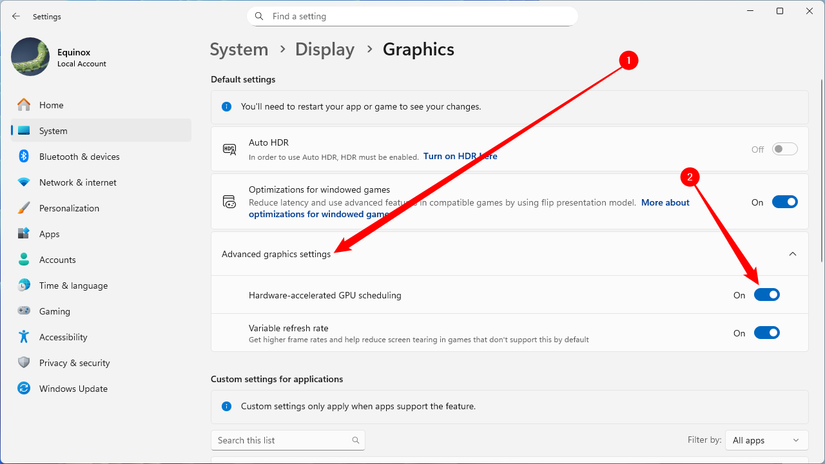
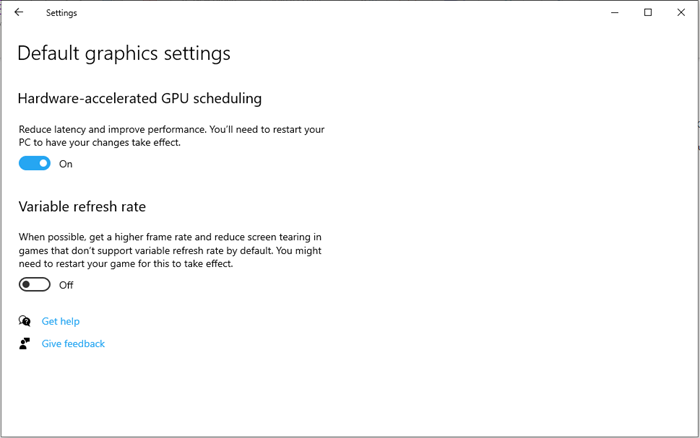
On Windows 11, open Settings, then head to System > Display > Graphics. Click on Change default graphics settings and you'll see the toggle for Hardware-Accelerated GPU Scheduling. Flip it on, then restart your PC. Windows 10 users can find it under Settings > System > Display > Graphics settings, though the exact menu names vary slightly depending on your version.
If you don't see the option at all, your graphics drivers might need an update. NVIDIA started supporting this feature with driver version 451.48, and AMD followed shortly after with their Adrenalin 20.5.1 Beta release. Intel integrated graphics support it on 11th Gen processors and newer. A quick driver update through GeForce Experience, AMD Software, or Windows Update usually fixes a missing toggle.
After the restart, the change is active. There's no progress bar, no setup wizard, and no configuration screen. Just one toggle and a reboot. That's honestly part of the charm, it's refreshingly simple in a world of bloated software.
What You'll Actually Notice
Let's set realistic expectations. This isn't going to turn your five-year-old laptop into a gaming beast. You're not going to magically jump from 30 fps to 60 fps in Cyberpunk 2077. What you will likely see is more stable frame times, meaning fewer hitches and stutters during gameplay. Your mouse might feel a hair more responsive in fast-paced shooters. Video timelines in Premiere or DaVinci Resolve may scrub a little smoother.
The biggest winners are systems with mid-range GPUs paired with decent CPUs. High-end rigs with top-tier processors see smaller gains because their CPUs were already handling the scheduling efficiently. But on mainstream hardware, the difference is genuinely perceptible. I've tested this on a Ryzen 5 5600X paired with an RTX 3060, and the 1% low frame rates in Call of Duty improved by roughly 5-10%. Not earth-shattering, but absolutely worth a free toggle.
For non-gamers, the benefit is subtler. Windows animations feel a touch snappier. Switching between virtual desktops has less hesitation. It's the kind of improvement you notice most when you turn it off and realize things felt slightly sluggish before.
How It Compares to Other Tweaks
Hardware-Accelerated GPU Scheduling isn't the only performance tweak Windows offers, but it's one of the cleanest. Here's how it stacks up against two other popular options.
| Feature | GPU Scheduling | Game Mode | High Performance Power Plan |
|---|---|---|---|
| What It Does | Lets GPU manage its own task queue | Limits background tasks during games | Keeps CPU at max clock speed |
| Setup | One toggle, one reboot | One toggle, instant | Command line or power settings |
| Best For | Reducing latency and stutter | Background app management | Raw CPU-bound workloads |
| GPU Impact | Direct improvement | Minimal | None |
| Battery Impact | Negligible | Low | Significant drain on laptops |
| Compatibility | Modern GPUs only | All systems | All systems |
Pros and Cons
Pros
- Completely free with zero software to install
- Reduces input lag and frame stuttering in games
- Works system-wide, not just in games
- Negligible power consumption increase
- One-time setup with permanent benefit
Cons
- Requires modern GPU and updated drivers
- Missing on older integrated graphics chips
- Performance gains vary depending on hardware
- Rarely causes issues with specific legacy apps
- Requires a system restart to activate
Expert Tip
Here's something most guides won't tell you. If you enable Hardware-Accelerated GPU Scheduling and notice weird behavior in specific apps, check your GPU control panel next. In NVIDIA Control Panel, look for the Low Latency Mode setting. Set it to Ultra, then test again. The combination of hardware scheduling plus ultra low latency mode can deliver a noticeably tighter response in competitive games. Just remember to restart the game after changing it, otherwise the setting won't take effect until the next launch.
Frequently Asked Questions
Is Hardware-Accelerated GPU Scheduling safe to enable?
Absolutely. It's an official Microsoft feature built into Windows. It doesn't overclock your hardware or modify system files. If something feels off, you can toggle it back off and restart.
Why don't I see the toggle on my PC?
You probably need a driver update, or your GPU might be too old. NVIDIA cards need the 451.48 driver or newer. AMD supports it on most RX 5000 series and newer cards. Intel integrated graphics require 11th Gen or later.
Will this improve my FPS in every game?
Not necessarily. Some titles see a nice bump in minimum frame rates, while others stay about the same. The main benefit is smoother, more consistent frame delivery rather than a huge peak FPS increase.
Can I use this with Game Mode turned on?
Yes, and you should. They complement each other perfectly. Game Mode handles CPU priority while GPU scheduling handles graphics queue management. Together they cover both sides of the performance equation.
Does this setting affect battery life on laptops?
The impact is minimal. Unlike the High Performance power plan, which keeps your CPU running at full throttle, GPU scheduling is just a more efficient way to manage existing workloads. You shouldn't notice any meaningful battery drain.
Final Thoughts
Hardware-Accelerated GPU Scheduling is one of those rare Windows features that delivers real results without asking for anything in return. No subscriptions, no bloatware, no complicated tweaks. Just one toggle, a quick restart, and a system that handles graphics a little more intelligently.
If you've been fighting random stutter, input lag, or just want your PC to feel a bit more responsive, this is absolutely worth five minutes of your time. It's not a magic bullet, but in a world full of overhyped optimization tricks, this one quietly does exactly what it promises. Go flip that switch. Your GPU has been waiting for the permission to do its job properly.
🎥 Recommended Video
https://www.youtube.com/results?search_query=Hardware+Accelerated+GPU+Scheduling+Windows+11

No comments:
Post a Comment