
Nothing kills a relaxing evening quite like the spinning wheel of death. You're halfway through a show, your kid's trying to turn in homework, and suddenly everything grinds to a halt. The video buffers. The webpage hangs. Your Zoom call drops into robot voice. We've all been there.
The good news? You don't need to upgrade your internet plan or buy some overpriced mesh system to make your connection feel noticeably faster. Most home networks are leaving free performance on the table because of simple habits nobody talks about. Here's how to squeeze every drop of speed out of what you already have.
Move Your Router to a Better Spot
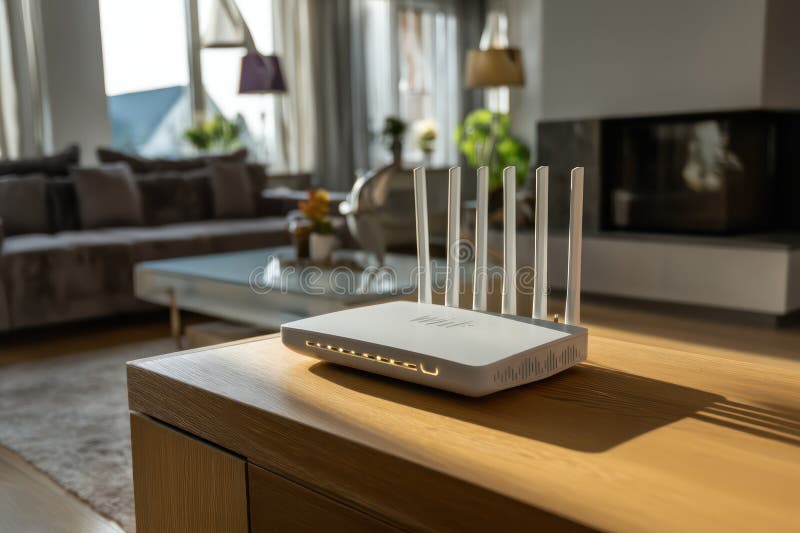
Your router's location matters way more than you think. Tucking it inside a cabinet or behind the TV suffocates your signal. Wi-Fi signals travel outward in all directions, and they don't love passing through walls or metal.
The fix is straightforward. Move your router to a central, elevated spot in your home. A shelf in the hallway or top of a bookcase broadcasts more evenly across every room. Keep it away from microwaves, baby monitors, and cordless phones, all of which cause interference you might not notice.
If your home has multiple floors, the middle floor is usually your best bet. Think of your router like a light bulb. You want it shining down and up, not trying to punch through concrete from the garage.
Use Ethernet for What Matters Most
For the devices that matter most, nothing beats a wired connection. I know, cables feel like a step backward in 2026. But for desktops, consoles, or 4K streaming, ethernet bypasses every Wi-Fi headache entirely.
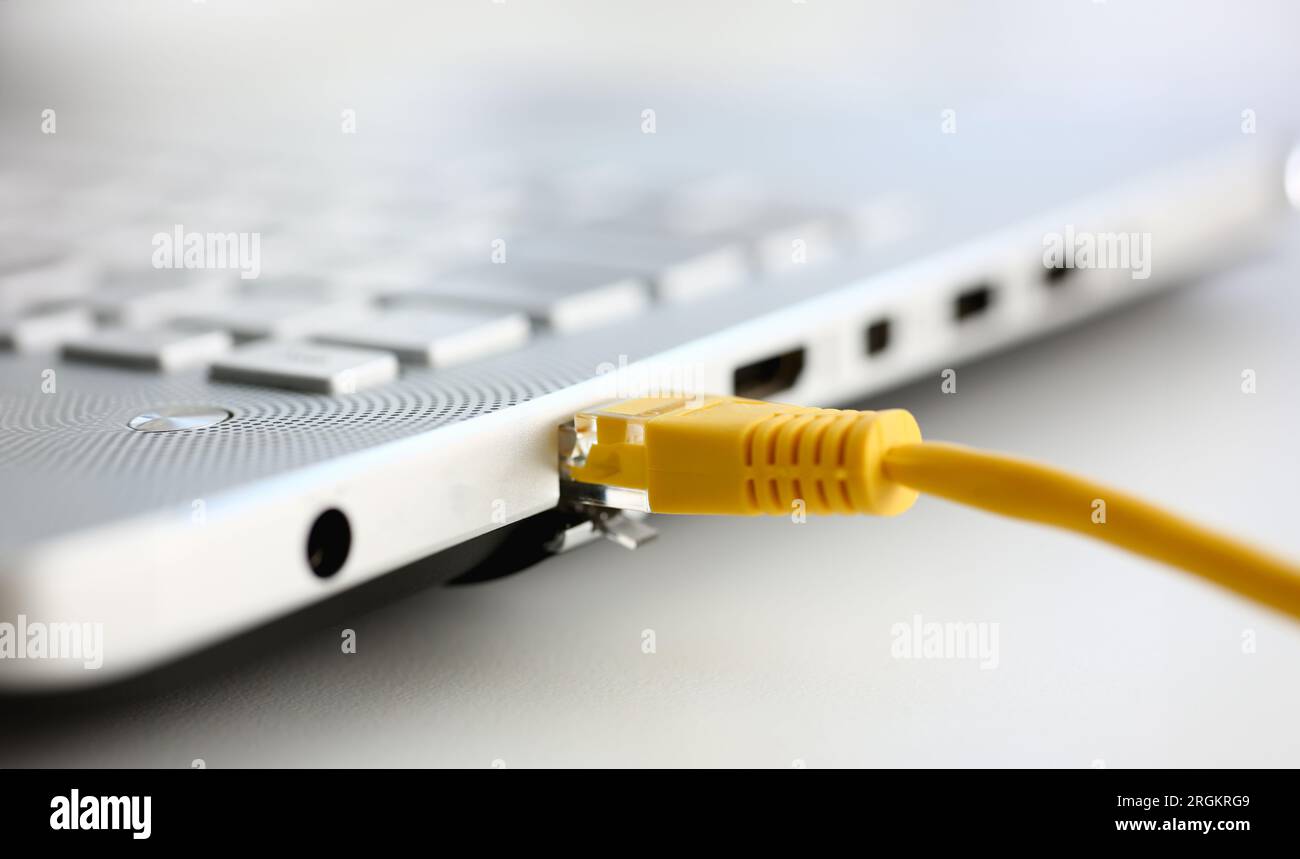
Ethernet delivers lower latency, zero interference, and full bandwidth straight to your device. You don't need to wire everything. Just prioritize devices that need rock-solid speed. A $10 cable running from your router to your main workstation can transform your daily experience more than any router upgrade ever will.
Switch to a Faster DNS
Your ISP's DNS servers are rarely the fastest option. DNS is basically the phonebook of the internet, it translates website names into IP addresses. When that phonebook is slow, every single page you visit feels sluggish before it even starts loading.
A third-party DNS can cut load times noticeably. Cloudflare's 1.1.1.1 and Google's 8.8.8.8 are both free, privacy-focused, and consistently faster than most ISP defaults. On Windows, you can change this under Settings, Network & Internet, Change adapter options, then Properties on your active connection. On most modern routers, you can set it once for the entire household under the WAN or Internet settings tab.
Enable Quality of Service on Your Router
Most routers have a feature called Quality of Service, or QoS, and it's criminally underused. QoS lets you tell your router which devices and activities get priority when bandwidth gets tight. If someone starts streaming while you're on a video call, QoS makes sure your packets get through first.
The setup varies by router brand, but you'll usually find it under Advanced settings or Bandwidth Control. You can prioritize by device, by application, or even by port number. It takes five minutes to configure and can completely eliminate those random lag spikes that seem to come out of nowhere.
Update Your Router Firmware
Router manufacturers push firmware updates for a reason. These updates patch security holes and include performance tweaks. Yet most people never check.
Log into your router's admin panel, usually by typing 192.168.1.1 or 192.168.0.1 into your browser, and look for a Firmware Update or System Update section. If your router supports automatic updates, turn them on. If not, check every few months. A five-minute update can resolve weird slowdowns that have been bothering you for weeks.
Use the 5 GHz Band for Heavy Tasks
Modern routers broadcast on two main bands: 2.4 GHz and 5 GHz. The 2.4 GHz band travels farther but it's crowded and prone to interference. The 5 GHz band is faster and less congested, though its range is shorter.
If your devices support it, connect them to the 5 GHz network for anything bandwidth-heavy. Streaming, gaming, and large downloads all benefit from the cleaner signal. Save 2.4 GHz for smart home gadgets and devices far from the router. Many newer routers can broadcast both bands under one network name and automatically steer devices to the best option.
Clear the Digital Clutter
Sometimes the problem isn't your connection, it's your devices. Browsers accumulate cache and old network profiles get corrupted. A quick restart of your router and modem, plus reconnecting Wi-Fi on problem devices, clears out digital clutter.
On Windows, the built-in Network Troubleshooter or a netsh reset can fix slowdowns router tweaks won't touch. It's the digital equivalent of turning it off and on again, and embarrassingly, it works more often than you'd expect.
Wi-Fi vs Ethernet: What to Use When
Not all connection types are created equal. Here's how Wi-Fi and Ethernet stack up for the average home user.
| Factor | Wi-Fi | Ethernet |
|---|---|---|
| Speed Consistency | Varies with distance and interference | Stable full bandwidth |
| Latency | Higher, especially on 2.4 GHz | Lower, ideal for gaming |
| Convenience | No cables needed | Requires physical cable run |
| Best For | Phones, tablets, casual browsing | Desktops, consoles, 4K streaming |
| Setup Cost | Free | $5 to $15 for a cable |
Pros and Cons
Pros
- Most fixes are completely free and take under ten minutes
- No new hardware or service contracts required
- Works immediately after applying each change
- Improves stability and reliability, not just speed
- Can reduce frustration for everyone in the household
Cons
- Won't overcome a genuinely slow internet plan
- Some router menus can be confusing for beginners
- 5 GHz band has shorter range than 2.4 GHz
- Ethernet requires running cables through your home
- Results vary based on home layout and neighborhood congestion
Expert Tip
Here's a trick almost nobody mentions. Download a Wi-Fi analyzer app like WiFi Analyzer for Android or Airport Utility for iPhone. These tools show which channels your neighbors are using. If everyone's router is crammed onto channel 6, your network is fighting for airspace.
Log into your router and manually set your 2.4 GHz channel to 1, 6, or 11, whichever has the least local traffic. For 5 GHz, pick a channel in the 149 to 165 range if you're in the US. This reduces interference more than any other single setting, especially in dense neighborhoods.
Frequently Asked Questions
Will changing my DNS actually speed up my internet?
It won't increase your raw download speed, but it can make websites load faster because the lookup process happens quicker. For most users, the difference is noticeable on page loads and app launches.
Do I need to buy a new router?
Not necessarily. If your router is less than five years old and supports 802.11ac or Wi-Fi 6, optimizing placement and settings is usually enough. Older routers may struggle to keep up with modern speeds.
Why does my internet slow down at night?
Peak usage hours, typically between 7 PM and 11 PM, put strain on your ISP's local infrastructure. Your neighborhood shares bandwidth, and when everyone's streaming, speeds can dip. Using QoS and switching to 5 GHz helps minimize the impact.
Is it safe to update my router firmware?
Yes, and you should. Firmware updates come directly from the manufacturer and fix security vulnerabilities alongside performance issues. Just don't power off the router mid-update.
Can too many devices slow down my Wi-Fi?
Absolutely. Every connected device, even idle ones, consumes a small amount of router memory and airtime. Disconnect smart home devices you don't use and disable Wi-Fi on gadgets that stay plugged into ethernet.
Final Thoughts
A faster internet connection doesn't always require a bigger bill. Most of the time, the speed you're paying for is already there, it's just getting lost to poor placement, outdated settings, and unnecessary wireless congestion.
Start with the basics. Move your router. Run a cable to your most important device. Switch your DNS. Enable QoS. These small changes compound into a home network that actually feels fast, responsive, and reliable. You don't need to be a network engineer to fix this. You just need to know where to look.
🎥 Recommended Video
https://www.youtube.com/results?search_query=How+to+Make+Your+Internet+Faster+at+Home

No comments:
Post a Comment