
You copy a link, then a paragraph, then a screenshot. You press Windows + V to pull up your clipboard history and... nothing. Or worse, the panel opens but it's empty, acting like you've never copied a thing in your life. Windows 11's clipboard history is one of those small features that becomes essential the moment you start using it. When it breaks, it feels like losing a finger.
The good news is that this isn't usually a hardware problem or some deep system failure. Most clipboard history issues come down to a toggle that got flipped, a service that fell asleep, or an app that's hogging the clipboard. You can fix the majority of cases in under five minutes without touching the command line or reinstalling Windows.
First, Check the Obvious
Is Clipboard History Actually Enabled?
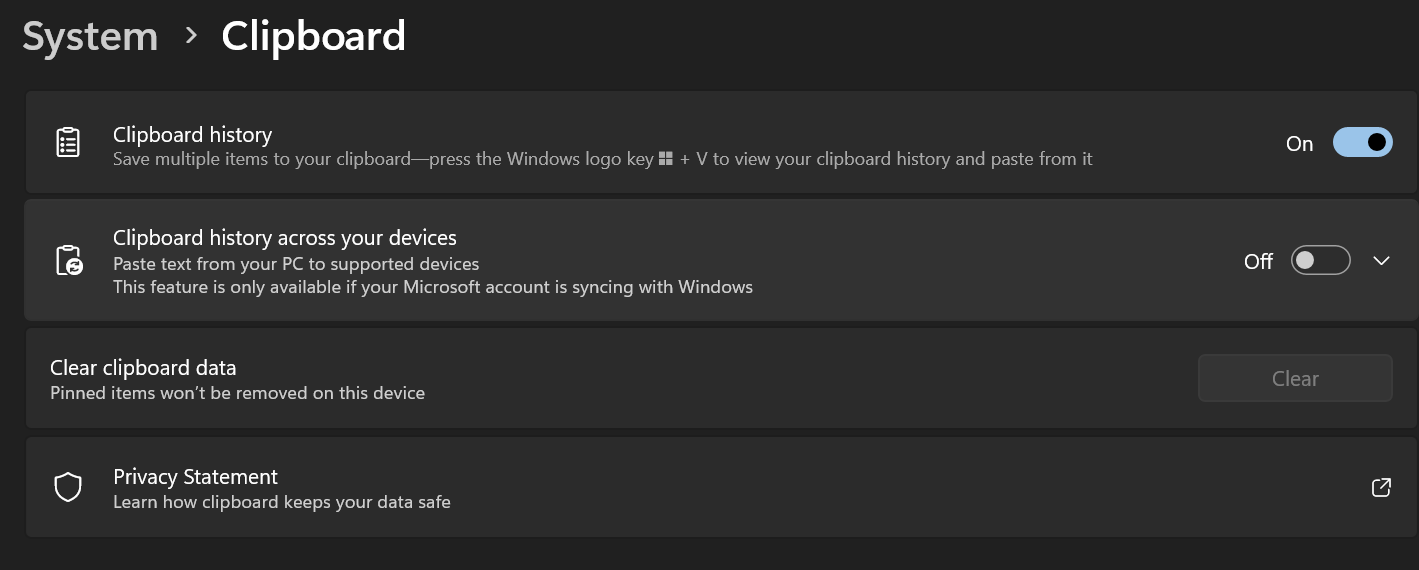
This sounds ridiculous, but it's the number one reason the feature stops working. Windows updates, system restores, and even some troubleshooting tools can disable clipboard history without warning. Press Windows + I to open Settings, then navigate to System > Clipboard. Make sure the toggle next to Clipboard history is set to On. If it's already on, try turning it off, waiting five seconds, and turning it back on. Sometimes a simple reset is all the service needs.
While you're in that menu, check the Sync across your devices option. If you're signed into a Microsoft account, this syncs your clipboard between your PC and other Windows devices. If sync is acting up, it can occasionally cause the local clipboard history to freeze. Toggle this off and on as well, or leave it off entirely if you only use one machine.
Test the Right Keyboard Shortcut
Windows + V opens clipboard history. Ctrl + V pastes only the most recent item. If you're pressing the wrong combo, you'll think history is broken when it's actually just your muscle memory. Also, if you've remapped keys using PowerToys or AutoHotkey, those custom mappings might be intercepting the Windows + V command. Temporarily disable any keyboard customization software and test again.
Restart the Clipboard Experience Service
Behind the scenes, clipboard history runs through a process called ClipboardUserService. Like any Windows service, it can crash or get stuck. Restarting it often wakes the feature back up without a full reboot.
Press Ctrl + Shift + Esc to open Task Manager. Click the Details tab. Look for a process named ClipboardUserService.exe or anything starting with Clipboard. Right-click it and select End task. Don't worry—Windows will restart it automatically within a few seconds. Once it reappears in the list, try Windows + V again.
If you don't see the process, that's actually a sign the service isn't running at all. In that case, a full system restart is your best bet. Save your work, reboot, and test clipboard history immediately after logging back in.
Clear Corrupted Clipboard Data
Sometimes the clipboard history database itself gets corrupted. A single malformed entry can break the entire panel, making it appear empty or causing it to crash on open. Clearing the stored data forces Windows to rebuild the history from scratch.
Go back to Settings > System > Clipboard. Scroll down to Clear clipboard data and click the Clear button. This wipes everything except pinned items. After clearing, copy a few pieces of text and test Windows + V. If the panel populates with fresh entries, the corruption was the culprit.

Check for Conflicting Apps
Third-party clipboard managers like Ditto, ClipClip, and CopyQ are popular because they offer more features than Windows' built-in tool. But they can fight with the native clipboard history for control. If you recently installed one of these apps, try exiting it completely and testing Windows + V again.
Password managers and security software can also interfere. Some enterprise security tools block clipboard access to prevent data leaks. If you're on a work machine, check with your IT department. For personal devices, temporarily disable any clipboard-monitoring features in your antivirus and see if that resolves the issue.
Update Windows and Drivers
Microsoft has patched several clipboard history bugs in recent Windows 11 updates. If your system is behind, you might be running a version with a known issue. Go to Settings > Windows Update and check for updates. Install anything pending, restart, and test again.
Keyboard drivers are rarely the problem, but if you're using a specialized gaming keyboard or an external input device with custom software, an outdated driver could interfere with how Windows registers the Windows + V shortcut. Check your keyboard manufacturer's website for updates, or try a basic USB keyboard to rule out hardware quirks.
Run System File Repairs
If none of the above worked, the issue might be deeper in the Windows system files. Corrupted system files can break background services like clipboard history without causing obvious symptoms elsewhere.
Open Command Prompt as administrator. Type sfc /scannow and press Enter. This scans for and repairs corrupted Windows files. If it finds problems it can't fix, follow up with DISM /Online /Cleanup-Image /RestoreHealth. This command uses Windows Update to repair the underlying system image. After both scans complete, restart your PC and test clipboard history one more time.
When to Consider a Reset
If you've tried everything and clipboard history still refuses to work, you can reset the Windows apps that handle the feature without losing personal files. Go to Settings > Apps > Installed apps. Find Windows Shell Experience Host, click the three dots, and select Advanced options. Scroll down and click Repair. If that fails, try Reset. This clears the app's cache and settings, which sometimes fixes stubborn clipboard issues.
Quick Fixes Compared
| Fix | Time Required | Difficulty | Success Rate |
|---|---|---|---|
| Toggle Clipboard History | 30 seconds | Very Easy | High |
| Restart Clipboard Service | 1 minute | Easy | High |
| Clear Clipboard Data | 30 seconds | Very Easy | Moderate |
| Check Conflicting Apps | 2-5 minutes | Easy | Moderate |
| Windows Update | 10-30 minutes | Easy | Moderate |
| SFC and DISM Scans | 15-30 minutes | Moderate | Low-Moderate |
Pros and Cons of Windows Clipboard History
Pros: It stores up to twenty-five recent items including text, HTML, and images. You can pin frequently used snippets so they never disappear. It syncs across Windows devices if you want. And it's built right into the OS, so there's no extra software to install or manage.
Cons: It doesn't handle large files well. Images over a certain size get rejected. It lacks advanced features like search, categorization, or cloud backup beyond Microsoft's sync. And when it breaks, as we've covered, the fixes aren't always obvious. Third-party clipboard managers are more robust but add complexity.
Expert Tip
Most people don't know you can pin items in clipboard history. When you open the panel with Windows + V, hover over any entry and click the pin icon. That item stays at the top of your history permanently, even after you clear everything else. I keep my email signature, a standard meeting link, and my office address pinned there. It's faster than any text expander and survives reboots. If you rely on clipboard history daily, pinning your top three snippets turns it from a convenience into a genuine productivity tool.
Frequently Asked Questions
Why does my clipboard history keep turning off by itself?
Group policy settings on work computers can disable it. Some system optimizers and privacy tools also shut it down to reduce data tracking. Check if any recent software installation coincides with the issue.
Can I recover clipboard history after restarting my PC?
No. Standard clipboard history clears on reboot unless items are pinned. If you need persistence across restarts, use a third-party clipboard manager with cloud storage.
Does clipboard history work with images and files?
Images up to roughly 4MB work fine. Files themselves aren't stored in clipboard history, only their paths. For heavy file copying, stick to traditional methods.
Is clipboard history safe to use on shared computers?
It's reasonably safe, but anyone with physical access can press Windows + V and see your recent copies. On shared machines, clear the history regularly or disable the feature entirely.
Will clearing clipboard data delete my pinned items?
No. Pinned items survive the clear button. That's exactly why pinning exists—to protect your most-used snippets from accidental deletion.
Final Thoughts
Clipboard history is one of Windows 11's most underappreciated features, and it's genuinely frustrating when it stops working. The good news is that most failures are simple configuration issues, not catastrophic system damage. Start with the basics—check the toggle, clear the cache, restart the service. Work your way up to updates and system scans only if the easy fixes fail.
Once it's working again, take two minutes to pin your most-used snippets. That small habit transforms clipboard history from a backup tool into a daily time-saver. And the next time Windows decides to misbehave, you'll know exactly where to look.
Recommended Video
🎥 Watch tutorials on fixing Windows 11 clipboard history issues

No comments:
Post a Comment