
Two years is a long time to live with an operating system. Long enough to get comfortable. Long enough to stop noticing the new stuff. Long enough to settle into habits that ignore half of what the OS can actually do.
I've been running Windows 11 since its official release in October 2021, first on a test machine, then on my daily driver, and eventually across multiple devices. What I've learned is that Windows 11 isn't just a reskinned Windows 10 with a centered taskbar. Microsoft buried genuinely useful features throughout the OS — some that have been there since day one, others added in the steady stream of updates that followed.
Here are ten hidden features I still use regularly, two years in, that most people I've talked to didn't know existed. No fluff. Just the stuff that actually makes a difference in how you work.
1. Snap Layouts — The Window Management Game Changer
Hover over the maximize button on any window, and Windows 11 shows you a grid of layout options. Snap a window to the left half, the right third, the top corner — whatever your monitor real estate supports. It's not just splitting the screen in half anymore.
What most people miss is that these layouts are remembered. If you snap Outlook to the left third and your browser to the right two-thirds, Windows 11 stores that arrangement. When you reopen those apps, hovering over the taskbar icon gives you the option to restore the entire layout instantly. It's called Snap Groups, and it's the fastest way to rebuild your workspace after a reboot or a meeting.
On ultrawide monitors, this feature becomes essential. I run a 34-inch display with three apps side by side — code editor, browser, Slack — and rebuilding that manually every morning would be miserable. Snap Groups does it in one click.
2. Focus Sessions — Pomodoro Built Into the OS
Windows 11 has a productivity timer built into the Clock app, and it's surprisingly well executed. Open the Clock app, click the Focus Sessions tab, and you get a Pomodoro-style timer that integrates with Spotify and your Microsoft To Do list.
Here's what makes it better than a third-party app: it syncs with your task list, plays ambient music from your Spotify account, and tracks your daily focus time. At the end of the week, you can see how many hours you spent in deep work. The integration is seamless because it's native — no browser extensions, no separate logins, no subscription fees.
I use it for writing sessions. 45 minutes of focused work, 10-minute break, repeat. The Spotify integration means I don't have to manage a separate music app, and the task integration means my daily to-do list is right there when the timer starts.
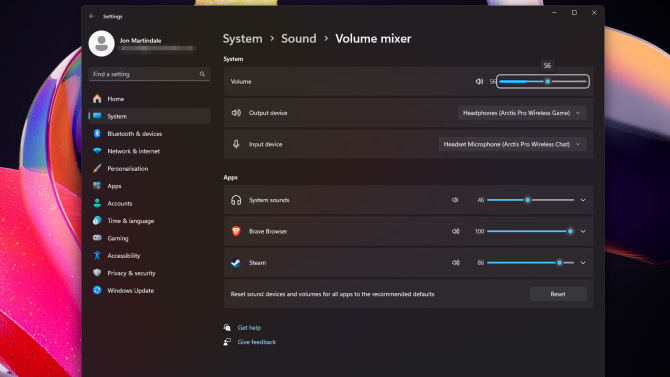
3. The New Volume Mixer — Per-App Audio Control Finally Done Right
Windows has had per-app volume control for years, but it was buried in a clunky, outdated interface. Windows 11 moved it into Settings > System > Sound > Volume Mixer, and the redesign is actually useful.
You can now set different output devices for different apps. Want Discord through your headset but Spotify through your speakers? That's two clicks. Want your browser muted while your game runs at full volume? Slide it to zero. The mixer remembers these preferences across reboots, which means you set it once and it stays configured.
For anyone who works with multiple audio sources — content creators, streamers, remote workers on constant video calls — this is a daily quality-of-life improvement that third-party audio routing software used to charge money for.
4. Live Captions — Real-Time Transcription for Everything
Windows 11 can generate live captions for any audio playing on your PC. Not just videos with subtitles. Everything. Podcasts without transcripts. Video calls. YouTube videos in languages you don't speak. The system-level captioning works across all apps.
Turn it on with Windows + Ctrl + L. The captions appear in a floating bar that you can position anywhere on your screen. The accuracy is solid for clear English audio, and it's processed locally — no cloud connection required, no data sent to Microsoft, no subscription.
I use this more than I expected. In loud environments where I can't turn up the volume, I can still follow along with a video. During video calls where someone has a thick accent or poor audio, captions fill in the gaps. It's an accessibility feature that happens to be useful for everyone.
5. Voice Access — Control Your PC Without Touching It
Voice Access is Windows 11's hands-free control system, and it's far more capable than the old speech recognition. You can open apps, click buttons, dictate text, and navigate the entire interface using voice commands.
The real power is in the labeling system. Voice Access assigns numbers to every clickable element on your screen. Say "click 14" and it clicks whatever element is labeled 14. This means you can interact with complex interfaces — web forms, settings menus, file explorers — without a mouse or keyboard.
I don't use it daily, but it's invaluable when my hands are occupied. Cooking with a recipe on screen, fixing hardware while following a video guide, or dealing with a temporary wrist injury — Voice Access keeps me productive when physical input isn't practical.
6. Clipboard History — More Than Just Copy and Paste
Press Windows + V instead of Ctrl + V, and you get a history of everything you've copied in the last few hours. Text, images, links — it's all there in a scrollable panel. Click any item to paste it, or pin frequently used snippets so they stay available indefinitely.
This sounds simple, but it changes how you work. Instead of copying something, switching apps, pasting, then going back to copy the next thing, you can copy five items in sequence and paste them all at once from the history panel. For anyone who moves data between apps regularly — writers, developers, analysts — this is a massive time saver.
The history syncs across devices if you're signed into the same Microsoft account, which means something I copy on my desktop is available on my laptop an hour later. That continuity is genuinely useful for multi-device workflows.
7. File Explorer Tabs — Finally, No More Window Clutter
Microsoft added tabs to File Explorer in a 2022 update, and it's one of those features that seems obvious in retrospect. Instead of opening five separate File Explorer windows to move files between folders, you get browser-style tabs within a single window.
Ctrl + T opens a new tab. Ctrl + W closes it. You can drag files between tabs. The experience is nearly identical to browser tabs, which means there's no learning curve. What used to require careful window management or a third-party file manager is now built into the OS.
I keep a tab open to my Downloads folder, another to my Documents, and a third to my project directory. Switching between them is instant, and my taskbar isn't cluttered with a dozen File Explorer icons anymore.
8. Energy Recommendations — The Battery Saver You Didn't Know Existed
Windows 11 has a Settings page that analyzes your power usage and suggests specific changes to extend battery life. Go to Settings > System > Power & Battery > Energy Recommendations. The system looks at your screen brightness, sleep timer, background apps, and power mode, then tells you exactly which settings to change and how much extra battery you'll gain.
On my laptop, following the recommendations added roughly two hours of battery life. The suggestions were practical — lower screen brightness to 60%, set sleep to 5 minutes when on battery, disable background apps I wasn't using. Nothing drastic, just optimized defaults.
For laptop users who are constantly hunting for power outlets, this is a one-stop shop that replaces the trial-and-error of manually tweaking power settings.
9. Phone Link — Your Android Phone on Your Desktop
Phone Link is the evolution of "Your Phone," and it's become genuinely good. Connect your Android device, and you get notifications, messages, photos, and even app mirroring directly on your Windows desktop.
The recent calls integration means I can dial numbers from my PC and talk through my headset while the call routes through my phone. The photos integration means I can drag images straight from my phone's camera roll into a document or email without touching the device. And the notification mirroring means I don't have to pick up my phone every time it buzzes during focused work.
Recent Samsung phones get the deepest integration — you can actually run Android apps in windows on your PC, not just mirror the screen. But even basic Phone Link functionality works with most Android devices and is worth setting up for the notification and messaging integration alone.
10. Quick Settings Redesign — The Control Panel Replacement
Windows 11's Quick Settings panel — the panel that slides out when you click the Wi-Fi or volume icon in the taskbar — is far more customizable than most people realize. Click the pencil icon to edit it, and you can add tiles for Bluetooth, mobile hotspot, nearby sharing, airplane mode, night light, and more.
I added Bluetooth, Focus Assist, and Nearby Sharing to my default panel. Now I can toggle any of them without opening Settings. The panel also shows your current audio output device and lets you switch between speakers, headphones, or Bluetooth devices with two clicks.
This is the modern replacement for the old Control Panel — faster, more visual, and actually designed for the way people use their devices today. Microsoft is slowly moving all system controls into this format, and the Quick Settings panel is the most mature example of that transition.
Comparison: Windows 11 Hidden Features vs. Third-Party Alternatives
| Feature | Windows 11 Native | Third-Party Alternative |
|---|---|---|
| Window Management | Snap Layouts & Groups — free, remembers layouts | FancyZones, DisplayFusion — paid, more customization |
| Focus Timer | Focus Sessions — integrates with Spotify & To Do | Forest, Pomofocus — subscription, standalone |
| Audio Routing | Volume Mixer — per-app output devices | VoiceMeeter, Audio Router — complex, paid |
| Clipboard History | Windows + V — syncs across devices | Ditto, CopyQ — more features, no cloud sync |
| Phone Integration | Phone Link — notifications, messages, apps | Pushbullet, AirDroid — subscription, cross-platform |
Pros & Cons of Windows 11's Hidden Feature Set
Pros:
- Native integration means no extra software, subscriptions, or compatibility issues
- Features sync across devices when signed into a Microsoft account
- Regular updates add new capabilities without requiring manual installation
- Accessibility features like Live Captions and Voice Access benefit all users
- Power management tools genuinely extend laptop battery life
Cons:
- Some features require specific hardware (Phone Link works best with Samsung)
- Microsoft account is required for sync functionality
- Feature discoverability is poor — many users never find these tools
- Occasional bugs in newer features that get patched in subsequent updates
- Some power users may find native tools less customizable than third-party alternatives
💡 Expert Tip
Learn three keyboard shortcuts and ignore the rest. Windows 11 has dozens of shortcuts, but most people won't memorize more than a handful. Make these three automatic: Windows + V for clipboard history, Windows + Z for Snap Layouts, and Windows + Ctrl + L for Live Captions. If you internalize just those three, you'll access the most transformative hidden features without overwhelming yourself. Add shortcuts gradually as the habits stick. The goal isn't to become a Windows power user overnight — it's to remove friction from the tasks you do every day.
Frequently Asked Questions
Do these features work on all Windows 11 versions?
Most features work on Windows 11 Home and Pro. Some advanced integrations — like Phone Link's app mirroring — require specific Android devices (primarily Samsung). Enterprise editions may have certain features disabled by IT policy. Keep Windows Updated to ensure you have the latest feature additions.
Can I use these features without a Microsoft account?
Most features work with a local account, but sync functionality — clipboard history across devices, Phone Link continuity, Focus Sessions data — requires signing in with a Microsoft account. You can use the features locally without an account, you just won't get the cross-device benefits.
Are there privacy concerns with features like Live Captions?
Live Captions processes audio locally on your device. No audio data is sent to Microsoft or the cloud. This is explicitly stated in Microsoft's documentation and is one of the reasons the feature works offline. For maximum privacy, you can verify this by disconnecting from the internet and confirming captions still function.
What's the best way to discover new Windows 11 features?
Check the Settings app periodically — Microsoft adds new pages and options with major updates. The "What's New" section in Settings sometimes highlights additions, though it's not comprehensive. Tech blogs and Windows release notes are the most reliable sources for detailed feature announcements between major version updates.
Will these features come to Windows 10?
Microsoft has been clear that Windows 10 is in maintenance mode with limited feature development. Some capabilities may receive backports, but most of the features listed here — Snap Layouts, Focus Sessions, File Explorer tabs, Energy Recommendations — are Windows 11 exclusives. If these tools matter to you, upgrading is the only path.
Final Thoughts
Windows 11's biggest problem isn't its features — it's that most people never find them. Microsoft buries genuinely useful tools inside Settings menus, keyboard shortcuts, and app integrations that require exploration to discover. The OS rewards curiosity in a way that Windows 10 never really did.
After two years, these ten features have become embedded in how I work. Snap Layouts rebuilt my window management. Clipboard History eliminated the copy-paste dance. Focus Sessions added structure to my writing. Live Captions made videos accessible in environments where audio wasn't an option. The Volume Mixer finally solved my multi-device audio chaos.
None of these features are revolutionary on their own. What makes them powerful is that they're native, they're free, and they work together. No subscriptions, no compatibility issues, no hunting for the right app. Just tools that are already there, waiting for you to notice them.
If you've been running Windows 11 and treating it like a prettier Windows 10, you're missing most of what makes it worth using. Spend an hour exploring. Try the shortcuts. Open the Settings pages you normally ignore. The features that stick will change how you use your PC — and the ones that don't cost you nothing to ignore.
━━━━━━━━━━━━━━━━━━<
🎥 Recommended Video
https://www.youtube.com/results?search_query=Windows+11+hidden+features+tips+tricks+2026
━━━━━━━━━━━━━━━━━━

No comments:
Post a Comment