
Hard drives fail. Laptops get stolen. Coffee spills happen with devastating precision. If your most important files live in exactly one place, you're not storing them—you're gambling with them.
The good news is that building a simple, reliable backup system doesn't require an IT degree. You can set up something rock-solid this afternoon using tools you probably already own. Here's how to protect what matters.
Start With What Actually Needs Saving
Before you buy a single drive or sign up for cloud storage, figure out what you're protecting. Most people wildly overestimate how much data is truly irreplaceable.
Your operating system and installed apps don't need backing up. You can reinstall those. What matters are the files you created: documents, photos, videos, tax records, and creative projects. On most computers, this lives in Documents, Pictures, Desktop, and Downloads.
Take ten minutes to audit your storage. On Windows, check folder sizes in File Explorer. On Mac, click the Apple logo, choose About This Mac > Storage > Manage. If your critical files total less than 100 gigabytes, a basic cloud plan handles everything. If you're pushing a terabyte or more, you'll want local storage in the mix.
Learn the 3-2-1 Rule
Backup professionals live by a simple formula: keep three copies of your data, on two different types of storage, with one copy stored offsite.
In practice, that means your laptop, an external drive on your desk, and a cloud copy. If your house floods, the cloud survives. If the internet goes down, the local drive is right there. If your laptop dies, you still have two other versions. It sounds like overkill until you actually need it.
Set Up a Local Backup With an External Drive
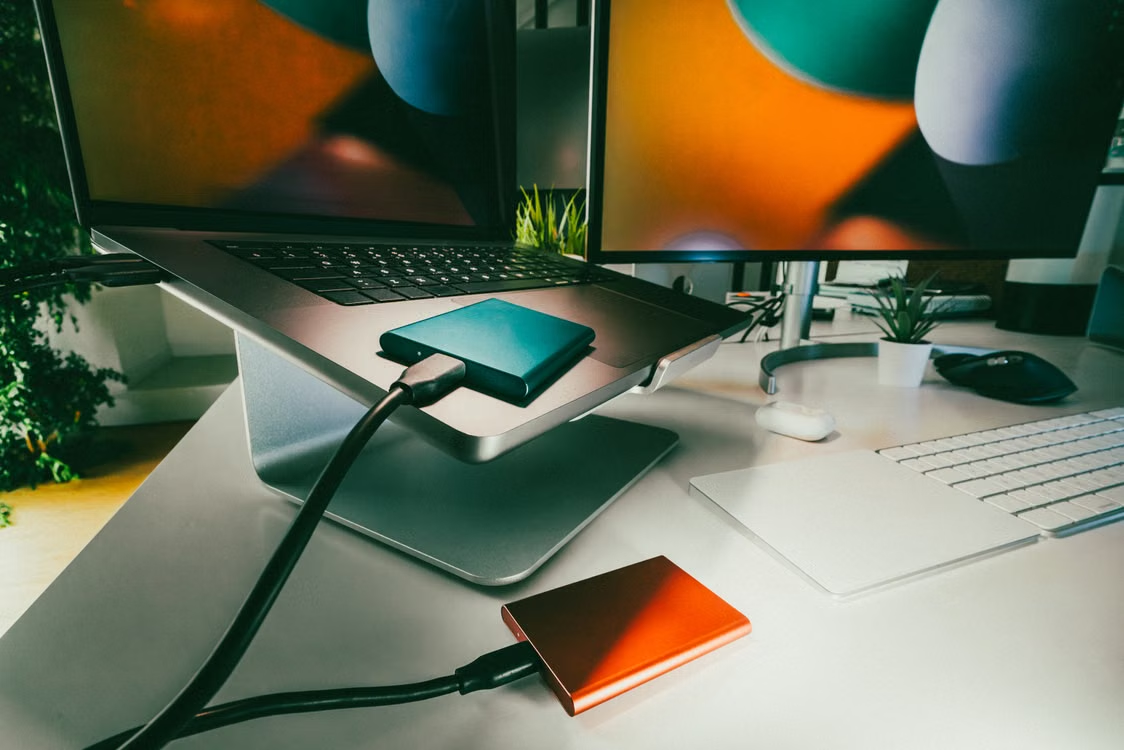
Local backups are fast, private, and work without internet. For most people, a single external hard drive or SSD is the easiest starting point.
On Windows, plug in your drive and search for File History in the Start menu. Turn it on, point it at your external drive, and Windows copies your personal folders automatically. On Mac, plug in the drive and Time Machine will ask to use it. Click Use as Backup Disk, and the system handles the rest.
SSDs are faster and more durable than spinning hard drives, but cost more per gigabyte. For pure backup storage, a standard external drive is fine. Just make sure it has at least double the capacity of what you're backing up. Growth happens.
Add Cloud Backup for Offsite Protection
A drive on your desk protects against hardware failure. It does not protect against fires, floods, or burglars. For that, you need the cloud.
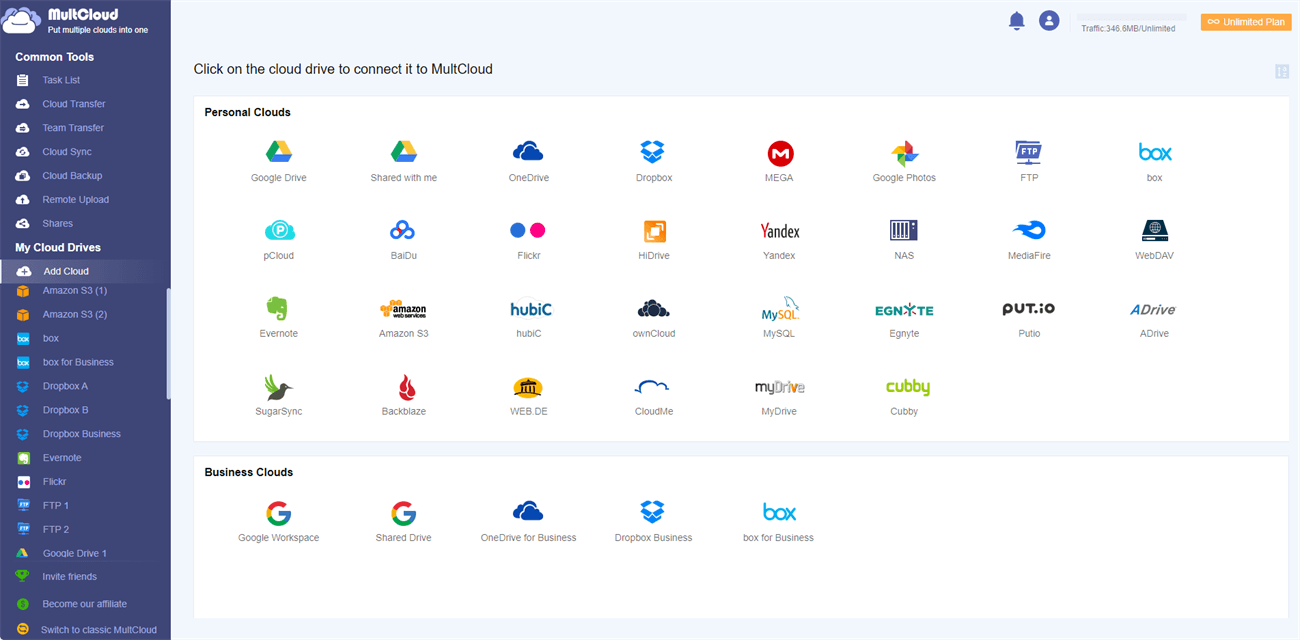
Google Drive, Dropbox, OneDrive, and iCloud offer automatic folder syncing. Install the desktop app, tell it which folders to watch, and files upload in the background. Most free tiers give you 5 to 15 gigabytes. Paid plans run between $2 and $10 per month.
For archived backups rather than constant syncing, services like Backblaze and Carbonite are purpose-built. They run quietly, encrypt your data, and keep deleted file versions for 30 days or more.
Automate Everything
The biggest threat to your backup system isn't technology. It's you. Specifically, your tendency to forget to run backups.
This is why automation matters. Time Machine and File History run on schedules. Cloud sync apps work continuously. If your plan requires manually dragging folders every Friday, it will fail. Eventually life gets busy and you'll skip it.
Configure your tools to run automatically, then verify once a month that they're doing their job. Open the backup drive and spot-check a few files. Log into your cloud account and confirm recent uploads. It takes two minutes and catches problems early.
Test Your Backups (Seriously, Do It)
Here's the step everyone skips. You need to actually restore a file and make sure it works.
Pick a random photo from six months ago. Pull it from your external drive. Download it from your cloud backup. Open it. If you can't restore it, you don't have a backup—you have a hope. Do this test twice a year. It feels unnecessary until you desperately need a file and discover your drive died silently three months ago.
Local Drive vs. Cloud Backup: What Works Where
| Factor | External Hard Drive | Cloud Backup Service |
|---|---|---|
| Initial Cost | One-time purchase ($50–$150) | Free tier available; paid plans $2–$10/month |
| Speed | Very fast over USB | Limited by internet upload speed |
| Disaster Protection | None—destroyed with your home | Excellent—stored in remote data centers |
| Privacy | Completely offline and private | Encrypted, but on third-party servers |
| Setup Complexity | Plug in and configure built-in tools | Install app and sign in |
| Best For | Large files, frequent restores, speed | Offsite safety, automatic protection, access anywhere |
The Pros and Cons of Building Your Own Backup System
Doing this yourself saves money and gives you full control, but it also means you're the IT department. Here's the honest breakdown.
Pros
- Full control: You decide what gets backed up, where it lives, and who can access it.
- No subscription lock-in: Buy a drive once, and it works for years without monthly fees.
- Fast recovery: Restoring from a local drive is dramatically faster than downloading from the cloud.
- Privacy: Sensitive documents never leave your physical possession if you keep them local.
Cons
- You're responsible for maintenance: Drives fail, software needs updates, and schedules need checking.
- Upfront cost: A quality external drive isn't free, though it pays for itself quickly.
- No offsite protection alone: A local-only backup dies with your house. You need cloud or a second remote drive.
- Learning curve: Setting up automation and understanding versioning takes a little reading.
Expert Tip: Versioning Is Your Safety Net
Most people think backing up means making a copy of their files. But what happens when you accidentally save over an important document? If your backup simply mirrors current files, the corrupted version overwrites the good one.
That's why versioning matters. Time Machine, File History, Backblaze, and most serious cloud services keep multiple versions over time. You can restore Tuesday's spreadsheet even if you ruined it on Wednesday.
Before committing to any tool, check how long it keeps old versions. The minimum you want is 30 days. Some services keep versions for a year or more. That historical depth has saved more people than any single backup copy ever could. Treat versioning as non-negotiable.
Frequently Asked Questions
How often should I back up my files?
Daily is ideal for active projects. Automatic tools handle this without you thinking about it. For less critical files, weekly is fine. Back up as often as you're willing to lose work.
Is a USB flash drive good enough for backups?
For tiny amounts of data, maybe. But flash drives are easy to lose, prone to corruption, and rarely have capacity for photo or video libraries. Use them for transferring files, not long-term backup storage.
Can I use the same external drive for both Mac and Windows?
Yes, but format it to exFAT for compatibility. Macs can read Windows NTFS drives but can't write to them without third-party software. Plan your format before copying files.
What happens if my cloud backup service shuts down?
Always maintain a local copy. No cloud service is immortal. Companies get acquired or change policies. Your local drive ensures you're never held hostage by a subscription.
Do I need to back up my phone too?
Absolutely. Phones hold years of photos and messages. iPhones back up to iCloud automatically. Android phones back up to Google Drive. Make sure these are enabled, and occasionally verify that a restore would work.
Final Thoughts
Building a backup system sounds intimidating until you actually do it. In reality, it's about thirty minutes of setup followed by a lifetime of not worrying about your data.
Pick the 3-2-1 rule as your foundation. Add a local drive for speed. Add cloud storage for safety. Automate both so you never have to remember. And test your restores twice a year to make sure the whole thing actually works.
You don't need perfection. You need redundancy. Two copies are infinitely better than one. Three copies, with one offsite, is the gold standard that professionals swear by—and it's entirely within reach for anyone with a drive and a cloud account.
Your future self, staring at a dead laptop or flooded apartment, will be profoundly grateful you did this today.
🎥 Recommended Video
Watch step-by-step backup system setup guide →

No comments:
Post a Comment