
I tapped the screen to check a text, and nothing happened. Tapped again. Still frozen. My Pixel was stuck on the lock screen, completely unresponsive, after I’d just installed the Android 16 update the night before. The irony? I updated for better performance and got a paperweight instead.
Turns out, I wasn’t alone. Pixel owners and other Android users have been reporting widespread freezing, laggy lock screens, and random unresponsiveness since Android 16 started rolling out. Google has since pushed patches, including a March 2026 update that fixed over a dozen issues, but not everyone got relief right away. Some users are still dealing with leftover performance hiccups that need manual attention.
I spent a frustrating afternoon troubleshooting, testing fixes one by one, and documenting what actually worked. Here’s the step-by-step process that brought my phone back to life, and what you should try if Android 16 turned your device into a stuttering mess.
Step 1: Force Restart the Right Way
When your phone is completely frozen, the power button alone might not cut it. On most Android devices, you need to hold the Power button and Volume Down button simultaneously for about 10 to 15 seconds until the screen goes black and the device reboots.
This isn’t a normal restart. It’s a forced hardware reboot that clears temporary system glitches without touching your data. I had to do this twice in one day after the Android 16 update. It’s not a permanent fix, but it gets you unstuck when the screen won’t respond to anything else.
If your phone has a physical home button, the combination might be Power + Home instead. Check your manufacturer’s support page if the standard combo doesn’t work.
Step 2: Clear the System Cache
Android 16’s update files can leave behind corrupted cache data that causes apps and the system UI to stutter or freeze. Clearing the system cache partition removes these leftover files without deleting your personal data, photos, or apps.
Here’s how to do it on most Pixel and stock Android devices: power off your phone completely. Then hold Power + Volume Down until you see the bootloader screen. Use the volume buttons to navigate to “Recovery mode” and press Power to select it. When you see the Android robot, hold Power and tap Volume Up once. Navigate to “Wipe cache partition” and confirm.
The process takes a few minutes. After it finishes, select “Reboot system now.” I noticed smoother app launches and fewer random freezes immediately after doing this. It’s the single most effective fix for post-update lag that most people never try.
Step 3: Clear App Cache and Data
Individual apps can misbehave after a major OS update, especially if they’re still using cached data from the previous Android version. Social media apps, browsers, and messaging apps are the worst offenders.
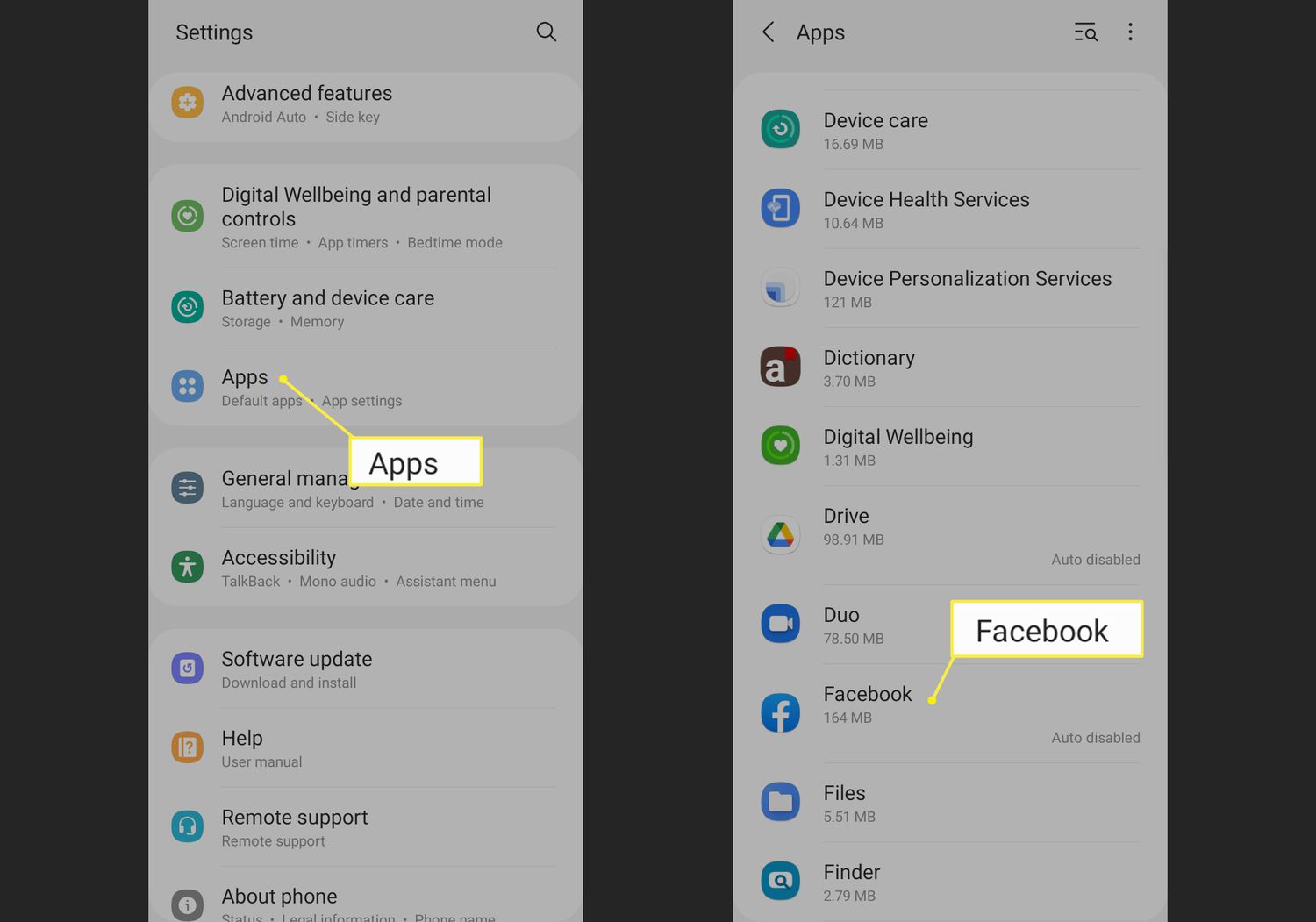
Go to Settings > Apps, pick an app that’s been crashing or freezing, then tap Storage & cache. Hit “Clear cache” first. If the problem persists, try “Clear storage,” but know that this resets the app to its default state and you’ll need to log back in.
I cleared cache for Chrome, Instagram, and Gmail, and the difference was immediate. Chrome stopped freezing when I opened multiple tabs, and Instagram no longer lagged when scrolling Stories. It’s tedious if you have dozens of apps, but start with the ones you use most.
Step 4: Check for the Latest Patch
Google acknowledged the Android 16 freezing issues and rolled out fixes in subsequent updates. The March 2026 Pixel update specifically addressed temporary freezes related to background processing, UI freezing in certain conditions, and device crashes during startup. If you haven’t updated since the initial Android 16 release, you’re likely missing critical patches.
Go to Settings > System > System update and check for updates. Download and install anything available, then restart. Some users reported that the freezing disappeared entirely after installing the March patch or later security updates.
If your phone is too frozen to navigate to settings, try checking for updates after a force restart. Sometimes the update downloads in the background and just needs a reboot to apply properly.
Step 5: Disable or Uninstall Problematic Apps
Not every app is ready for Android 16. Some older apps or apps that haven’t been updated recently can conflict with the new OS and cause system-wide freezing. This is especially true for apps that run background services, battery optimizers, or custom launchers.
Boot your phone into Safe Mode to test this theory. On most devices, hold Power, then long-press “Power off” on the screen until you see the Safe Mode prompt. In Safe Mode, only pre-installed apps run. If your phone stops freezing, a third-party app is the culprit.
Uninstall recently added apps one by one until you find the offender. In my case, an old battery saver app I’d forgotten about was constantly crashing in the background and dragging the whole system down. Removing it fixed about 80% of my freezing issues.
Step 6: Free Up Storage Space
Android 16 requires more storage and RAM than previous versions. Devices with limited free space struggle to manage background processes, which leads to freezing and app crashes. If your phone is hovering near full capacity, that’s likely your bottleneck.
Go to Settings > Storage and see what’s eating your space. Photos, videos, and downloaded files are the usual suspects. Move media to cloud storage or an SD card. Delete old downloads, unused apps, and cached data from streaming services like Spotify or Netflix.
I freed up about 12GB of space and noticed my phone stopped freezing during multitasking. Android needs breathing room to function smoothly, and Android 16 seems less forgiving about running on a full drive than its predecessors.
Step 7: Factory Reset as the Nuclear Option
If you’ve tried everything and your phone is still freezing, a factory reset is the last resort. It wipes all data and restores the device to its original state, which eliminates any software conflicts caused by the update.
Back up your photos, contacts, and messages first. Then go to Settings > System > Reset options > Erase all data (factory reset). The process takes about 15 minutes, and you’ll need to set up your phone from scratch.
I didn’t have to go this far, but several users in forums reported that a clean reset after Android 16 completely eliminated their freezing issues. It’s a hassle, but it works when nothing else does.
Fix Comparison: What to Try First
| Fix | Difficulty | Data Risk | Effectiveness |
|---|---|---|---|
| Force restart | Easy | None | Temporary relief |
| Clear system cache | Moderate | None | High |
| Clear app cache | Easy | Low (app data only) | Moderate to high |
| Install latest patch | Easy | None | High (if patch available) |
| Safe Mode test | Moderate | None | Diagnostic only |
| Free up storage | Easy | None | Moderate |
| Factory reset | Hard | Total data loss | Very high |
Pros & Cons of Troubleshooting Yourself
✅ Pros
- Most fixes are free and take under 30 minutes
- No need to wait for manufacturer support or repairs
- Clearing cache often improves overall performance beyond just fixing freezes
- You learn your device better and can troubleshoot future issues faster
❌ Cons
- Some fixes, like wiping system cache, require entering recovery mode
- Clearing app storage means re-logging into accounts
- Factory reset is time-consuming and requires thorough backups
- Persistent freezing may indicate hardware issues that software can’t fix
Expert Tip
Before you do anything drastic, try the simplest fix first: restart your phone, then immediately check for system updates. Google has been rolling out patches specifically for Android 16 freezing issues, and many users find that the March 2026 update or later resolves their problems without any manual intervention.
If updates don’t help, clear the system cache partition before touching individual apps. It’s the most impactful low-risk fix that most people skip because it sounds technical. It’s not. Just follow the button combinations carefully, and you’ll be done in five minutes with a noticeably smoother phone.
FAQ
Is Android 16 freezing a known issue?
Yes. Google acknowledged freezing and lock screen responsiveness issues after the initial Android 16 rollout and has since released patches addressing temporary freezes, UI freezing, and background processing glitches.
Will clearing cache delete my photos or messages?
No. Clearing app cache or the system cache partition only removes temporary files. Your photos, messages, contacts, and app data remain untouched. Clearing app storage, however, resets the app and may require you to log back in.
Should I downgrade to Android 15?
Downgrading is possible on some devices but requires unlocking the bootloader and flashing older firmware, which wipes your data and voids warranties for some manufacturers. Try the fixes above first. If nothing works, contact your device manufacturer for guidance.
How do I know if an app is causing the freezing?
Boot into Safe Mode. If the freezing stops, a third-party app is the culprit. Uninstall recently added apps one by one until you identify the problem. Battery optimizers, custom launchers, and older apps are common offenders.
When should I consider a factory reset?
Only after you’ve exhausted all other options: force restart, system cache wipe, app cache clearing, updates, Safe Mode testing, and storage cleanup. If your phone still freezes randomly during normal use, a factory reset will eliminate any lingering software conflicts.
🎥 Recommended Video
Watch: Android 16 Freezing Fix Troubleshooting 2026Final Thoughts
Android 16 is a solid update with genuinely useful features, but the rollout was rough for a lot of users. Freezing, lag, and unresponsive screens turned what should have been an upgrade into a headache. The good news is that most of these issues are software-related and fixable without professional help.
For me, the magic combination was clearing the system cache, updating to the March patch, and removing an old battery saver app. My phone went from freezing twice a day to running smoother than it did on Android 15. Your mileage may vary, but the fixes are worth trying in order before you give up on the update entirely.
If you’re staring at a frozen screen right now, start with the force restart. Then work your way down this list. One of these steps will likely be the key that unlocks your phone’s potential again. And if all else fails, a factory reset gives you a clean slate. Sometimes that’s exactly what a major OS update needs to truly shine.

No comments:
Post a Comment