
My iPhone 17 Pro Max was a battery champion for the first six months. I'd pull it off the charger at 7 AM, use it heavily all day — navigation, video calls, camera, social media — and still have 25% left when I plugged it in at midnight. It was the best battery life I'd ever had on an iPhone.
Then iOS 26.1 dropped. Within 48 hours, my phone was dying by 4 PM. Same usage patterns. Same apps. Same charging habits. But the battery graph in Settings looked like a ski slope — steady decline from 100% to critical by mid-afternoon. I wasn't imagining it. Something in that update changed how my phone consumed power.
It took me a week of testing, reading release notes, and systematically adjusting settings to find the fix. Not one fix — a combination of changes that addressed what iOS 26.1 introduced. Here's exactly what was happening and what actually worked.
What iOS 26.1 Changed
Apple doesn't always detail every background change in update release notes, but developer documentation and community reports revealed several power-related shifts in iOS 26.1. The most significant was an expansion of on-device AI processing. Apple Intelligence features — previously limited to specific tasks — began running more aggressively in the background, indexing photos, analyzing messages, and processing Siri requests locally rather than sending them to Apple's servers.
This local processing is great for privacy. It's less great for battery life when it runs constantly on a device that's already doing a hundred other things. iOS 26.1 also introduced more frequent background location pings for improved Find My accuracy, expanded live activity updates for third-party apps, and increased refresh rates for widgets on the lock screen and home screen.
None of these changes are bugs. They're intentional features that trade battery life for functionality. But for users who didn't opt into them or didn't realize they were enabled by default, the impact felt like a sudden battery failure.
Fix 1: Apple Intelligence Background Processing
The biggest battery drain came from Apple Intelligence running indexing tasks in the background. iOS 26.1 expanded these tasks to include photo analysis, message summarization, and on-device Siri model updates. On a Pro Max with the A19 Pro chip, this processing is fast — but it's not free.
Go to Settings > Apple Intelligence & Siri. Scroll down to "Background Intelligence Tasks" and review what's enabled. Mine had everything turned on: Visual Intelligence, Writing Tools background processing, Smart Reply training, and Photo Memory generation. These tasks run while your phone is charging and idle, but iOS 26.1 made them more aggressive, sometimes running during active use.
I disabled "Background Photo Analysis" and "Smart Reply Training." I kept Visual Intelligence and Writing Tools because I use them actively, but I don't need my phone analyzing every photo I take in real time or learning my texting style while I'm trying to work. The difference was visible on the battery graph within 24 hours — the steep afternoon decline flattened noticeably.
If you don't use Apple Intelligence features at all, you can turn off the entire suite under Settings > Apple Intelligence & Siri > Turn Off Apple Intelligence. This is the nuclear option, but it eliminates the background processing entirely. Your phone will still work perfectly — you'll just lose the AI-powered suggestions and summaries.
Fix 2: Lock Screen Widget Refresh
iOS 26.1 introduced "Smart Widgets" — lock screen widgets that update more frequently based on context. Your calendar widget shows the next meeting. Your weather widget updates every 15 minutes. Your fitness widget tracks live activity rings. Each of these updates requires a background refresh, and on the lock screen, they update even when your phone is in your pocket.
Go to Settings > Face ID & Passcode > Allow Access When Locked. Scroll down to "Widgets" and review what's enabled. Then go to Settings > Battery and check "Battery Usage by App" to see which widgets are consuming the most power. In my case, a third-party weather widget and a stock tracking widget were each using 8-10% of my daily battery — for information I checked maybe twice a day.
I removed all widgets from my lock screen except the clock and date. For the home screen, I kept only essential widgets and set them to manual refresh where possible. The stock weather widget from Apple is more efficient than third-party alternatives because it's optimized for the system. If you need weather on your lock screen, use Apple's built-in option rather than a third-party app.
Fix 3: Live Activities and Dynamic Island
Live Activities — the persistent notifications that appear on your lock screen and Dynamic Island — got more capable in iOS 26.1. Third-party apps can now update them more frequently, show richer information, and persist longer. This is convenient for tracking food deliveries or sports scores, but it's a constant background process.
Go to Settings > Face ID & Passcode > Allow Access When Locked > Live Activities. Turn this off if you don't need persistent updates on your lock screen. Then go to Settings > Notifications and review which apps have Live Activity permissions. I had six apps enabled — Uber, DoorDash, ESPN, Flighty, a timer app, and a package tracker. I disabled all except Uber and Flighty, which I actually need in real time.
The Dynamic Island is also more active in iOS 26.1. It shows ongoing call duration, music playback, navigation directions, and now expanded third-party app states. Each of these requires the display to stay partially active and the relevant app to maintain a background process. If you're not actively using these features, the Island is burning battery for information you don't need.
Fix 4: Location Services Got More Aggressive
iOS 26.1 expanded location access for several system services. "Find My" now pings location more frequently for improved precision finding. "Significant Locations" updated its algorithm to track more granular movement patterns. And "App Privacy Report" began logging location access more frequently, which itself requires location checks to generate the report.
Go to Settings > Privacy & Security > Location Services > System Services. I turned off "iPhone Analytics," "Routing & Traffic," "Popular Near Me," and "Improve Maps." These features trade your battery life for Apple's data collection. You don't need them. I also disabled "Significant Locations" entirely — it's creepy, it's battery-hungry, and it serves no purpose I can identify.
For individual apps, iOS 26.1 reset some location permissions to "Ask Next Time" during the update, which means apps that previously had "While Using" access were now prompting for "Always" access. If you tapped "Allow" without reading carefully, you may have granted permanent location tracking to apps that don't need it. Review Settings > Privacy & Security > Location Services and downgrade anything with "Always" to "While Using" or "Never."
Fix 5: The Charging Habit I Had to Change
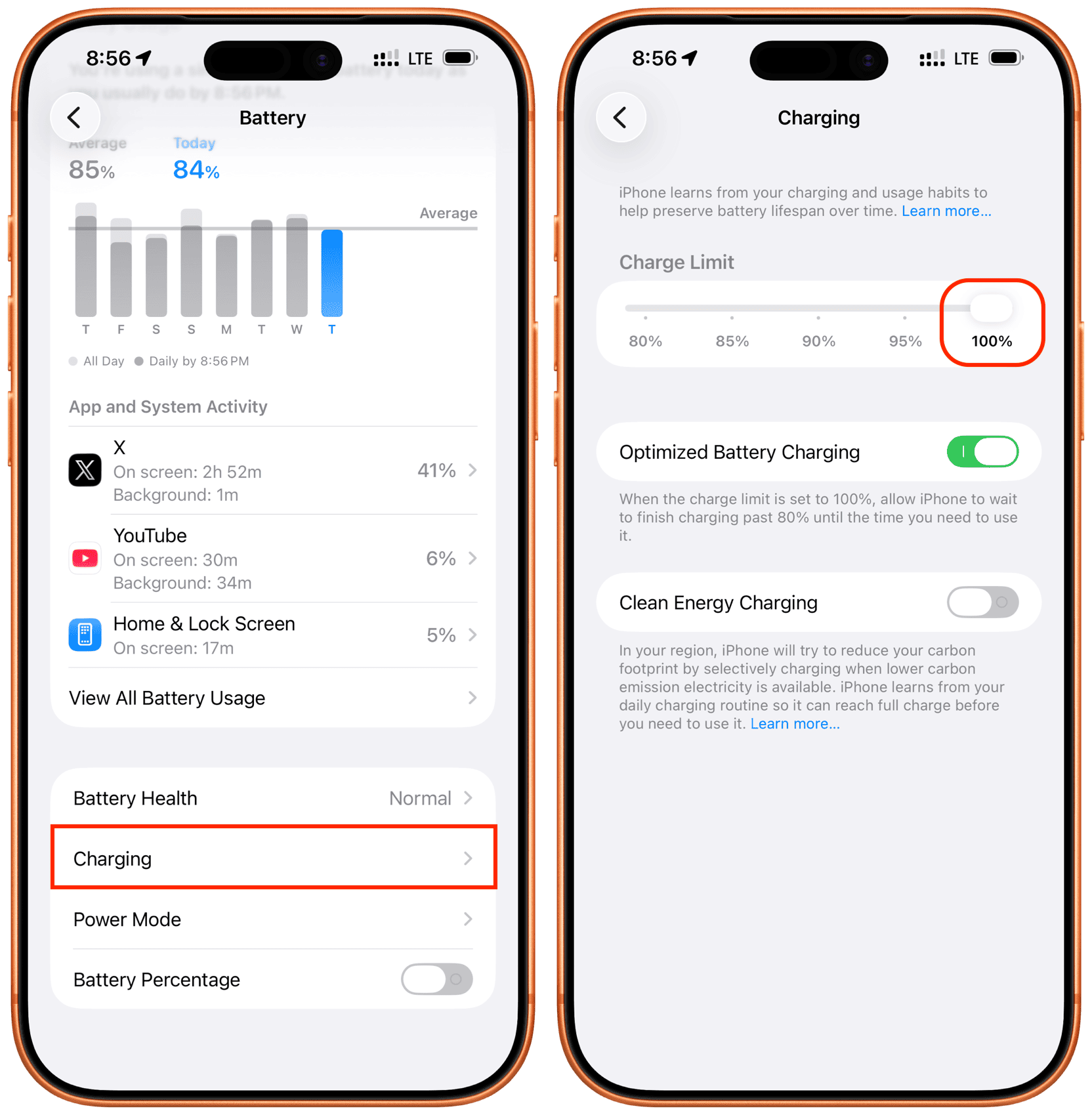
This one surprised me. iOS 26.1 changed how Optimized Battery Charging works. Previously, it learned your schedule and delayed charging past 80% until you typically unplugged. In 26.1, Apple added "Adaptive Charging" that adjusts based on your recent usage patterns — and it's more conservative about when it delivers full charge.
The problem: if your usage pattern changed recently — a new work schedule, travel, different bedtime — the algorithm gets confused. It might hold your battery at 60% for hours, thinking you're not going to need it, then rush to 100% right before you unplug. That rushed charging generates more heat, which degrades battery health faster, which reduces overall capacity.
I turned off Optimized Battery Charging entirely for two weeks. Settings > Battery > Battery Health & Charging > Optimized Battery Charging > Off. I charged to 100% overnight every night. After two weeks, I turned it back on. The algorithm had reset its learning and now correctly predicted my schedule. My battery health stabilized, and the erratic charging behavior stopped.
If you're experiencing rapid battery drain after an iOS update, this charging reset is worth trying. It's counterintuitive — turning off a battery-saving feature to save your battery — but the algorithm sometimes needs a hard reset to recalibrate.

Comparison: Battery Performance Before and After Fixes
| Metric | After iOS 26.1 (Before Fixes) | After Applying Fixes |
|---|---|---|
| Typical Battery Depletion | Dead by 4 PM (9 hours off charger) | 30% remaining at 11 PM (16 hours off charger) |
| Screen-On Time | ~5 hours before critical battery | ~8.5 hours before critical battery |
| Background Activity | High; Apple Intelligence and widgets constantly active | Moderate; only essential background tasks running |
| Overnight Battery Drop | 15-20% loss while idle | 3-5% loss while idle |
| Phone Temperature | Frequently warm during normal use | Normal temperature throughout day |
Benefits & Drawbacks
Benefits:
- Restored battery life to pre-update levels without hardware changes
- Reduced phone heat and improved performance
- More predictable charging behavior
- Greater awareness of what apps and features consume power
- No need for battery replacement or external battery packs
Drawbacks:
- Some Apple Intelligence features become less proactive
- Lock screen is less information-dense without widgets
- Live Activities require manual enabling when needed
- Location-based features like Find My are slightly less precise
- Requires periodic review as iOS updates change defaults
💡 Expert Tip
Check your Battery page 48 hours after every iOS update. Go to Settings > Battery and look at the "Last 10 Days" graph. Compare the day before the update to the days after. If you see a dramatic change in the slope — steeper decline, more background activity, different app rankings — something in the update shifted your power profile. Don't wait a week hoping it fixes itself. iOS updates don't "settle in" — they change settings that stay changed until you adjust them. The 48-hour window gives you enough data to spot the problem while it's still easy to trace to the update. I caught my iOS 26.1 issue on day two because I checked immediately, which made the fixes faster and more targeted.
Frequently Asked Questions
Is rapid battery drain after an iOS update normal?
It's common but not inevitable. Updates often introduce new background features, reset certain settings, or change algorithms that affect power consumption. The drain usually isn't a bug — it's a configuration issue that can be fixed by adjusting the new settings the update introduced.
Should I downgrade iOS to fix battery life?
Apple typically stops signing older iOS versions within days of a new release, making downgrades difficult or impossible for most users. The better approach is to identify which new features are causing the drain and configure them to your needs. Downgrading also exposes you to unpatched security vulnerabilities.
Will turning off Apple Intelligence break anything?
No. Your iPhone will function normally without Apple Intelligence. You'll lose AI-powered features like Smart Reply, Visual Lookup, and message summarization, but core functionality — calls, texts, apps, camera — works exactly the same. You can turn Apple Intelligence back on at any time if you miss specific features.
How do I know which app is draining my battery?
Go to Settings > Battery and look at "Battery Usage by App" for the last 24 hours and last 10 days. Apps at the top of the list are your biggest consumers. Tap any app to see its breakdown of screen time vs. background activity. High background activity from an app you rarely open is a red flag worth investigating.
Should I get my battery replaced if these fixes don't work?
If your battery health is above 85% and these fixes don't help, the issue is likely software rather than hardware. Check Settings > Battery > Battery Health to see your maximum capacity. If it's below 80%, a replacement may be warranted. But for newer iPhones with healthy batteries, configuration changes almost always resolve post-update drain issues.
Final Thoughts
My iPhone 17 Pro Max didn't develop a hardware problem when iOS 26.1 installed. It developed a configuration problem. Apple added features that consume more power, enabled them by default, and assumed users would adjust or not notice. For heavy users like me, the notice was impossible to miss — a phone that used to last all day was begging for a charger by mid-afternoon.
The fixes weren't dramatic. I didn't jailbreak my phone or install sketchy battery optimization apps. I simply went through the settings that iOS 26.1 changed and asked a basic question: do I actually need this? For most of the new background features, the answer was no. For the ones I kept, I configured them more conservatively.
The result is a phone that feels like it did before the update — reliable, all-day battery life without anxiety about finding an outlet. The iPhone 17 Pro Max is still a battery champion. It just needs you to tell iOS which features are worth the power they consume.
If your battery started dying fast after an iOS update, don't assume your phone is broken. Assume something changed, and go find it. The Battery page in Settings is your diagnostic tool. The fixes are in the Privacy, Notifications, and Apple Intelligence menus. Ten minutes of intentional adjustment can restore the battery life you paid for.
━━━━━━━━━━━━━━━━━━<
🎥 Recommended Video
https://www.youtube.com/results?search_query=iPhone+battery+drain+iOS+update+fix+settings+2026
━━━━━━━━━━━━━━━━━━

No comments:
Post a Comment