
YouTube is the most visited website on the planet, and for good reason. It’s where we learn, unwind, discover music, and waste more time than we’d care to admit. But the experience isn’t always pleasant. The homepage is a firehose of recommendations that rarely match what you actually want to watch. Autoplay drags you into rabbit holes you never intended to enter. Comments sections are toxic by default. And somewhere along the way, the simple act of watching a video became a battle against distraction, clutter, and algorithmic manipulation.
I’d accepted this as the cost of using a free platform. Then I started digging into YouTube’s settings — not the obvious ones like Dark Mode or playback speed, but the buried toggles, hidden menus, and experimental features that Google doesn’t advertise. Over the course of an evening, I disabled a handful of features I’d never thought to question. The result was immediate. YouTube felt calmer. The homepage stopped shouting at me. Videos ended when they were supposed to end. And the whole experience felt less like a casino designed to keep me pulling the lever and more like a video library I actually controlled. Here’s exactly what I changed.
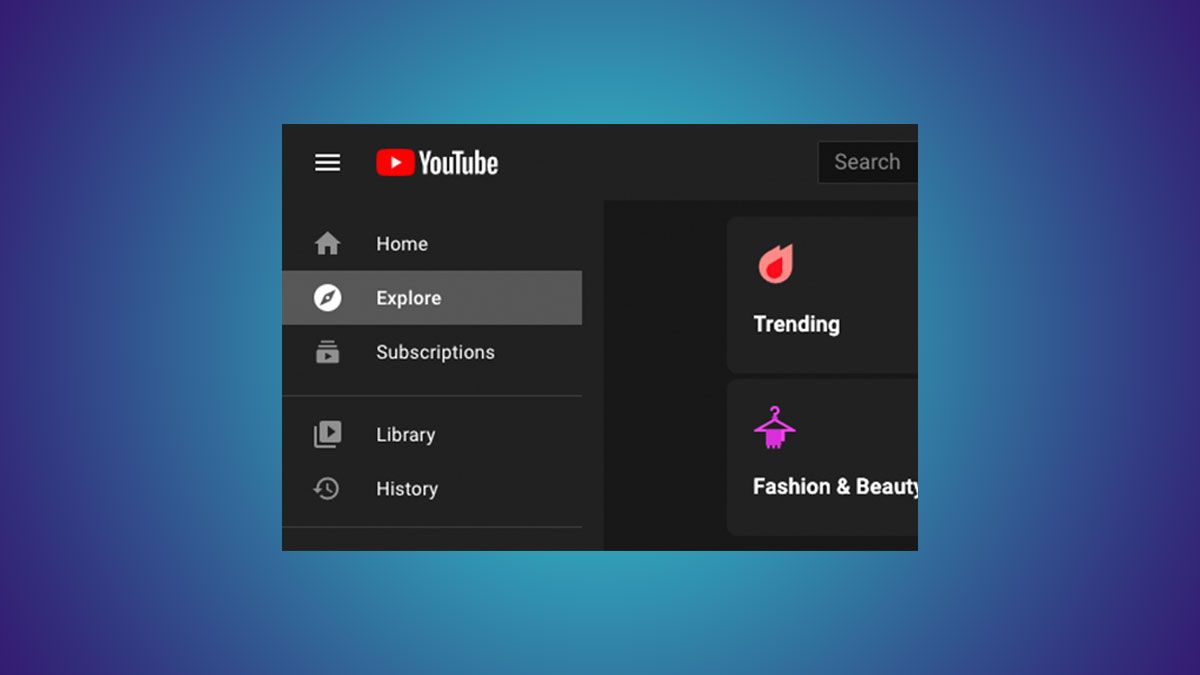
1. Turn Off Autoplay — The Rabbit Hole Killer
Autoplay is YouTube’s most effective engagement tool and its most destructive feature. The moment a video ends, another one starts — often something completely unrelated that the algorithm thinks you’ll find irresistible. Before you know it, you’ve burned an hour watching content you never chose to see. It’s not a bug. It’s a deliberate design choice to maximize watch time, and it works alarmingly well.
Disabling it is simple but transformative. On desktop, click the toggle in the top-right corner of any video player — the one that says "Up next" with a switch next to it. On mobile, tap your profile picture, go to Settings > General, and toggle off Autoplay next video. The effect is immediate. Videos now end when they end. You get a moment to decide what to do next instead of being pulled into whatever the algorithm serves up. My average session length dropped by about 40% — not because I was watching less, but because I was only watching what I actually wanted to watch.
2. Disable Home Recommendations with "Not Interested"
YouTube’s homepage is algorithmically curated to show you what it thinks you’ll click, not what you actually care about. The result is a mix of trending garbage, sensationalist thumbnails, and videos that are tangentially related to something you watched once three weeks ago. It’s exhausting, and it trains your brain to seek novelty over substance.
The fix is manual but effective. On every unwanted recommendation, click the three-dot menu and select Not interested. Do this consistently for a week, and your homepage gradually cleans up. You can also tell YouTube why you’re not interested — "I’ve already watched this," "I don’t like this channel," or "I’m not interested in this topic." The algorithm actually listens, especially if you’re specific. After two weeks of aggressive curation, my homepage went from a chaotic mix of drama channels and clickbait to a focused feed of creators I actually subscribe to. It’s more work than a toggle, but the payoff is a YouTube that feels like yours.
3. Hide Shorts from Your Feed
YouTube Shorts are TikTok-style vertical videos that YouTube has been aggressively pushing since 2021. They’re addictive, low-effort, and designed for endless scrolling. They’re also a massive time sink that fragments your attention and trains your brain to expect constant novelty. If you’re trying to use YouTube for actual learning or long-form content, Shorts are the enemy.
There’s no master switch to disable Shorts entirely, but you can remove them from your homepage and subscriptions feed. On desktop, use a browser extension like "Hide YouTube Shorts" or "YouTube Shorts Blocker" — both are free and effective. On mobile, the options are more limited, but you can reduce Shorts visibility by consistently selecting Not interested on every Short that appears. Over time, the algorithm gets the message and stops pushing them as aggressively. My Shorts consumption dropped from dozens per day to essentially zero, and my ability to focus on longer videos improved noticeably.
4. Turn Off Playback in Feeds — Stop the Auto-Playing Previews
YouTube recently introduced a feature that auto-plays video previews when you hover over thumbnails in your feed. It’s meant to help you decide what to watch, but in practice it’s visual noise that starts playing before you’ve made a conscious choice. The audio is muted by default, but the motion and distraction are still there — and on mobile, it can burn data and battery without you realizing it.
To disable it, go to Settings > Playback and performance on desktop and turn off Inline playback. On mobile, go to Settings > General > Playback in feeds and set it to Off. The homepage becomes instantly calmer. Thumbnails are static images again, not mini-videos fighting for your attention. It’s a small change, but it removes a layer of visual aggression that most people don’t even notice until it’s gone.
5. Disable Ambient Mode — The Glowing Distraction
Ambient Mode is the feature that casts a soft glow around the video player, matching the colors of the video you’re watching. It looks cool in screenshots, but it’s another layer of visual stimulation that serves no functional purpose. It also increases GPU load slightly, which can cause stuttering on older devices and unnecessary battery drain on laptops.
Turning it off is easy. Click the gear icon in any video player, go to Playback settings, and toggle off Ambient Mode. The player reverts to a clean black border that doesn’t compete with the video for your attention. If you watch YouTube in a dark room, the difference is especially noticeable — your eyes stay focused on the content instead of being pulled to the shifting colors at the edges of the screen.
6. Remove the Comments Section Entirely
YouTube comments are famously toxic. Even on educational or wholesome videos, the comments section often devolves into arguments, spam, and misinformation. If you’re someone who instinctively scrolls down after a video ends, the comments are a trap that pulls you into negativity you didn’t seek out.
Browser extensions like "Comment Blocker for YouTube" or "Unhook" can hide the comments section entirely on desktop. On mobile, your options are more limited, but apps like NewPipe or YouTube Revanced offer cleaner interfaces without comments. If you prefer the official app, the simplest solution is behavioral: train yourself to close the video or switch apps the moment it ends, before your thumb instinctively scrolls down. I did this for a week and found that my mood after watching YouTube improved significantly. The videos were still great. The comments were not missed.
7. Disable Personalized Ads and Ad Tracking
YouTube’s ad targeting is aggressive. Watch one video about fitness, and you’ll see protein powder ads for weeks. Search for a new laptop, and every video starts with a tech retailer sponsorship. It’s not just annoying — it’s a constant reminder that YouTube is watching and cataloging everything you do.
You can’t remove ads without YouTube Premium, but you can reduce their relevance — which paradoxically makes them less engaging and easier to ignore. Go to Settings > Privacy > Ad settings on your Google account and turn off Ad personalization. Then go to My Ad Center and remove any interests you don’t want associated with your profile. The ads won’t disappear, but they’ll become generic and less tempting to click. Over time, this also reduces the data Google collects about your viewing habits, which is a privacy win even if you’re not using an ad blocker.
Pros & Cons of Disabling These YouTube Features
| Feature Disabled | Pros | Cons |
|---|---|---|
| Autoplay | Stops accidental rabbit holes, restores conscious choice | Must manually select next video; some may find inconvenient |
| Home Recommendations | Cleaner homepage, more relevant content, less clickbait | Requires ongoing manual curation; takes time to train algorithm |
| Shorts | Better focus, less attention fragmentation, more intentional viewing | No native disable switch; requires extensions or persistent feedback |
| Playback in Feeds | Calmer homepage, less visual noise, reduced data and battery use | May miss quick previews that help decide what to watch |
| Ambient Mode | Cleaner player, less distraction, better battery life | Some find the glow aesthetically pleasing |
| Comments | Less toxicity, better mood, more focused viewing | Misses occasional helpful comments and community discussion |
| Ad Personalization | Less creepy targeting, reduced data collection, generic easier-to-ignore ads | Ads still appear; just less relevant to your interests |
Expert Tip
Here’s the combination that made the biggest difference for me: Autoplay off + Inline playback off + Ambient Mode off + Comments hidden. These four create a YouTube experience that feels almost meditative. The video plays. Nothing else moves. Nothing else shouts for attention. When the video ends, you’re back in control. I also created a dedicated "Watch Later" playlist that I curate intentionally — when I find a video I want to watch, I add it there instead of watching immediately. This breaks the impulse-click habit and turns YouTube into a deliberate library rather than an endless stream. My screen time dropped, my satisfaction went up, and I started finishing videos instead of abandoning them halfway through because something shinier appeared in the sidebar.
FAQ
Will disabling these features break YouTube?
No. All of these changes are reversible and only affect how YouTube behaves for you. The core functionality — watching videos, subscribing to channels, searching — remains completely intact.
Can I disable Shorts on the mobile app without an extension?
Not entirely. YouTube doesn’t offer a native toggle to remove Shorts. The best approach is to consistently select "Not interested" on every Short that appears in your feed. Over time, the algorithm reduces their frequency. For a complete block, third-party apps or browser extensions are necessary.
Does turning off ad personalization remove ads?
No. You’ll still see ads, but they’ll be generic rather than targeted to your interests. To remove ads entirely, you need YouTube Premium or an ad blocker on desktop.
Will hiding comments affect my ability to engage with creators?
Only if you rely on comments for interaction. You can still like, subscribe, and share videos. If you want to comment, you can temporarily re-enable the comments section or use the YouTube Studio interface if you’re a creator.
Do these settings sync across devices?
Most do. Autoplay, Ambient Mode, and ad personalization settings are tied to your Google account and apply across desktop and mobile. Browser extensions for hiding Shorts and comments are device-specific and need to be installed on each browser you use.
Final Thoughts
YouTube doesn’t have to be a chaotic, attention-grabbing battleground. The platform is designed to maximize engagement, not your wellbeing — but that doesn’t mean you have to accept the default experience. A handful of settings changes, some manual curation, and a few browser extensions can transform YouTube from a time sink into a genuinely useful tool.
The difference isn’t just about saving time. It’s about reclaiming agency. When you turn off autoplay, you decide what to watch next. When you hide Shorts, you protect your attention span. When you disable ambient mode and inline playback, you remove the visual noise that competes with the actual content. And when you hide comments, you insulate yourself from the toxicity that seeps into even the most innocuous videos.
YouTube is still the best video platform on the internet. But it’s better when you control it instead of letting it control you. Spend 20 minutes on these settings. The calmer, cleaner experience that follows is worth far more than the time you’ll invest.
🎥 Recommended Video
https://www.youtube.com/results?search_query=YouTube+hidden+settings+clean+watching+experience

No comments:
Post a Comment