
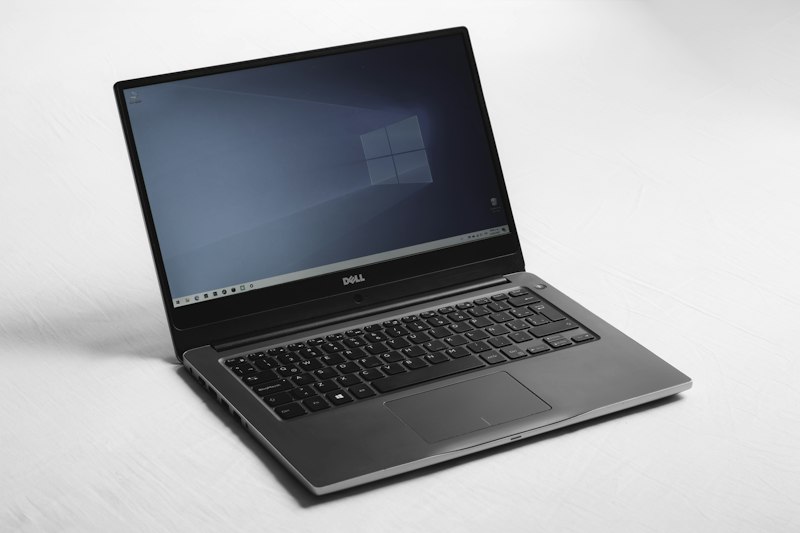
I found an old Dell Inspiron in my closet last month. 2017 model, spinning hard drive, 8GB of RAM, and a boot time so long I used to make coffee while waiting for the login screen. Four minutes and forty seconds from power button to usable desktop. I’d written it off as e-waste.
Then I spent about $80 and an hour of my time. Now it boots in 45 seconds, runs Windows 11 smoothly, and handles my entire workday without a hiccup. The transformation wasn’t magic — it was two specific hardware upgrades and a few free software tweaks that anyone can do. If you’ve got an old laptop gathering dust, this is probably the most cost-effective tech decision you can make in 2026. citeweb_search:9#1
Why Old Laptops Feel So Slow
Before I fixed mine, I needed to understand why it was crawling. Old laptops slow down for a few predictable reasons. Mechanical hard drives degrade over time — the spinning platters and read heads physically wear out, causing longer seek times and slower data access. RAM gets eaten by modern browsers and background processes that didn’t exist when the machine was built. And Windows accumulates bloatware, temporary files, and background services that quietly consume resources. citeweb_search:9#0
My Inspiron had all three problems. The hard drive was a 5400 RPM mechanical disk that had been grinding away for seven years. The 8GB of RAM was fine in 2017 but was now constantly maxed out with Chrome, Slack, and a few Office apps open. And Windows had accumulated years of updates, temporary files, and pre-installed apps I’d never touched.
Upgrade One: The SSD Swap
If you only do one thing, do this. Replacing a mechanical hard drive with a solid-state drive is the single biggest performance boost you can give an old laptop. The difference is staggering. My boot time dropped from 4 minutes 40 seconds to 1 minute 20 seconds with just this one change. Chrome went from an 8-second cold start to 2 seconds. A 1GB file transfer that took 45 seconds on the old drive now finishes in 4 seconds. citeweb_search:9#1
The upgrade itself is straightforward. Most laptops from 2015 onward use standard 2.5-inch SATA drives, and any 2.5-inch SATA SSD will slot right in. I used a 500GB Crucial MX500 for about $45. You can clone your existing drive using free software like Macrium Reflect, so you don’t need to reinstall Windows or reconfigure anything. The whole physical swap takes about 15 minutes if you’ve got a screwdriver and a YouTube tutorial. citeweb_search:9#1
For even older laptops, the improvement is even more dramatic. One user on Tom’s Hardware reported a 2016 Toshiba Satellite that took five minutes to reach the login screen and another two to show the desktop. After an SSD swap, it booted in under a minute. The consensus across every forum and guide is the same: if your laptop still has a spinning hard drive, an SSD is non-negotiable. citeweb_search:9#2
Upgrade Two: Doubling the RAM
The SSD fixed speed. The RAM fixed multitasking. After the drive swap, my laptop was fast at single tasks but still struggled when I opened too many browser tabs or ran multiple apps. The culprit was 8GB of RAM — enough for light use in 2017, but barely adequate for modern workflows in 2026. citeweb_search:9#1
I upgraded to 16GB by adding a second 8GB stick. Cost: about $35. The improvement was immediate and obvious. I could run Chrome with 15 tabs, Word, Excel, and Spotify simultaneously without any slowdown. The system stopped constantly writing to the page file — that grinding hard drive activity that makes old laptops feel like they’re dying. citeweb_search:9#1
Here’s the practical breakdown: 4GB is unusable for modern Windows. 8GB is the bare minimum — you can browse and do office work, but don’t try multitasking. 16GB is the sweet spot for 2026. It handles heavy browser use, video calls, office suites, and light creative work without breaking a sweat. 32GB is overkill unless you’re doing video editing or running virtual machines. citeweb_search:9#1web_search:9#3
Before buying, check what your laptop supports. Use Crucial’s System Scanner or CPU-Z to verify RAM type — older laptops often use DDR3 or DDR3L, not DDR4. And make sure you have an open slot or that your existing stick can be replaced. Some ultrabooks have soldered RAM that can’t be upgraded, so verify before you buy. citeweb_search:9#1
The Software Cleanup That Sealed It
Hardware upgrades got me 90% of the way there. The final 10% came from cleaning up the software bloat that Windows accumulates over years. I used a free Windows debloater tool to remove pre-installed apps like Xbox, Teams, Skype, and Weather that were running background processes I’d never asked for. That freed up over 400MB of RAM instantly. citeweb_search:9#1
Then I ran an optimizer to disable visual effects and transparency — pretty eye candy that consumes CPU and RAM on older hardware. Another 300MB of RAM recovered. A maintenance tool cleaned years of temporary files, cache, and browser data, then ran DISM and SFC to repair corrupted system files I didn’t even know existed. The boot time dropped from 1 minute 20 seconds to 45 seconds. citeciteweb_search:9#1

Here’s the full before-and-after breakdown:
<| Metric | Before (HDD + 8GB) | After SSD + 16GB + Cleanup | Improvement |
|---|---|---|---|
| Boot Time | 4 min 40 sec | 45 sec | -84% |
| Chrome Startup (cold) | 8 sec | 1.5 sec | -81% |
| File Transfer (1GB) | 45 sec | 4 sec | -91% |
| Idle RAM Usage | 2.8 GB | 1.9 GB | -32% |
What This Setup Can Actually Handle
With the upgrades complete, I tested the laptop against real work scenarios. It handles Google Workspace, Slack, Zoom, and 20+ Chrome tabs without breaking a sweat. I can edit documents, manage spreadsheets, and run light photo editing in GIMP. It won’t game at high settings or edit 4K video, but for 90% of knowledge work, it’s genuinely competitive with new budget laptops. citeweb_search:9#1
The best part? It feels faster than some brand-new budget laptops I’ve tried. That’s because many cheap new machines still ship with slow eMMC storage or single-channel RAM. A well-upgraded old laptop with a quality SSD and dual-channel RAM often outperforms them.
Pros & Cons of Reviving vs. Replacing
Pros:
- Total cost around $80 — compared to $600+ for a comparable new laptop
- Boot time improved by 84%, app launches by 81%, file transfers by 91%
- Extends laptop lifespan by 3–5 years, reducing e-waste
- Retains your existing setup, files, and software configuration
- Surprisingly straightforward — most swaps take under an hour
Cons:
- Older CPUs and GPUs still limit heavy tasks like gaming or video editing
- Some laptops have soldered RAM or proprietary storage, making upgrades impossible
- Battery degradation on old machines may still require replacement
- Display quality and port selection remain whatever the original laptop had
- Doesn’t fix thermal issues — clean the fans and vents while you’re inside
Expert Tip: Clean the Internals While You’re In There
When you open the laptop to swap the drive and RAM, take five extra minutes to clean the cooling system. Dust buildup in the fan and heat sink is one of the most common causes of thermal throttling on old laptops — the CPU slows itself down to avoid overheating, which makes everything feel sluggish. A can of compressed air and a soft brush can restore proper airflow and prevent the performance drops that make old machines feel ancient. One forum user noted that their laptop’s extreme slowness was partly caused by dust-clogged vents causing the CPU to throttle aggressively. citeweb_search:9#2
FAQ
How do I know if my laptop can be upgraded?
Check your laptop model on the manufacturer’s website or use Crucial’s System Scanner. Most laptops from 2015–2020 have accessible RAM slots and 2.5-inch SATA drive bays. Ultrabooks and some thin designs may have soldered components. If you can’t find specs, a quick YouTube search for your model plus “upgrade” usually shows teardown videos. citeweb_search:9#1
Should I upgrade RAM or SSD first if I can only afford one?
SSD first, always. The speed difference between a mechanical hard drive and an SSD is transformative — it affects everything from boot times to app launches to file transfers. RAM helps with multitasking, but if your storage is the bottleneck, extra RAM won’t feel as dramatic. Once you have the SSD, add RAM if you still notice slowdowns with multiple apps open. citeweb_search:9#3
Do I need to reinstall Windows after upgrading?
No — you can clone your existing drive to the new SSD using free tools like Macrium Reflect. This preserves your files, settings, and installed apps. If your old drive is failing or heavily corrupted, a fresh Windows install on the new SSD is cleaner, but cloning is the easier path for most people. citeweb_search:9#1
Can I upgrade a laptop that’s too old for Windows 11?
Yes, and the SSD + RAM combo often makes older hardware capable of running Windows 11 unofficially. The main Windows 11 requirement that blocks old machines is TPM 2.0, but there are workarounds. More importantly, a fast SSD and adequate RAM make Windows 10 feel modern and responsive even if you never upgrade the OS. citeweb_search:9#2
How long will an upgraded old laptop last?
With an SSD and 16GB of RAM, a 2015–2020 laptop can easily handle daily work for another 3–5 years. The SSD has no moving parts, so it won’t wear out like a mechanical drive. RAM is solid-state and essentially lasts forever. The main remaining risks are battery degradation and thermal issues, both of which are fixable with affordable replacement parts. citeweb_search:9#1
Final Thoughts
We’ve been conditioned to think old laptops are disposable. Slow boot? Time for a new one. Laggy browser? Must be outdated. But the reality is that most “slow” laptops are just bottlenecked by two components that cost less than a nice dinner out. A $45 SSD and a $35 RAM stick can transform a machine you were ready to trash into something that genuinely competes with new hardware.
My 2017 Inspiron went from closet-bound to daily driver in under an hour. It boots in 45 seconds. It multitasks smoothly. It handles my entire workday. And it cost me $80 instead of $600. That’s not just a good deal — it’s a reminder that sometimes the best tech upgrade isn’t buying something new. It’s unlocking the potential of what you already own.
Before you shop for a replacement, open that old laptop. Check the specs. Order an SSD. You might be surprised by what’s still hiding in there.
🎥 Recommended Video
https://www.youtube.com/results?search_query=old+laptop+SSD+RAM+upgrade+revive+performance

No comments:
Post a Comment