
Apple's marketing says "Privacy. That's iPhone." But the reality inside your Settings app tells a different story. Every iOS update adds more toggles that quietly share your data, track your movements, and drain your battery in the background. Most of them are turned on by default. Most users never look twice.
That is starting to change. Across Reddit threads, YouTube tutorials, and tech forums, iPhone users are suddenly waking up to how much their phones are doing without their knowledge. One setting in particular, Background App Refresh, has become the unofficial starting point for anyone serious about reclaiming their device. The results speak for themselves: users who switch it to Wi-Fi only report battery improvements of 15 to 20 percent, with notifications still arriving on time and core apps working normally. citeweb_search:9#1
Background App Refresh: The Setting Everyone's Talking About
Background App Refresh is the feature that lets apps update their content even when you aren't using them. The idea is that when you open Instagram or a news app, the latest posts are already loaded. The problem is that every single app with this permission is constantly waking up, checking servers, and burning through your battery and mobile data.
One user who audited their iPhone for a week made a simple change: they went to Settings > General > Background App Refresh and switched the top-level setting from Wi-Fi & Cellular Data to Wi-Fi. Before the change, their battery was at 38-42% by mid-afternoon. After? Consistently between 55-60% at the same time of day. The only app that felt slower was Instagram, and only on cellular. Everything else worked exactly the same. citeweb_search:9#1
The reason this works is that cellular data is far more power-hungry than Wi-Fi. When Background App Refresh is set to cellular, every app with this permission is silently pulling data through your mobile radio all day long. Switching to Wi-Fi only means your apps still refresh when you're at home or the office, but they stop draining your battery when you're out and about.
For even more control, you can scroll through the individual app list and disable Background App Refresh entirely for apps that don't need it. Games, shopping apps, and social media platforms are prime candidates. Keep it on for navigation, messaging, and music streaming. Be selective, and you'll feel the difference immediately.
Significant Locations: The Digital Diary You Never Asked For
Your iPhone keeps a detailed log of everywhere you go. It's called Significant Locations, and it's buried under Settings > Privacy & Security > Location Services > System Services. Apple uses this data for things like CarPlay ETA predictions and "leave now" reminders. What it actually is, is a timestamped record of your home, your workplace, your gym, and every other place you visit regularly.
The user who tested Background App Refresh also turned off Significant Locations and cleared the history. CarPlay predictions became slightly less accurate during commutes, and Apple's proactive suggestions disappeared. But the tradeoff felt worth it. Your maps still work. Your GPS is still accurate. You just stopped carrying a digital diary of your physical movements. citeweb_search:9#1
To find it, you'll need Face ID or your passcode to enter the Significant Locations menu. Once inside, tap Clear History, then toggle it off. If you've never looked at this before, the list of locations will probably surprise you.
App Tracking: Stop the Pop-Ups and the Data Pipeline
Every time you install a new app, there's a decent chance you'll get a popup asking to track your activity across other companies' apps and websites. It's annoying. It's also a data pipeline that lets advertisers build a profile of your behavior across the entire iOS ecosystem.
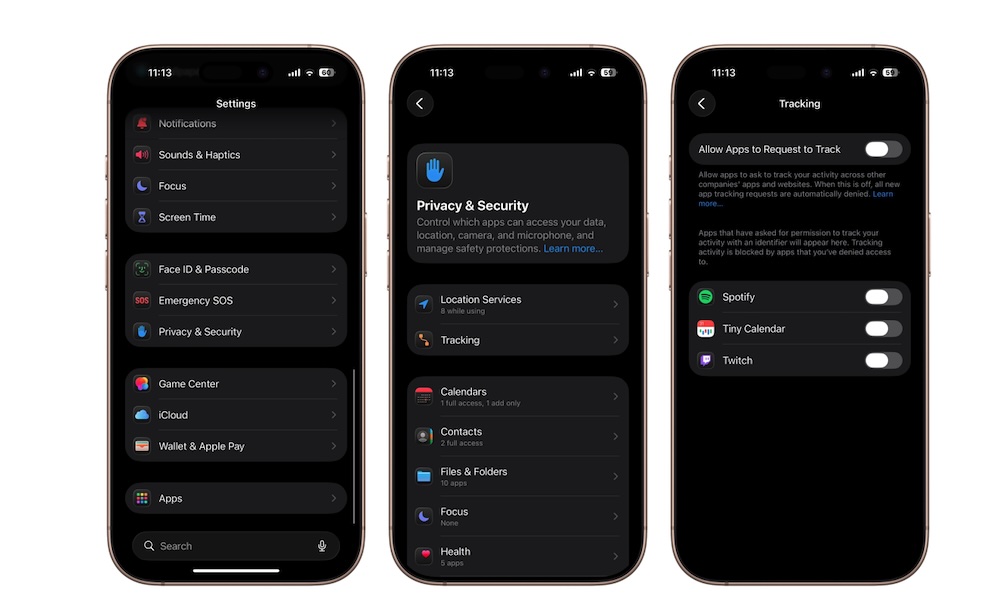
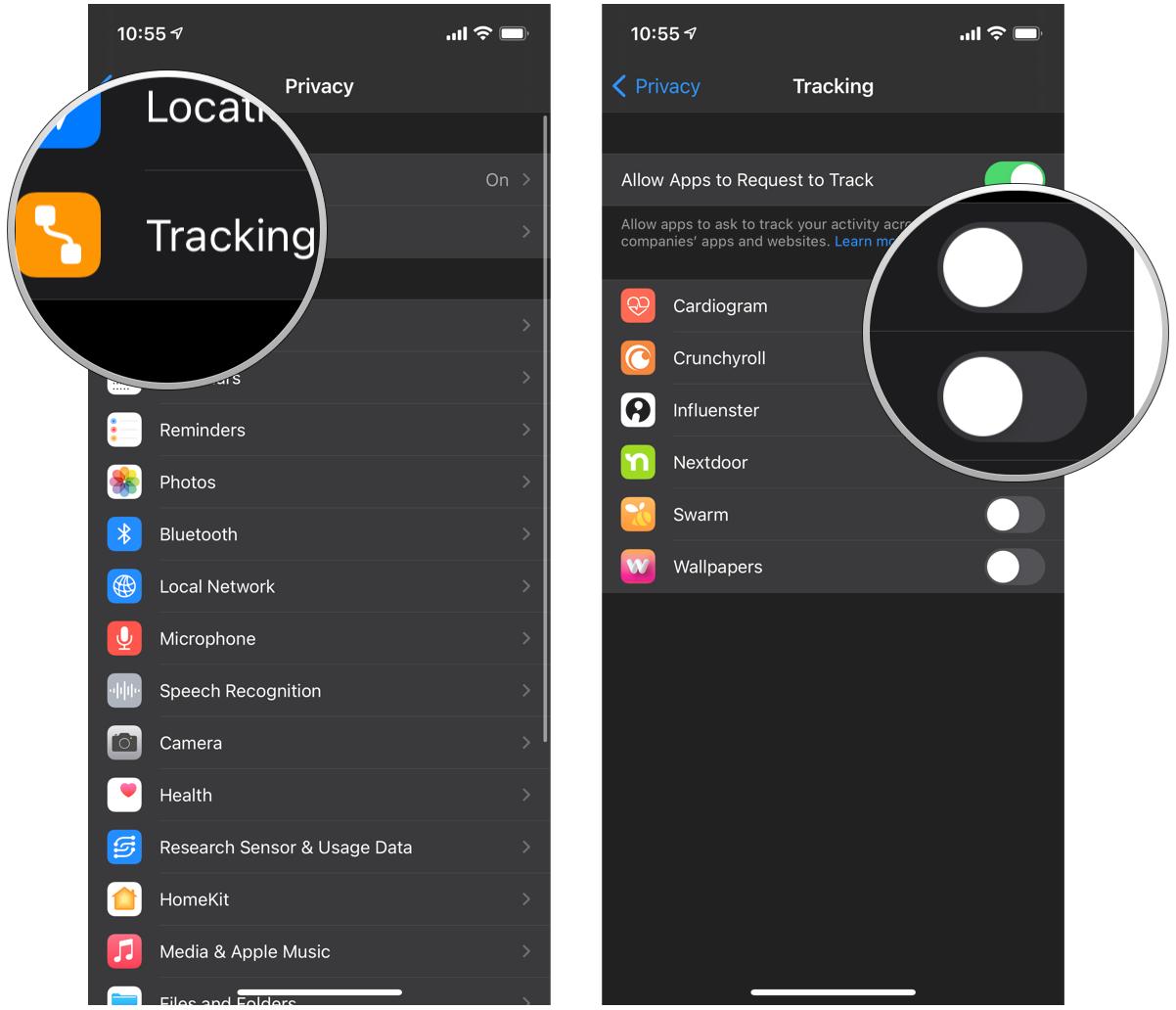
There's a single toggle that stops all of it. Go to Settings > Privacy & Security > Tracking and turn off Allow Apps to Request to Track. When this is off, apps are automatically blocked from tracking you using your advertising identifier. They don't even get to ask. The pop-ups disappear, and your data stays between you and the apps you actually use. citeweb_search:9#1web_search:9#2
Analytics and Improvements: The Free Labor Setting
By default, your iPhone sends daily diagnostic and usage data to Apple. The company anonymizes it, but the process still uses your battery and your data plan to compile and upload reports in the background. If you're trying to maximize efficiency, you don't need to be sending telemetry for a company that already has your money.
Go to Settings > Privacy & Security > Analytics & Improvements and toggle off Share iPhone Analytics. Do the same for Share iCloud Analytics and Share With App Developers while you're there. After a few days, you'll forget these settings even existed, which tells you exactly how little they mattered to your daily experience. citeweb_search:9#1web_search:9#12
In-App Ratings: The Flow Killer Nobody Needs
This one doesn't save battery, but it removes one of the most irritating interruptions in modern mobile life. You're in the middle of booking a flight, editing a photo, or checking your bank balance, and a popup screams at you to rate the app five stars. It breaks your focus. It happens daily. And most people don't know you can turn it off forever.
Go to Settings > Apps > App Store and toggle off In-App Ratings & Reviews. You can still rate apps manually through the App Store if you want to. But now you do it on your terms, not when an app decides to nag you. citeweb_search:9#1
System Services: The Rapid-Fire Audit
Under Settings > Privacy & Security > Location Services > System Services, there's a long list of toggles that most users never examine. Here's the quick guide to what actually matters:
- Significant Locations & Routes: Turn it off. Clear the history.
- Product Improvement: Turn off iPhone Analytics, Routing & Traffic, and Popular Near Me. These send your data to Apple for product development.
- Status Bar Icon: Turn this on. It shows you when something is actively using your location, which is useful visibility.
- Find My iPhone: Keep this on. It's genuinely useful if your device is lost or stolen.
- Emergency Calls & SOS: Keep this on. It could save your life.
Everything else under System Services is fair game for disabling if you don't use the feature. Emergency SOS, Find My, and compass calibration are the only ones most people actually need. citeweb_search:9#2
Other Settings Worth Disabling on iOS 26
With each iOS update, Apple adds more features that quietly expand your digital footprint. Here are the latest additions getting attention in 2026:
Apple Intelligence Data Reporting: If you're using Apple Intelligence features, your phone may be sending data back to Apple for model improvement. Go to Settings > Privacy & Security > Analytics & Improvements and look for any Apple Intelligence reporting toggles to disable. citeweb_search:9#12
Wired Accessories: Under Settings > Privacy & Security > Wired Accessories, set it to Ask for New Accessories instead of automatically allowing them. This protects against "juice-jacking" attacks at public charging stations, where malicious USB ports can try to access your data while you charge. citeweb_search:9#2
Stolen Device Protection: Turn this on under Settings > Face ID & Passcode and set it to Everywhere or Away from Familiar Locations. It adds extra security requirements for sensitive actions when your phone is away from places you normally go. citeweb_search:9#2
What You Gain vs. What You Lose
| Setting Turned Off | What You Gain | What You Lose |
|---|---|---|
| Background App Refresh (Cellular) | 15-20% better battery life, less data usage | Slightly slower app refreshes on cellular |
| Significant Locations | Privacy from location tracking diary | Less accurate CarPlay ETA predictions |
| App Tracking | No more tracking pop-ups, blocked cross-app profiling | Nothing meaningful |
| Analytics & Improvements | Less background data usage, slightly better battery | Apple can't use your data for product improvement |
| In-App Ratings | No more interruptive rating pop-ups | Can't rate apps from within the app (manual rating still works) |
Pros and Cons of Aggressively Disabling iPhone Settings
| Pros | Cons |
|---|---|
| Dramatically improved battery life | Some convenience features become less accurate |
| Reduced data usage on mobile plans | Apple's predictive suggestions may feel less helpful |
| Significantly better privacy from tracking | Requires periodic re-audit after iOS updates |
| Fewer daily interruptions and pop-ups | Some settings may reset after major iOS updates |
| Phone feels more responsive with fewer background processes | Takes time to learn which settings matter for your usage |
Expert Tip: Do a Quarterly Privacy Audit
iOS updates have a habit of re-enabling certain settings or adding new ones that default to on. Every three months, spend ten minutes walking through Settings > Privacy & Security and checking what's changed. Look for new toggles, review app permissions, and make sure nothing crept back on after an update.
Also, check your App Privacy Report under Settings > Privacy & Security. It shows you which apps have accessed your camera, microphone, location, and contacts in the last week. If an app you barely use is constantly pinging your location, that's your cue to revoke its permissions. citeweb_search:9#2
One more thing: if you're still on iOS 18 and hesitant to upgrade to iOS 26 because of reported battery drain and the new Liquid Glass design, know that optimizing your current OS with these settings can buy you significant performance without the instability of a new release. CNET recently published a guide of iOS 18 tweaks that can keep older iPhones running smoothly while you wait for iOS 26 to mature. citeweb_search:9#7
FAQ
Will turning off Background App Refresh break my notifications?
No. Background App Refresh controls how apps update their content silently, not how push notifications reach you. Your texts, emails, and alerts still come through normally. The only difference is that apps like Instagram or news readers might take a moment longer to show fresh content when you first open them on cellular.
Is it safe to turn off Significant Locations?
Yes. Your GPS still works. Maps still gives you directions. Find My iPhone still functions. The only thing you lose is Apple's ability to predict when you typically leave for work or suggest "leave now" notifications. For most people, that's a small tradeoff for stopping a detailed location history from being stored on their device.
Do these settings reset after iOS updates?
Sometimes. Major iOS updates occasionally re-enable analytics sharing or add new tracking features that default to on. That's why the quarterly audit is so important. After every iOS update, do a quick pass through your Privacy & Security settings to catch anything that changed.
Will disabling analytics hurt my iPhone's performance?
No. Analytics data is sent to Apple for product improvement purposes. It doesn't affect how your phone runs, how apps behave, or any feature you actually use. Turning it off simply stops your device from compiling and uploading usage reports in the background. Many users report their phones feel slightly snappier afterward.
Should I upgrade to iOS 26 or stay on iOS 18?
If you're happy with your current performance and concerned about reported battery drain issues with iOS 26, there's no rush. Apple is actively developing iOS 26.2 to address early complaints. Optimizing your current OS with the settings in this guide can keep your iPhone running well while you wait for the newer release to stabilize. citeweb_search:9#7
Final Thoughts
The default iPhone experience is designed for convenience, not for you. Every toggle that's left on is another data point Apple can collect, another process running in the background, another percentage point of battery quietly disappearing while your phone sits in your pocket.
The users who are suddenly turning these settings off aren't paranoid. They're just paying attention. They realized that "Privacy. That's iPhone." is a marketing line, not a guarantee. The actual privacy is something you have to build yourself, one setting at a time.
Start with Background App Refresh. It's the single biggest impact for the least effort. Then work your way through Significant Locations, app tracking, and analytics. Within a week, your phone will feel different. The battery will last longer. The interruptions will stop. And most importantly, you'll know exactly what your device is doing, because you chose it.
🎥 Recommended Video
https://www.youtube.com/results?search_query=iPhone+settings+turn+off+privacy+battery+2026

No comments:
Post a Comment