
My laptop was dying. Not literally — the screen still lit up, the fans still spun, and Windows still loaded. But "loaded" is a generous word. It crawled. Opening Chrome felt like asking a sleepy toddler to run a marathon. Every click came with a half-second delay that stacked into full seconds of frustration. I was one frozen tab away from throwing the whole thing into a lake.
Then I stopped complaining and actually fixed it. For under $80 and a single afternoon, I turned a 2018 machine that felt ready for retirement into something I genuinely enjoy using again. Here's exactly what worked — and what didn't.
The One Upgrade That Changes Everything
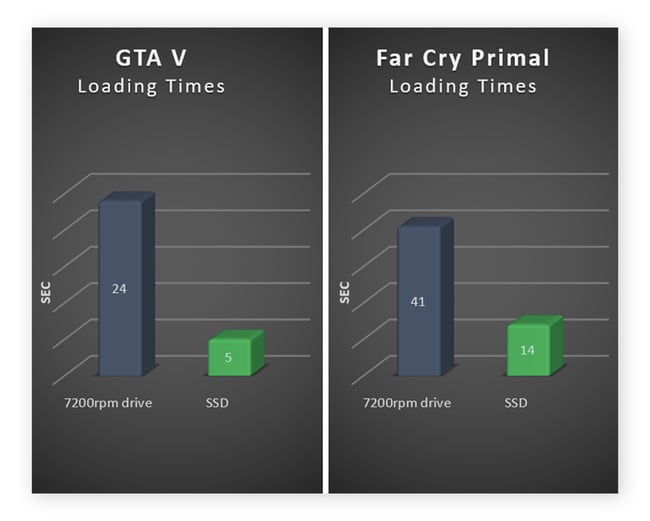
If your old laptop still has a traditional spinning hard drive, stop reading and order an SSD. I'm serious. Nothing else on this list comes close to the impact of swapping a mechanical drive for solid-state storage.
My boot time went from four minutes to under thirty seconds. Apps that used to chug now snap open. File searches are instant. An SSD doesn't just make your laptop faster — it makes it feel like a different machine entirely. A 500GB SATA SSD costs around $40–$50, and cloning your existing drive is straightforward with free software like Macrium Reflect.
The difference isn't subtle. It's the difference between dreading your computer and actually wanting to use it.
RAM: The Cheap Performance Bump
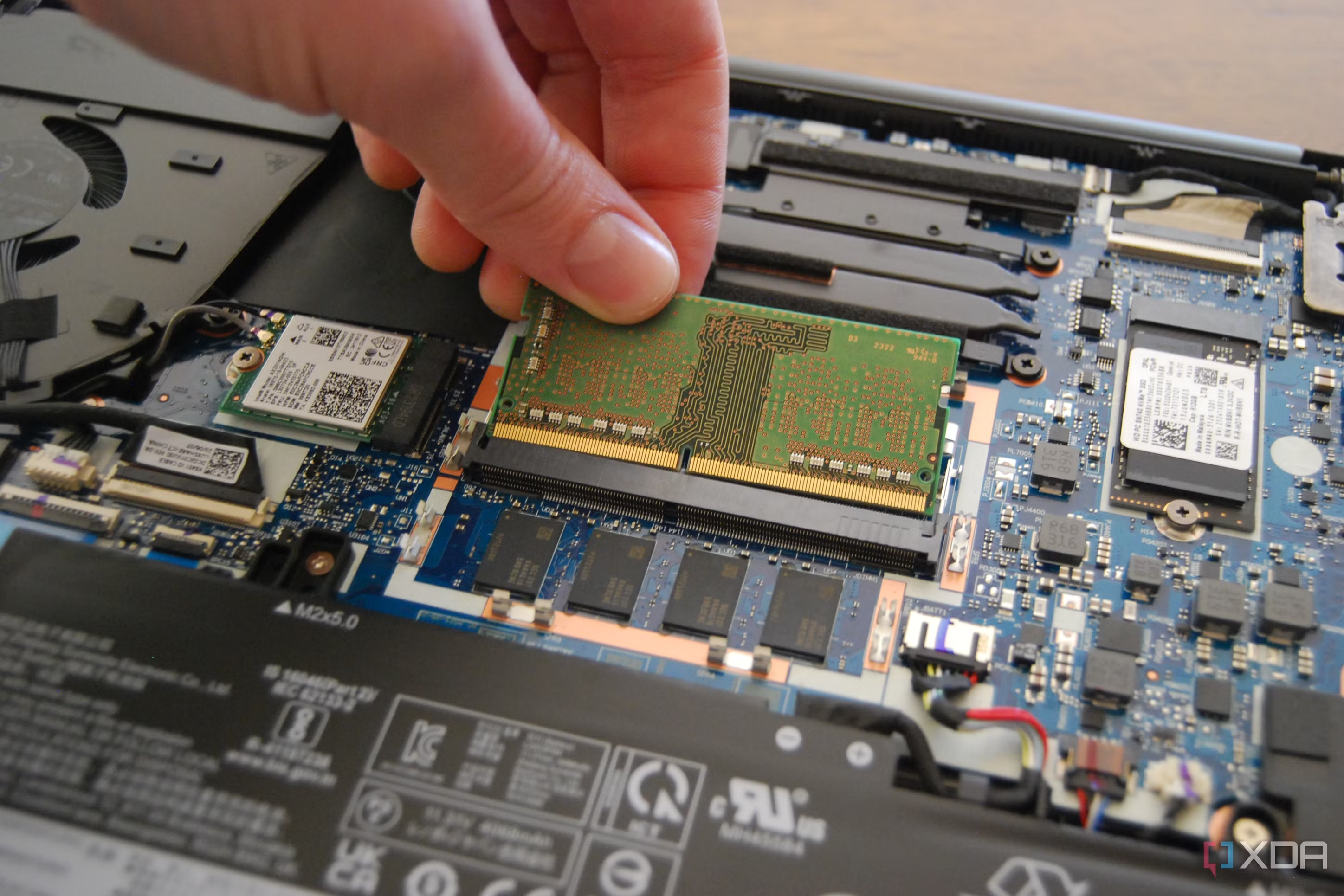
After the SSD, RAM is the next best bang for your buck. Most older laptops shipped with 4GB or 8GB, which was fine in 2018 but struggles with modern browsers, video calls, and the dozen apps we all leave running.
Upgrading to 16GB made multitasking actually possible again. I could have Chrome, Spotify, Slack, and a video call running without the system grinding to a halt. Check your laptop's manual to see if the RAM is soldered or upgradeable. If it's upgradeable, a 16GB kit usually runs $30–$50 and takes about ten minutes to install.
Here's the thing: you don't need 32GB for everyday tasks. 16GB is the sweet spot where most users stop thinking about memory entirely.
The Software Cleanup Nobody Wants to Do
Hardware upgrades are satisfying, but software bloat is the silent killer. Over years of use, laptops accumulate startup programs, background services, and browser extensions that chew through resources for no good reason.
I opened Task Manager, clicked the Startup tab, and disabled everything I didn't need immediately on boot. Adobe updaters, Spotify, Discord, Microsoft Teams — all of them were launching at startup and sitting in memory doing nothing. Disabling them freed up nearly 2GB of RAM before I even opened an app.
Then I uninstalled programs I hadn't touched in a year. Old games, redundant utilities, trial software that came preinstalled. Windows has a nasty habit of keeping junk around, and every piece of it takes up disk space and registry entries.
Thermal Throttling Is Real — and Fixable
Old laptops get hot. Dust clogs the vents, thermal paste dries out, and the CPU starts throttling itself to avoid melting. The result? A machine that feels slow even when you're not doing much.
I popped the bottom panel off, blew out a disturbing amount of dust with compressed air, and replaced the dried thermal paste on the CPU and GPU. The temperature drop was immediate — about 15 degrees Celsius under load. More importantly, the CPU stopped throttling, so sustained performance improved dramatically.
If you're not comfortable opening your laptop, just cleaning the vents from the outside with compressed air helps. But if you can handle a screwdriver, repasting is worth the $5 tube of thermal compound.
Browser Bloat Is Laptop Bloat
Your browser is probably the heaviest app on your machine, and most people treat it like a junk drawer. I had 47 extensions installed. Forty-seven. Most of them were leftover from one-time uses, and every single one consumed memory and CPU cycles.
I nuked all but five essential extensions. Then I limited the number of tabs I keep open — not because I'm disciplined, but because I installed a tab suspender that automatically puts inactive tabs to sleep. Chrome's memory usage dropped from 3GB to under 1GB. That alone made the whole system more responsive.
Upgrade Methods Compared
| Upgrade | Cost | Difficulty | Impact | Time Required |
|---|---|---|---|---|
| SSD replacement | $40–$80 | Easy | Extreme | 1–2 hours |
| RAM upgrade | $30–$60 | Easy | High | 10 minutes |
| Thermal cleaning | $5–$15 | Moderate | Medium | 30–45 minutes |
| Software cleanup | Free | Easy | Medium | 1 hour |
| Fresh OS install | Free | Moderate | High | 2–3 hours |
Pros & Cons of Reviving vs. Replacing
| Pros | Cons |
|---|---|
| Saves hundreds compared to buying new | Older hardware won't handle newest games or heavy video editing |
| Keeps perfectly good electronics out of landfills | Battery degradation isn't fixable without replacement |
| Teaches you how your machine actually works | Some laptops have soldered RAM or storage, limiting upgrades |
| SSD and RAM can transfer to a future machine | Screen and keyboard wear can't be upgraded away |
Expert Tip
Don't try to do everything at once. Start with the SSD — it's the single biggest improvement and makes every other step feel less urgent. Once you've experienced that speed boost, you'll know whether your machine is worth the additional investment in RAM and thermal maintenance. I see too many people buy a new laptop when a $50 SSD would have solved 90% of their frustration. Test the cheapest fix first. Your wallet will thank you.
FAQ
How old is too old to upgrade?
If your laptop is from 2015 or newer and has upgradeable storage or RAM, it's almost certainly worth saving. Anything older than that starts running into compatibility issues with modern software and security standards.
Will an SSD fix a slow internet connection?
No. An SSD only speeds up local storage operations — boot times, app launches, file transfers. It won't improve your Wi-Fi speed or fix network issues. But it will make your browser and apps feel much more responsive.
Can I upgrade a laptop without opening it?
Partially. You can clean up software, disable startup programs, and optimize your browser without touching a screwdriver. But for the dramatic speed improvements of an SSD or RAM upgrade, you'll need to open the chassis. Most laptops make this relatively easy with a few screws.
Should I do a clean Windows install?
If your system is more than three years old and has been through multiple updates, a clean install can work wonders. It removes years of accumulated cruft and gives you a fresh start. Just back up your data first.
What if my laptop has soldered RAM and storage?
Unfortunately, some ultrabooks and budget machines solder components directly to the motherboard. If that's your situation, focus on software optimization, external SSDs via USB, and cloud storage to reduce the load on your internal drive.
Final Thoughts
We live in a culture that treats electronics like disposable fashion. Slow laptop? Buy a new one. But the truth is, most machines slow down from neglect, not age. A dusty fan, a clogged hard drive, and forty browser extensions can make a perfectly capable computer feel ancient.
My 2018 laptop isn't new. It doesn't have the latest processor or the thinnest bezels. But after an SSD, some fresh RAM, and an afternoon of cleaning, it boots fast, multitasks smoothly, and doesn't make me want to scream. That's not magic. That's just maintenance.
Before you drop a thousand dollars on something shiny, ask yourself if your current machine just needs a little love. The answer might save you a lot of money — and keep a perfectly good laptop out of the trash.
━━━━━━━━━━━━━━━━━━
🎥 Recommended Video
https://www.youtube.com/results?search_query=how+to+make+old+laptop+faster+SSD+upgrade

No comments:
Post a Comment