
You download a flashlight app. It asks for your location. A weather widget wants access to your contacts. A game you haven't opened in months is still pinging servers with your device ID, browsing history, and approximate GPS coordinates every few minutes. This isn't paranoia. It's the default state of your smartphone.
App tracking has become so normalized that most people don't even notice the requests anymore. But every permission you grant — and every one you ignore — feeds a data collection machine that follows you across apps, websites, and physical locations. The good news? You can shut most of it down without uninstalling everything or becoming a digital hermit.
Understand What "Tracking" Actually Means
When people hear "app tracking," they picture someone in a dark room watching their screen. The reality is both less dramatic and more invasive. App tracking usually means collecting data about your behavior — what you tap, where you go, what you buy, how long you stare at an ad — and sharing it with third-party companies.
This data builds a profile of you that's eerily accurate. It knows your income bracket, your health concerns, your political leanings, and whether you're pregnant before you've told your family. It's not about individual humans spying on you. It's about algorithms turning your daily habits into a commodity that's sold to advertisers, data brokers, and whoever else wants to buy it.
The first step to stopping it is understanding that tracking isn't one thing. It's a web of permissions, identifiers, and background processes that work together to build your digital shadow.
iPhone: Lock It Down With App Tracking Transparency
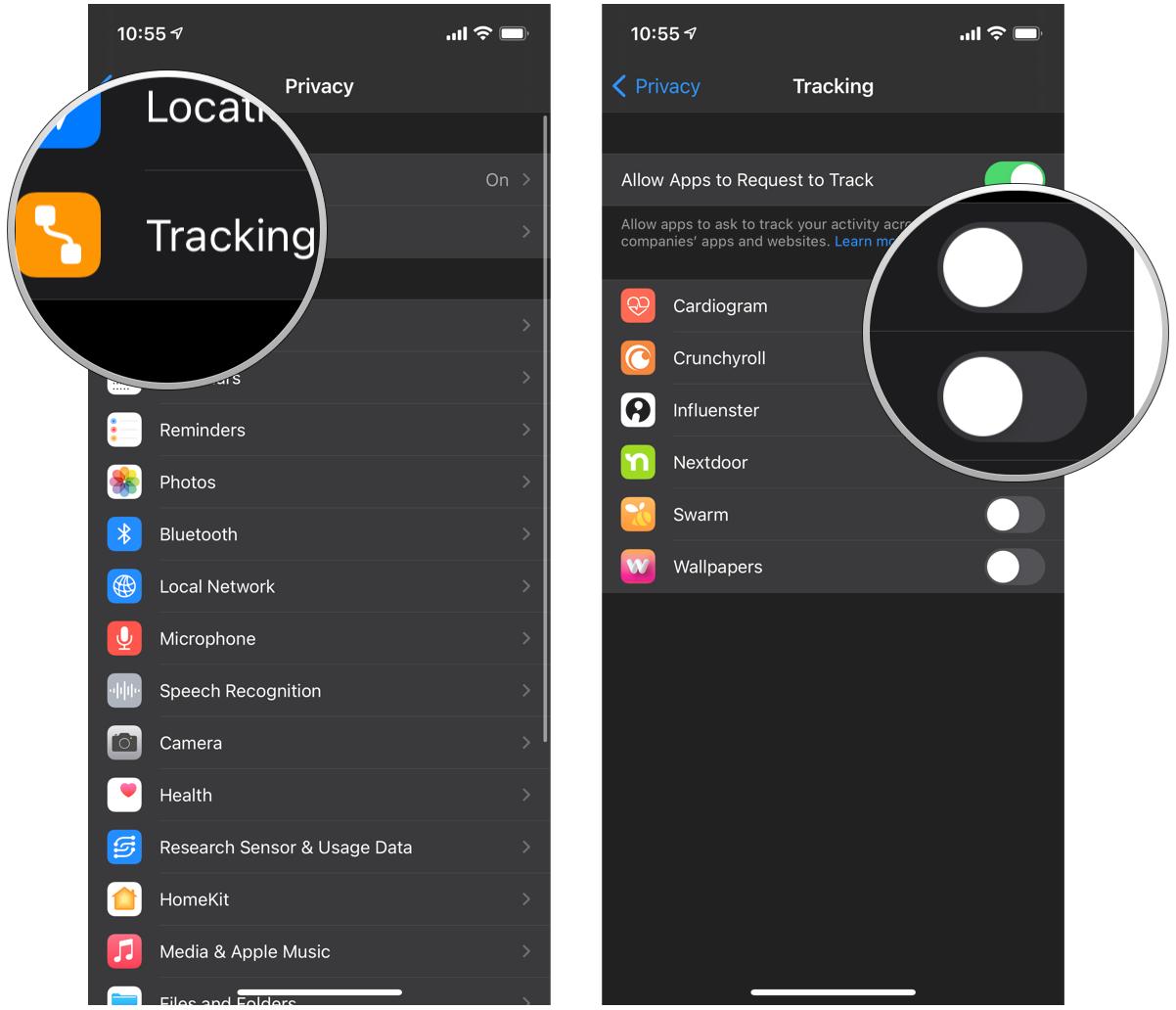
Apple made waves in 2021 with App Tracking Transparency, and it's still the most powerful built-in tool for controlling cross-app tracking. When an app wants to track you across other companies' apps and websites, iOS forces it to ask permission. Most people instinctively tap "Ask App Not to Track." But here's what many miss: you can shut off the entire system.
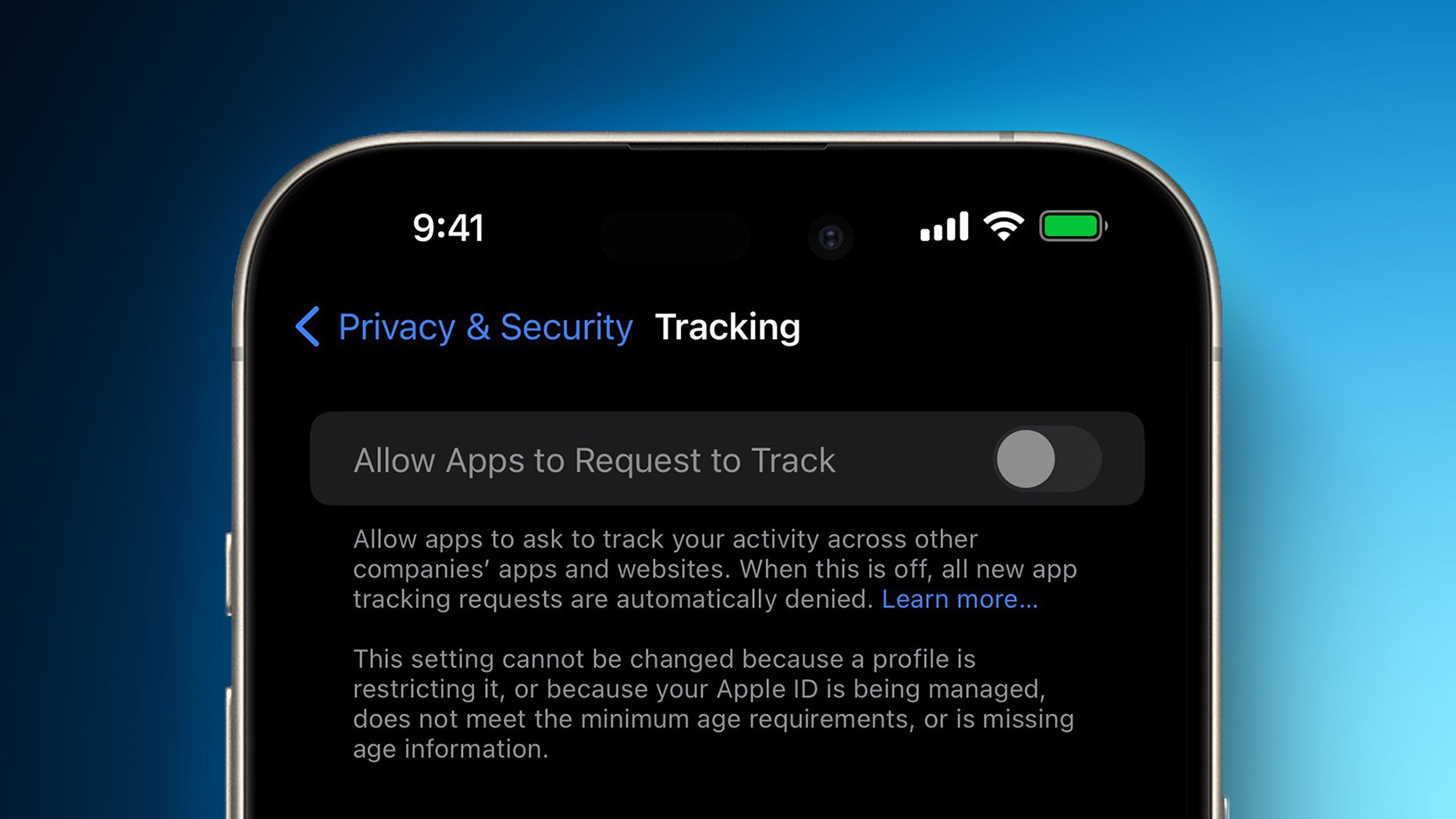
Go to Settings > Privacy & Security > Tracking and toggle off "Allow Apps to Request to Track." This single switch denies every future tracking request automatically. No more pop-ups. No more apps sneaking through while you're distracted.
But that's just the start. In the same Privacy & Security menu, dig into Location Services. Scroll through your apps and set most of them to "Never" or "Ask Next Time." Only maps, ride-sharing, and delivery apps genuinely need your location. That flashlight app definitely doesn't.
Android: The Permission Labyrinth
Android's privacy tools have improved dramatically, but they're scattered across multiple menus. Start at Settings > Privacy > Permission manager. Here you can review which apps have access to your camera, microphone, contacts, location, and more.
The key on Android is being aggressive. An app that used your camera once doesn't need permanent access. An app that requested your location for a single feature doesn't need it running in the background. Go through each permission category and revoke access for anything that feels excessive.
Android also has an Ads section under Privacy settings. Opt out of personalized ads and reset your advertising ID. This won't stop tracking entirely, but it breaks the link between your old profile and your current activity. Think of it as changing your digital fingerprint.
Location Tracking: The Permission You Should Fear Most
Your location is the most valuable data point you generate. It reveals where you live, where you work, where you worship, where you seek medical care, and who you spend time with. And most apps request it by default.
On both iOS and Android, go through your location permissions with a ruthless eye. Ask yourself: does this app need to know where I am to function? For Instagram, the answer is no. For Google Maps, it's yes. For your banking app, maybe — but only while you're using it.
Set location access to "While Using the App" whenever possible. Never grant "Always" unless the app genuinely needs background location, like a fitness tracker or a family safety app. And periodically audit these permissions, because apps have a sneaky habit of requesting broader access after updates.
Background App Refresh and Data Siphoning
Even when you're not using them, apps love to phone home. They refresh content, sync data, and send analytics in the background. iOS calls this Background App Refresh. Android calls it background data. Both are permission-based data leaks.
On iPhone, go to Settings > General > Background App Refresh and turn it off for anything that doesn't need real-time updates. Social media, games, shopping apps, and news aggregators can all wait until you open them. On Android, head to Settings > Apps, select an app, and restrict its background data usage.
This has a bonus effect: your battery life improves. Apps that can't chatter in the background stop draining your power.
Browser Tracking: The Invisible Web
Apps aren't the only trackers. Your mobile browser is a data collection engine. Safari and Chrome both allow websites to track you across sessions using cookies, fingerprinting, and other techniques.
In Safari, enable Prevent Cross-Site Tracking and Hide IP Address under Privacy & Security settings. In Chrome, use the "Do Not Track" request and consider switching to Incognito mode for sensitive browsing. Better yet, try a privacy-focused browser like Brave or Firefox Focus, which block trackers by default.
Also clear your cookies and browsing data regularly. Those little files aren't just for convenience — they're how advertisers follow you from site to site.
iPhone vs. Android Privacy Controls
| Feature | iPhone | Android |
|---|---|---|
| Cross-app tracking block | App Tracking Transparency | Opt out of personalized ads |
| Location granularity | Never / Ask / While Using / Always | Deny / Allow only while using / Allow all the time |
| Background activity control | Background App Refresh | Background data restriction per app |
| Ad ID reset | Available in Privacy settings | Available in Privacy > Ads |
| App permission review | Privacy & Security menu | Privacy > Permission manager |
Pros & Cons of Going Full Privacy Mode
| Pros | Cons |
|---|---|
| Dramatically reduces data collection about your habits | Some apps may nag you repeatedly to re-enable permissions |
| Improves battery life by limiting background activity | Certain features (like local recommendations) may not work as well |
| Reduces targeted ads following you across apps | You'll still see ads — they'll just be less relevant |
| Gives you genuine control over your digital footprint | Takes time to audit and maintain permissions |
Expert Tip
Set a calendar reminder to audit your app permissions every three months. Apps update constantly, and updates often reset or expand permissions. What was locked down in January might be wide open by April. I do this quarterly review and almost always find at least one app that snuck back into my location data or camera access. It takes five minutes and keeps your privacy posture strong. Think of it like changing your digital locks — routine maintenance that prevents long-term exposure.
FAQ
Will blocking tracking break my apps?
Rarely. Most apps function perfectly fine without cross-app tracking. You might lose personalized ads or some location-based suggestions, but core features almost always work. If an app breaks, you can re-enable the specific permission it needs.
Does using a VPN stop app tracking?
Partially. A VPN hides your IP address and encrypts your internet traffic, which prevents network-level tracking. But it doesn't stop apps from collecting data stored on your device, like your contacts, photos, or GPS location. Use VPNs as one layer of protection, not a complete solution.
Can I stop Google from tracking me entirely?
Not without abandoning Google services. But you can significantly reduce it. Go to myactivity.google.com and turn off Web & App Activity, Location History, and YouTube History. Also disable ad personalization in your Google account settings.
Are free apps more likely to track me?
Generally, yes. If you're not paying for a product, you likely are the product. Free apps often monetize through data collection and advertising. Paid apps or those with subscription models usually have less incentive to sell your behavior.
What about apps I've already granted permission to?
Permissions aren't permanent. You can revoke them anytime through your phone's privacy settings. Retroactive permission changes are one of the most powerful privacy tools available — use them generously.
Final Thoughts
You don't need to go off-grid to protect your privacy. You just need to stop accepting the defaults. Every app on your phone wants more access than it needs because data is valuable, and most users never bother to say no.
The reality is that perfect privacy doesn't exist on a smartphone. But dramatically better privacy? That's absolutely achievable. Audit your permissions. Turn off background refresh. Restrict location access. Use a privacy-focused browser. These aren't extreme measures — they're basic digital hygiene.
Your data is yours. The apps on your phone just forgot to ask nicely. It's time to remind them who's holding the device.
━━━━━━━━━━━━━━━━━━
🎥 Recommended Video
https://www.youtube.com/results?search_query=how+to+stop+apps+from+tracking+you

No comments:
Post a Comment