
You unlock your phone roughly a hundred times a day. At home, on the couch, in your own kitchen, you still punch in that PIN or trace that pattern every single time. It's a tiny friction, but it adds up. What if your phone just knew when it was safe to stay unlocked?
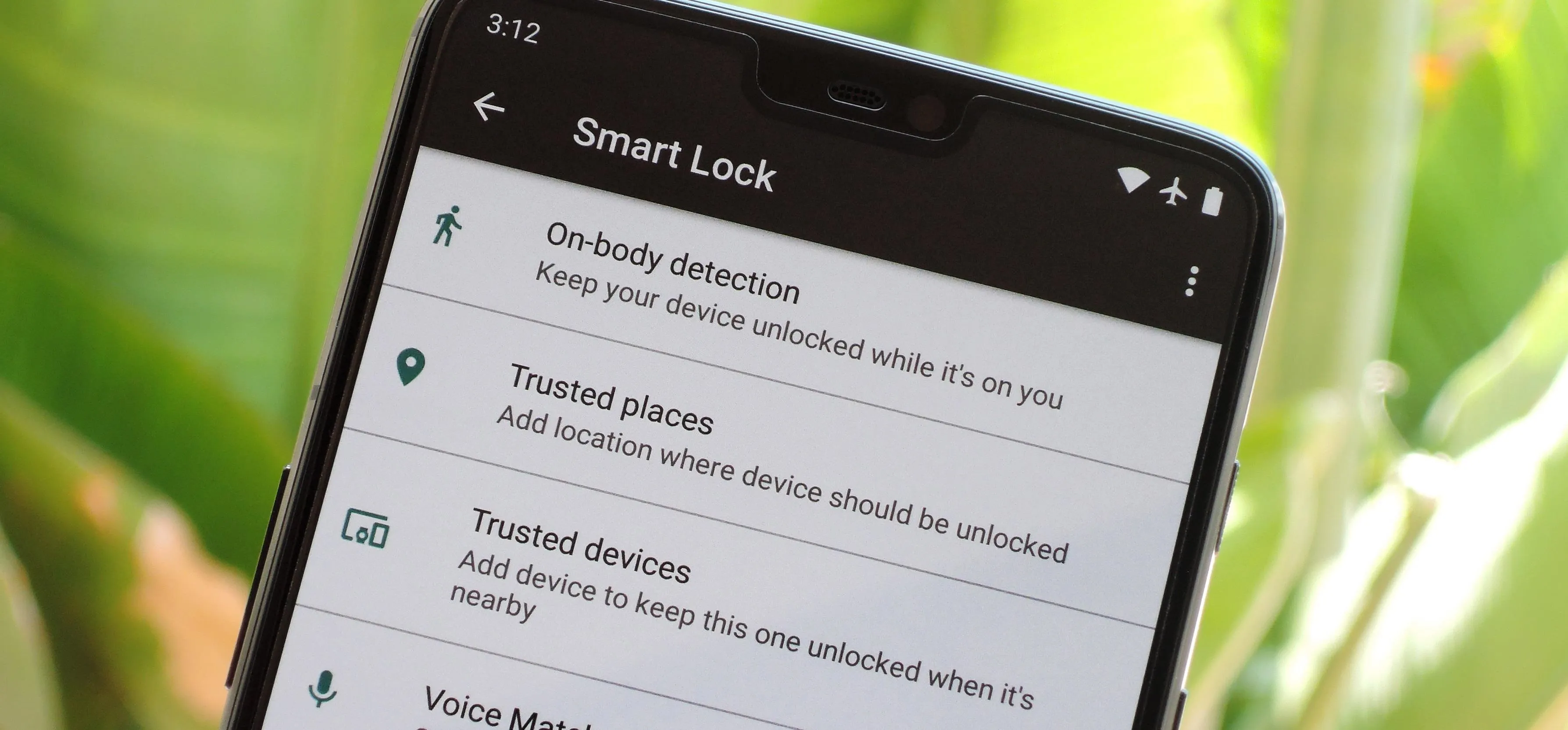
That's exactly what Android's Smart Lock feature does, and it's been sitting in your settings for years. Most people scroll right past it. Some have never even opened the Security menu. But once you set it up, it quietly removes one of the biggest daily annoyances from your life without sacrificing safety where it actually matters.
What Smart Lock Actually Does
Smart Lock is Google's way of letting your phone stay unlocked in situations you define as safe. It uses a combination of location data, Bluetooth connections, motion sensors, and even voice recognition to decide when your lock screen is more obstacle than protection. The idea is simple: your phone should be convenient at home and secure everywhere else.
There are four main ways Smart Lock can keep your device unlocked, and you can mix and match them however you want.
Trusted Places lets you designate specific locations, like your home or office, where your phone stays unlocked. It uses GPS and Wi-Fi positioning to figure out where you are, and once you're inside that radius, the lock screen disappears. Step outside, and your PIN or fingerprint is required again. The location radius is roughly 80 meters, which is wide enough to cover most houses and apartments without bleeding too far into the street.
Trusted Devices pairs your phone with a Bluetooth gadget, like a smartwatch, car stereo, or wireless earbuds. As long as your phone detects that device nearby, it stays unlocked. Walk away from your car or take off your watch, and the lock screen snaps back into place. It's perfect for people who always wear a fitness tracker or spend a lot of time driving.
On-body Detection uses your phone's accelerometer to sense whether it's in your hand or pocket. If you've unlocked it once and it's moving with you, it stays open. Set it down on a table, and it locks automatically. This one is the least secure of the bunch, someone could grab your phone while you're holding it, but it's incredibly convenient for quick errands or walking around.
Voice Match, available on Pixel and some other devices, keeps your phone unlocked when it recognizes your voice. You train it during Google Assistant setup, and it works for hands-free commands. It's handy in the car or when your hands are full, though it's not as reliable in noisy environments.
How to Set It Up
Setting up Smart Lock takes about three minutes. Open Settings, then Security & Privacy, and tap Smart Lock. You'll need to enter your current PIN or pattern first, which makes sense, Google doesn't want someone else configuring this for you.

From there, pick the option you want. For Trusted Places, search your address on the map, drop a pin, and save it. For Trusted Devices, make sure your Bluetooth accessory is paired first, then select it from the list. On-body Detection is just a single toggle. Voice Match requires a short training session where you repeat "Hey Google" a few times.
That's it. No apps to download, no subscriptions, no complicated workflows. Your phone just gets a little smarter about when to ask for your password.
The Security Trade-Off
Let's be honest about the trade-offs. Smart Lock is convenient, but it's not Fort Knox. Trusted Places can have a slight delay before re-locking when you leave, usually a minute or two. Trusted Devices only work if the Bluetooth connection is active, which means someone could potentially stay connected from another room. On-body Detection is the riskiest, since it assumes anyone holding your moving phone is you.
The key is choosing the right mode for your lifestyle. If you live alone in a house, Trusted Places is a no-brainer. If you share an apartment with roommates, Trusted Devices might be the safer bet. If you're paranoid about security, stick with a regular lock screen and skip Smart Lock entirely. There's no shame in that.
Smart Lock vs Standard Lock Screen
Here's how Smart Lock stacks up against your standard lock screen options.
| Feature | Smart Lock | Standard Lock Screen | No Lock Screen |
|---|---|---|---|
| Convenience | High in safe zones | Medium, always requires unlock | Maximum, zero friction |
| Security | Context-aware protection | Strong, consistent everywhere | None, phone fully exposed |
| Setup Time | 3 to 5 minutes | Already active | Instant by disabling security |
| Battery Impact | Minor, location and Bluetooth | None | None |
| Best For | Balanced users at home or in car | Maximum security priority | Not recommended for anyone |
Pros and Cons
Pros
- Eliminates constant unlocking in safe environments
- Completely free and built into Android
- Multiple modes let you customize for your lifestyle
- Re-locks automatically when conditions no longer apply
- Works alongside fingerprint and face unlock normally
Cons
- Slightly reduces security in exchange for convenience
- Trusted Places can lag before re-locking outside the zone
- On-body Detection is easy to exploit if phone is snatched
- Minor battery drain from background location and Bluetooth
- Not available on all Android skins or budget devices
Expert Tip
Here's a trick most people miss. You can stack multiple Smart Lock modes at once. Set Trusted Places for your home, Trusted Devices for your smartwatch, and On-body Detection for when you're out running errands. Your phone will stay unlocked as long as any one of those conditions is met, but it locks the instant none of them apply. It's like building a custom security profile that adapts to your actual life instead of treating every environment the same.
Frequently Asked Questions
Is Smart Lock safe to use?
For most people, yes. It's an official Google feature, not a third-party workaround. Your biometric data and location info stay on your device. Just understand that it trades a small amount of security for a large amount of convenience, so use it thoughtfully.
Why don't I see Smart Lock on my phone?
Some budget Android phones or heavily customized skins, like certain Samsung OneUI versions, hide or rename the feature. Try searching "Smart Lock" in your Settings search bar. If it's truly missing, your manufacturer may have disabled it.
Does Smart Lock drain my battery?
Slightly. Location-based unlocking and constant Bluetooth polling use a bit of extra power, but most users report negligible difference. If you're concerned, stick to Trusted Devices only, since Bluetooth Low Energy is very efficient.
Can someone else unlock my phone with Smart Lock?
Only if they meet the specific condition you set. If you're using Trusted Places, someone would need to be physically inside your saved radius with your phone. With Trusted Devices, they'd need your paired accessory. On-body Detection is the weakest link, since anyone holding your moving phone could access it.
Does Smart Lock work with facial recognition or fingerprint sensors?
Yes. Smart Lock simply bypasses the lock screen in trusted situations. Your biometric security still works normally everywhere else, and you can always lock your phone manually by pressing the power button.
Final Thoughts
Android's Smart Lock is one of those features that sounds minor until you actually use it. Then you can't imagine going back. It respects your time, removes a daily friction you didn't even realize was wearing you down, and keeps your phone secure everywhere that actually counts.
If you've been typing your PIN into your own living room for the past three years, do yourself a favor. Open your settings, spend three minutes setting it up, and enjoy a phone that finally understands the difference between your couch and the subway. It's a small change with an outsized impact on how your device actually feels to use every single day.
🎥 Recommended Video
https://www.youtube.com/results?search_query=Android+Smart+Lock+Trusted+Places+Setup

No comments:
Post a Comment