
Your smartphone is leaking data every time you open an app. Not through some sophisticated hack or hidden malware, but through something far more ordinary: the simple act of connecting to the internet. Every time your phone reaches out to load a website, check a notification, or refresh a feed, it's asking a DNS server where to go. And by default, that DNS server belongs to your carrier or your ISP, which means they're logging every single destination. The good news? There's a dead-simple setting buried in your phone that stops this cold. It's called Private DNS, and flipping it on takes about thirty seconds.
Most people have never heard of DNS, let alone Private DNS. That's exactly why this trick works so well. It flies under the radar, requires no apps, no subscriptions, and no technical know-how. Yet it instantly encrypts your browsing requests and blocks thousands of trackers and ad networks before they ever reach your phone. If you care about privacy but don't want to install a dozen security apps or switch to a de-Googled phone, this is the single most impactful change you can make today.
What Is DNS, and Why Should You Care?
Think of DNS as the internet's phone book. When you type "google.com" into your browser, your phone doesn't actually know where Google lives. It asks a DNS server to translate that friendly name into a numerical IP address. The problem is that this request usually happens completely unencrypted. Your carrier sees every website you visit, every app you open, and every service you use. They can sell that data, hand it over to authorities, or simply store it indefinitely.
Private DNS changes the game by encrypting these requests using a protocol called DNS over TLS. Instead of shouting your browsing history across the network in plain text, your phone establishes a secure, encrypted tunnel to a privacy-focused DNS provider. Your carrier sees that you're connecting to a DNS server, but they have no idea what websites you're actually visiting. It's like switching from a postcard to a sealed envelope.
But the privacy benefits don't stop there. Many Private DNS providers maintain blocklists for known trackers, malware domains, and aggressive advertising networks. When your phone asks where an ad server lives, the DNS provider simply refuses to answer. The tracker never loads, the ad never appears, and your data never gets harvested. All of this happens at the network level, which means it protects you inside every app, not just your browser.
How to Enable Private DNS on Android
If you're running Android 9 or later, Private DNS is built right into your phone. You don't need to download anything. Here's exactly how to turn it on:
- Open Settings and tap Network & Internet (on some phones it's Connections).
- Tap Private DNS. If you don't see it, search "DNS" in the settings search bar.
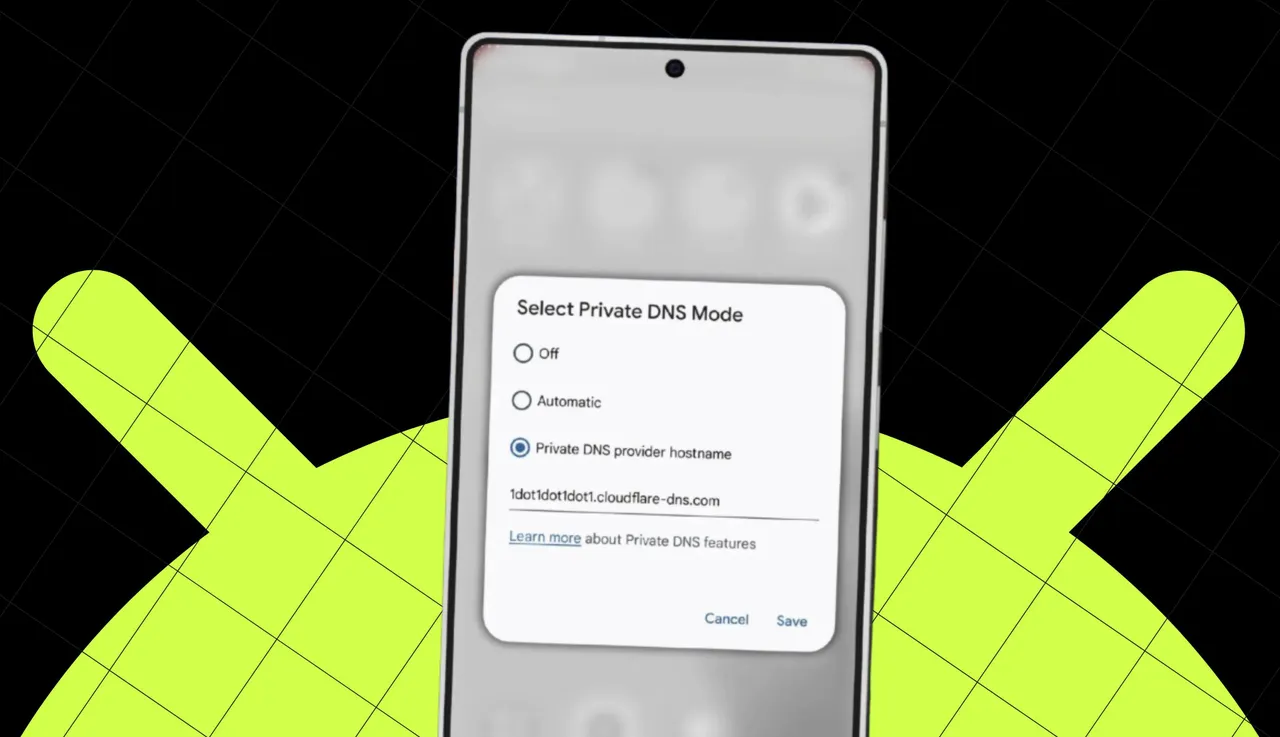
- Select Private DNS provider hostname.
- Enter your chosen provider's hostname. For AdGuard's tracker-blocking DNS, type
dns.adguard.com. For Cloudflare's privacy-focused option, use1dot1dot1dot1.cloudflare-dns.com. - Tap Save.
That's it. Your phone will now route all DNS queries through the encrypted provider you selected. You'll know it's working when you notice slightly fewer ads in free apps and faster loading times on some websites. If you ever want to revert, just return to the same menu and select Automatic or Off.
What About iPhone Users?
Apple doesn't include a native Private DNS toggle in iOS settings, but iPhone users aren't left out. The easiest route is installing a dedicated DNS app. Cloudflare's 1.1.1.1 app is free, reputable, and sets up an encrypted DNS connection with a single tap. NextDNS also offers a highly configurable iOS app that lets you choose exactly what gets blocked, from trackers to adult content to social media sites.
Alternatively, if you're comfortable with configuration profiles, you can install a DNS over HTTPS profile directly. This method doesn't require an app to run in the background, but it's slightly more involved. For most users, the Cloudflare or NextDNS app is the path of least resistance and delivers the same core benefit: encrypted, tracker-blocking DNS on every connection.
Choosing the Right DNS Provider
Not all DNS providers are created equal. Some prioritize raw speed, others focus on aggressive filtering, and a few offer deep customization. Here's how the most popular options stack up:
| Provider | Best For | Blocks Trackers | Setup Difficulty |
|---|---|---|---|
| AdGuard DNS | Ad & tracker blocking | Yes | Easy |
| Cloudflare 1.1.1.1 | Speed & privacy balance | Optional | Easy |
| NextDNS | Deep customization | Yes | Moderate |
| Quad9 | Malware protection | Partial | Easy |
AdGuard DNS is the best starting point for most people because it blocks trackers and ads by default without requiring an account. Cloudflare is unbeatable for speed if you live near one of their edge nodes. NextDNS shines if you want granular control over exactly which domains get blocked, though you'll need to create a free account to unlock its full feature set. Quad9 is excellent for security-focused users who want malware protection above all else.
Pros and Cons of Using Private DNS
Like any privacy tool, Private DNS comes with trade-offs. Here's the honest breakdown:
Pros:
- System-wide protection across all apps and browsers
- Zero cost for basic tier services
- No additional apps needed on Android
- Blocks trackers before they load, saving mobile data
- Encrypts DNS queries so your ISP can't snoop
Cons:
- Some aggressive blocklists can break legitimate websites or app features
- iOS requires a third-party app or profile
- Doesn't hide your IP address (use a VPN for that)
- Free tiers on some providers have query limits
Expert Tip: Layer Your Defenses
Private DNS is powerful, but it's not a magic shield. It stops trackers at the domain level, but it won't encrypt your actual web traffic or hide your location. For maximum privacy, pair Private DNS with a reputable VPN on public Wi-Fi, review your app permissions quarterly, and disable personalized ad tracking in your phone's settings. Think of Private DNS as the foundation of your privacy house. It's the first and easiest layer, but it works best when you stack other protections on top.
FAQ
Will Private DNS slow down my internet?
In most cases, no. Many users actually see faster loading times because blocking trackers and ads reduces the total amount of data your phone needs to download. If you do notice slowdowns, try switching to Cloudflare's 1.1.1.1, which is optimized for speed.
Can my carrier still see what I'm doing?
Your carrier can see that you're connected to the internet and how much data you're using, but they can no longer see which specific websites or services you're accessing. Private DNS encrypts the domain lookups, which is where most of the surveillance happens.
Is Private DNS the same as a VPN?
No. A VPN encrypts all your traffic and routes it through a remote server, hiding your IP address. Private DNS only encrypts the domain name lookups. It's lighter, faster, and less intrusive than a VPN, but it doesn't provide the same level of anonymity.
Why are some apps or websites broken after I enable it?
Aggressive DNS blockers sometimes flag legitimate domains that are bundled with tracking scripts. If a site stops working, try whitelisting it in your DNS provider's settings or switch to a less restrictive provider like Cloudflare.
Do I need to pay for a good Private DNS service?
Absolutely not. AdGuard, Cloudflare, and Quad9 all offer robust free tiers. NextDNS offers a generous free tier with up to 300,000 queries per month, which is more than enough for most individual users.
Final Thoughts
Privacy doesn't have to be complicated. You don't need to switch operating systems, buy specialty hardware, or become a cybersecurity expert to reclaim a meaningful amount of control over your data. Enabling Private DNS is a thirty-second tweak that pays dividends every single time you unlock your phone. It blocks trackers you didn't know existed, encrypts requests you didn't know were exposed, and quietly works in the background without draining your battery or demanding your attention.
If you've been meaning to take your digital privacy more seriously but didn't know where to start, this is your starting line. Open your settings, enter a hostname, and tap save. Your future self will thank you.
🎥 Recommended Video
https://www.youtube.com/results?search_query=how+to+setup+private+dns+android+iphone

No comments:
Post a Comment