
You're reading an article. You're shopping for shoes. You're checking the weather. And then it happens — a small box slides into the corner of your screen. "This website wants to show notifications." Allow? Block? You click Block, annoyed, and move on. Three pages later, another site asks. Then another. By the end of the week, you've been interrupted two dozen times by websites that have absolutely no business buzzing your computer.
There's a single setting in every major browser that stops this entirely. Not an extension. Not a paid upgrade. One toggle that silences every notification request before it ever reaches you. Most people don't know it exists because browsers bury it under layers of menus, hoping you'll just tolerate the interruptions instead.
Why Websites Are So Desperate to Notify You
Push notifications are digital real estate. Once a site has permission to ping your browser, it owns a direct line to your attention. News sites use them to drive traffic back to their pages. E-commerce stores send "limited time" sales alerts. Even random blogs want the ability to interrupt your day with whatever they published at 3 AM.
The economics are simple. A user who allows notifications is worth more in ad impressions and return visits than one who doesn't. So websites have become increasingly aggressive about asking. Some use dark patterns, hiding the Block button or making the Allow button enormous and colorful. Others ask immediately upon arrival, before you've even read a headline.
The result is a web experience that feels like walking through a crowded market where every vendor grabs your sleeve. It's exhausting, and it's completely unnecessary.
What Happens When You Allow Just One
Here's what most people don't realize: allowing notifications from one site opens the door to a flood. That site can send alerts anytime your browser is open, even if you're not on their page. The notifications appear in your system tray, buzz your phone if you're synced, and stack up in your notification center until you manually clear them.
Worse, some sites sell or share notification permissions with partners. You allowed a weather site to tell you about storms, and suddenly you're getting alerts about crypto investments and weight loss pills from domains you've never visited. The permission chain is opaque, and revoking it means digging back into the same buried settings menu you never wanted to visit in the first place.
How to Block Every Request at Once
The solution is beautifully simple. Every major browser lets you change the default from "sites can ask" to "sites cannot ask." Here's where to find it.
Google Chrome
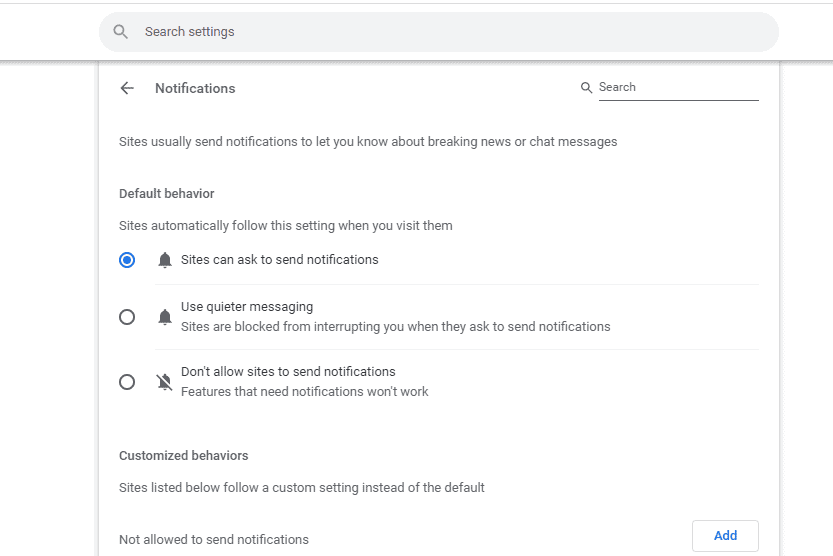
Click the three-dot menu in the top right, go to Settings > Privacy and security > Site settings > Notifications. Toggle off "Sites can ask to send notifications." While you're there, scroll down and remove any sites that already have permission. You'll be shocked how many snuck in.
Mozilla Firefox
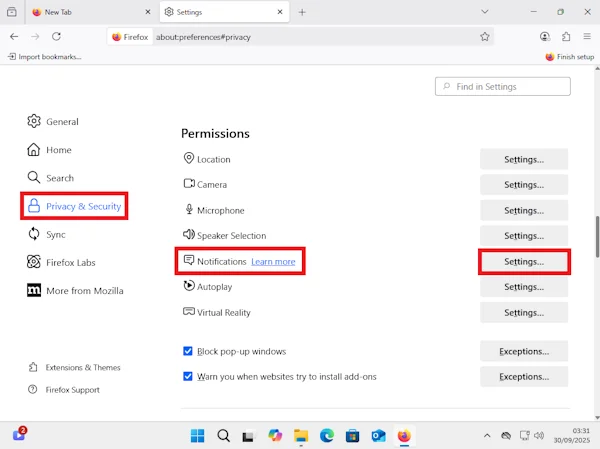
Open the hamburger menu, go to Settings > Privacy & Security, and scroll to the Permissions section. Click Settings next to Notifications, then check the box that says "Block new requests asking to allow notifications." Firefox also lets you remove existing permissions from the same panel.
Microsoft Edge
Edge follows Chrome's path. Go to Settings > Cookies and site permissions > Notifications, then toggle off the switch that allows sites to ask. Edge also has a "Quiet notification requests" feature that hides the pop-up but still technically allows it — skip that and go straight for the block.
Apple Safari
On Mac, open Safari Preferences, click Websites, then select Notifications from the left panel. Set the dropdown at the bottom to "Deny" for all websites. On iOS, go to Settings > Safari > Notifications and turn them off entirely.
Browser Notification Settings at a Glance
| Browser | Menu Path | Setting to Toggle |
|---|---|---|
| Chrome | Settings > Privacy and security > Site settings > Notifications | "Sites can ask to send notifications" — turn OFF |
| Firefox | Settings > Privacy & Security > Notifications > Settings | Check "Block new requests asking to allow notifications" |
| Edge | Settings > Cookies and site permissions > Notifications | Toggle off notification requests |
| Safari (Mac) | Preferences > Websites > Notifications | Set bottom dropdown to "Deny" |
| Safari (iOS) | Settings > Safari > Notifications | Turn notifications OFF |
Pros & Cons of Blocking All Notifications
| Pros | Cons |
|---|---|
| Eliminates constant interruptions while browsing | You won't get alerts from sites you actually want (like Gmail web) |
| Prevents accidental Allow clicks on deceptive pop-ups | Must manually add exceptions for services you genuinely need |
| Reduces notification clutter in your system tray | Some web apps (like chat tools) require notifications to function |
| Stops sites from selling or sharing notification access | Takes two minutes to set up across all your browsers |
Expert Tip
After you block all notification requests, add exceptions only for services you genuinely need. In Chrome and Edge, scroll down to the "Allowed to send notifications" section and manually add sites like Gmail, Slack web, or your calendar. The key is flipping the default from "allow unless blocked" to "block unless allowed." This whitelist approach means you'll never get surprised by a random blog again, but your essential tools still work. I whitelist about five sites total. Everything else stays silenced. It's the digital equivalent of putting a "No Soliciting" sign on your door — simple, effective, and immediately calming.
FAQ
Will this break my email or calendar notifications?
Only if you use the web versions of Gmail, Outlook, or Google Calendar and rely on browser notifications. Desktop apps and mobile apps aren't affected. If you need web notifications, add those specific sites to your allowed list after changing the default.
Can I block notifications on my phone too?
Yes. On iPhone, go to Settings > Safari > Notifications and turn them off. On Android, open Chrome, tap the three-dot menu, go to Settings > Notifications, and disable site notifications. The mobile web is just as aggressive about asking.
What if I already allowed some sites?
Every browser keeps a list of sites with notification permission. In the same Notifications settings panel where you block new requests, you'll see a list of allowed sites. Remove anything you don't recognize or no longer need. Most people find ten to twenty sites they never meant to approve.
Does this stop pop-up ads?
No. Notification requests and pop-up ads are different. Pop-ups are blocked by a separate browser setting (usually enabled by default). This setting specifically stops the "Allow this site to send notifications?" requests that appear in the corner of your screen.
Is there a downside to blocking everything?
Very little. The vast majority of websites have no legitimate reason to send you push notifications. If you discover you need one later, you can always add it to your exceptions list. The default should be silence, not noise.
Final Thoughts
The modern web has become an attention extraction machine, and browser notifications are one of its most effective tools. They don't ask once and go away. They ask repeatedly, deceptively, and persistently until you either give in or find the off switch.
That off switch exists in every browser. It's free, it's permanent, and it takes under two minutes to activate. The only reason more people haven't flipped it is because browsers don't want you to. They benefit from a web where every site can demand your attention.
Take it back. Block the requests. Whitelist only what you need. And enjoy a web that stops begging for your attention every time you open a new tab. You'll be amazed how much calmer browsing feels when the noise finally stops.
━━━━━━━━━━━━━━━━━━
🎥 Recommended Video
https://www.youtube.com/results?search_query=how+to+block+browser+notifications+Chrome+Firefox

No comments:
Post a Comment