
Introduction
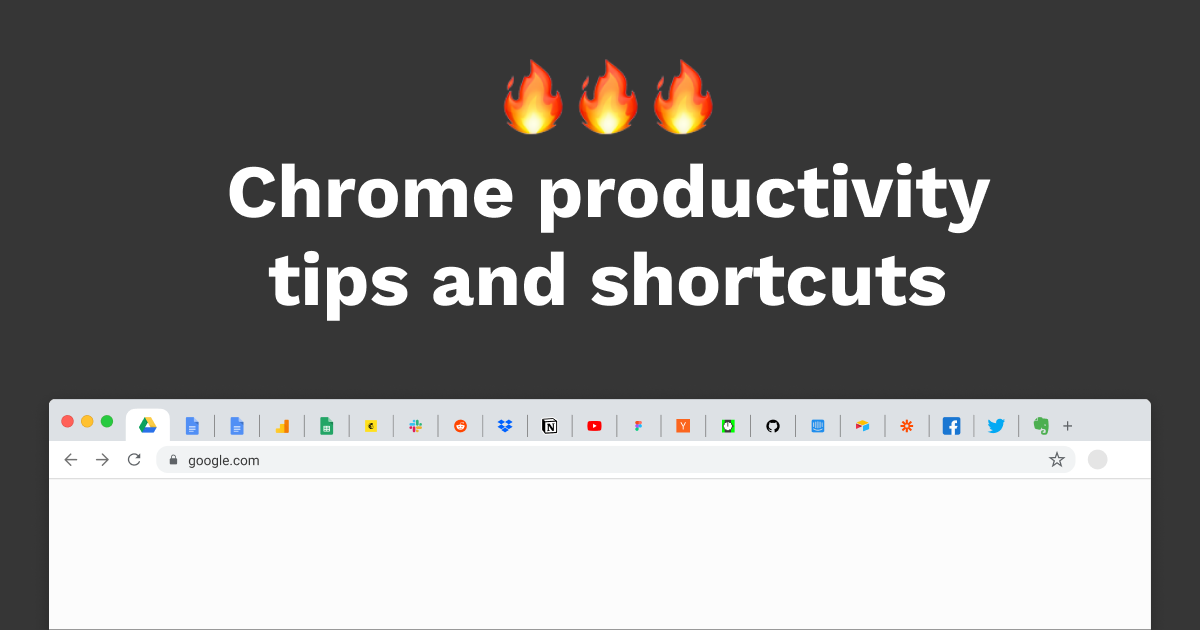
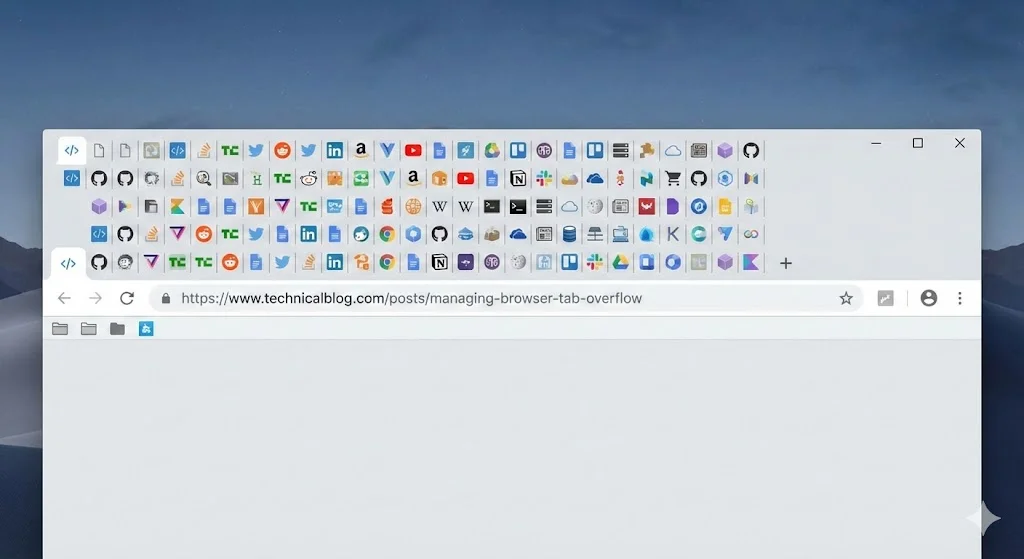
Let’s be honest — we’ve all been there. You’ve got 47 tabs open, you’re jumping between a Google Doc, a YouTube tutorial, and a spreadsheet, and suddenly you can’t find the one tab you actually need. You start clicking frantically, scrolling through a tab bar that’s shrunk to microscopic size, and before you know it, you’ve closed the wrong thing. It’s a productivity nightmare that happens to everyone who lives in Chrome.
But here’s the thing: Google Chrome has a built-in shortcut that solves this exact problem, and most people have never heard of it. It’s not buried in some hidden menu. It’s not an extension you need to install. It’s a simple keyboard combo that instantly transforms how you navigate your browser. Once you learn it, you’ll wonder how you ever browsed without it. Let’s talk about the secret Chrome shortcut that’s about to save you a ridiculous amount of time.
The Shortcut Nobody Talks About: Ctrl + Shift + A
Here it is — the shortcut that changes everything. On Windows, press Ctrl + Shift + A. On Mac, it’s Cmd + Shift + A. What happens? Chrome opens a searchable tab switcher that lists every single tab you have open across all windows. You can type a few characters from the page title or URL, hit Enter, and instantly jump to the tab you need.
No more squinting at tiny tab icons. No more hunting through multiple windows. No more accidentally closing the tab you were actually using. This shortcut turns your chaotic tab collection into something you can navigate in seconds. It’s like Spotlight search, but specifically for your browser tabs. If you’re someone who lives with 20+ tabs open, this is the single biggest productivity upgrade you can make without installing anything.
Why This Beats Every Other Tab Management Method
Chrome has other ways to manage tabs. You can use Ctrl + Tab to cycle through them. You can group tabs by color. You can even use extensions like OneTab to collapse everything. But none of those are as fast or as intuitive as the searchable tab switcher.
Tab groups are nice for organization, but they still require clicking and scrolling. Extensions are helpful, but they add memory overhead and sometimes break with Chrome updates. The Ctrl + Shift + A shortcut is native, lightweight, and works every single time. It’s the difference between organizing your tabs and actually finding them when you need them. For research, writing, coding, or any workflow that involves jumping between multiple sources, this shortcut is a game changer.
Other Chrome Shortcuts Worth Memorizing
While we’re here, let’s stack a few more shortcuts that pair perfectly with the tab switcher. These are the ones power users actually rely on every day.
Ctrl + L (or Cmd + L on Mac) instantly highlights the address bar. No more clicking to type a new URL. Ctrl + W closes the current tab. Ctrl + Shift + T reopens the last tab you closed — a lifesaver when you accidentally close something important. Ctrl + 1 through Ctrl + 8 jumps to tabs 1 through 8, and Ctrl + 9 jumps to the last tab. Together, these shortcuts mean you rarely need to touch your mouse while browsing.
How to Build This Into Your Muscle Memory
Learning a shortcut is easy. Actually using it is the hard part. The trick is to force yourself to use it exclusively for a few days, even when it feels slower than clicking. Your brain needs repetition to build muscle memory.
Start by pinning a sticky note to your monitor with “Ctrl + Shift + A” written on it. Every time you need to find a tab, use the shortcut instead of clicking. Within a week, you’ll find your hand reaching for the keys automatically. The time savings add up fast. If you save just 10 seconds per tab search and you do it 20 times a day, that’s over an hour of recovered productivity every month. For something that takes zero setup, that’s an incredible return.
Comparison Table: Tab Navigation Methods
| Method | Speed | Setup Required | Best For |
|---|---|---|---|
| Ctrl + Shift + A (searchable tabs) | Very fast | None | Finding any open tab instantly |
| Ctrl + Tab cycling | Slow | None | Switching between adjacent tabs |
| Tab groups | Moderate | Manual grouping | Organizing projects visually |
| OneTab extension | Moderate | Install extension | Archiving tabs for later |
| Mouse clicking | Very slow | None | Precision tasks |
Pros & Cons
Pros: The searchable tab shortcut is instant, requires no setup, works across all Chrome windows, and dramatically reduces the time wasted hunting for tabs. It pairs beautifully with other keyboard shortcuts to create a nearly mouse-free browsing experience. Best of all, it’s built into Chrome — no extensions, no bloat, no compatibility issues.
Cons: If you only keep a handful of tabs open, the benefit is smaller. It also takes a few days of intentional practice to build muscle memory. Some users on older Chrome versions may need to enable the feature via chrome://flags, though it’s enabled by default on modern releases.
Expert Tip
Productivity experts who live in Chrome recommend combining the tab search shortcut with window management. Use Ctrl + N to open a new window for distinct projects, then use Ctrl + Shift + A to search across all windows when you need to pull something up. This creates a natural workflow: separate windows for separate tasks, but one universal search to find anything. Also, if you find yourself with 50+ tabs regularly, consider whether you actually need them all open. The shortcut is powerful, but good tab hygiene still matters.
FAQ
Does this shortcut work on all operating systems?
Yes. Ctrl + Shift + A works on Windows and Linux. On Mac, use Cmd + Shift + A. The feature is built into Chrome itself, so it works regardless of your OS.
What if the shortcut doesn’t do anything?
Make sure you’re on a recent version of Chrome. If it still doesn’t work, type chrome://flags in your address bar, search for “Tab Search,” and ensure it’s enabled. Restart Chrome after making changes.
Can I customize the shortcut to something else?
Chrome doesn’t natively let you change this shortcut. However, extensions like Shortkeys or custom AutoHotkey scripts on Windows can remap it if you prefer a different combination.
Does this work with Chrome extensions that manage tabs?
Yes, the native tab search works independently of extensions. You can use both. Extensions like OneTab or Toby are great for archiving and organizing, while Ctrl + Shift + A is best for real-time navigation.
Is there a mobile version of this shortcut?
Not exactly. On Chrome mobile, you can tap the tab switcher button and use the search bar at the top to find tabs. It’s not as fast as the desktop shortcut, but it serves a similar purpose.
Final Thoughts
The best productivity hacks aren’t the ones that require new software or complicated setups. They’re the ones that were hiding in plain sight the whole time. Ctrl + Shift + A is exactly that — a native Chrome feature that instantly solves one of the most annoying parts of modern browsing.
If you’re tired of losing tabs, closing the wrong things, or wasting minutes every day hunting through browser chaos, this shortcut is your answer. Learn it today, use it for a week, and watch it become second nature. Your future self — the one who finds any tab in under two seconds — will thank you.
━━━━━━━━━━━━━━━━━━
🎥 Recommended Video
https://www.youtube.com/results?search_query=Google+Chrome+Hidden+Shortcuts+Productivity+Tips
━━━━━━━━━━━━━━━━━━

No comments:
Post a Comment