
Every new phone comes out of the box with a long list of settings already flipped on. Most people never touch them. They just start using the device, assuming the defaults were chosen with their best interests in mind. They weren't.
Phone manufacturers and operating system makers don't optimize for you. They optimize for engagement, data collection, convenience, and marketing. That means your battery drains faster than it should, your privacy is more exposed than you realize, and your phone is doing things in the background you never asked for. The fix is simple, but it requires knowing which switch to flip first.
The One Setting Smart Users Disable Before Anything Else
If you only change one thing on your phone, make it this: Background App Refresh on iPhone, or Background Data / Mobile Data Always Active on Android. It's the single biggest hidden battery and privacy drain on modern smartphones, and it's enabled by default on virtually every device sold.
Here's what's happening behind the scenes. Your apps are constantly waking up, checking for updates, pinging servers, and refreshing content, even when you haven't opened them in hours. Every one of those tiny wake-ups costs battery. Every server ping uses data. And every app doing this in the background is a potential privacy leak you didn't consent to.
On iPhone, Background App Refresh is set to Wi-Fi & Cellular Data by default. That means every app with this permission is burning through your mobile data plan and your battery simultaneously. One user tracked their battery for a week after switching this to Wi-Fi only. Before the change, they were at 38-42% by mid-afternoon. After? Consistently between 55-60% at the same time of day. Notifications still arrived on time. Maps still refreshed. The only app that felt slightly slower was Instagram, and only on cellular. citeweb_search:5#5
On Android, the equivalent setting is even sneakier. Mobile Data Always Active keeps your cellular radio running even when you're connected to Wi-Fi. The idea is to give you a seamless handoff when you leave Wi-Fi range, but the reality is you're burning power on two radios at once for a convenience you rarely need. citeweb_search:5#2web_search:5#0
How to Turn Off Background App Refresh on iPhone
The process is straightforward, but Apple buries it just enough that most users never find it:
- Open Settings > General > Background App Refresh.
- Tap the top menu and switch from Wi-Fi & Cellular Data to Wi-Fi.
- For even more control, scroll through the app list and disable it entirely for apps you don't need updating in the background, games, shopping apps, and social media are prime candidates.
The smart approach isn't to turn everything off. Navigation apps, music streaming services, and messaging apps benefit from background refresh. But your weather app doesn't need to check the forecast every ten minutes. Your food delivery app doesn't need to refresh while you're asleep. Be selective. citeweb_search:5#1
How to Disable Mobile Data Always Active on Android
This one requires Developer Options, which sounds intimidating but takes about ten seconds to enable:
- Go to Settings > About Phone and tap Build Number seven times. You'll see "You are now a developer."
- Navigate to Settings > System > Developer Options.
- Scroll to the Networking section and toggle off Mobile Data Always Active.
The tradeoff is minimal. When you walk out of Wi-Fi range, there's about a ten-second delay before your phone reconnects to cellular data. For most people, that's invisible. The battery savings, on the other hand, are immediately noticeable. citeweb_search:5#2web_search:5#0
Why This Setting Matters More Than the Others
There are dozens of settings you could tweak for better battery life and privacy. Dark mode helps on OLED screens. Disabling location tracking saves power. Turning off Bluetooth scanning stops unnecessary radio activity. But Background App Refresh and Mobile Data Always Active are different because they affect every app on your phone simultaneously.
When you disable these, you're not fixing one app's bad behavior. You're cutting off the pipeline that lets dozens of apps drain your battery and data in the background. It's the highest-impact, lowest-effort change you can make. citeweb_search:5#7
Consider this: one iPhone user discovered all 78 of their apps had Background App Refresh enabled. Every single one was waking up, checking for updates, and going back to sleep, over and over, all day long. After adjusting this single setting, their battery suddenly lasted until bedtime. citeweb_search:5#1
The Privacy Angle Nobody Talks About
Battery drain isn't the only problem. Every background refresh is also a data transmission. Your apps are sending usage patterns, location data, and behavioral signals back to their servers while you think your phone is idle. Some of this is anonymized. Some of it isn't. And almost none of it is transparent to you.
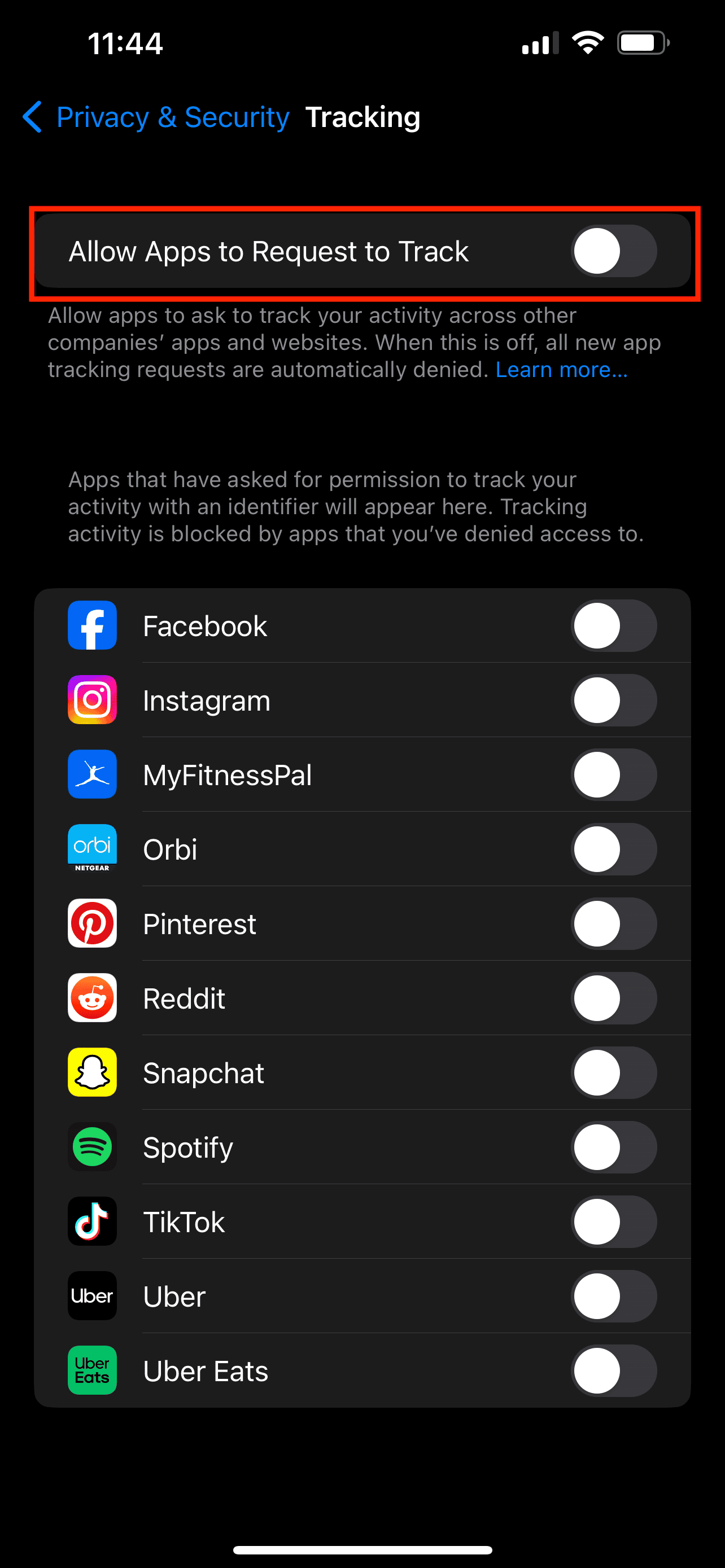
On iPhone, there's a related setting that compounds the problem: Allow Apps to Request to Track. This lives under Settings > Privacy & Security > Tracking. When enabled, apps can ask to track your activity across other companies' apps and websites using your advertising identifier. When disabled, they're automatically blocked, and the pop-ups stop. citeweb_search:5#5
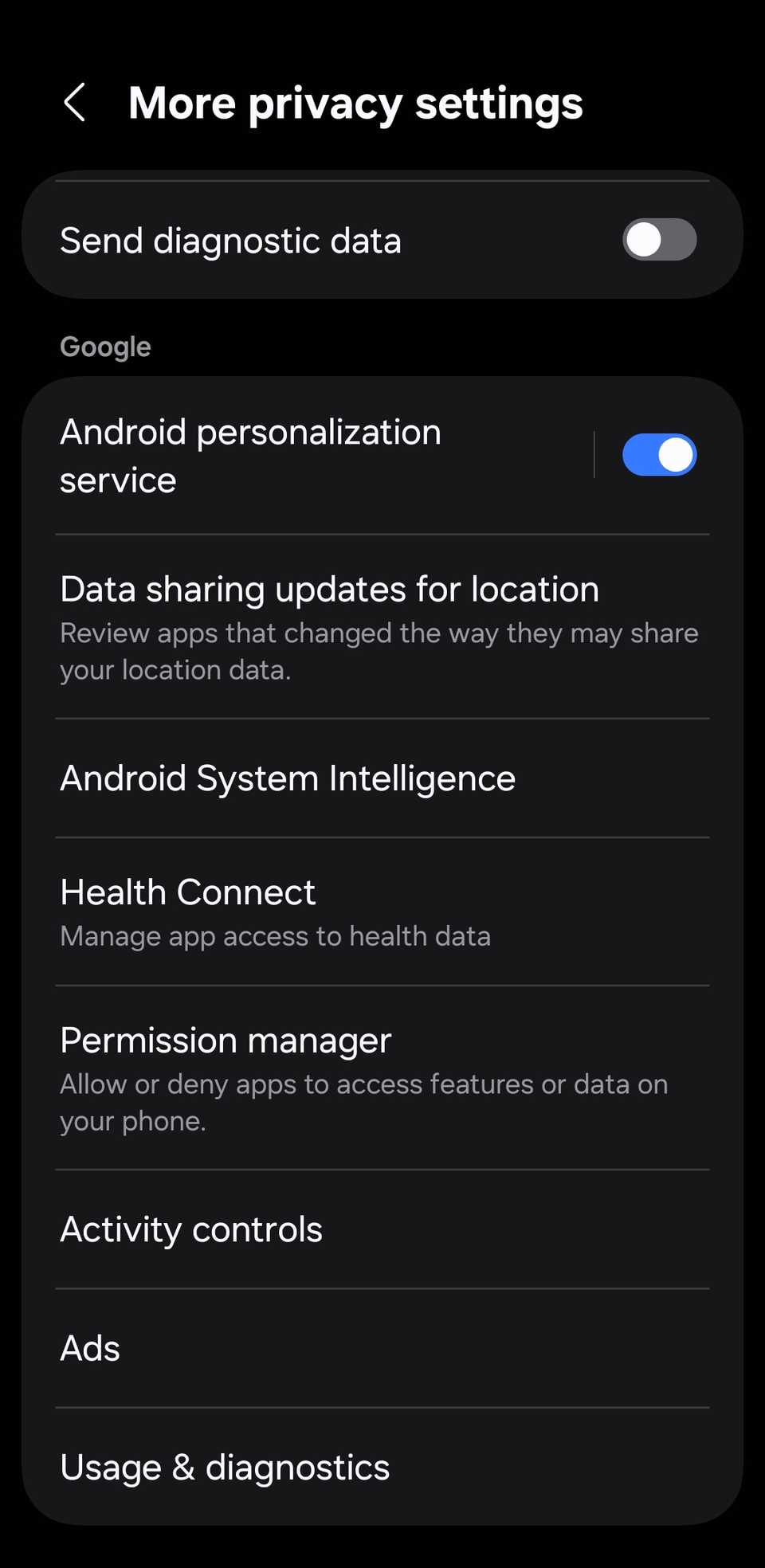
On Android, the equivalent is your Advertising ID. Go to Settings > Google > Ads and delete or reset your advertising ID, then opt out of ad personalization. This doesn't stop ads, but it stops them from being tailored to your specific behavior across apps. citeweb_search:5#0
Other Settings Worth Disabling Right After
Once you've handled the big one, these are the next most impactful changes:
Significant Locations (iPhone): Your iPhone keeps a detailed log of everywhere you go. It's under Settings > Privacy & Security > Location Services > System Services > Significant Locations. Clear the history and turn it off. Your maps will still work. Your GPS is still accurate. You just stopped carrying a digital diary of your physical movements. citeweb_search:5#5
Wi-Fi and Bluetooth Scanning (Android): Even when these radios appear "off," your phone is constantly scanning for networks and devices to improve location accuracy. Search for Wi-Fi scanning or Bluetooth scanning in Settings and disable both. citeweb_search:5#2web_search:5#7
Usage and Diagnostics (Android): Your phone sends anonymous diagnostic data to Google by default. It's not personally identifying, but it uses your battery and data plan to compile and upload reports. Go to Settings > Google > tap the three-dot menu > Usage & Diagnostics and toggle it off. citeweb_search:5#2
Share iPhone Analytics (iOS): Similarly, iPhones send daily usage reports to Apple. Go to Settings > Privacy & Security > Analytics & Improvements and disable Share iPhone Analytics. After a few days, you'll forget it ever existed, which tells you exactly how little it mattered to your daily experience. citeweb_search:5#5
Android vs. iPhone: Who Handles Background Activity Better?
| Feature | Android | iPhone |
|---|---|---|
| Background Data Control | Per-app background data + Mobile Data Always Active toggle | Global Wi-Fi/Cellular toggle + per-app refresh control |
| Hidden Battery Drains | Mobile Data Always Active, Bluetooth/Wi-Fi scanning | Background App Refresh, Significant Locations, Hey Siri |
| Advertising Tracking | Advertising ID in Google settings | App Tracking Transparency in Privacy settings |
| Diagnostic Data Sharing | Usage & Diagnostics under Google settings | Share iPhone Analytics under Privacy |
| Ease of Access | Some settings require Developer Options | Most settings accessible without special menus |
Pros and Cons of Disabling Background Refresh
| Pros | Cons |
|---|---|
| Dramatically longer battery life per charge | Some apps may refresh slightly slower when first opened |
| Reduced mobile data usage | Navigation and weather apps may need manual refresh |
| Improved privacy by limiting background data transmission | Social media feeds won't be pre-loaded when you open them |
| Less heat generation and better long-term battery health | May take a few days to notice which apps are affected |
| Fewer interruptions and notification delays from rogue apps | Requires manual review of app permissions |
Expert Tip: Audit Before You Act
Before you start flipping toggles, spend five minutes looking at what's actually draining your battery. On iPhone, go to Settings > Battery. On Android, go to Settings > Battery > Battery Usage. You'll see a ranked list of apps and their power consumption.
This data is the most honest feedback your phone gives you. If one app is responsible for 40% of your drain and you barely use it, that's your real target. Restrict its background activity before you touch anything else. A single rogue app can waste more battery than all the system settings combined. citeweb_search:5#1
Also, check your Screen Time or Digital Wellbeing stats. They'll show you which apps you're actually opening versus which ones are running in the background. The gap between those two numbers is where your battery is disappearing.
FAQ
Will turning off Background App Refresh break my notifications?
No. Background App Refresh controls how apps update their content silently, not how push notifications reach you. Your texts, emails, and alerts still come through normally. The only difference is that apps like Instagram or news readers might take a moment longer to show fresh content when you first open them.
Is it safe to enable Developer Options on Android?
Yes. Enabling Developer Options doesn't change anything on your phone by itself. It simply unlocks a hidden menu of advanced settings. Nothing activates automatically. You still need to manually toggle any setting you want to change. If you're concerned, you can disable Developer Options later by flipping the main toggle off.
Will disabling these settings make my phone slower?
Actually, the opposite. Background processes consume RAM and CPU cycles. By limiting them, your phone has more resources available for the apps you're actively using. Many users report their phones feel snappier after restricting background activity, especially on older devices with limited RAM.
Should I turn off Background App Refresh for all apps?
Not necessarily. Be selective. Keep it on for apps that genuinely need real-time updates: messaging apps, navigation, music streaming while playing, and ride-sharing apps. Turn it off for games, shopping apps, social media, and news aggregators. These don't need to refresh until you open them.
Does this affect app updates from the App Store or Play Store?
No. Background App Refresh and Mobile Data Always Active have nothing to do with automatic app updates. Those are controlled separately under Settings > App Store on iPhone and Settings > Network & Internet on Android. Your apps will still update normally in the background if you have auto-updates enabled.
Final Thoughts
Smartphone defaults aren't designed for you. They're designed for the companies that make them. That means your battery drains faster, your data gets used up, and your privacy is more exposed than it needs to be, all because a toggle you never knew existed was flipped on from day one.
The good news is that the fix is simple. Disabling Background App Refresh on iPhone or Mobile Data Always Active on Android takes under a minute and delivers the single biggest improvement in battery life and privacy you can make without installing anything new. Everything else, dark mode, location restrictions, analytics opt-outs, is just icing on the cake.
Your phone should work for you, not the other way around. Start with the one setting that matters most, and you'll feel the difference immediately.
🎥 Recommended Video
https://www.youtube.com/results?search_query=phone+settings+turn+off+immediately+battery+privacy+2026

No comments:
Post a Comment