
There's a special kind of frustration that comes with Windows 11 search. You type the name of an app you use every day, hit Enter, and get… nothing. Or worse, a flood of web results from Bing when all you wanted was to open Notepad. It's one of those small daily annoyances that somehow feels personal.
The good news? You don't have to live with it. Windows 11 search can be fixed, and most solutions take under five minutes. Whether your search bar is lagging, returning blank results, or pushing web suggestions you never asked for, here are the fixes that actually work.
Restart the Windows Search Service
Sometimes the simplest fix is the right one. Windows Search runs as a background service, and like any service, it can hang or crash without warning. When that happens, your search bar becomes a decorative text box.
Press Ctrl + Shift + Esc to open Task Manager. Click the Processes tab, scroll down to Windows Explorer, right-click it, and select Restart. This refreshes the taskbar and search interface without rebooting your machine.
If that doesn't do it, go deeper. Press Win + R, type services.msc, and hit Enter. Find Windows Search, right-click it, and choose Restart. This forces the underlying engine to reload from scratch. It fixes about half the search issues I see.
Run the Search and Indexing Troubleshooter
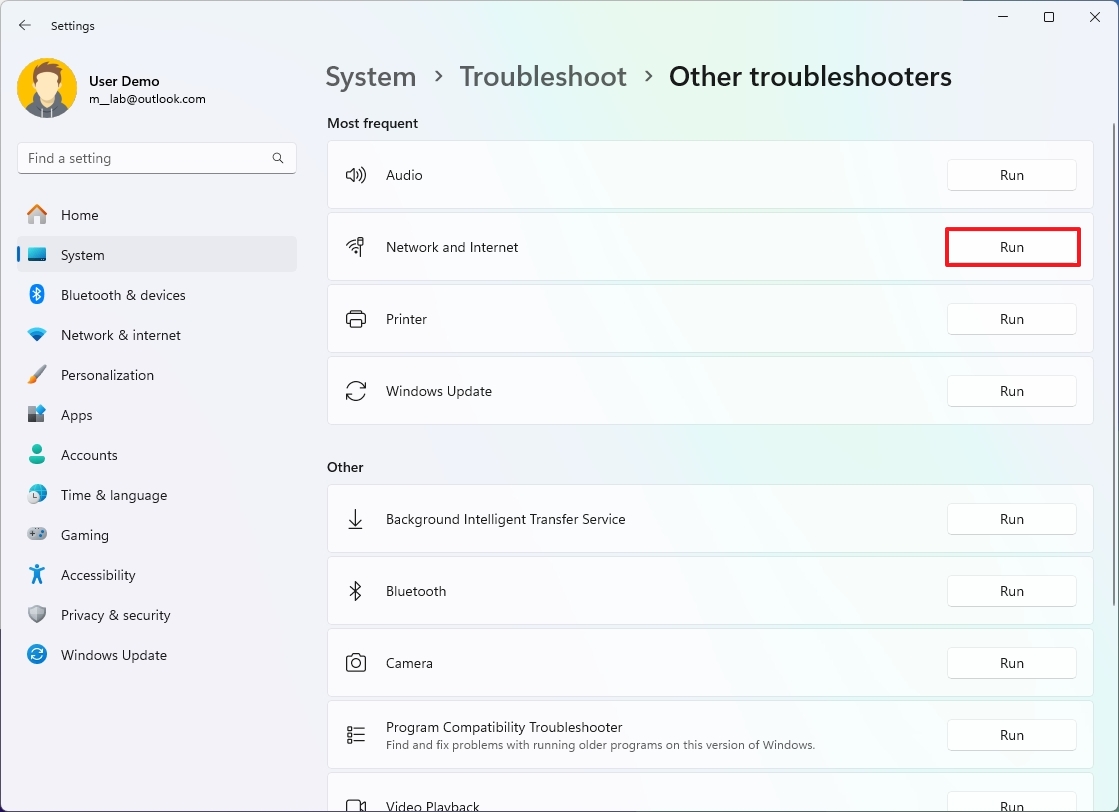
Windows 11 still has built-in troubleshooters, and the Search and Indexing one is surprisingly effective. Microsoft designed it to catch corrupted indexes, permission issues, and service misconfigurations.
Open Settings, go to System > Troubleshoot > Other troubleshooters. Scroll down to Search and Indexing and click Run. The tool asks what symptoms you're experiencing—search not returning results, files not showing up, or search completely broken. Pick the ones that apply and let it work.
It usually takes one to two minutes. When it finishes, it'll either fix the issue automatically or tell you exactly what went wrong.
Rebuild the Search Index
If your files aren't showing up in search results, the index itself might be corrupted. Think of it as a library catalog. When the catalog gets scrambled, the books are still there—you just can't find them.
Open Settings, navigate to Privacy & security > Searching Windows. At the bottom, click Advanced indexing options. In the window that opens, hit Advanced, then click Rebuild under the Troubleshooting section.
Be patient. Rebuilding the index can take anywhere from a few minutes to several hours depending on your file count. Search will be slow during the rebuild, so start this before a break. Once it's done, accuracy usually improves dramatically.
Check for Windows Updates
"Have you tried updating?" is the tech support cliché of the century. But in this case, it's genuinely relevant. Microsoft has pushed multiple patches targeting search performance in Windows 11. Some builds introduced search bugs. Others fixed them.
Go to Settings > Windows Update and click Check for updates. If there's a cumulative update pending, install it and restart. I've seen search issues disappear after a single patch that wasn't even labeled as a search fix.
Reset Windows Search from Settings
Windows 11 includes a built-in reset option that wipes local settings and restores defaults. It's less drastic than a system restore and often fixes weird behavior that's hard to diagnose.
Head to Settings > Apps > Installed apps. Find Windows Search, click the three-dot menu, and select Advanced options. Scroll down and hit Reset. This clears the app's cache without touching your files. After the reset, give it a few minutes to re-index before testing.

Disable Bing Web Results
Here's the fix that makes people the happiest. If Windows search keeps shoving Bing results at you instead of local files, you can turn that off entirely.
Open Settings > Privacy & security > Search permissions. Under Cloud content search, toggle off both Microsoft account and Work or school account. Then scroll to More settings and turn off Show search highlights. This strips away web integration and keeps search focused on your local machine.
Alternatively, if you're comfortable editing the registry, disable Bing more permanently. Press Win + R, type regedit, and navigate to HKEY_CURRENT_USER\Software\Policies\Microsoft\Windows\Explorer. Create a new DWORD (32-bit) Value named DisableSearchBoxSuggestions and set it to 1. Restart Explorer, and Bing is gone for good.
Built-In Search vs. Third-Party Alternatives
| Feature | Windows 11 Search | Third-Party Tools |
|---|---|---|
| Search Speed | Moderate, depends on indexing | Instant, reads file tables directly |
| Web Integration | Bing results enabled by default | No web results, purely local |
| File Content Search | Supported with indexing | Limited or requires plugins |
| Setup Required | Built-in, no installation | Requires separate download |
| System Resource Use | Background indexing service | Minimal footprint |
| Customizability | Limited settings | Highly configurable |
The Pros and Cons of Fixing Windows 11 Search
Before you dive into registry edits and index rebuilds, it's worth weighing what you're actually gaining.
Pros
- No extra software needed: All fixes use built-in Windows tools, so you're not cluttering your system.
- Restores native integration: Fixed search works seamlessly with Start menu, File Explorer, and taskbar.
- File content search: Windows search indexes document contents, which most third-party tools skip by default.
- Privacy gains: Disabling Bing results keeps your search queries off Microsoft's servers.
Cons
- Time investment: Rebuilding the index and troubleshooting can eat up an hour you didn't plan to spend.
- Temporary fixes: Some search issues return after major Windows updates, requiring repeat maintenance.
- Resource usage: Indexing runs in the background and can slow older machines during heavy file operations.
- Not as fast as alternatives: Even when fixed, Windows search is rarely as snappy as tools like Everything or Listary.
Expert Tip: Keep the Index Lean
Here's something most people miss. Windows search tries to index everything—every folder, every drive, every file type. That's overkill for most users and a recipe for slowdowns.
Go to Settings > Privacy & security > Searching Windows. Under Find my files, choose Classic instead of Enhanced. Classic only indexes Documents, Pictures, Music, and Desktop. Enhanced crawls your entire machine including external drives. Unless you're constantly searching obscure directories, Classic is faster and more stable.
While you're there, click Advanced indexing options and review included locations. Remove folders you don't actually search—old project archives, game directories, or massive media libraries. A smaller index rebuilds faster, searches faster, and breaks less often. It's the single best tweak for keeping Windows search reliable long-term.
Frequently Asked Questions
Why does Windows 11 search show web results instead of my files?
Microsoft integrated Bing into Windows search by default. You can disable it in Settings under Privacy & security > Search permissions by turning off Cloud content search and search highlights.
How long does rebuilding the search index take?
It depends on your file count. For a typical user, expect 10 to 30 minutes. If you have terabytes of data or a traditional hard drive, it could take a few hours.
Will resetting Windows Search delete my files?
No. Resetting only clears the search app's cache and settings. Your documents, apps, and personal data remain completely untouched.
Is it safe to edit the registry to disable Bing results?
Yes, if you follow the steps carefully. Always back up your registry before making changes by clicking File > Export in the Registry Editor. If something goes wrong, you can restore the backup.
Should I just use a third-party search tool instead?
If you only search filenames and want instant results, tools like Everything or PowerToys Run are excellent. But if you need content-based search inside documents, stick with Windows search once it's fixed.
Final Thoughts
Windows 11 search isn't fundamentally broken. It's just overcomplicated, overconnected, and occasionally undercooked. The good news is that most problems have straightforward fixes that don't require a computer science degree.
Start with the easy stuff—restart the service, run the troubleshooter, check for updates. If that doesn't cut it, rebuild the index and strip out the Bing noise. And if you want long-term stability, keep your index lean and focused on the folders you actually use.
Your search bar doesn't have to be a source of daily frustration. A few minutes of maintenance can turn it back into the useful tool it was meant to be.
🎥 Recommended Video
Watch step-by-step Windows 11 Search fixes →

No comments:
Post a Comment