
We carry our entire digital lives in our pockets. Bank accounts, emails, photos, passwords, work documents — all accessible through a single device that most people barely think to protect. I’ve watched friends lose thousands to scams, have their social accounts hijacked, and discover malware silently draining their data. In almost every case, the breach wasn’t caused by some genius hacker. It was caused by a simple mistake the victim made every single day.
Here are the biggest mobile security mistakes people still make — and why they matter more in 2026 than ever before.
Using the Same Password Everywhere
This is the mistake that keeps cybersecurity professionals awake at night. Reusing passwords across multiple accounts creates a devastating domino effect: when one service gets breached — and they do, constantly — attackers use automated tools to try those same credentials on banking, email, and social media accounts.
Google’s senior product manager of sign-in security puts it bluntly: “No matter how strong our online security is, a breach of a third-party website can compromise your Google Account if you’re reusing passwords.”
The fix is simple but requires a shift in habit. Use a password manager — Google Password Manager, mSecure, or any reputable option — to generate and store unique passwords for every account. Add passkeys where supported for password-free biometric sign-in. And never, ever reuse your email password anywhere else. If someone gets into your email, they can reset passwords for everything else.
Skipping Software Updates
That persistent update notification? It’s not just annoying — it’s a security patch for a vulnerability that hackers are already exploiting. Google’s identity product manager ranks allowing regular software updates as “the second-most crucial security practice after using a password manager.”
Updates contain vital security patches that fix flaws attackers use to break into devices. Delaying them leaves your phone, data, and privacy exposed. The irony is that if you procrastinate long enough, updates often force themselves at the worst possible moment — during a meeting, while you’re traveling, or right before a deadline.
Enable automatic updates for both your OS and apps. On Android and iOS, most security updates install quietly in the background. The few minutes of inconvenience are nothing compared to the hours you’ll spend recovering from a breach.
Ignoring Two-Factor Authentication
Two-factor authentication — or 2FA, MFA, or whatever your platform calls it — is the single most effective barrier against unauthorized access. Google states that adding a second verification step “can cut down many kinds of attacks, including 100% of automated bot attacks.”
Yet people still skip it. It feels like a hassle to enter a code from your phone or approve a login prompt. But that extra ten seconds prevents attackers from accessing your account even if they have your password. In 2026, with AI-powered phishing and credential-stuffing attacks running at massive scale, 2FA isn’t optional — it’s essential.
Enable it on your email, banking, social media, and cloud storage accounts. Use an authenticator app rather than SMS when possible, since SIM-swapping attacks can intercept text messages.
Connecting to Public Wi-Fi Without Protection
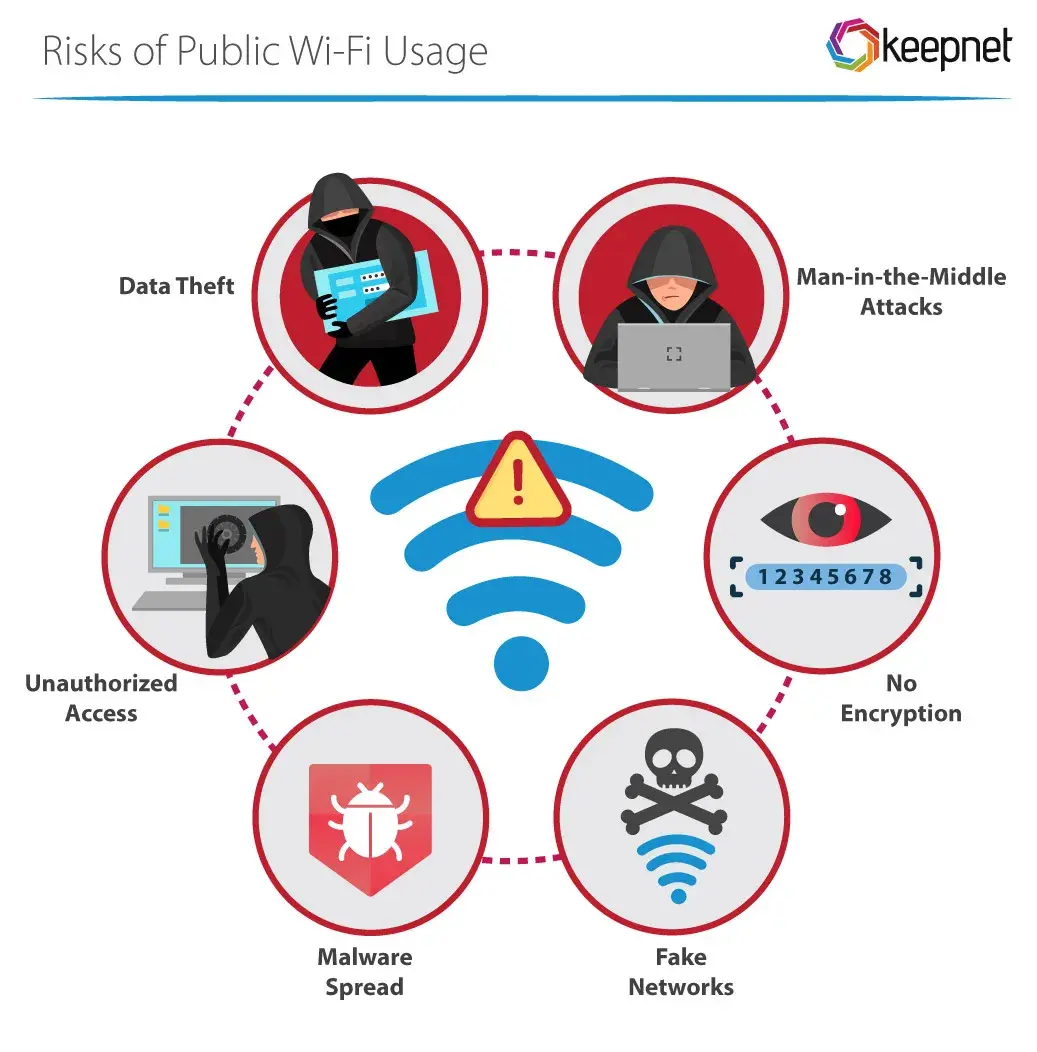
Free Wi-Fi at coffee shops, airports, and hotels is convenient — and dangerous. Public networks are typically unsecured, which means anyone on the same network can potentially intercept your data. Man-in-the-middle attacks, where a hacker positions themselves between you and the internet, are trivial to execute on open networks.
Network spoofing makes it worse. Attackers set up fake access points with names like “Free Airport Wi-Fi” or “CoffeeHouse_Guest” to trick you into connecting. Once you’re on their network, they can harvest credentials, inject malware, or monitor everything you do.
The rule is simple: never access banking, email, or sensitive accounts on public Wi-Fi without a VPN. If you don’t have a VPN, use your cellular data instead. It’s not perfect, but it’s far safer than an open network you know nothing about.
Granting Apps Every Permission They Ask For
Every time you install an app, it asks for permissions — location, camera, microphone, contacts, photos. Most people tap “Allow All” without reading. But those permissions are a direct pipeline to your personal data, and many apps abuse them.
“Riskware” apps — legitimate-looking apps that also send your data to remote servers — are a growing problem. They perform as advertised but quietly mine your information for advertisers or worse. In 2026, with AI-powered data analysis, the value of that harvested information has never been higher.
Audit your app permissions regularly. Go to Settings > Privacy on iOS or Settings > Privacy & Security on Android. Revoke access for apps that don’t need it. If a flashlight app asks for your contacts, that’s a red flag — deny it or uninstall the app entirely.
Clicking Suspicious Links Without Thinking
Phishing has evolved. In 2026, AI-generated phishing emails and texts sound natural, use real company branding, and create urgency with fake security alerts or payment warnings. Mobile users are especially vulnerable because smaller screens hide sender details, and notification habits make us click first and think later.
The advice hasn’t changed, but it’s harder to follow: never click links in unexpected messages. If your bank sends a security alert, open your banking app directly instead of tapping the link. If a delivery notification seems suspicious, check the retailer’s official website. That extra ten seconds of verification can save you from credential theft, malware, or financial fraud.
Not Setting a Strong Screen Lock
A phone without a passcode or biometric lock is an open book. If it’s lost, stolen, or even just left on a table, anyone can access your emails, banking apps, photos, and passwords. Google explicitly warns that “configuring a screen lock on your device, even if it seems unnecessary, is crucial for protecting your data.”
Avoid weak PINs like 1234 or patterns that leave obvious smudge trails. Use a strong alphanumeric passcode, fingerprint, or facial recognition. Enable remote wipe features like Find My iPhone or Google’s Find My Device so you can erase your data if the phone is stolen. And never save passwords in browsers on shared or public devices.
Pros & Cons at a Glance
| Pros | Cons |
|---|---|
| Password managers make unique passwords effortless | Setting up 2FA on every account takes time initially |
| Automatic updates require zero ongoing effort | VPNs add a small monthly cost for full protection |
| Biometric locks are faster than typing PINs | Permission audits can break apps that rely on broad access |
| 2FA blocks 100% of automated bot attacks | Security habits feel inconvenient until they become routine |
| Most security improvements are free | No single fix protects against every threat — layered defense is required |
Expert Tip
Do a quarterly security audit on your phone. Check for apps you haven’t used in 90 days and uninstall them — unused apps are forgotten attack surfaces. Review your password manager for reused or weak passwords. Verify that 2FA is enabled on every account that supports it. Check your app permissions and revoke anything unnecessary. And test your backups — whether iCloud, Google Photos, or a local solution — to make sure you can actually recover your data if something goes wrong. These four habits, done once every three months, prevent the vast majority of mobile security incidents.
FAQ
What’s the most important mobile security step I can take?
Enable multi-factor authentication on your email, banking, and cloud accounts. Even if someone steals your password, they can’t access your account without physical access to your phone or security key. Google calls this “the second-most crucial security practice” after using a password manager.
Is public Wi-Fi really that dangerous?
Yes. Open networks lack encryption, making it easy for attackers to intercept data using man-in-the-middle attacks. Fake access points — network spoofing — are also common in high-traffic areas. Use a VPN or your cellular data for anything sensitive.
Do I need a password manager if I use biometric unlock?
Yes. Biometric unlock protects your device, but you still need unique passwords for every online account. A password manager generates and stores those passwords securely. Without one, most people revert to reusing passwords, which is the single biggest security risk.
Can I get malware from the official app store?
Rarely, but yes. Malicious apps occasionally slip through Apple’s and Google’s review processes. Stick to well-known developers, read reviews carefully, and avoid apps with excessive permission requests. Sideloading apps from unofficial sources increases your risk by 200%.
How do I know if I’ve already been compromised?
Signs include unusual account activity, unknown apps on your device, messages sent from your accounts that you didn’t send, or unexpected password reset emails. If you notice these, change your passwords immediately, enable 2FA if it’s not already on, and run a security scan.
Final Thoughts
Mobile security in 2026 isn’t about complex technical defenses. It’s about basic habits that most people still ignore. Unique passwords, automatic updates, two-factor authentication, and cautious Wi-Fi use aren’t glamorous, but they’re effective. The vast majority of mobile breaches happen because someone skipped one of these steps.
The good news is that every mistake on this list is fixable. You don’t need to be a cybersecurity expert to protect yourself. You just need to care enough to spend a few minutes setting things up correctly — and then maintain those habits as your digital life grows.
Your phone is the key to everything you own online. Treat it like one.
🎥 Recommended Video
https://www.youtube.com/results?search_query=mobile+security+mistakes+smartphone+safety+tips+2026

No comments:
Post a Comment