
My laptop was dying by degrees. Not literally — but close enough. During video calls, the fans sounded like a jet engine preparing for takeoff. Games that used to run at 60 frames per second had dropped to a stuttering 30. Even opening Chrome with five tabs felt like asking too much. I’d accepted it as normal aging, the inevitable slowdown that comes with a two-year-old machine.
Then I tried something embarrassingly simple. And it changed everything.
The Real Problem Wasn’t Age — It Was Heat
Modern laptops are powerful, but they’re also compact. That compactness means heat has nowhere to go. Over time, dust accumulates in vents, thermal paste dries out, and the cooling system becomes less effective. The result is thermal throttling — a protective mechanism where your CPU and GPU automatically slow down to prevent overheating. Your laptop isn’t getting weaker. It’s just getting too hot to perform.
I downloaded a temperature monitoring tool and was shocked. My CPU was hitting 95°C during normal workloads — well into throttling territory. The GPU wasn’t far behind at 86°C. No wonder everything felt sluggish. The hardware was protecting itself by running at half speed.
Step One: Give It Room to Breathe
The simplest fix is also the most overlooked. I’d been using my laptop on my bed, on the couch, on soft surfaces that blocked the intake vents underneath. Laptops pull cool air from below and exhaust hot air from the sides or back. When you set it on a blanket or pillow, you’re suffocating it.
I switched to a hard, flat surface — my desk — and elevated the back slightly with a book. This simple change improved airflow dramatically. Temperatures dropped by about 5°C immediately. It cost nothing and took ten seconds.
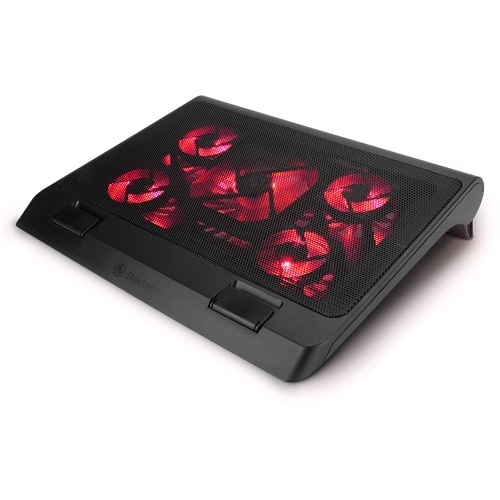
If you’re gaming or doing heavy work, a laptop cooling pad is worth the investment. These USB-powered stands have built-in fans that force cool air into your laptop’s intake vents, actively helping its own cooling system. They’re affordable, portable, and genuinely effective — especially during long sessions in warm environments.
Step Two: Clean Out the Dust
Dust is the silent killer of laptop performance. Over months and years, dust, lint, and pet hair build up inside the chassis, insulating components and clogging fans. The cooling system works harder but achieves less, and temperatures creep higher even under light loads.
I turned my laptop off, unplugged it, and used a can of compressed air to blow short bursts into the vents. A surprising amount of dust came out. I repeated this every few months now, and it’s become part of my routine maintenance. The difference is noticeable — fans run quieter, and temperatures stay lower during sustained workloads.
If your laptop is more than a year old and you’ve never cleaned the vents, this alone could restore significant performance. Just be gentle — hold the can upright, use short bursts, and never spin the fans manually with the air stream, as that can damage the bearings.
Step Three: The Game Changer — Reapplying Thermal Paste
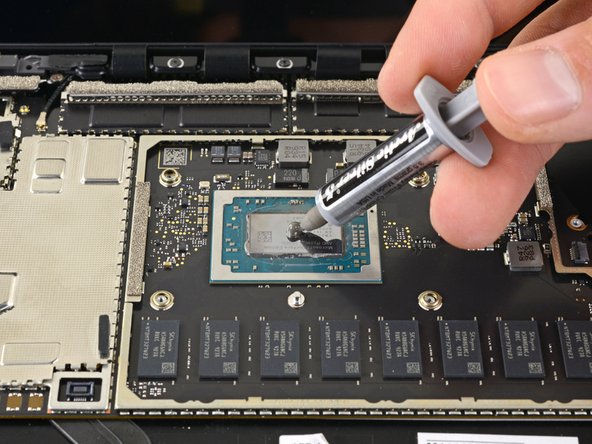
This is where things got serious. Thermal paste sits between your CPU/GPU and the heatsink, transferring heat away from the chips. Over time — typically 3 to 5 years — it dries out and becomes less effective. When that happens, even a clean, well-ventilated laptop will overheat because the heat can’t escape efficiently.
I’d never opened a laptop before, but I watched a few guides, bought a tube of quality thermal paste, and took the plunge. The process involved removing the bottom panel, unscrewing the heatsink, carefully cleaning the old dried paste with isopropyl alcohol, and applying a small pea-sized dot of new paste before reassembling everything.
The results were staggering. My CPU temperatures dropped from 95°C to 78°C under the same workload. The GPU went from 86°C to 72°C. Games that had been throttling down to 30 FPS suddenly ran smoothly at 60 FPS again. Video calls no longer triggered fan noise that made me self-conscious. My laptop felt brand new.
If you’re not comfortable opening your laptop, a qualified technician can do this for you. The cost is usually modest, and the performance improvement on an aging machine is often dramatic.
Step Four: Tame the Power Settings
While I had the laptop open, I also adjusted Windows power settings. In Power Options, I found the processor power management settings and capped the maximum processor state at 99%. This sounds counterintuitive, but it prevents the CPU from entering its hottest turbo-boost states — the ones that generate the most heat — while sacrificing minimal performance.
For gaming, I also optimized in-game settings slightly. Dropping shadow quality and anti-aliasing by one notch reduced GPU load significantly, which meant less heat and more consistent frame rates. The visual difference was barely noticeable, but the thermal improvement was real.
Pros & Cons at a Glance
| Pros | Cons |
|---|---|
| Cleaning vents and improving airflow costs nothing | Repasting requires opening the laptop — intimidating for beginners |
| Thermal paste replacement can drop temps by 15–20°C | Improper repasting can cause worse temperatures or damage |
| Cooling pads are affordable and portable | Some laptops have difficult-to-access internals |
| Power settings tweak reduces heat with minimal performance loss | Opening the laptop may void warranty on some devices |
| Restored performance feels like getting a new machine | Results vary based on laptop age, design, and initial condition |
Expert Tip
Before you open your laptop, check your warranty. Some manufacturers void coverage if you break the seal, while others are more permissive. If you’re unsure, start with the non-invasive fixes first: clean the vents, use a hard surface, buy a cooling pad, and adjust power settings. If temperatures are still throttling performance after that, then consider repasting — or take it to a professional. Also, invest in a quality thermal paste like Thermal Grizzly Kryonaut or Noctua NT-H2. Cheap paste degrades faster and won’t give you the same long-term results. And remember: less is more. A pea-sized dot in the center of the CPU is all you need — too much paste can actually insulate the chip and make temperatures worse.
FAQ
How do I know if my laptop is thermal throttling?
Signs include sudden performance drops during gaming or heavy tasks, unusually loud fans, and high temperatures. Download a monitoring tool like HWiNFO or Core Temp. If your CPU hits 90°C or higher and clock speeds drop below base frequency, you’re throttling.
Is a cooling pad actually worth it?
Yes, especially for gaming laptops or machines with bottom-facing intake vents. Cooling pads force additional airflow into the chassis, helping the internal fans work more efficiently. They’re not a miracle cure, but they can lower temperatures by 5–10°C and are affordable enough to be a no-brainer.
How often should I clean my laptop vents?
Every 3–6 months if you use it daily, more often if you have pets or live in a dusty environment. A quick blast with compressed air takes two minutes and prevents the gradual buildup that silently kills performance over time.
Can I repaste my laptop myself?
If you’re comfortable with small electronics and follow a guide for your specific model, yes. You’ll need a precision screwdriver set, isopropyl alcohol, microfiber cloths, and quality thermal paste. If your laptop is under warranty or you’re not confident, take it to a professional. Improper repasting can damage components or make temperatures worse.
Will these fixes work on any laptop?
Mostly yes, but results vary. Thin ultrabooks with limited cooling headroom benefit less than gaming laptops with larger heatsinks. Machines that are 3+ years old with dried thermal paste see the biggest improvements. Even newer laptops benefit from better airflow and regular cleaning.
Final Thoughts
My laptop went from a frustrating, noisy, stuttering mess back to a smooth, capable machine — and I didn’t spend a dime on new hardware. The fix was thermal management: better airflow, cleaner vents, fresh thermal paste, and smarter power settings.
The lesson is that laptops don’t just “get slow” with age. They get hot. And heat makes everything else worse — performance, fan noise, battery life, and longevity. Address the cooling, and you address the root cause of most performance degradation.
Before you start shopping for a new laptop, do the maintenance. Clean the vents. Check your temperatures. Consider a cooling pad or a repaste. You might discover that the machine you thought was dying has plenty of life left — it just needed to breathe.
🎥 Recommended Video
https://www.youtube.com/results?search_query=laptop+cooling+fix+thermal+throttling+repaste+performance

No comments:
Post a Comment