
Introduction
There’s nothing quite like the frustration of watching your Windows 11 PC grind to a halt. You’re in the middle of something important — maybe a work deadline, a video call, or just trying to open a browser tab — and suddenly the cursor stops moving. The screen locks up. You wait. Nothing happens. You’ve been there, and so has pretty much everyone running Windows 11 right now.
The good news? Most freezing issues aren’t caused by catastrophic hardware failure. They’re usually the result of background processes hogging resources, outdated drivers, or Windows trying to do too many things at once. I’ve spent way too many hours troubleshooting frozen PCs, and the fix that actually worked for me was surprisingly simple. Let’s walk through what’s causing the freezes and how to stop them for good.

Why Windows 11 Keeps Freezing
Before jumping into fixes, it helps to understand what’s actually happening when your PC freezes. Windows 11 is a demanding operating system. It runs dozens of background services, constantly checks for updates, and manages memory across multiple apps. When something goes wrong in that chain, the whole system can lock up.
Common culprits include too many startup programs launching at boot, outdated graphics or chipset drivers, corrupted system files, overheating hardware, or even Windows Update itself getting stuck in a loop. Sometimes it’s a single misbehaving app. Other times it’s a combination of small issues stacking on top of each other. The key is identifying the pattern — does it freeze on startup, during heavy use, or completely randomly?
The Simple Fix That Actually Worked
After trying the usual advice — reinstalling Windows, disabling startup apps, running endless scans — the fix that finally stopped my freezing was adjusting the power plan and disabling fast startup. It sounds almost too basic, but here’s why it works.
Windows 11’s default “Balanced” power plan sometimes conflicts with modern hardware, especially on laptops and custom-built desktops. Switching to the “High Performance” plan (or creating a custom plan) prevents the CPU from throttling down aggressively, which can cause stuttering and freezes during demanding tasks. To do this, open Control Panel, go to Power Options, and select High Performance. If it’s not visible, click “Create a power plan” and choose High Performance from there.
Next, disable Fast Startup. This feature is supposed to help your PC boot faster, but it often causes instability by keeping certain drivers and processes in a suspended state. Go to Control Panel > Power Options > Choose what the power buttons do > Change settings that are currently unavailable, then uncheck “Turn on fast startup.” After a full restart, many users report that random freezes simply stop happening.
Clean Up What’s Running in the Background
Even with the power plan fixed, a cluttered system will still struggle. Open Task Manager (Ctrl + Shift + Esc) and look at the Startup apps tab. Disable anything you don’t need launching automatically — things like Spotify, Adobe updaters, or third-party utilities. They eat up RAM and CPU cycles before you even open your first app.
Then check the Processes tab while your PC is freezing. Sort by CPU, Memory, and Disk usage to see what’s spiking. If one app is consistently at the top, that’s your problem child. Uninstall it, update it, or find an alternative. Sometimes a single poorly optimized background service is all it takes to bring Windows 11 to its knees.
Update or Roll Back Your Drivers
Drivers are the bridge between your hardware and Windows. When they’re outdated, corrupted, or incompatible, freezes are almost guaranteed. The biggest offenders are usually graphics drivers (NVIDIA, AMD, Intel) and chipset drivers from your motherboard manufacturer.
Head to Device Manager and check for yellow warning icons next to any devices. If you see one, that driver needs attention. For graphics drivers, it’s often better to use the manufacturer’s official tool — NVIDIA GeForce Experience, AMD Adrenalin, or Intel Driver & Support Assistant — rather than relying on Windows Update. If a recent driver update caused the freezing, rolling back to the previous version in Device Manager can instantly solve the problem.
Check for Overheating and Dust Buildup
Your PC can’t perform if it’s too hot. When internal temperatures climb too high, the CPU and GPU automatically throttle their speed to protect themselves. That throttling feels exactly like a freeze — everything slows down, stutters, or stops responding entirely.
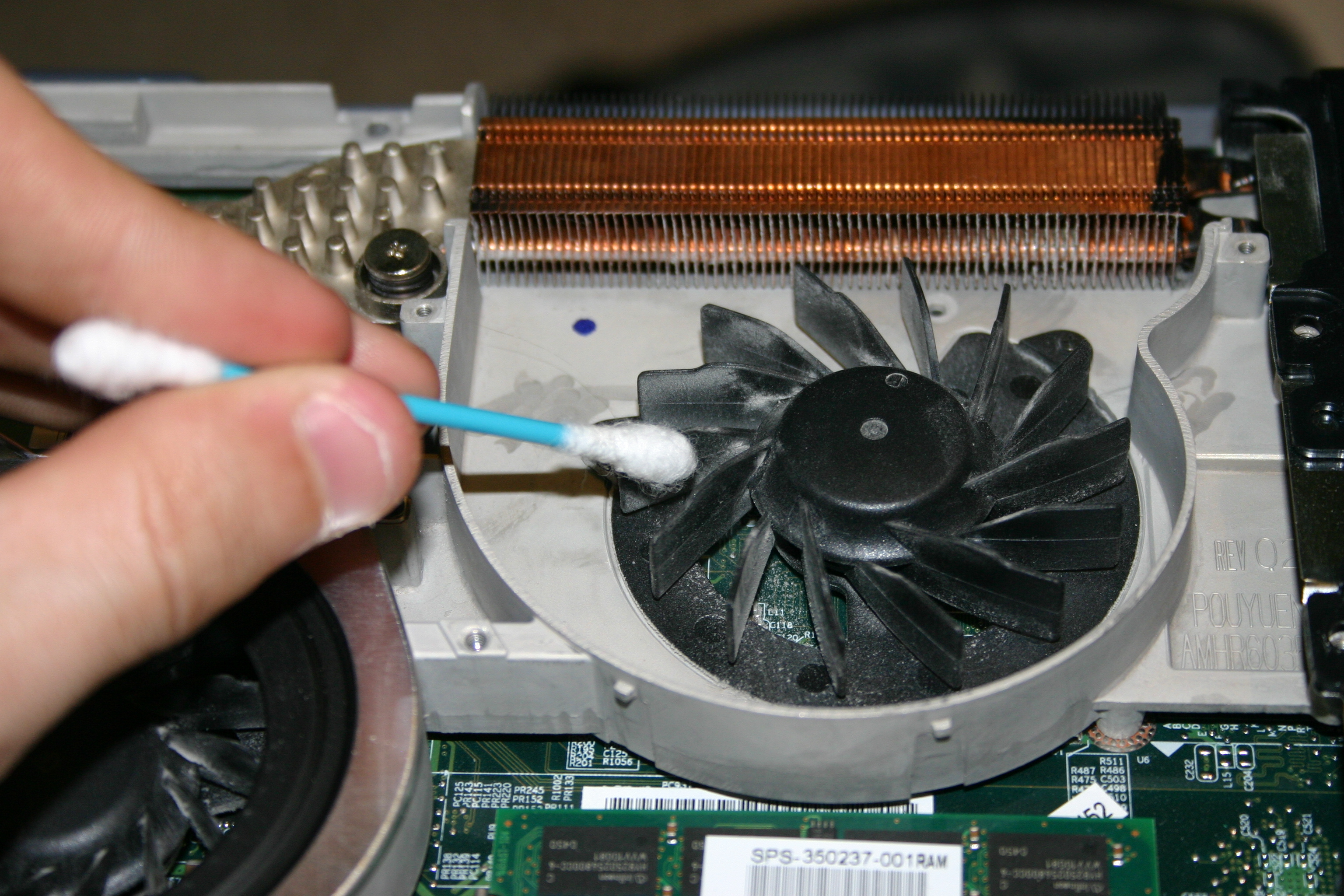
Download a free tool like HWiNFO or Core Temp to monitor your temperatures during normal use. If your CPU is consistently hitting 85°C or higher, you’ve found a major piece of the puzzle. Clean out your PC’s vents and fans with compressed air, make sure your laptop isn’t sitting on a soft surface that blocks airflow, and consider replacing old thermal paste if you’re comfortable opening your desktop. A cooler PC is a smoother PC.
Comparison Table: Common Fixes vs. Effectiveness
| Fix | Difficulty | Time Needed | Effectiveness |
|---|---|---|---|
| Change power plan | Easy | 2 minutes | High |
| Disable fast startup | Easy | 3 minutes | High |
| Clean startup apps | Easy | 5 minutes | Moderate to high |
| Update drivers | Moderate | 15–30 minutes | High |
| Check temperatures | Easy | 10 minutes | Moderate |
| Full Windows reinstall | Hard | 2+ hours | Last resort |
Pros & Cons
Pros: These fixes are free, relatively quick, and address the root causes of most Windows 11 freezing issues without requiring advanced technical skills. They can improve overall system responsiveness, extend hardware lifespan by reducing thermal stress, and make your daily computing experience significantly less frustrating.
Cons: Disabling fast startup means your PC will take slightly longer to boot. Switching to High Performance power plan can increase power consumption, which matters more for laptops running on battery. Some driver updates can introduce new issues, so always create a restore point before making major changes.
Expert Tip
Tech support professionals often say that Windows 11 freezing is rarely caused by one single thing. It’s usually a chain of small inefficiencies. Start with the simplest fixes first — power settings and startup cleanup — before moving on to drivers and hardware checks. Create a System Restore point before making any changes, so you can roll back if something goes wrong. And if you’ve tried everything and the freezes persist, running a memory diagnostic (Windows Memory Diagnostic tool) or checking your storage drive health (CrystalDiskInfo) can reveal deeper hardware issues.
FAQ
Why does Windows 11 freeze but Windows 10 didn’t on the same PC?
Windows 11 has stricter hardware requirements and runs more background services. Older hardware or drivers that worked fine on Windows 10 may struggle under the new OS. Updating drivers and adjusting power settings usually resolves this.
Will disabling fast startup harm my PC?
No. Fast startup is a convenience feature, not a necessity. Your PC will still boot normally — just a few seconds slower. Many users actually prefer it disabled for better stability.
How do I know if overheating is causing the freezes?
Download HWiNFO or Core Temp and monitor your CPU and GPU temperatures during normal use. Consistently high temperatures (above 85°C for CPU) strongly indicate thermal throttling. Cleaning fans and improving airflow usually helps immediately.
Should I reinstall Windows 11 to fix freezing?
Reinstallation should be a last resort. Try the simpler fixes first — power settings, startup cleanup, driver updates, and temperature checks. Most freezing issues can be resolved without wiping your system.
Can a failing hard drive cause freezing?
Yes. A failing or fragmented traditional hard drive (HDD) can cause severe slowdowns and freezes. If your PC still uses an HDD, upgrading to an SSD is one of the best performance investments you can make. Use CrystalDiskInfo to check drive health.
Final Thoughts
Windows 11 freezing is annoying, but it’s not unbeatable. The combination of switching to a High Performance power plan and disabling fast startup solved the problem for me — and it’s solved it for countless others too. Pair that with some basic housekeeping on startup apps and drivers, and you’ve got a solid recipe for a stable, responsive PC.
You don’t need to be a tech expert to fix this. You just need to be methodical. Start simple, test one change at a time, and pay attention to how your system responds. A freeze-free Windows 11 experience is absolutely achievable — and you’re probably closer to it than you think.
━━━━━━━━━━━━━━━━━━
🎥 Recommended Video
https://www.youtube.com/results?search_query=Windows+11+Freezing+Fix+Simple+Solution
━━━━━━━━━━━━━━━━━━

No comments:
Post a Comment