
Windows updates have a special talent for breaking at the worst possible moment. You’re about to start a meeting, you hit restart, and suddenly you’re staring at a percentage that hasn’t moved in 45 minutes. Or worse — the update fails, rolls back, and leaves you with a vague error code and a growing sense of dread.
I’ve been there. Multiple times. And I’ve learned that most update problems can be fixed without the nuclear option of resetting your PC. Here’s the exact process I use, step by step, when Windows Update decides to misbehave.
Step One: Don’t Panic and Give It Time
This sounds obvious, but it’s the step most people skip. Windows updates don’t always move smoothly. Sometimes the progress bar stalls at 0%, 35%, or 99% while files are being prepared in the background. If you’re on a spinning hard drive or installing a major feature update, the process can take significantly longer than the UI suggests.
My rule: if the animation is still moving and the percentage hasn’t changed for about 30 minutes, wait another 20. If nothing changes after an hour, then it’s time to intervene. Forcing a restart on a truly stuck update can cause corruption, so patience pays off.
Step Two: Run the Built-In Troubleshooter
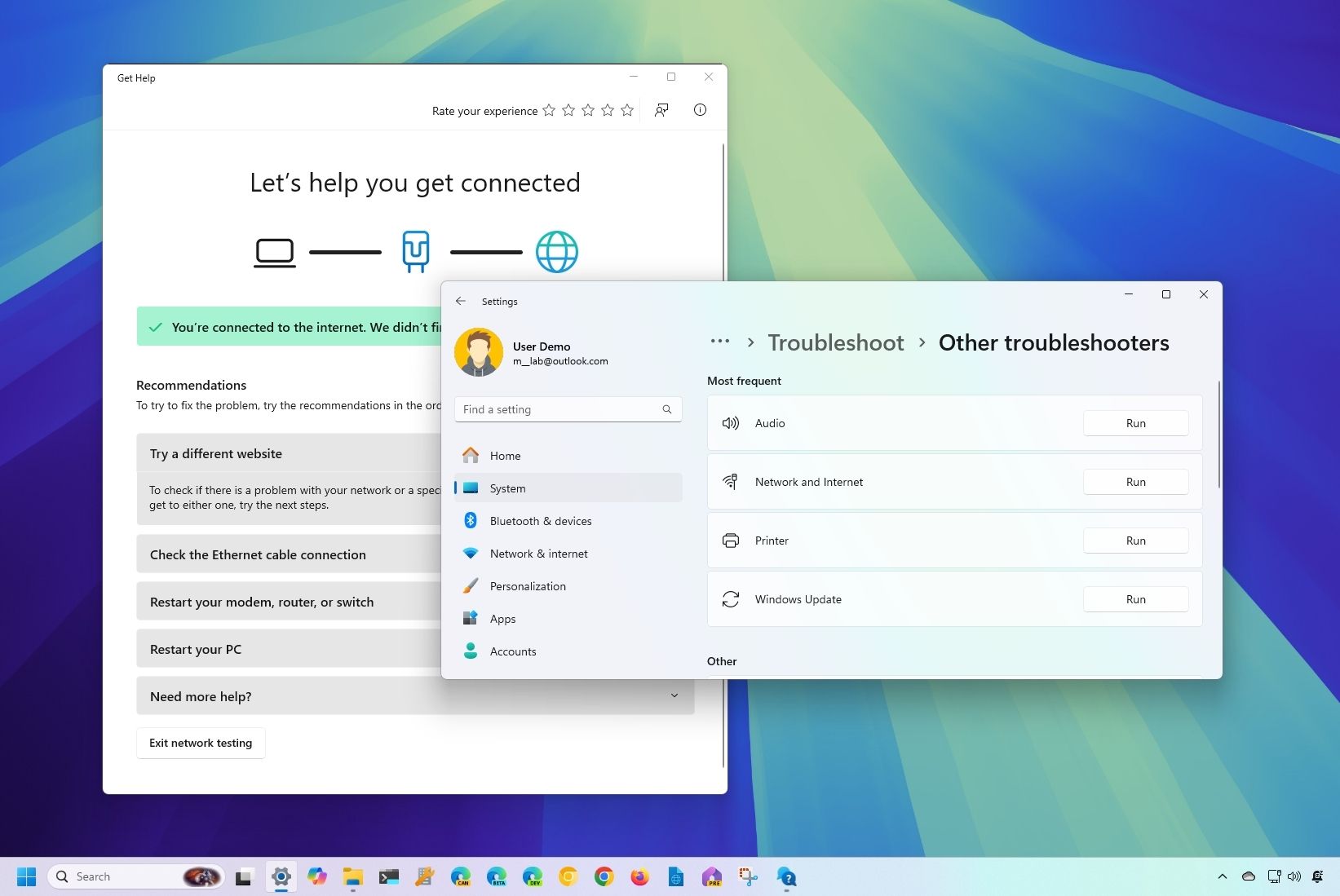
Windows has a built-in troubleshooter that actually works more often than you’d expect. Go to Settings > System > Troubleshoot > Other troubleshooters > Windows Update and click Run. It checks for broken update components, re-registers update files, resets the update database, and closes stuck services.
If it reports something like “Potential Windows Update Database error detected,” that’s actually good news — it found the problem. Let it finish, restart your PC, and try updating again. This single step has resolved about 40% of the update issues I’ve encountered.
Step Three: Clear the Update Cache
If the troubleshooter doesn’t cut it, the update cache is usually the culprit. Corrupted download files are one of the most common reasons updates get stuck. Windows downloads update files to C:\Windows\SoftwareDistribution, and if those files get damaged during transfer, the installation hangs forever.
Here’s how to clear it properly:
- Press Win + R, type
services.msc, and press Enter. - Find Windows Update, right-click it, and select Stop.
- Do the same for Background Intelligent Transfer Service (BITS).
- Open File Explorer and navigate to
C:\Windows\SoftwareDistribution. - Delete everything inside that folder. Don’t delete the folder itself — just its contents.
- Go back to Services and restart both Windows Update and BITS.
- Restart your PC and check for updates again.
Windows will rebuild the cache from scratch and re-download clean files. I’ve seen this fix updates stuck at 0%, 35%, and 99% — all common failure points.
Step Four: Repair System Files with DISM and SFC
Sometimes the problem runs deeper than corrupted downloads. The Windows system files themselves can get damaged, and when that happens, updates will keep failing no matter how many times you clear the cache.
This is where DISM and SFC come in — two command-line tools that repair the underlying Windows image and replace corrupted system files. Here’s the exact sequence:
- Search for Command Prompt, right-click it, and choose Run as administrator.
- Type
DISM /Online /Cleanup-Image /RestoreHealthand press Enter. - Wait for it to finish. This can take 10–30 minutes and may appear to pause at certain percentages. That’s normal — don’t interrupt it.
- When DISM completes, type
sfc /scannowand press Enter. - Let it run, then restart your PC.
DISM checks the Windows image for corruption and downloads healthy files from Microsoft’s servers to replace anything damaged. SFC then scans all protected system files and fixes what it finds. These commands are safe — they only modify system files, never your personal data.
Step Five: Restart the Update Services Manually
If updates are still failing after clearing the cache and repairing files, the update services themselves might be frozen. You can force-restart them with a few simple commands in an elevated Command Prompt:
net stop wuauserv
net stop bits
net stop cryptsvc
Wait a few seconds, then:
net start wuauserv
net start bits
net start cryptsvc
This refreshes the entire update engine and often resolves stubborn failures where the services got stuck in an unresponsive state.
When to Uninstall a Specific Bad Update
Occasionally a specific update is the problem, not the update system itself. The February 2026 patch KB5077181 caused restart loops and login failures for some users. If you suspect a particular update, you can uninstall it from Control Panel > Programs > View installed updates, find the KB number, and click Uninstall.
After uninstalling, pause Windows Update temporarily to prevent automatic reinstallation while Microsoft works on a fix. Just remember that removing an update also removes its security patches, so only do this if the update is actively breaking your system.
Pros & Cons at a Glance
| Pros | Cons |
|---|---|
| Troubleshooter fixes many issues automatically with one click | DISM and SFC can take 30+ minutes on slower systems |
| Clearing the cache is fast and resolves most stuck updates | Requires comfort with Command Prompt for deeper fixes |
| DISM and SFC repair underlying corruption without data loss | Uninstalling updates removes security patches too |
| Manual service restart often fixes frozen update engines | Some issues require waiting for Microsoft to patch the patch |
| All fixes preserve your files, apps, and settings | Results vary — not every problem has a quick DIY solution |
Expert Tip
Before you run any of these fixes, create a System Restore point. Search “Create a restore point” in the Start menu, select your system drive, and click Create. Name it something like “Before Update Fix.” If anything goes sideways, you can roll back in minutes. Also, if you’re consistently having update problems, check your disk health. A failing hard drive often manifests as repeated update failures, and no amount of cache clearing will fix hardware degradation. Run chkdsk C: /f from an elevated Command Prompt to check for disk errors — schedule it for your next restart if prompted.
FAQ
Why does Windows Update get stuck at 0% or 99%?
Usually because of corrupted download files, insufficient disk space, a weak internet connection, or frozen background services. The progress UI can freeze while files are still processing in the background, so wait 40–60 minutes before intervening. If it’s truly stuck, clear the SoftwareDistribution cache and restart the update services.
Is it safe to force restart during a stuck update?
If the update has been frozen for over an hour with no animation or disk activity, a force restart is generally safe. Windows will usually roll back changes rather than leave you in a broken state. Never interrupt firmware or BIOS updates, but OS updates are designed to handle unexpected restarts.
What do DISM and SFC actually do?
DISM (Deployment Image Servicing and Management) repairs the Windows system image by replacing corrupted files with healthy copies from Microsoft’s servers. SFC (System File Checker) scans and repairs protected system files. Run DISM first, then SFC, then restart. Both are safe and only affect system files, not personal data.
Can I fix updates without using Command Prompt?
Yes, for simpler issues. Start with the Windows Update Troubleshooter in Settings, clear the SoftwareDistribution cache through File Explorer, and restart your PC. But for deeper corruption, DISM and SFC require Command Prompt. They’re not as intimidating as they look — just copy, paste, and wait.
When should I just reset my PC instead?
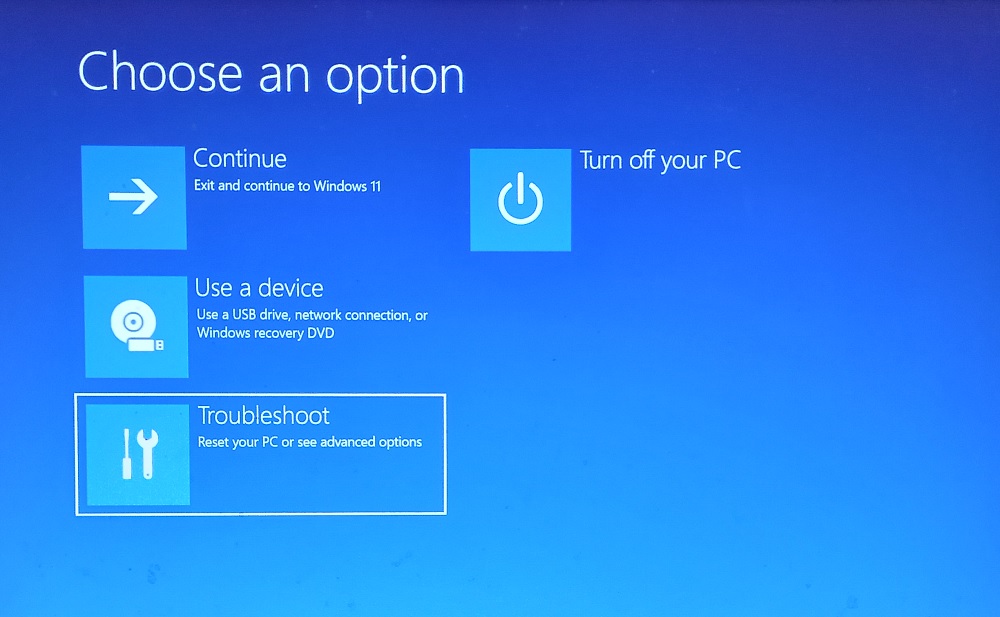
Only as a last resort. If you’ve tried the troubleshooter, cleared the cache, run DISM and SFC, restarted services, and uninstalled problematic updates — and nothing works — then an in-place repair using the Media Creation Tool is your next step. A full reset should be the absolute final option, since it requires reinstalling apps and reconfiguring settings.
Final Thoughts
Windows Update problems are frustrating, but they’re rarely as dire as they feel. In my experience, about 80% of stuck or failed updates can be resolved with the troubleshooter, a cache clear, or DISM and SFC. The key is working through the fixes methodically instead of randomly trying things you found on a forum.
The worst thing you can do is panic-restart a PC that’s actually still working in the background. The second-worst thing is reaching for the reset button before exhausting the simpler options. Windows updates are complex, but the repair tools Microsoft provides are surprisingly capable when used in the right order.
So the next time your update freezes, take a breath. Run the troubleshooter. Clear the cache. Repair the files. And only then — if absolutely necessary — consider the nuclear option. Your files, your apps, and your sanity will thank you.
🎥 Recommended Video
https://www.youtube.com/results?search_query=fix+Windows+11+update+stuck+DISM+SFC+2026

No comments:
Post a Comment