
I used to think my iPhone’s battery drain was just something I had to live with. Lower the brightness, close apps, carry a charger — same routine, same red battery icon by 4 PM. Then a friend told me about a setting I’d never noticed, buried three menus deep in iOS. I changed it on a Tuesday. By Friday, I was ending the day with 30% left.
That setting is Background App Refresh, and most people have it completely wrong.
The Setting Everyone Overlooks
Background App Refresh lets apps update their content even when you’re not using them. Your email fetches new messages. Instagram preloads stories. News apps download articles. It sounds helpful, and it is — until you realize it’s happening over cellular data, all day, every day, while your phone sits in your pocket.
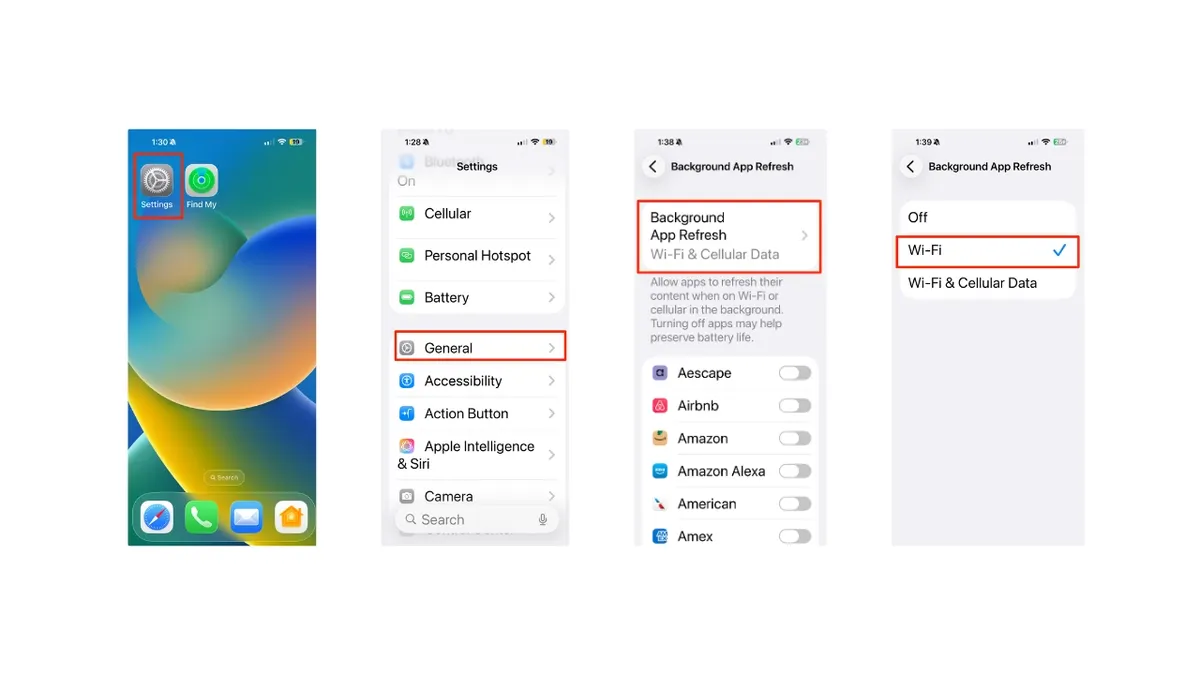
Here’s the fix: go to Settings > General > Background App Refresh, tap the top menu, and switch from “Wi-Fi & Cellular Data” to “Wi-Fi Only.”
That’s it. One tap.
When I made this change, my battery went from dying by mid-afternoon to lasting well into the evening. Apps still update when I’m connected to Wi-Fi at home or the office, but they stop burning through cellular data and battery when I’m out and about. Notifications still arrive on time. Maps still refreshes when I need it. The only app that felt even slightly slower was Instagram on cellular — and honestly, that tradeoff was worth it.
Why This Works So Well
Cellular data is a battery vampire. Your iPhone is constantly negotiating with cell towers, switching between 5G and LTE, and maintaining a connection over long distances. Wi-Fi is local, stable, and far more power-efficient. When Background App Refresh uses cellular, every app update triggers a burst of radio activity that drains your battery far more than the same update over Wi-Fi would.
But the real magic is that this setting doesn’t break anything. Your phone still works perfectly. You just stop paying the cellular tax for background tasks you didn’t ask for.
Adaptive Power: The New iOS 26 Feature Worth Knowing
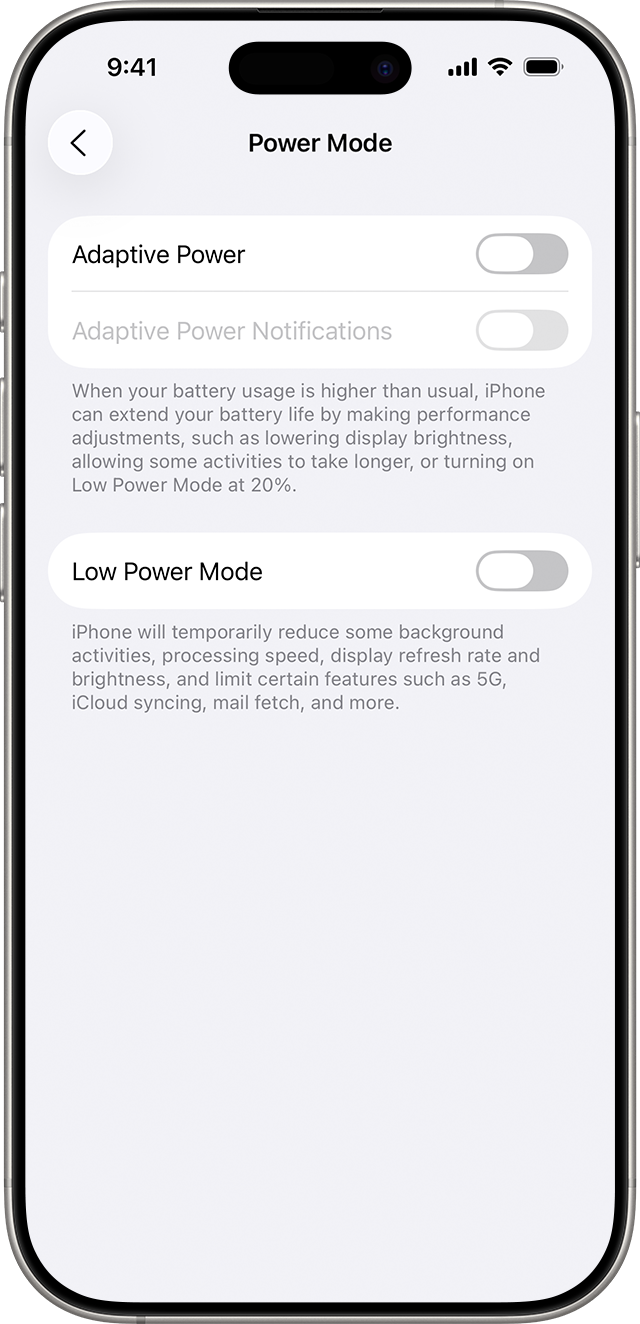
If you’re on an iPhone 15 Pro or newer running iOS 26, there’s another tool in your arsenal: Adaptive Power. This is Apple’s AI-driven battery management that quietly adjusts performance based on your daily habits. It can lower screen brightness slightly, limit background activity, and even trigger Low Power Mode automatically when your battery hits 20%.
Unlike Low Power Mode — which aggressively throttles your CPU, disables 5G, and makes your phone feel noticeably slower — Adaptive Power is subtle. You might not even notice it’s working. On iPhone 17 models, it’s enabled by default. For everyone else, you can turn it on in Settings > Battery > Power Mode.
It’s not a magic bullet, but combined with Wi-Fi-only Background App Refresh, it adds up to meaningful extra hours.
Other Quick Wins to Stack On Top
Once you fix Background App Refresh, a few other settings can squeeze out even more battery:
Always-On Display drains roughly 1% per hour. On an iPhone 14 Pro or newer, turn it off in Settings > Display & Brightness > Always On. That’s up to 24% more battery over a full day.
Location Services set to “Always” is another silent killer. Most apps only need “While Using the App.” Audit yours in Settings > Privacy & Security > Location Services.
Keyboard haptics might seem harmless, but every keypress triggers the Taptic Engine. Over thousands of texts a day, that adds up. Turn them off in Settings > Sounds & Haptics > Keyboard Feedback.
5G Auto is worth reconsidering too. When 5G signal is weak, your iPhone works harder to hold the connection, draining more battery than stable 4G LTE. Switch to LTE in Settings > Cellular > Cellular Data Options > Voice & Data if you’re in a spotty coverage area.
Pros & Cons at a Glance
| Pros | Cons |
|---|---|
| Wi-Fi-only Background App Refresh saves significant battery with zero functionality loss | Some apps may feel slightly slower to refresh on cellular |
| Adaptive Power works silently in the background without aggressive throttling | Adaptive Power only available on iPhone 15 Pro and newer |
| Always-On Display off can reclaim up to 24% battery daily | Turning off keyboard haptics makes typing feel less tactile |
| Location audit improves both battery and privacy | Switching to LTE means slightly slower peak data speeds |
| All changes are free and reversible | Results vary based on usage patterns and device age |
Expert Tip
Before you change anything, spend five minutes in Settings > Battery. iOS breaks down exactly which apps are draining your battery and how much time they spend running in the background versus on screen. If you see an app with high background minutes but low screen time, that’s your target. Disable Background App Refresh for that app individually instead of turning the whole feature off. This lets you keep the apps you actually need updating — like email and messaging — while cutting the ones that are just freeloading on your battery.
FAQ
What does Background App Refresh actually do?
It allows apps to check for new content and update themselves even when you’re not actively using them. This includes fetching emails, refreshing social feeds, and downloading news articles. It’s useful, but when set to cellular data, it drains battery constantly throughout the day.
Will switching to Wi-Fi only break my notifications?
No. Notifications are handled separately by Apple’s push notification system and still arrive on cellular. The only difference is that apps won’t preload content or refresh feeds in the background unless you’re on Wi-Fi. When you open the app, it will refresh normally.
What is Adaptive Power and should I use it?
Adaptive Power is an iOS 26 feature for iPhone 15 Pro and newer that uses on-device AI to make small performance adjustments — like slightly dimming the display or limiting background tasks — to extend battery life on heavy-usage days. It’s more subtle than Low Power Mode and can be enabled in Settings > Battery > Power Mode.
How much battery does Always-On Display actually use?
Reports suggest it consumes roughly 1% per hour, which adds up to about 24% over a full day. If you’re struggling with battery life, turning it off in Settings > Display & Brightness > Always On is one of the fastest ways to reclaim significant charge.
Should I just turn Background App Refresh off completely?
You can, but you don’t need to. Switching to Wi-Fi only gives you most of the battery savings while keeping apps functional when you’re connected at home or work. For apps you rarely use, disable it individually instead. Complete shutdown can delay notifications for some third-party apps.
Final Thoughts
The single best battery hack I’ve found isn’t a new charger, a battery replacement, or some sketchy third-party app. It’s a toggle that’s been sitting in my iPhone settings for years, and I never thought to change it.
Switching Background App Refresh to Wi-Fi only took ten seconds and added hours to my day. Stacking Adaptive Power, Always-On Display off, and a quick location audit on top of that turned a phone that barely made it to dinner into one that still had charge at bedtime.
Apple buries these settings deep for a reason — they want your phone to “just work” out of the box. But the default settings are optimized for convenience, not battery life. A few deliberate tweaks flip that equation, and the results are immediate.
So before you book a Genius Bar appointment or buy a battery case, check your Background App Refresh. It might be the only fix you need.
🎥 Recommended Video
https://www.youtube.com/results?search_query=iPhone+battery+life+hidden+settings+Background+App+Refresh+2026

No comments:
Post a Comment