
Chrome has a reputation for being a resource hog. Open a few tabs and your laptop fan sounds like it’s preparing for takeoff. The browser is fast, sure, but it’s also heavy — demanding RAM, CPU cycles, and battery life like it’s entitled to them. I’d accepted this as the cost of using the best browser on the market. Until I stumbled into a rabbit hole of hidden settings that changed everything.
These aren’t the obvious toggles everyone knows about. They’re buried in Chrome’s experimental flags, advanced menus, and privacy controls that Google doesn’t advertise. Over the course of an afternoon, I changed a handful of settings I’d never touched before. The result wasn’t subtle. Chrome felt snappier. My laptop stayed cooler. Pages loaded faster. And the battery lasted noticeably longer. The difference was immediate — the kind of improvement you feel within the first browsing session, not after weeks of adjustment.
1. Enable Memory Saver to Put Tabs to Sleep
Chrome’s biggest weakness has always been memory. Each tab runs as its own process, which is great for stability but terrible for RAM. Open twenty tabs and you’re looking at several gigabytes of usage, even if most of those tabs are just sitting there unread. Memory Saver fixes this by automatically hibernating tabs you haven’t used recently, freeing up memory without closing anything.
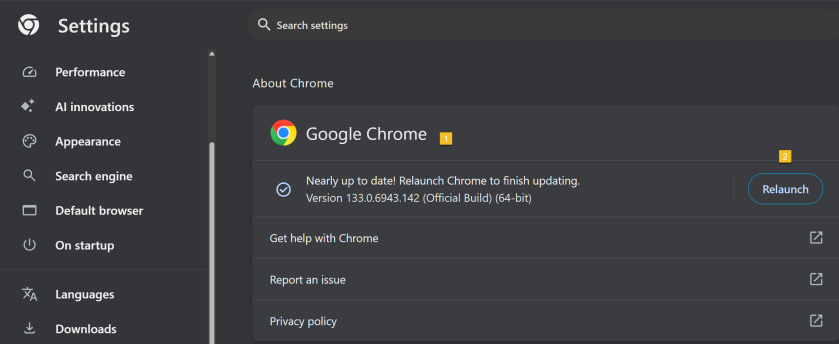
Go to Settings > Performance > Memory Saver and turn it on. You can add exceptions for sites you want to keep awake — like email, chat, or music streaming — while letting everything else sleep. The effect is dramatic. My typical browsing session went from using 4GB of RAM to under 2GB. The laptop fan stopped spinning up constantly. And when I clicked a sleeping tab, it reloaded in about a second. That’s a small price to pay for a browser that no longer feels like it’s eating your machine alive.
2. Turn On Energy Saver for Unplugged Use
If you browse on a laptop, Energy Saver is the companion feature you didn’t know you needed. It’s in the same Performance section as Memory Saver, and it limits background activity, reduces visual effects, and throttles JavaScript timers when you’re on battery power. You can set it to activate only when unplugged, or keep it on all the time if you want maximum efficiency.
I enabled it for battery-only use, and the improvement was immediate. Before, Chrome would drain my laptop from 100% to 20% in under three hours of mixed browsing. After enabling Energy Saver, I’m getting closer to four and a half hours. That’s not a marginal gain — it’s the difference between needing to carry a charger everywhere and getting through a full workday on a single charge. For anyone who works from coffee shops, airports, or couches, this setting alone is worth the price of admission.
3. Disable Hardware Acceleration When It Causes Problems
Hardware acceleration sounds like a good thing. It offloads graphics rendering to your GPU, which should make Chrome smoother. But on some systems — especially older laptops or those with integrated graphics — it causes more problems than it solves. Screen flickering, video stuttering, and even browser crashes can all trace back to buggy GPU drivers interacting with Chrome’s acceleration layer.
Go to Settings > System and toggle off Use graphics acceleration when available. Restart Chrome. If your browsing feels smoother and more stable, leave it off. If you notice no difference, you can turn it back on. In my case, disabling it eliminated random stuttering on YouTube videos and made scrolling feel more consistent. It’s a simple test that costs nothing and can fix mysterious performance issues you’ve been blaming on your internet connection.
4. Enable Parallel Downloading for Faster File Transfers
Chrome downloads files using a single connection by default. If the server is slow or throttled, your download crawls. Parallel Downloading splits files into multiple chunks and downloads them simultaneously, then reassembles them at the end. For large files on fast servers, this can cut download times in half.
This feature lives in Chrome’s experimental flags. Type chrome://flags in the address bar, search for Parallel Downloading, and set it to Enabled. Restart the browser. You won’t notice a difference on small files, but for anything over a few hundred megabytes — software installers, video files, game updates — the speed boost is real. It’s the kind of feature that should be on by default, but Google keeps it hidden for reasons I’ve never understood.
5. Clean Up the New Tab Page Clutter
Chrome’s default New Tab page is a mess of shortcuts, news feeds, and promotional tiles that load every time you open a fresh tab. It’s not just visually noisy — it also adds milliseconds of delay and triggers background requests that consume data and CPU cycles. The good news is you can strip it down to almost nothing.
Click the Customize Chrome button in the bottom-right corner of the New Tab page. Turn off Shortcuts, Cards, and the Discover feed. Choose a minimal background or no background at all. What you’re left with is a search bar and nothing else — which is exactly what most people actually want. The page loads instantly, there’s nothing to distract you, and you stop getting pulled into random news headlines every time you open a tab. It’s a small change that makes Chrome feel significantly more focused.
6. Disable Preloading to Stop Background Data Waste
Chrome tries to be helpful by preloading pages it thinks you’ll visit next, based on your browsing history and the links on the current page. It also uses prediction services to improve search suggestions and autocomplete. Both features sound useful, but they consume bandwidth, CPU cycles, and — depending on your privacy stance — share more data with Google than necessary.
Go to Settings > Privacy and security > Cookies and other site data and disable Preload pages for faster browsing and searching. Then go to Settings > Privacy and security > Security and turn off Always use secure connections if you don’t need the extra warning layer. These changes reduce background network activity and make Chrome feel more responsive because it’s not constantly guessing what you’ll do next. The pages you actually visit still load fast. The ones you don’t visit no longer waste your resources.
7. Enable Smooth Scrolling and Back-Forward Cache
Two experimental flags make browsing feel noticeably more polished. Smooth Scrolling adds momentum and easing to page scrolling, making it feel less jerky and more natural. Back-Forward Cache keeps recently visited pages in memory so that hitting the back button is instant, rather than reloading the page from scratch.
Both are available at chrome://flags. Search for each by name and set them to Enabled. The back-forward cache in particular is transformative if you navigate between pages frequently — reading articles, checking search results, browsing shopping sites. Pages snap back instantly, with no loading spinner, no blank screen, no waiting. It’s the kind of polish that makes Chrome feel like a premium product instead of a resource-hungry utility.
Pros & Cons of These Chrome Tweaks
| Setting | Pros | Cons |
|---|---|---|
| Memory Saver | Dramatically reduces RAM usage, quieter laptop fans | Inactive tabs need to reload when clicked |
| Energy Saver | Significantly better battery life on laptops | Some background features may be delayed |
| Disable Hardware Acceleration | Fixes stuttering and crashes on some systems | May reduce performance on high-end GPUs |
| Parallel Downloading | Faster downloads for large files | No benefit for small files; uses more connections |
| Clean New Tab Page | Faster loading, less distraction, cleaner look | Lose quick access shortcuts and news feed |
| Disable Preloading | Less background data use, more privacy | Pages may load slightly slower on first visit |
| Smooth Scrolling & Back-Forward Cache | More polished browsing experience, instant navigation | Slightly higher memory use for cached pages |
Expert Tip
Here’s the combination that made the single biggest difference: Memory Saver + Energy Saver + a clean New Tab page + Back-Forward Cache enabled. These four work together synergistically. Memory Saver keeps RAM usage reasonable. Energy Saver prevents Chrome from draining your battery during long sessions. The clean New Tab page removes visual clutter and loads instantly. And Back-Forward Cache makes navigation feel effortless. I also created a second Chrome profile for work with even more aggressive restrictions — no extensions except a password manager, no preloading, and all flags tuned for minimal resource use. Switching between profiles lets me have a fast, focused work browser and a fully-featured personal browser without compromise. If you haven’t explored Chrome profiles, they’re one of the most underused productivity features in the browser.
FAQ
Will these settings break any websites?
No. All of these changes affect how Chrome behaves, not how websites function. The only exception is disabling hardware acceleration, which may slightly reduce graphics performance on some sites but won’t break anything.
Do I need to restart Chrome after changing flags?
Yes. Changes made at chrome://flags require a browser restart to take effect. Chrome will prompt you to restart when you make a change. Save any work before doing so.
Can I undo these changes if something goes wrong?
Absolutely. All of these settings can be reversed. For flags, simply return to chrome://flags and set them back to Default. For regular settings, toggle them off in the same menu where you enabled them.
Will these tweaks work on Chrome for Mac or Linux?
Most will. Memory Saver, Energy Saver, and the New Tab page customization are available across platforms. Some flags may vary slightly between operating systems, but the core functionality is the same.
Should I use Chrome flags if I’m not technical?
The flags mentioned here are safe and well-tested. They’re experimental in name only — many have been available for years and are essentially finished features that Google hasn’t enabled by default. Just avoid changing flags you don’t understand, and always note the default setting before making a change.
Final Thoughts
Chrome is the most popular browser in the world, but it’s not perfect out of the box. Google optimizes for the broadest possible user base, which means aggressive defaults, heavy resource use, and a constant push toward features that serve Google’s ecosystem more than they serve you. The hidden settings and flags are where you reclaim control.
You don’t need to be a developer or a power user to benefit from these tweaks. They’re accessible, reversible, and genuinely transformative. My Chrome went from a sluggish resource hog to a fast, efficient, pleasant tool that stays out of my way. The difference was instantly noticeable — not after weeks of adjustment, but within the first browsing session. If your Chrome feels heavy, slow, or draining, spend 15 minutes on these settings. It’s the easiest performance upgrade you’ll make this year, and it costs absolutely nothing.
🎥 Recommended Video
https://www.youtube.com/results?search_query=Google+Chrome+hidden+settings+speed+up+performance

No comments:
Post a Comment