
My laptop had become genuinely painful to use. Booting took nearly two minutes. Chrome lagged when I opened a second tab. The Start menu felt like it was running through molasses. I’d been putting off a full reinstall for months, convinced there had to be a less nuclear option. So I spent a weekend systematically testing every Windows 11 performance trick I could find — the kind of stuff you read about in forums but never actually try.
Turns out, a handful of them actually work. And two of them made a bigger difference than I expected.
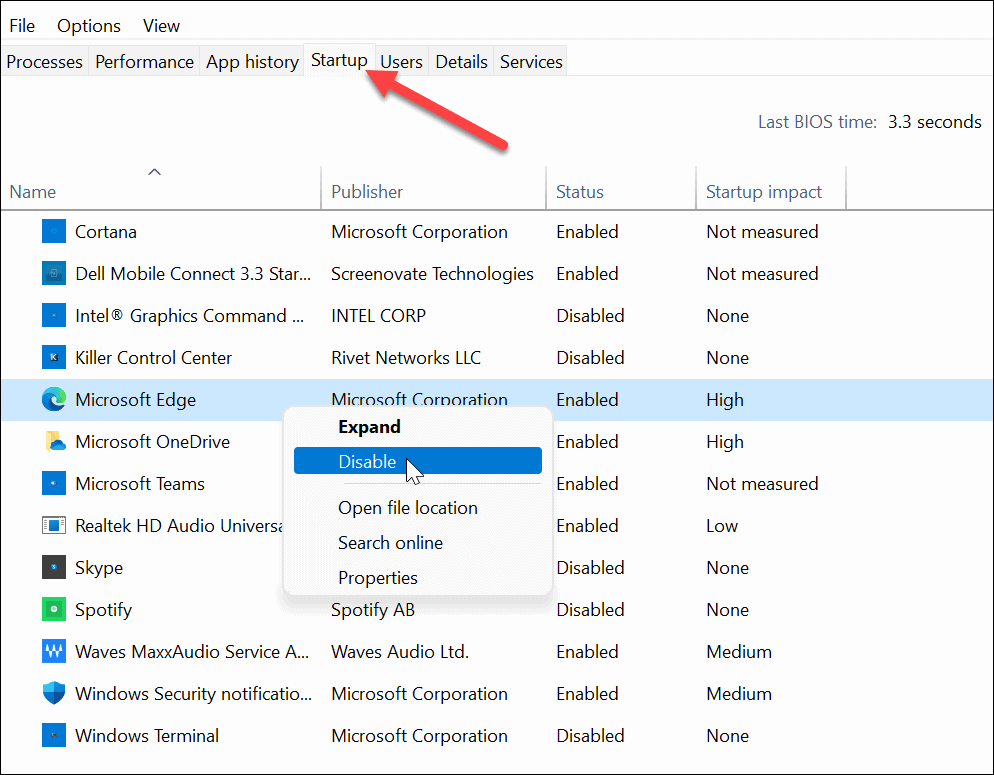
The Real Culprit: Startup Bloat
The first thing I did was open Task Manager and head to the Startup apps tab. The list was embarrassing. Spotify, Discord, Slack, Microsoft Teams, Steam, Epic Games Launcher, Adobe Creative Cloud — all set to launch the moment Windows boots. None of them needed to be there.
I right-clicked each one and hit Disable. The immediate result? My boot time dropped from roughly 90 seconds to under 30. That alone felt like getting a new machine. Windows bases the impact rating on CPU time and disk I/O each program used during boot, so anything marked “High” should be your first target.
What surprised me was how many programs sneak into startup through other routes. Some apps use the Task Scheduler to relaunch themselves even after you disable them in Task Manager. I searched for “Task Scheduler,” expanded the library, and found a few leftover update checkers from software I’d uninstalled months ago. Deleting those stopped the background noise for good.
Storage Sense: The Set-and-Forget Fix
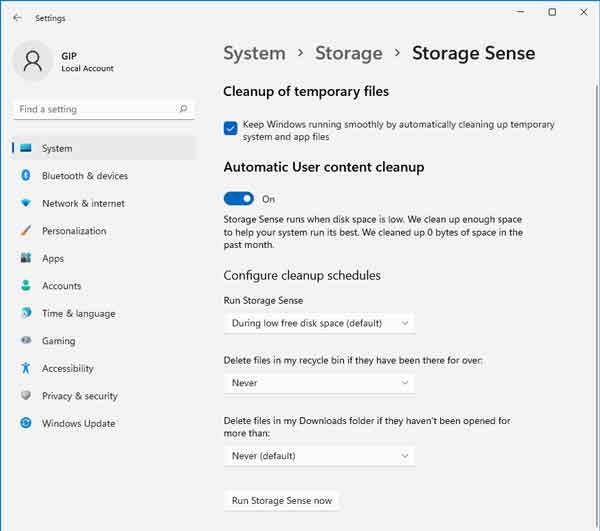
An overly full drive slows everything down. I enabled Storage Sense in Settings to automatically clean temporary files and Recycle Bin items. There’s also an option to automatically free up space when storage gets low enough to impact performance. It’s not glamorous, but it prevents the gradual slowdown that builds up over months of use.
I also ran Disk Cleanup and was shocked to find nearly 8GB of “Lifetime Optimization Files” — leftover update downloads Windows had been hoarding. A quick command in an elevated Command Prompt cleared even more:
dism /online /cleanup-image /startcomponentcleanup
That alone freed almost 5GB. My system drive went from 85% full to 68%, and the difference in responsiveness was immediate.
Power Settings That Actually Matter
Next, I dug into power settings. Head to Settings > System > Power & battery, click Power Mode, and switch from Balanced to Best Performance when plugged in. On a laptop connected to power, this is a no-brainer — it removes the artificial throttling Windows applies to keep things quiet and efficient.
If you’re on a laptop and care about battery life, keep it on Balanced or Best Power Efficiency when unplugged. But for raw desktop performance, this single toggle is one of the easiest wins on the list.
Visual Effects: The Overlooked Speed Boost
Windows 11 loves its animations. Shadows, transparency, window previews while dragging — they all look nice, but on older or integrated graphics, they’re a real drag. I opened the Start menu, searched for “adjust appearance,” and switched from “Let Windows choose” to “Adjust for best performance.”
The interface instantly felt snappier. Menus opened faster. Window transitions disappeared, which took some getting used to, but the trade-off was worth it. If you want a middle ground, use the Custom option and manually uncheck just the heavy hitters like transparency and animations while keeping smoother fonts.
Search Indexing: Turn It Down, Not Off
Search indexing is one of those features that’s brilliant on an SSD with plenty of RAM and absolutely brutal on older hardware. I didn’t disable it entirely — I still need to find files quickly — but I trimmed it way back. Open Indexing Options from the Start menu, click Modify, and remove locations you don’t actually search. I stripped it down to just my Documents and Desktop folders.
On a spinning hard drive, this tweak alone can transform how responsive Windows feels. On an SSD, the gain is smaller but still noticeable if your drive is getting full.
Background Apps and Efficiency Mode
Windows 11 runs more background processes than most people realize. I went to Settings > System > Notifications and turned off tips and suggestions — yes, the OS was literally using CPU cycles to generate advice for me. I also disabled notifications from apps I rarely use. Fewer interruptions, less background processing, and a system that feels lighter overall.
For programs that kept running even after I closed them, I used Task Manager’s Efficiency Mode. Right-click any background process, select Efficiency Mode, and Windows lowers its priority while activating EcoQoS for more energy-efficient execution. It can make some apps unstable, but for things like update checkers and cloud sync tools, it’s a safe way to reclaim resources.
Pros & Cons at a Glance
| Pros | Cons |
|---|---|
| Disabling startup apps cut boot time by over 60% | Visual effects off makes Windows look less polished |
| Storage Sense and DISM cleanup freed nearly 13GB | Debloat scripts can break features if used carelessly |
| Power mode switch is instant and reversible | Some tweaks require admin access and comfort with system settings |
| Search indexing trim improves responsiveness on older drives | Efficiency Mode can cause instability in some apps |
| Most changes are free and don’t require new hardware | Results vary significantly based on your PC’s age and specs |
Expert Tip
Before you touch anything in the Services panel or run a cleanup script, create a System Restore point. It takes 30 seconds and can save you hours if something breaks. Search “Create a restore point” in the Start menu, select your system drive, and click Create. Name it something memorable like “Before Performance Tweaks.” If anything goes sideways, you can roll back without losing files or reinstalling Windows. Also, if you’re on a machine with an HDD rather than an SSD, consider upgrading — the difference in responsiveness is night and day, and no software tweak can fully compensate for spinning disk limitations.
FAQ
Which startup apps are safe to disable?
Spotify, Discord, Slack, Teams, Steam, Epic Games Launcher, Adobe Creative Cloud, and manufacturer utilities like HP Support Assistant are all safe to disable. They’ll still work fine when you open them manually. Never disable Windows Security, your GPU driver control panel, or audio drivers.
Will changing power settings hurt my laptop battery?
Only if you leave it on Best Performance while unplugged. Set it to Best Performance when plugged in and Balanced or Best Power Efficiency on battery. You can change this in Settings > System > Power & battery.
How do I clean up leftover Windows update files?
Run Disk Cleanup and check “Lifetime Optimization Files” and “Windows Update Cleanup.” For deeper cleaning, open an elevated Command Prompt and run dism /online /cleanup-image /startcomponentcleanup. This removes duplicate and unused system components that accumulate after updates.
Do I need to turn off search indexing completely?
No. Trimming indexed locations is usually enough. Go to Indexing Options, click Modify, and keep only the folders you actually search. Completely disabling it speeds up older drives but makes file searches noticeably slower.
Should I upgrade my hardware instead?
If your PC still runs a spinning hard drive, replacing it with an SSD is the single best upgrade you can make. Adding RAM helps too, especially if you’re below 16GB. But the tweaks above cost nothing and can breathe new life into hardware that’s otherwise fine.
Final Thoughts
After a full weekend of tweaks, my laptop feels like a different machine. Chrome opens in under a second. File Explorer is instant. The system no longer grinds to a halt when I open multiple apps. The biggest wins were the simplest ones: killing startup bloat, enabling Storage Sense, switching to Best Performance, and trimming visual effects.
The lesson? You don’t need to reinstall Windows or buy new hardware to fix a slow PC. Most performance problems come from software bloat, misconfigured settings, and accumulated junk that builds up quietly over months. A little detective work in your settings goes a long way, and the fixes are mostly free, fast, and surprisingly satisfying.
So before you book a repair appointment or start shopping for a new laptop, do the audit. Check your startup apps. Clear your update cache. Flip that power mode switch. Turn off the eye candy you stopped noticing months ago. These aren’t magic fixes, but they’re real, they’re free, and they actually work.
🎥 Recommended Video
https://www.youtube.com/results?search_query=Windows+11+speed+up+laptop+tricks+performance+2026

No comments:
Post a Comment