
Windows 11 has been out for years now, but I still watch people manually resizing windows like they’re using Windows 7. Drag, resize, drag again, give up and maximize. It’s painful to watch — especially since Windows 11 ships with genuinely useful tools that most users never touch.
Here are the features that deserve way more attention than they get.
Snap Layouts: The Window Manager You Already Own
Windows 11’s Snap Layouts are the single most underrated productivity feature in the OS. Hover over any window’s maximize button and a layout picker appears — two-up, three-up, four-way grids, and more depending on your screen size. On ultrawide monitors, you get six layout choices.
Click a zone, and Windows snaps your app into place. Then Snap Assist pops up, letting you fill the remaining zones with other open windows. The whole thing takes about three seconds. Even better, Snap Groups remember your layout and appear as a single item on the taskbar — click the group, and your entire workspace restores instantly.
Most people I know still drag windows to screen edges like it’s 2015. The keyboard shortcut Win + Z opens the layout picker without touching your mouse, and Win + arrow keys still work for quick half-screen snaps. If you’re not using Snap Layouts daily, you’re working harder than you need to.
PowerToys: Microsoft’s Secret Power-User Toolkit
PowerToys isn’t installed by default, which is honestly a crime. It’s an official, open-source Microsoft utility pack with 28 modules that fill genuine gaps in Windows 11. Download it from the Microsoft Store or GitHub, and you immediately get tools that should’ve been built into the OS years ago.
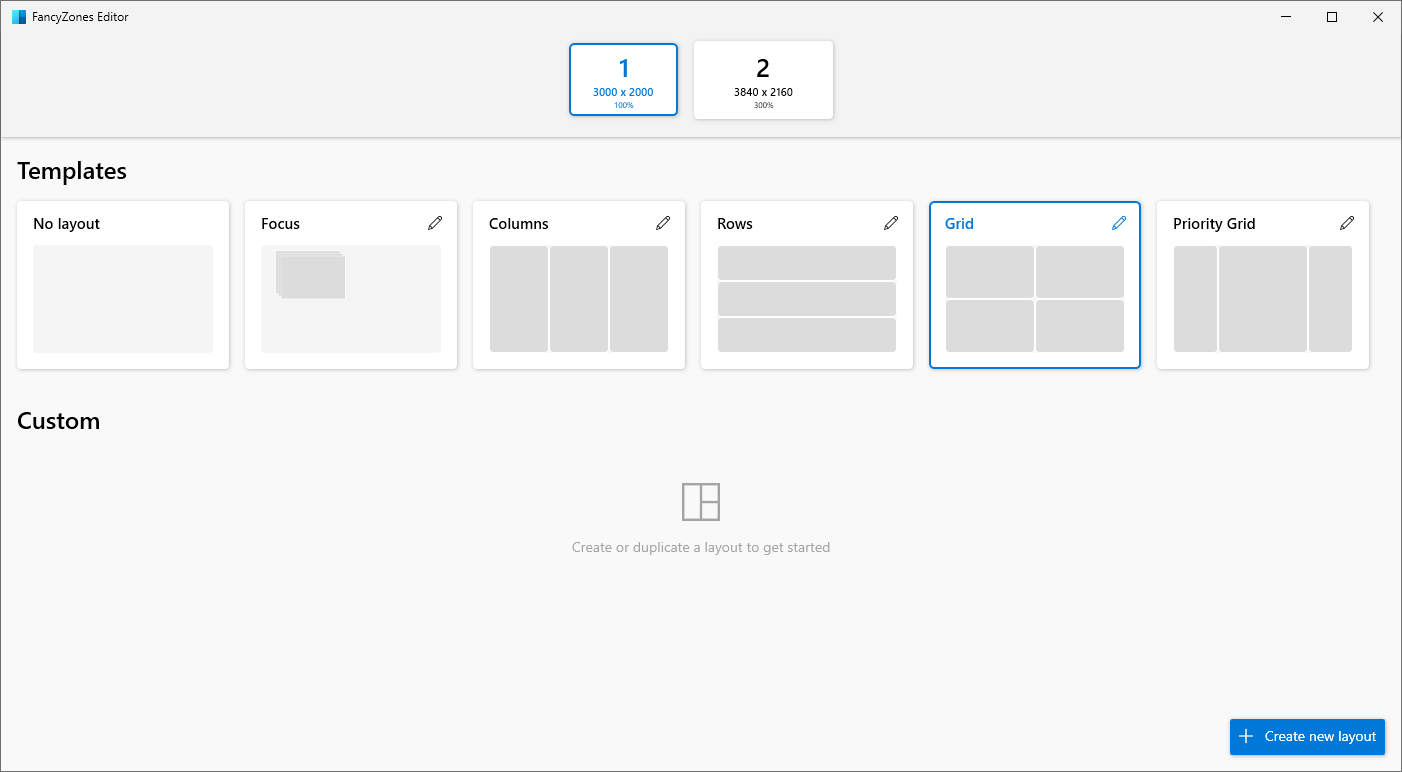
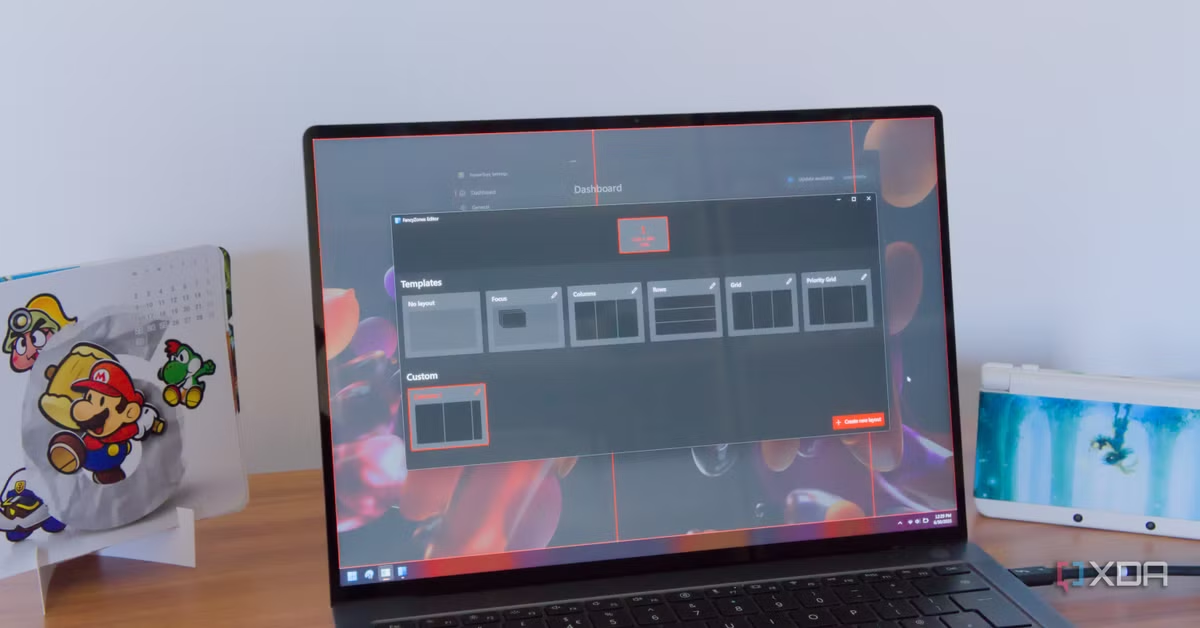
The standout is FancyZones — a custom window manager that makes Snap Layouts look basic. You design your own zone layouts per monitor, assign hotkeys, and snap windows into pixel-perfect positions. For ultrawide displays or multi-monitor setups, it’s transformative. I have a layout with a large central pane for my code editor, a narrow left pane for file explorer, and a right pane for chat — all set up with one keyboard shortcut.
Other PowerToys gems include Always on Top (pin any window with Win + Ctrl + T), PowerRename for bulk file renaming with regex, Image Resizer in the right-click menu, and Text Extractor — on-device OCR that copies text from anywhere on your screen. The Command Palette replaces slow Start menu searches with fuzzy search and quick actions.
Clipboard History: Stop Re-Copying Everything
Press Win + V and you get a history of everything you’ve copied — text, links, images, all of it. You can pin frequently used snippets, sync across devices, and never lose a copied paragraph again. Most people don’t even know this exists because it’s disabled by default. Turn it on in Settings > System > Clipboard, and your workflow changes immediately.
The emoji picker (Win + .) is technically a separate feature, but it’s worth mentioning too. Quick access to symbols, arrows, kaomoji, and GIFs without googling “degree symbol” for the hundredth time.
Focus Sessions: Actually Get Work Done
Hidden inside the Clock app is Focus Sessions — a Pomodoro-style timer that links to Microsoft To Do, silences notifications, and optionally plays Spotify in the background. Set a task, start a session, and Windows treats your focus time seriously. It automatically schedules breaks and tracks how much deep work you’ve done.
It won’t block everything — some third-party messengers can still break through — but for most people, the Do Not Disturb integration is enough to kill the constant ping of Slack, email, and Teams. Link each session to a specific To Do task, and you’ll stop starting timers for “vague work” and start finishing actual projects.
The Modern Snipping Tool: More Than Screenshots
The Snipping Tool got a massive upgrade in Windows 11. Win + Shift + S still captures rectangular, freeform, window, or full-screen shots, but now it also records short screen clips and extracts text from images using built-in OCR. Capture a slide, click Text Extractor, and paste the raw text into Word or Excel without retyping.
For quick demos, bug reports, or micro-tutorials, the screen recording feature is genuinely useful — no third-party software needed. The OCR isn’t perfect on stylized fonts or low-res images, but for standard documents and screenshots, it’s impressively accurate.
Pros & Cons at a Glance
| Pros | Cons |
|---|---|
| Snap Layouts transform multitasking with zero setup | PowerToys requires separate installation from Store or GitHub |
| Clipboard history prevents lost copied content | Clipboard cloud sync raises privacy concerns for sensitive data |
| Focus Sessions integrate tasks, music, and Do Not Disturb | Some third-party apps bypass Focus Sessions’ notification blocking |
| Snipping Tool now records video and extracts text | OCR accuracy drops on stylized fonts and low-resolution images |
| PowerToys fills genuine gaps with 28 free utilities | Some PowerToys modules conflict with elevated apps or security software |
Expert Tip
Start with one feature and build from there. My recommendation: enable Clipboard History first (Settings > System > Clipboard), then master Snap Layouts with Win + Z for a week. Once those feel natural, install PowerToys and enable FancyZones and Command Palette. Don’t enable all 28 PowerToys modules at once — it’s overwhelming and can cause conflicts. Pick three that solve your biggest pain points, learn them well, then expand. Also, if you work with sensitive data, disable clipboard cloud sync. It’s convenient, but clipboard content can include passwords and confidential text that you don’t want floating in the cloud.
FAQ
How do I use Snap Layouts in Windows 11?
Hover over any window’s maximize button to see layout options, or press Win + Z. Select a layout, click the zone you want for your current window, then use Snap Assist to fill the remaining zones with other apps. Snap Groups remember your layout and restore it from the taskbar with one click.
What is PowerToys and is it safe?
PowerToys is an official, open-source Microsoft utility pack with 28 productivity modules. It’s completely safe and free, available from the Microsoft Store or GitHub. Some security software may flag its global input hooks, but it’s a legitimate Microsoft product. Test compatibility with your endpoint protection if you’re in a corporate environment.
How do I enable Clipboard History?
Go to Settings > System > Clipboard and toggle on Clipboard History. Then press Win + V anytime to access previously copied items. You can pin frequently used snippets and optionally sync across devices — though cloud sync should be disabled for sensitive workflows.
Does Focus Sessions block all notifications?
Focus Sessions activates Do Not Disturb, which blocks most notifications. However, some third-party apps or messengers may still surface alerts depending on how they’re coded. Test it with your core apps before relying on it for critical focus time.
Can the Snipping Tool record my screen?
Yes. Press Win + Shift + S, then select the video camera icon to start a screen recording. It’s limited to short clips but perfect for demos, bug reports, and quick tutorials. The same tool also extracts text from images using built-in OCR.
Final Thoughts
Windows 11 isn’t perfect, but it’s packed with genuinely useful features that most users ignore because Microsoft buries them in submenus or disables them by default. Snap Layouts alone is worth the price of admission — or rather, the price of the update you already got for free. PowerToys takes it to another level, filling gaps that should’ve been native years ago.
The common thread is that these tools don’t demand you change your workflow dramatically. They just remove friction. Less window shuffling. Less retyping. Less hunting for the right app. Small savings that compound into hours reclaimed over a month.
If you’re still using Windows 11 like it’s Windows 10, you’re missing the point. Spend an afternoon with these features, and your PC will finally feel like the productivity tool it was meant to be.
🎥 Recommended Video
https://www.youtube.com/results?search_query=Windows+11+hidden+features+Snap+Layouts+PowerToys+2026

No comments:
Post a Comment